USB Flash Drive Specs Explained: Types, Sizes, Speeds, and Buying Tips
August 29, 2026 · 15 min read
USB flash drives look simple, but their details matter. You may need to move a presentation, share training files, or distribute a branded giveaway. The right USB drive makes portable storage and file transfer easier.
A USB flash drive is a compact, removable storage device that uses flash memory and connects via USB. You may also hear USB stick, thumb drive, pen drive, jump drive, flash disk, memory stick, or U-disk. These names often describe the same basic product.
This guide covers how USB drives work, common types, sizes, capacity, speed, file systems, formatting, safe use, and buying factors.
Quick rule: Match the drive to the files, devices, users, and purpose. Bigger or newer is not always better.
For promotional orders, practical compatibility usually creates more value than impressive specifications that recipients cannot use on their everyday devices.
Explore RELYmedia custom USB flash drives for branded portable storage that fits your campaign.
What Is a USB Flash Drive?
A USB flash drive is portable storage with nonvolatile flash memory and an integrated USB interface. Its memory keeps data without continuous power.
What does a USB flash drive do? It stores and transfers documents, photos, videos, presentations, catalogs, training materials, and other digital files.
If you search “what is a flash drive,” “what is a thumb drive,” “what is a USB stick,” or “what is a USB drive,” you are usually asking about the same device.
How Does a USB Flash Drive Work?
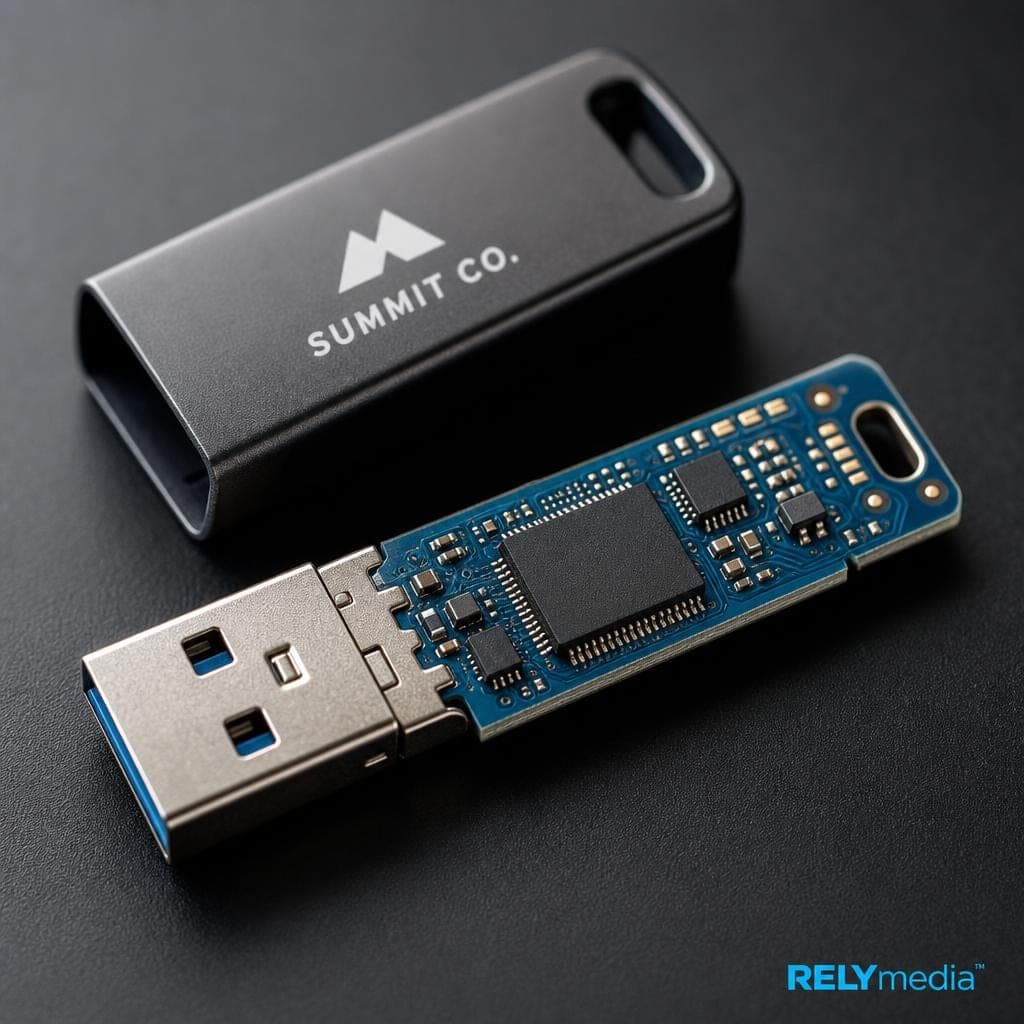
Plugging a drive into a compatible USB port supplies power and starts communication with its controller. The operating system recognizes the volume, then allows file access.
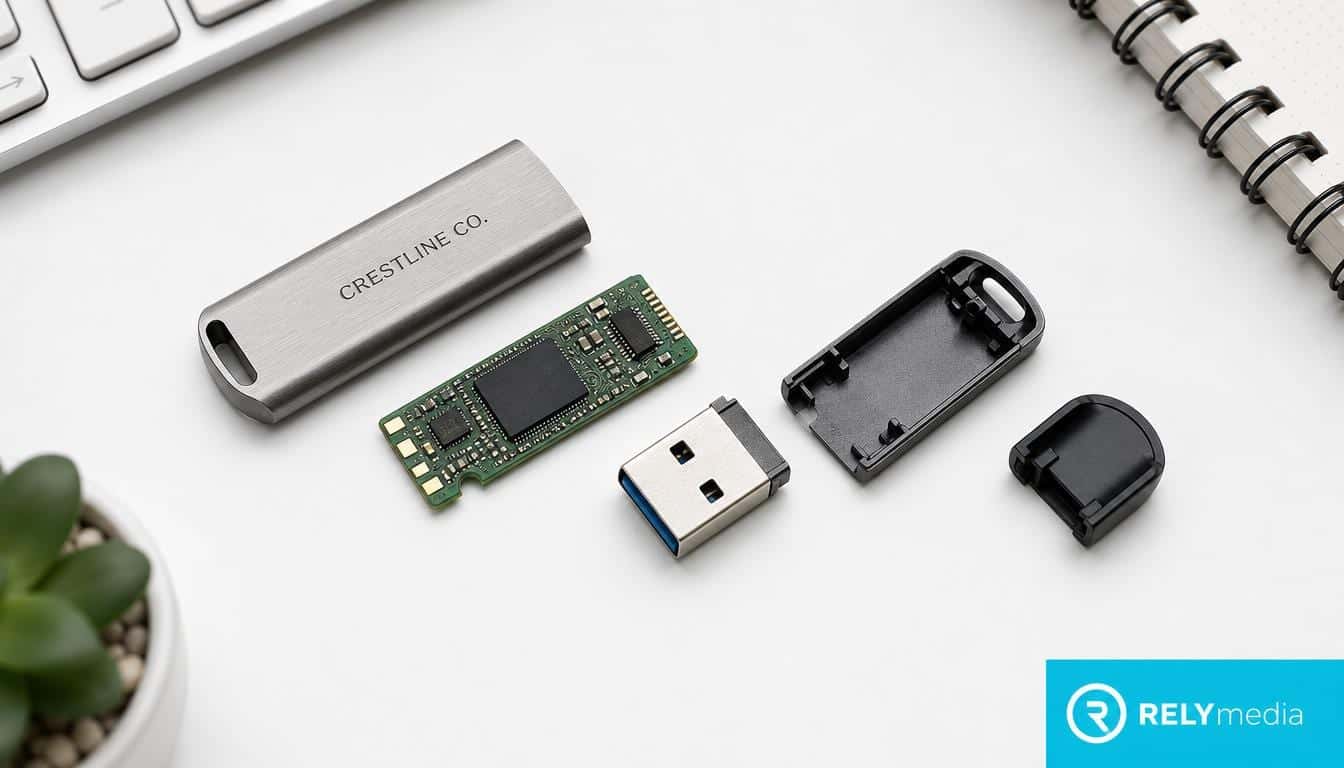
Main USB flash drive components include:
- USB connector: Connects to the host device.
- Controller: Manages communication and data placement.
- Flash memory: Stores digital files.
- Circuit board: Connects electronic components.
- Housing: Protects internal parts.
- Optional security: May include encryption or write protection.
That is how a flash drive works without moving mechanical parts.
Types of USB Flash Drives and USB Drive Types
USB drive types vary by connector, design, capacity, speed, and security.
USB Type-A Flash Drive
A USB Type-A flash drive uses the familiar rectangular USB-A connector. It remains common on desktops, office systems, public computers, televisions, game consoles, and older laptops.
Type-C USB Flash Drive
A Type-C USB flash drive uses the smaller, reversible USB-C connector found on many current laptops, tablets, and phones.
USB-C does not automatically mean faster. It describes the connector, while USB specifications describe data performance. USB-IF lists USB 3.2 rates of 5 Gbps, 10 Gbps, and 20 Gbps. See the USB 3.2 specification.
USB-C and USB-A Flash Drive
A USB-C and USB-A flash drive includes both connectors, helping users move files between older USB-A and newer USB-C devices.
A Type-A to Type-C adapter can help, but the drive, adapter, port, and host device still limit actual transfer speed.
Compare USB-A, USB-C, and dual-port options with RELYmedia before ordering for mixed-device audiences.
Other Kinds of USB Flash Drives
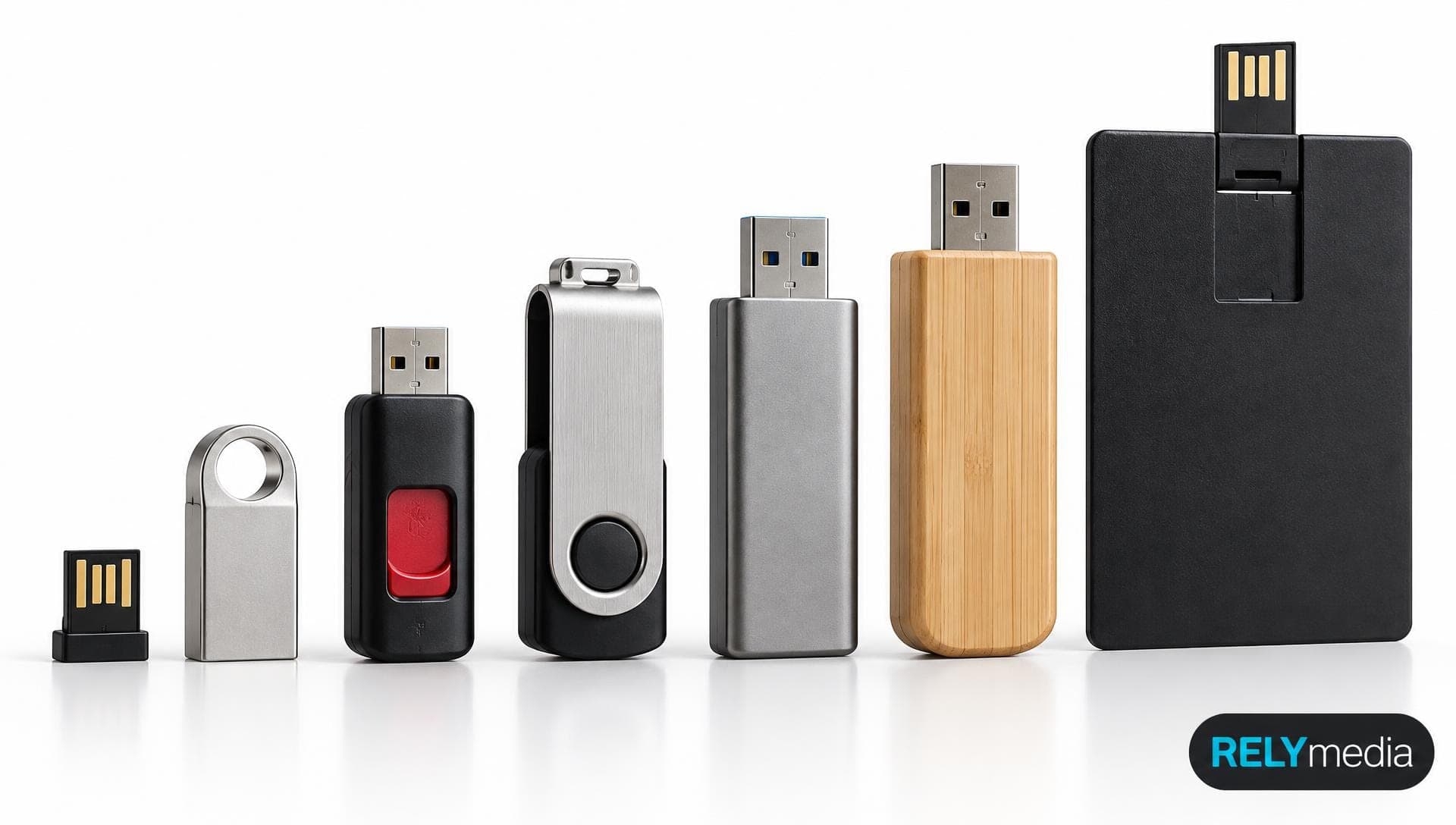
Common kinds of USB flash drives include swivel, cap, keychain, compact, card, pen, wristband, wood, metal, and custom-molded designs.
RELYmedia currently lists more than 600 custom USB models across several styles.
USB Flash Drive Sizes and Storage Capacity
“USB flash drive size” can refer to either physical dimensions or memory capacity. USB stick dimensions vary by housing, while capacity refers to the amount of data it can store.
Common USB drive sizes include 8GB, 16GB, 32GB, 64GB, 128GB, and 256GB. RELYmedia's current range spans 64 MB to 256GB.
What Size USB Flash Drive Do I Need?
Choose capacity by workload.
| Typical use | Practical capacity |
|---|---|
| PDFs and documents | 8GB–16GB |
| Presentations and photos | 16GB–32GB |
| Marketing files and mixed media | 32GB–64GB |
| Larger photo or video sets | 64GB–128GB |
| Large project libraries | 128GB–256GB+ |
A flash drive capacity chart is only a guide. One high-resolution video may use more space than thousands of documents.
To estimate how much a flash drive can hold, check the total data and the size of your largest file. File-system limits may still matter.
Ask RELYmedia to match the USB drive capacity, branding, quantity, and preload needs to your project.
Understanding USB Flash Drive Speeds
USB flash drive speeds are measured by two key metrics. Read speed moves stored data out; write speed saves new data.
USB stick speed, thumb drive speed, pen drive speed, and flash USB speed can differ between products using the same connector.
What Controls Actual USB Drive Speed?
Key factors include:
- USB specification
- Flash memory quality
- Controller design
- Read/write performance
- Host device capability
- Port-supported speed
- Adapter-supported speed
- File size and file count
Theoretical transfer speed differs from everyday performance. Interface bandwidth sets a ceiling; internal hardware and workload set the real rate.
One large video may transfer faster than thousands of tiny files because each file adds processing overhead.
What Is a Fast USB Drive?
A fast USB stick should provide useful read and write speeds. Do not judge speed only by “USB-C” or “USB 3.”
For business distribution, match performance to content. A PDF catalog needs less speed than a large media kit.
USB Type-A vs. Type-C: Which Should You Choose?
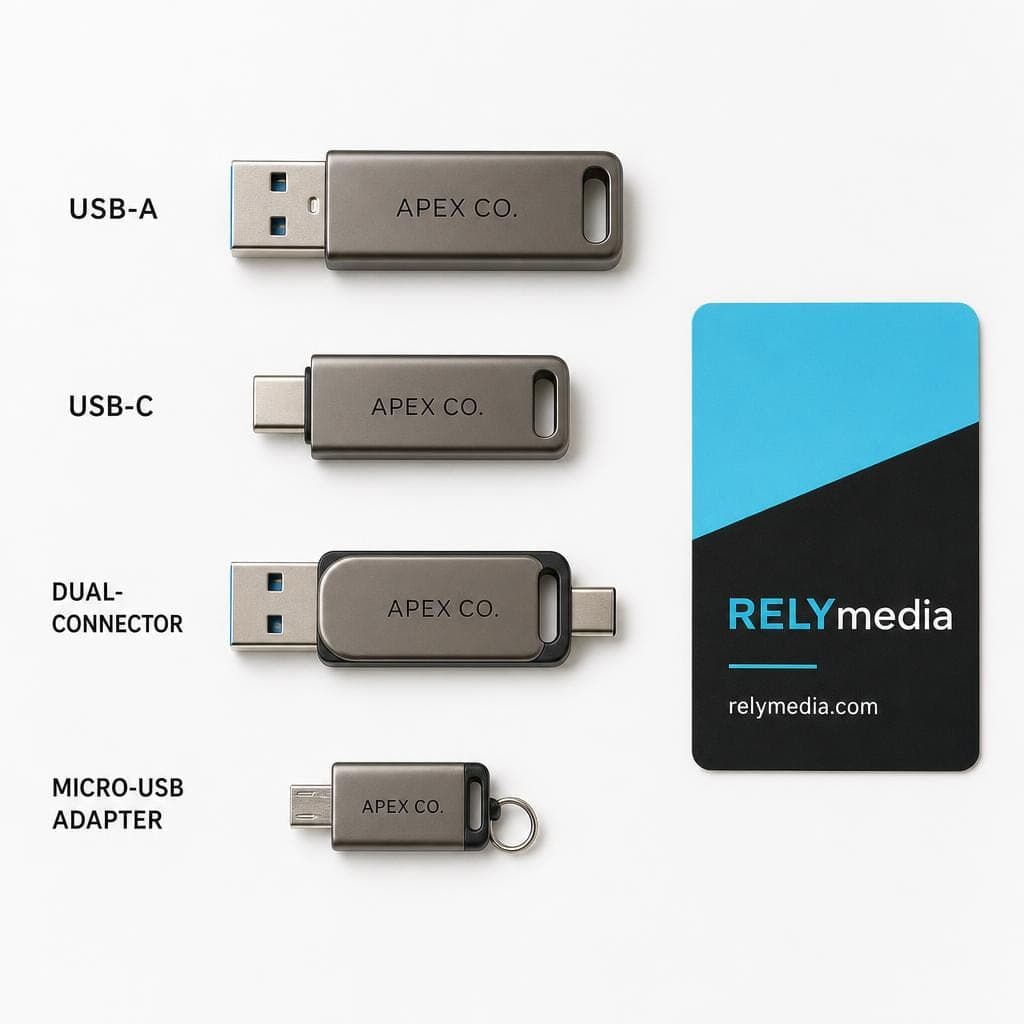
| Feature | USB-A | USB-C |
|---|---|---|
| Connector | Rectangular | Small and reversible |
| Older PC support | Very common | Less common |
| Current mobile support | Limited | Common |
| High-speed support | Available | Available |
| Mixed-device flexibility | Lower alone | High with dual-port |
USB-A suits many office desktops. USB-C is compatible with newer laptops and mobile devices. Dual-port drives help mixed-hardware audiences.
Choose the connector your recipients can use, then compare RELYmedia-branded USB options by capacity and style.
USB Flash Drive File Systems Explained
A file system organizes storage and access. FAT32, exFAT, and NTFS are common USB formats.
FAT32
FAT32 offers broad compatibility, but Microsoft documents a 4GB maximum individual file size.
A 32GB drive can therefore have free space yet reject one file larger than 4GB.
exFAT
exFAT supports large files and works well for current Windows and Mac workflows. Apple lists ExFAT as Windows-compatible.
NTFS
NTFS works closely with Microsoft Windows and supports large files. Apple notes that macOS may read an NTFS drive but may not provide normal write access.
| File system | Main strength | Key consideration |
|---|---|---|
| FAT32 | Broad compatibility | 4GB file limit |
| exFAT | Large files, cross-platform use | Older devices may lack support |
| NTFS | Windows-focused storage | Mac writing can be limited |
RELYmedia data services can also support preloaded files, secure partitions, custom icons, and production planning.
What Does Formatting a USB Flash Drive Mean?
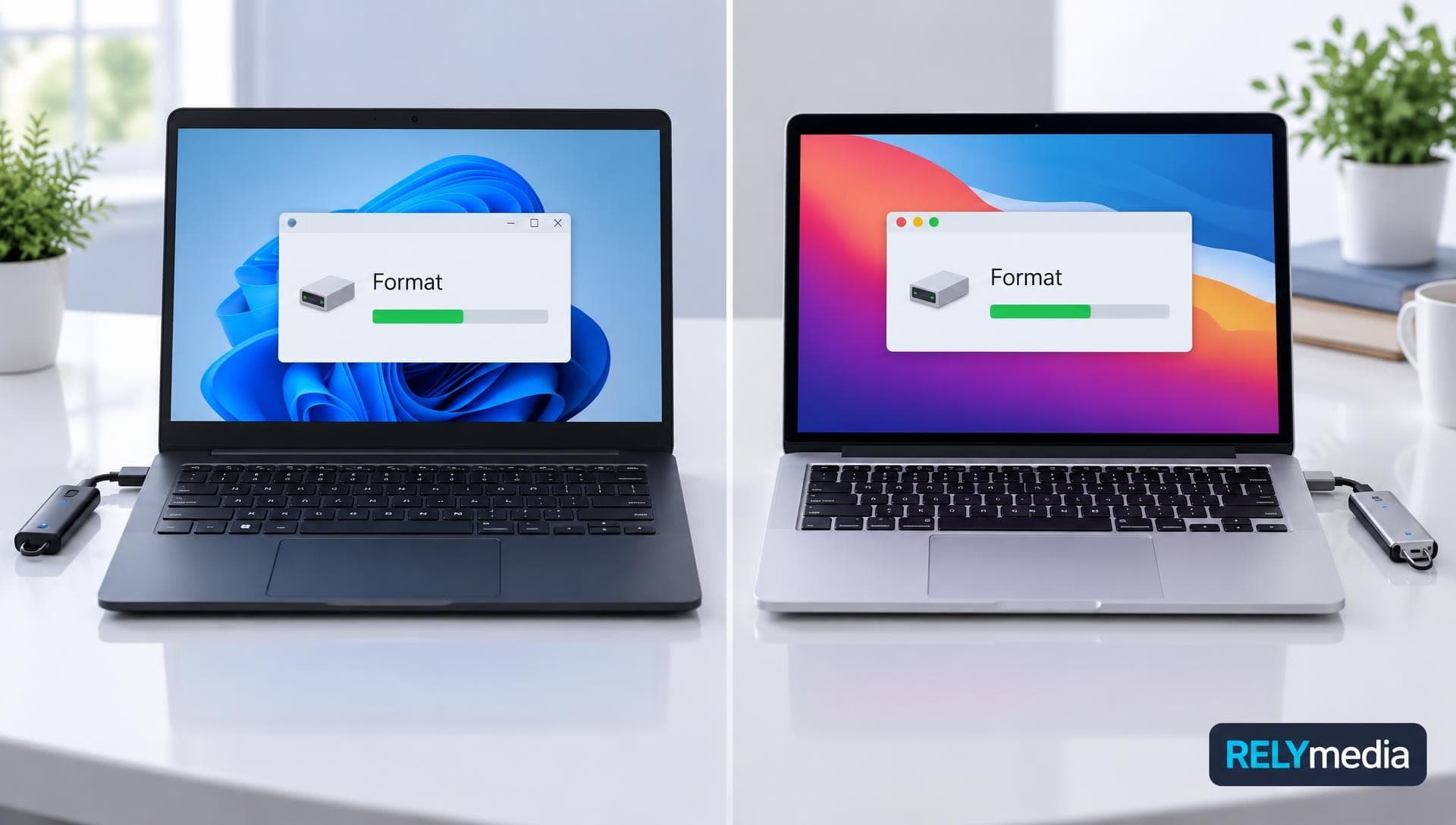
Formatting prepares a storage volume with a file system. Windows Disk Management and macOS Disk Utility both provide formatting tools.
A quick format rebuilds key file-system structures. More thorough formatting takes longer and differs from factory-level low-level formatting.
You may format a drive when:
- A device needs another file system.
- The existing file system is damaged.
- You are repurposing the drive.
- Compatibility requires another format.
- You want to erase existing contents.
Back up important files first. Formatting can cause data loss.
How to Use a USB Flash Drive Safely
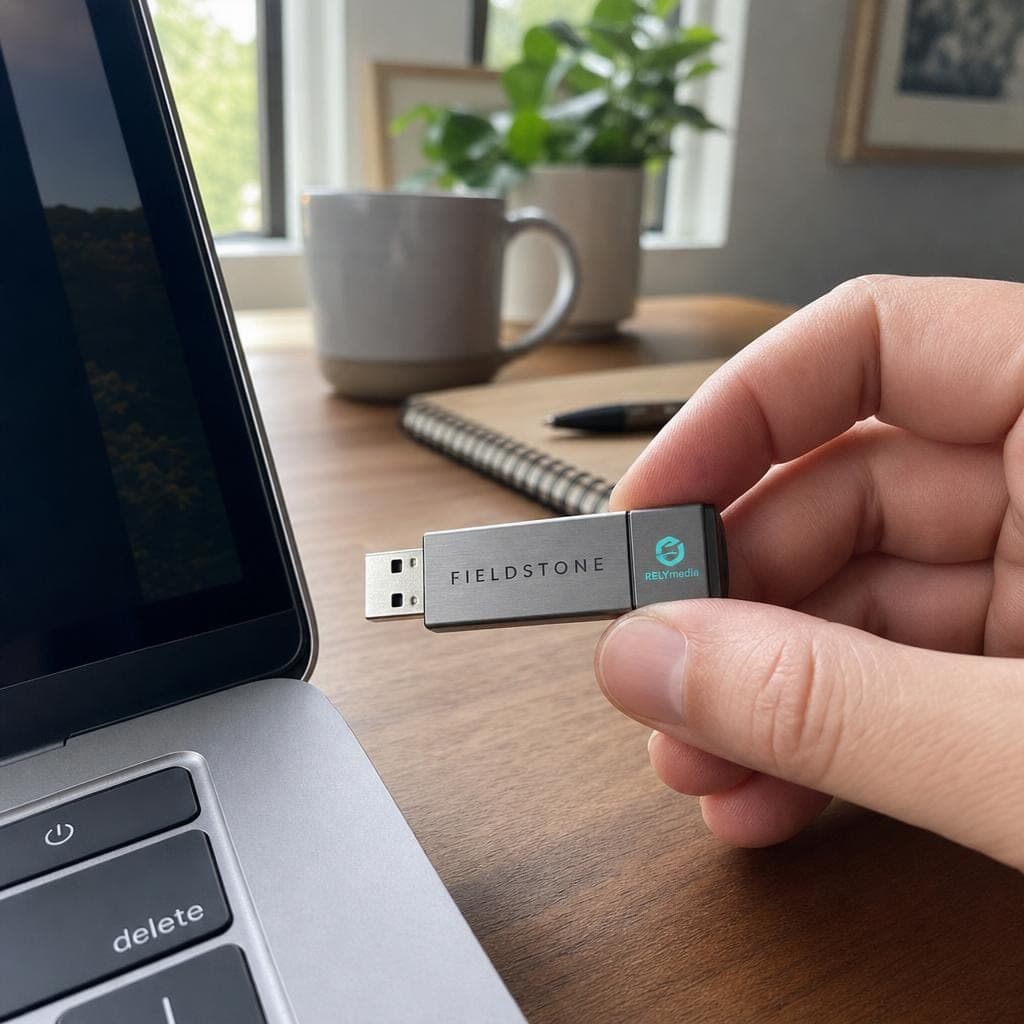
USB flash drive usage is simple: connect it, wait for it to be recognized, transfer files, and let the transfers finish before disconnecting.
Use these habits:
- Keep important files backed up elsewhere.
- Avoid removing a drive during active writing.
- Protect the connector from moisture and impact.
- Follow workplace rules for removable storage.
- Use encryption for sensitive information.
- Never use one USB stick as your only backup.
Portable storage is convenient, not invincible.
Review RELYmedia's USB data services, including preloading, partitions, encryption, drive naming, custom icons, and serialization.
Common USB Flash Drive Problems and Fixes
The USB Drive Is Not Recognized
Try another port, then another trusted computer. Check connector damage, device compatibility, and drive recognition. Do not format immediately when important data remains.
A File Is Too Large to Copy
Check the file system. FAT32 cannot store files larger than 4 GB. exFAT or NTFS may solve the problem if the target devices support them.
Transfer Speed Seems Slow
Check the drive specifications, port speed, adapter, and workload. A fast computer cannot force slower flash memory beyond its limits.
Files Become Corrupted
Stop adding data if recovery matters. Restore from backup when possible. Replace a drive that repeatedly produces errors.
Thumb Drive vs. Flash Drive, Pen Drive, and USB Stick
The difference between a flash drive and a thumb drive is usually terminology. Thumb drive, USB stick, pen drive, jump drive, and USB flash drive commonly mean the same device.
Flash storage is broader. Portable SSDs and memory cards also use flash memory.
A Zip drive is different because Zip disks use removable magnetic media.
USB Flash Drive vs. Portable SSD
A USB memory flash drive favors compact storage and easy distribution. Portable SSDs generally target larger capacities and stronger sustained performance.
Think of a USB stick as a pocket folder. A portable SSD is closer to a portable filing cabinet.
What to Look for When Buying a USB Flash Drive
Before buying, check:
- Capacity: Match storage to the expected number of files.
- Connector: Choose USB-A, USB-C, or dual-port.
- Speed: Compare read and write specifications.
- Compatibility: Check devices and operating systems.
- File system: Consider file size and platform needs.
- Physical design: Review dimensions and durability.
- Security: Protect sensitive data appropriately.
- Customization: Review imprint, packaging, and preload options.
- Quantity: Balance unit cost with campaign reach.
- Deadline: Confirm production needs early.
Do not pay for unused specifications. If a trade-show media kit totals 700MB, an oversized drive may add cost without helping recipients.
Request a RELYmedia quote
Compare USB flash drive sizes, branding, packaging, data services, quantities, and turnaround.
Custom USB Flash Drives for Business and Promotions
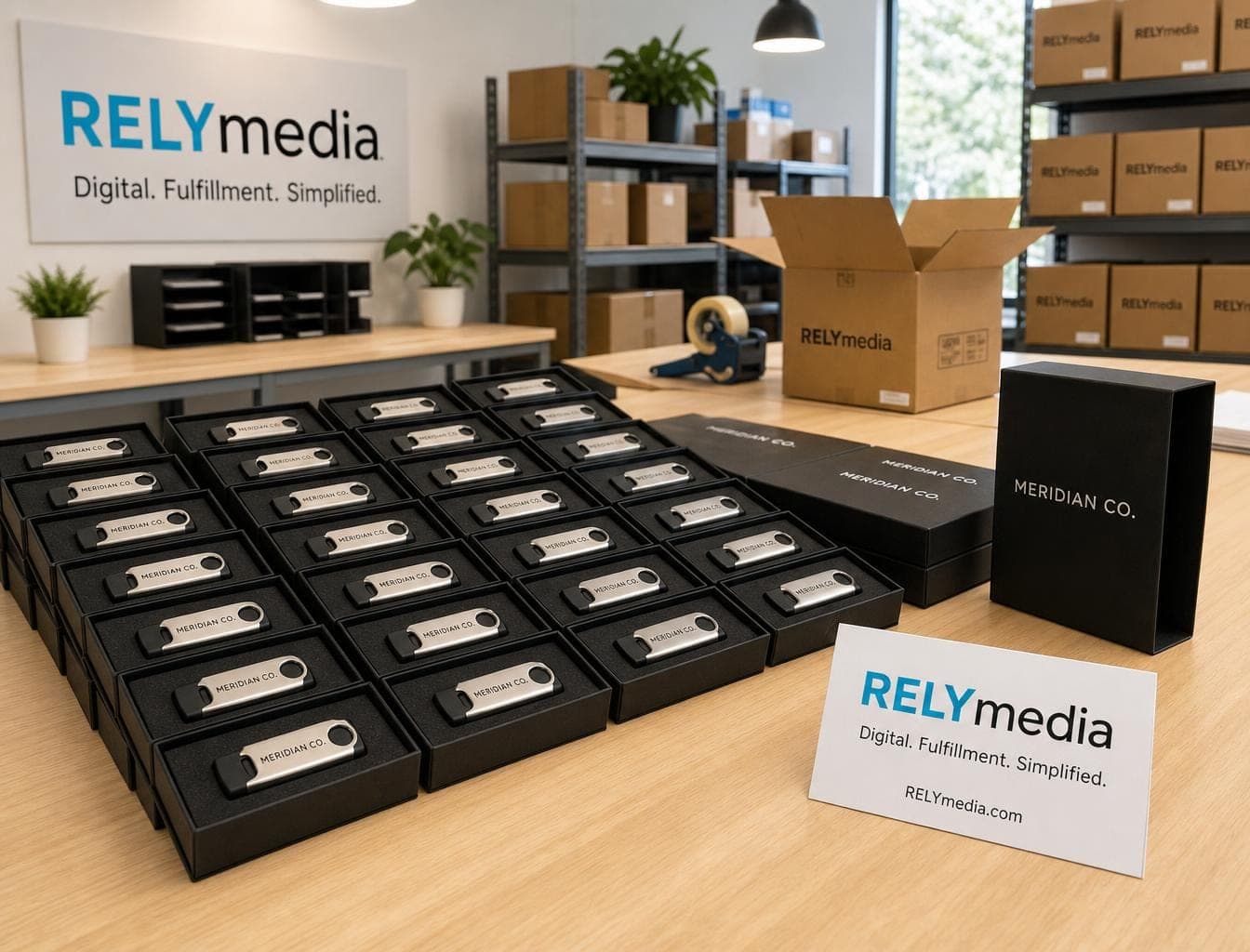
Custom USB drives can carry a brand and content together. Teams can preload catalogs, onboarding files, school resources, presentations, schedules, or media kits.
RELYmedia states that its bulk USB drives use Grade A flash chips. It also offers data services such as autorun creation, password protection, serialization, partitions, encryption, drive naming, and custom icons.
The strongest promotional drive is one that recipients can connect with, understand, and reuse.
Browse RELYmedia Technology & Flash Drives to compare branded technology products for your audience.
Ready to print your team's name on premium apparel?
Fill in your details and a RELYmedia specialist will come back to you with a custom quote — fast turnaround, no obligation.
- ⚡Same-day response on business days
- 🎨Free design assistance included
- 🚚Rush order & fast delivery available
- 💰Price beat guarantee on every order
Shop custom USB flash drives
See all classic usb flash drives
RMC12 Swivel USB Flash Drive
Price on request
View product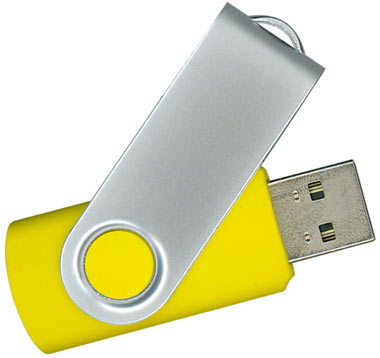
RMC02 Swivel USB Flash Drive
Price on request
View product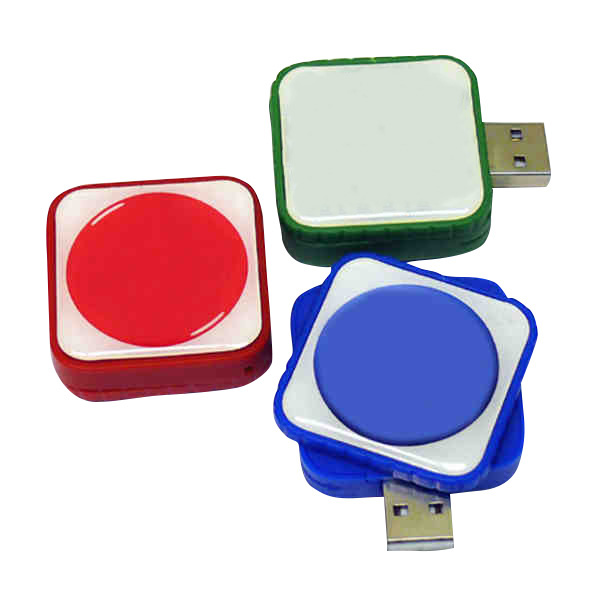
RMC169 USB Flash Drive
Price on request
View product
RMC167 USB Flash Drive
Price on request
View product
RMC166 USB Flash Drive
Price on request
View product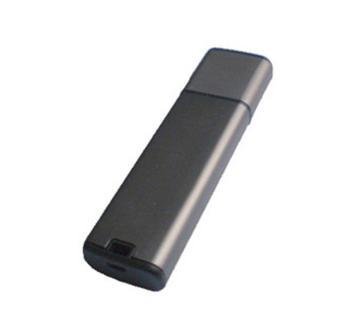
RMC165 USB Flash Drive
Price on request
View product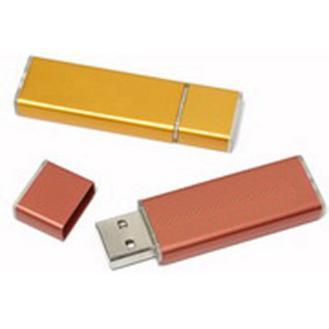
RMC164 USB Flash Drive
Price on request
View product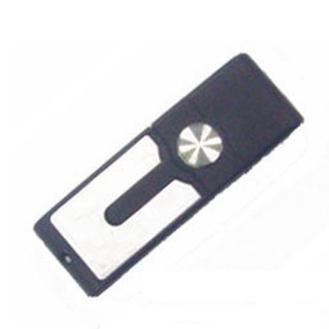
RMC163 USB Flash Drive
Price on request
View product
Frequently Asked Questions About USB Flash Drives
Is a USB the Same as a Flash Drive?
No. USB is a connection standard. A USB flash drive is a storage device that uses USB connectivity.
Is a Thumb Drive the Same as a Flash Drive?
Usually, yes. "Thumb drive" is another common name for a USB flash drive.
What Size Thumb Drive Do I Need?
Total your files, identify the largest file, then allow extra capacity for future use.
How Much Does a Flash Drive Hold?
It depends on capacity and file size. Documents use little space; video can consume gigabytes quickly.
Is USB-C Faster Than USB-A?
Not automatically. Connector type and supported data rate are separate. Check the drive, port, USB specification, and host device.
Can a USB Flash Drive Work With Windows and Mac?
Yes. Choose a file system that both systems can use for your required read/write workflow.
What Are USB Flash Drives Used For?
Common uses of USB flash drives include portable data storage, file transfer, presentations, backups, training materials, promotional distribution, and offline content delivery.
Conclusion: Choose the Right USB Flash Drive With Confidence
Understanding USB flash drives gets easier when you separate the connector, capacity, speed, and file system. USB-A and USB-C describe connections. Capacity shows storage. Read/write speed affects performance. The file system controls compatibility and file-size rules.
For business orders, also consider audience, branding, preload, security, quantity, packaging, and deadline.
RELYmedia connects those technical choices with promotional goals. Its custom USB flash drive range includes hundreds of styles, multiple capacities, custom manufacturing, data services, and rush options for qualifying projects.
Explore RELYmedia custom USB flash drives
Compare suitable options, or request a quote based on your recipients, files, budget, and deadline.
Frequently asked questions
What are the specifications of a USB flash drive?
Key USB flash drive specifications include the connector type (USB-A, USB-C, or dual-port), storage capacity, read and write speeds, and the file system format. Connector type affects which devices it plugs into, while capacity determines how much data it can hold. The file system (FAT32, exFAT, NTFS) also affects compatibility and file-size limits.
Is USB 3.1 or 3.2 faster?
USB specs describe data performance, separate from the connector shape. USB-IF lists USB 3.2 data rates of 5 Gbps, 10 Gbps, and 20 Gbps, which sets an upper ceiling for that interface. Actual transfer speed can still be limited by the flash drive’s internal hardware, the port used, any adapter, and the workload, such as many small files.
Is there a difference between a USB stick and a flash drive?
In everyday use, the difference is usually just terminology. USB stick, thumb drive, pen drive, jump drive, and USB flash drive commonly refer to the same compact removable storage device that uses flash memory and connects over USB. “Flash storage” is broader and can also include portable SSDs and memory cards, which are different products.
How to check USB flash drive capacity?
Capacity is the amount of data a USB flash drive can store, and it is separate from the drive’s physical dimensions. To estimate whether a drive is large enough, check the total size of the data you plan to store and the size of your largest file. Also account for file-system limits, such as FAT32 rejecting individual files larger than 4GB.
Does USB-C mean a flash drive is faster?
No. USB-C describes the connector, not the drive’s data speed. Performance depends on the USB specification the drive supports, the port and host device you plug into, and the drive’s internal hardware. Even with a fast computer, transfer rates can be limited by slower flash memory, adapters, and the workload, including many small files.
Shop this
Need custom USB flash drives? We print them.
Bulk pricing, three free mockups, real quotes back the same business day.