How to Use a USB Flash Drive on a Windows PC
September 29, 2026 · 11 min read
A USB flash drive is one of the easiest ways to move, store, and back up files. Plug it into your Windows PC, open File Explorer, find the removable drive, then copy, save, move, or view your files. When you finish, safely eject the USB device before removing it.
Problems usually occur when the connector does not match the USB port or when Windows cannot recognize the drive. This guide explains how to use a USB flash drive on Windows 11 and Windows 10 simply.
💡Quick rule: Connect, open, manage, verify, then eject safely.
What Is a USB Flash Drive?
A USB flash drive is a portable storage device that uses flash memory to hold digital files. Other names include USB drive, flash drive, USB stick, memory stick, thumb drive, jump drive, pen drive, and flash disk.
Removable storage lets you carry files between compatible computers without cloud access. Common uses include document storage, portable data storage, backups, presentations, photos, videos, and computer-to-computer file transfer.
A drive may offer 32GB, 64GB, or more. Office documents require little storage space, while video and design files require more.
For organizations, customized drives can combine portable file transfer with brand visibility. RELYmedia offers custom USB flash drives for events, schools, agencies, and business programs.
Explore RELYmedia custom USB flash drives for branded portable storage.
How Does a USB Flash Drive Work?
Flash memory stores data electronically without moving parts. When you connect a USB device, its USB interface lets Windows communicate with the storage media.
Most modern drives support plug-and-play use. Windows detects the USB device, recognizes it as a removable drive, and loads the necessary driver software. Driver installation often occurs automatically upon first USB connection.
Windows then assigns a drive letter. You can access the contents of a USB drive through File Explorer and manage them like any other folder.
In practical terms, a flash drive provides removable media for portable backup, external file storage, and data portability.
Check USB Compatibility Before You Connect
USB compatibility starts with the connector. A working drive cannot connect directly when its connector type does not match the computer.
USB-A vs. USB-C
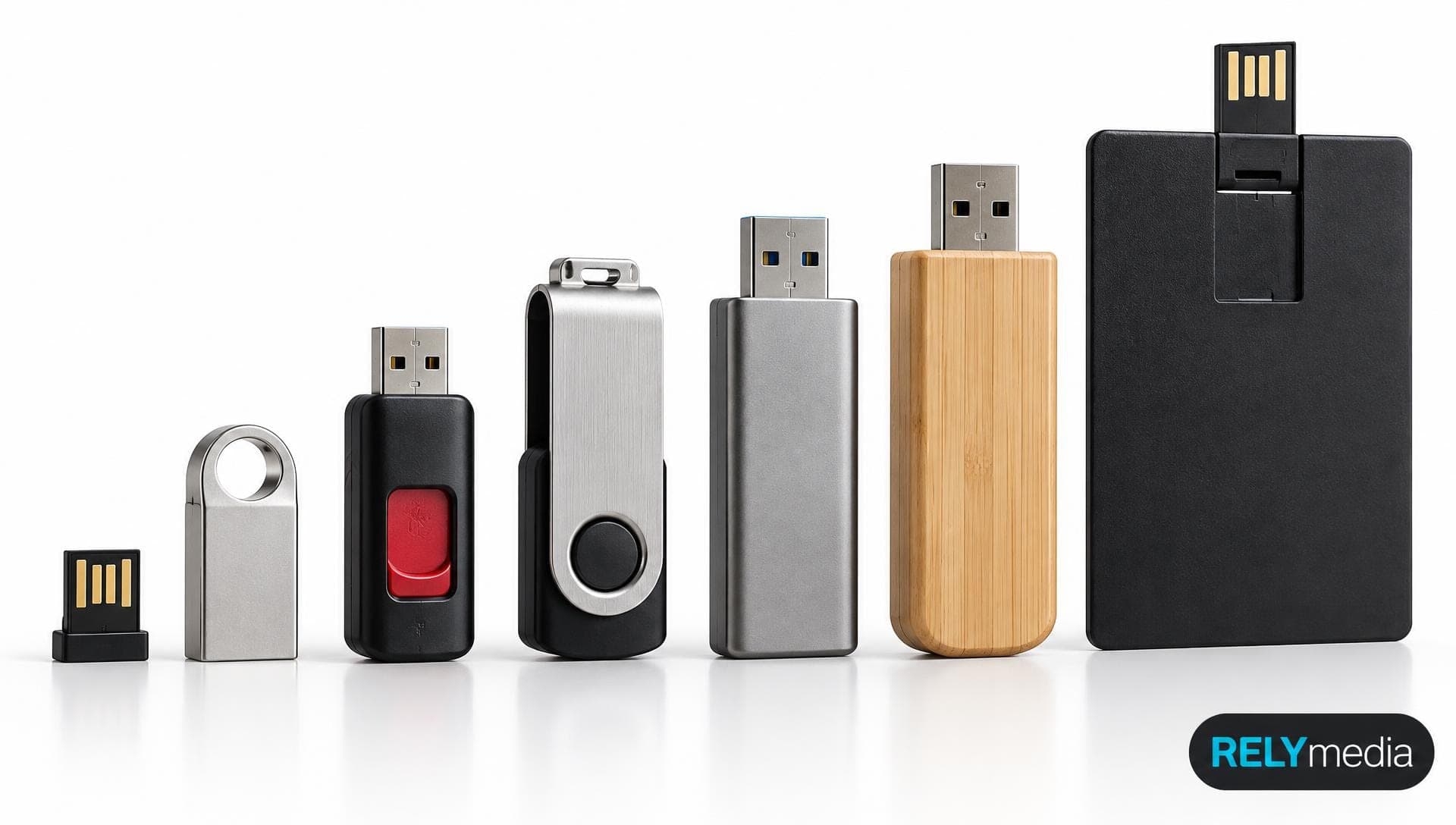
USB-A is wide and rectangular. USB-C is smaller, rounded, and reversible. Newer laptops often use USB-C, while desktops may include both USB-A and USB-C ports.
| Connector | Shape | Common Use |
|---|---|---|
| USB-A | Wide, rectangular | PCs, laptops, desktops |
| USB-C | Small, rounded, reversible | Newer laptops, tablets, phones |
| Dual connector | USB-A plus USB-C | Cross-device file transfer |
If a USB-A drive is used with a USB-C-only laptop, use a compatible USB-A-to-USB-C adapter or choose a USB-C drive. Never force the wrong connector.
Port compatibility matters, but file-system compatibility also affects Windows and Mac compatibility.
RELYmedia currently offers dual-interface flash drives that support both USB-A and USB-C connections.
Compare RELYmedia USB-A, USB-C, and dual-connector options before ordering.
How to Insert a USB Flash Drive Into a Windows PC
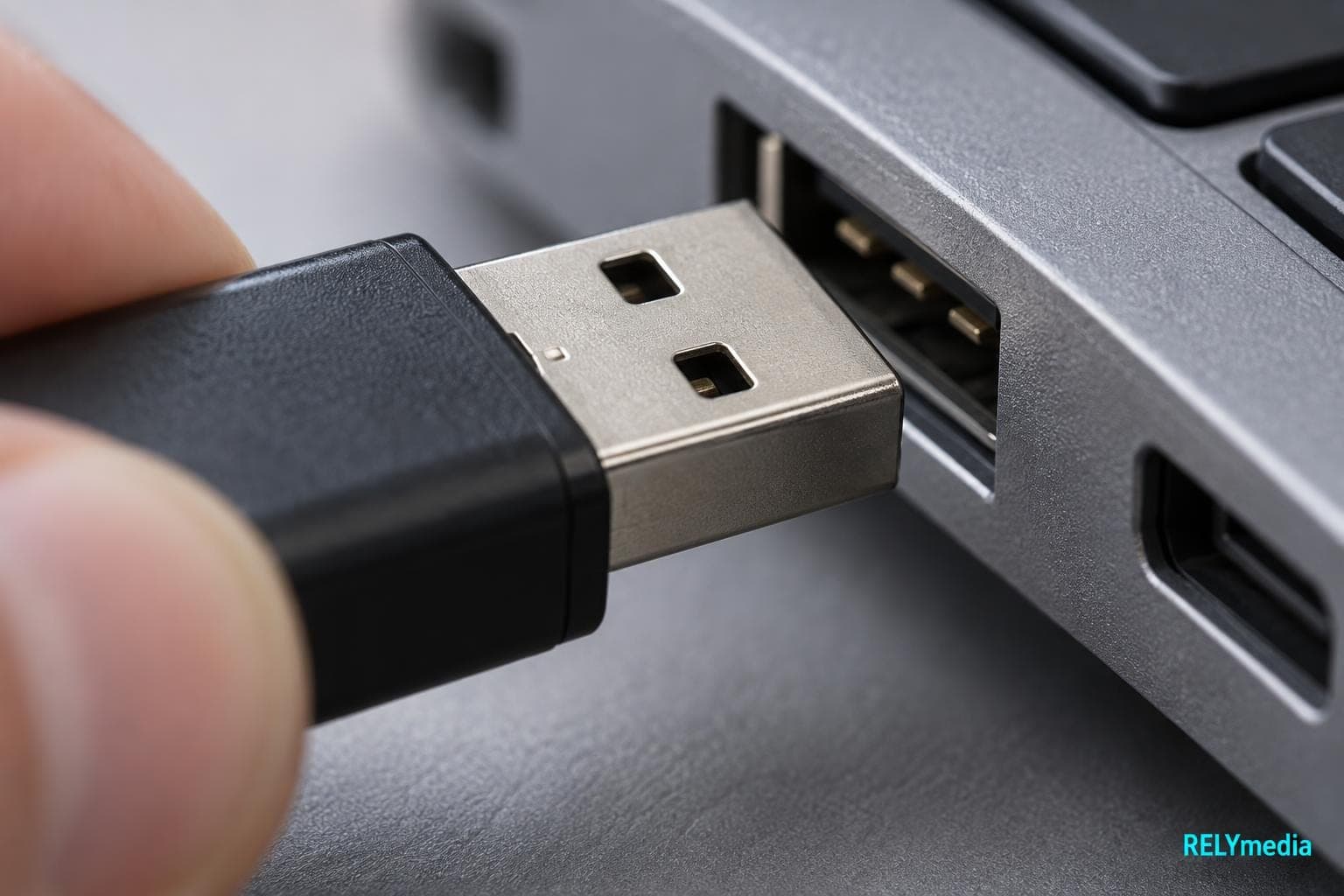
First, find the USB port. Laptop ports usually sit on either side, while desktop ports often appear on the front and back.
Insert the USB connector gently. USB-A plugs in one way, while USB-C plugs in either way.
Windows should detect the removable storage automatically. You may see a dialog box, a notification, or an AutoPlay prompt. If no pop-up appears, use File Explorer to access files.
Microsoft documents File Explorer as the standard Windows tool for browsing files and storage. Microsoft ended mainstream support for Windows 10 on October 14, 2025, so Windows 11 is the supported choice for most compatible PCs.
How to Open a USB Flash Drive on Windows 11 or Windows 10
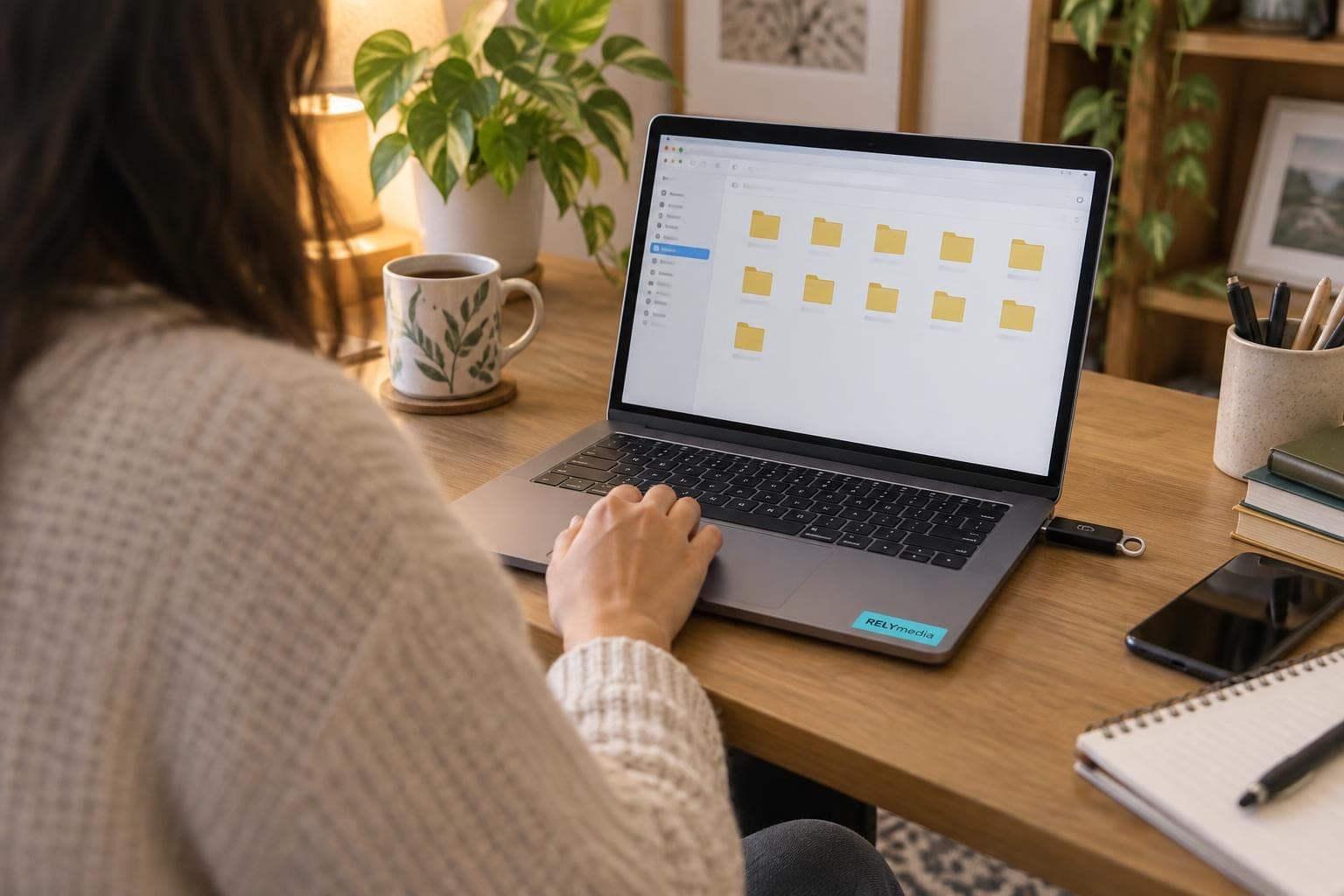
Wondering how to access a USB drive? Press Windows + E to open File Explorer. Select This PC, then look under the available drives.
Your USB storage may appear with a name or drive letter, such as E: or F:. Double-click it to view files.
For searches such as how to open USB on Windows 11, how to open USB on Windows 10, or how to find a USB drive on a laptop, the steps are simple:
- 1Open File Explorer.
- 2Select This PC.
- 3Find the removable drive.
- 4Double-click it.
- 5View or organize files and folders.
If it does not appear, use the troubleshooting section below.
How to Use a USB Flash Drive for File Transfer
Once opened, a USB drive works like another storage location. You can save, copy, move, rename, delete, and organize files.
How to Copy Files to a USB Flash Drive
Open the folder containing your files. Select what you want, press Ctrl + C, open the USB drive, then press Ctrl + V.
These steps also explain how to put files on a flash drive, save files to a USB drive, and transfer files to a USB flash drive.
Copying creates a duplicate. The original stays on your computer, while another copy is saved to a USB drive, which is safer for backups.
After the USB file transfer finishes, open a few copied files. This simple check can catch incomplete transfers before you delete originals.
How to Copy Files From USB to Your PC
Open the flash drive in File Explorer. Select the files, copy them, then paste them into Documents, Pictures, Desktop, or another folder.
Large batches take longer, so let the data transfer finish before disconnecting.
Copying vs. Moving Files
| Action | What Happens | Best Use |
|---|---|---|
| Copy | Creates another copy | Backup or portable transfer |
| Move | Changes file location | Reorganizing storage |
| Delete | Removes the file | Clearing unwanted data |
Moving files frees storage space but removes the original. For important documents, copy first, then verify.
RELYmedia also offers USB data services ranging from basic file preloading to encryption, secure partitions, and drive serialization.
How to Save Documents Directly to a USB Drive

You can save documents directly to removable storage. In Word, PowerPoint, or another application, choose Save As, select the USB drive, choose a folder, name the file, and save it.
Wait until the application finishes writing. Then confirm the document in File Explorer.
This workflow suits presentations, training files, event materials, and portable backups. A USB drive should not hold the only copy of critical information, so keep another trusted backup.
For shared projects, clear folder names and consistent file organization make storage management easier.
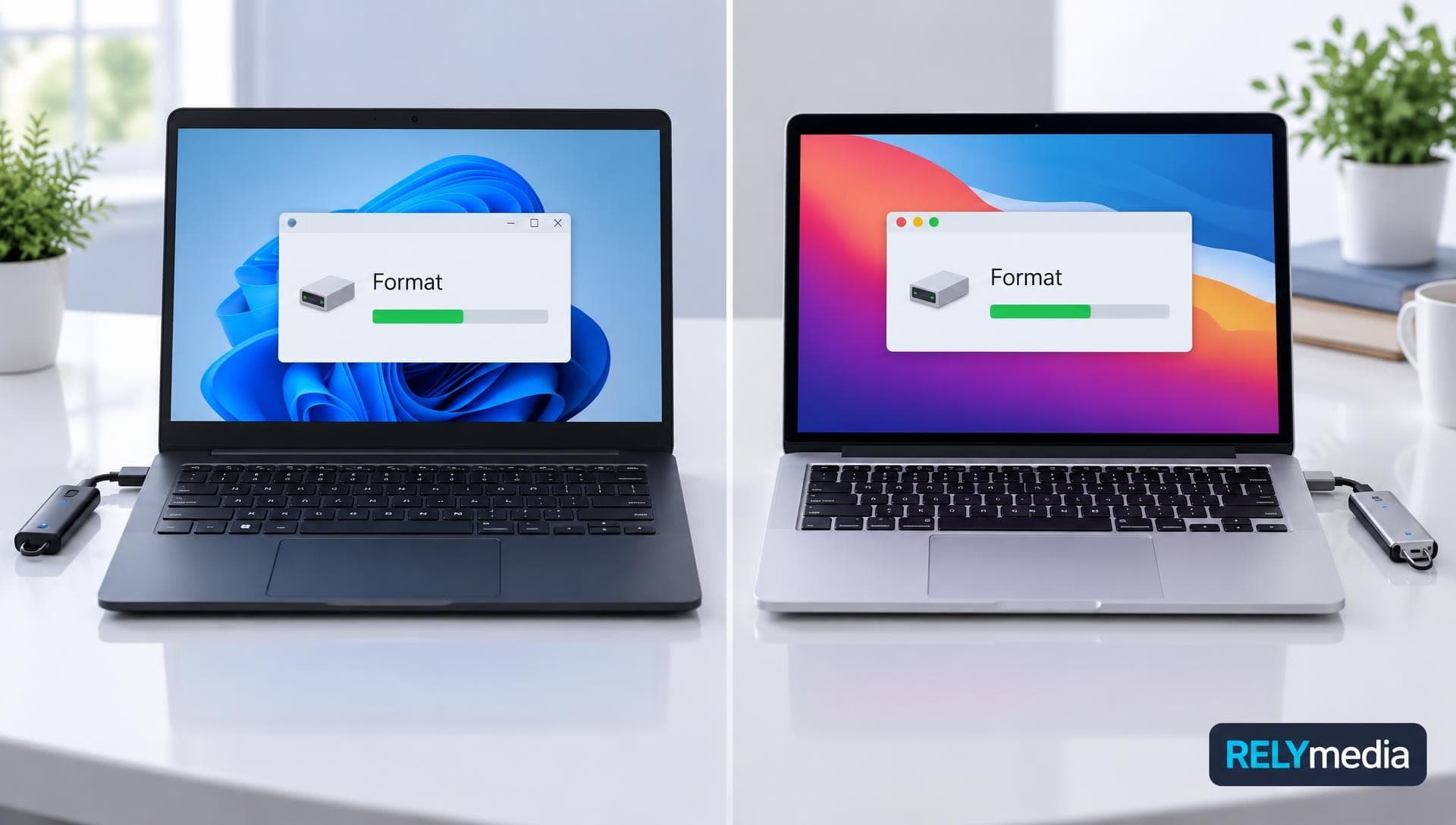
How to Format a USB Flash Drive on Windows
Formatting prepares a storage device with a file system. Most new USB drives arrive preformatted, so you may not need to format them.
Reformat the USB drive storage only for a clear reason, such as changing filesystem compatibility. Formatting can erase data, so back up important documents first.
To format a USB drive:
- 1Open File Explorer.
- 2Select This PC.
- 3Right-click the correct removable drive.
- 4Choose Format.
- 5Select a file system.
- 6Review the storage volume.
- 7Start formatting.
⚠️Double-check the drive letter. Formatting the wrong external drive can cause serious data loss.
FAT32 vs. exFAT vs. NTFS
| File System | Best For | Key Limit or Benefit |
|---|---|---|
| FAT32 | Broad device support | Single files cannot exceed 4 GiB |
| exFAT | Large files, cross-platform compatibility | Useful for Windows and Mac workflows |
| NTFS | Windows-focused storage | Supports Windows permissions and features |
Microsoft documents FAT32, exFAT, and NTFS as file systems with different capabilities. FAT32 has a 4 GiB maximum individual file size, while exFAT and NTFS support much larger files.
For Mac and Windows compatibility, exFAT is often a practical choice. A Mac-formatted drive using HFS+ may not provide normal Windows file access without compatible software or reformatting.
Choosing capacity and file-system needs? Request RELYmedia guidance for your campaign.
What to Do When a USB Drive Does Not Show Up
USB drive detection problems can come from the port, connector, driver, file system, or drive. Start simple.
- 1Remove and reconnect the drive.
- 2Try another USB port.
- 3Open This PC again.
- 4Restart the Windows computer.
- 5Test the drive on another PC.
- 6Inspect the USB connector.
- 7Check whether Windows recognizes it.
If another computer opens the drive, the first PC may have a port, Windows driver, or device recognition problem. If no computer detects it, the removable drive itself may have failed.
⚠️Do not format an inaccessible drive containing valuable files immediately. Reformatting may worsen data loss and complicate recovery.
A “Please insert a disk” message or repeated disconnects can signal a deeper storage or hardware problem.
Standardizing USB storage for a team? Ask RELYmedia about consistent capacity and connector options.
Protect Files and Improve USB Backup Safety
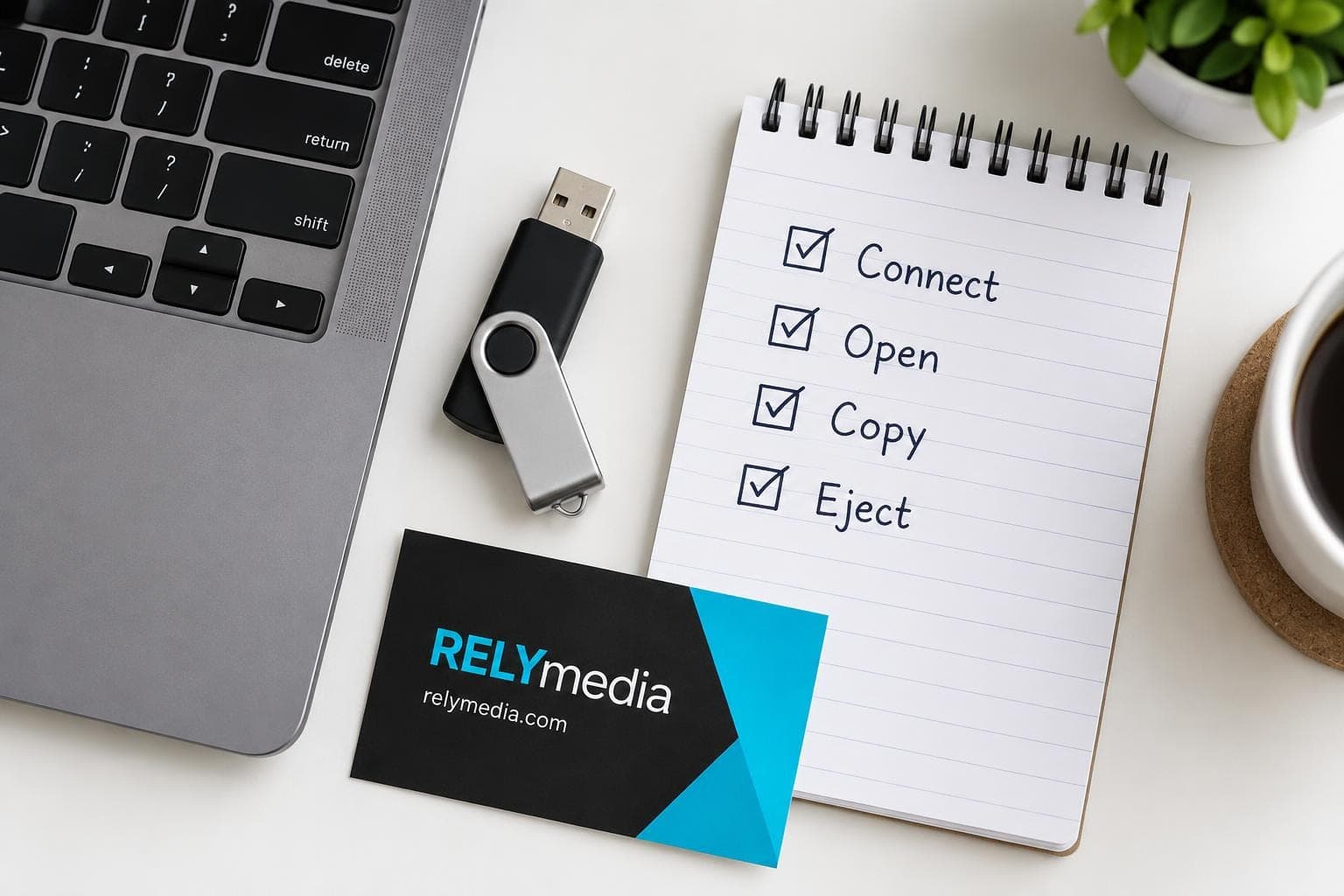
Portable memory is useful, but drives can be lost, damaged, overwritten, or corrupted. These habits strengthen file protection:
- Keep a backup copy of important documents.
- Verify files after copying.
- Avoid device removal during file movement.
- Scan unfamiliar USB devices before opening files.
- Avoid untrusted computers for sensitive data.
- Use clear folder names.
- Protect confidential files appropriately.
- Replace unreliable drives before failure.
These steps support data integrity while reducing file corruption, permanent deletion, and avoidable data loss.
For business distribution, consider storage device compatibility, connector shape, file sizes, branding space, and preloaded content. RELYmedia can connect those needs to branded technology products rather than treating the flash drive as a logo-only giveaway.
Make your flash drive worth keeping
Turn portable storage into a useful branded tool with RELYmedia custom USB options.
How to Safely Remove a USB Flash Drive
Finish every save, backup, copy, or file transfer before removal. Then safely eject USB storage through Windows.
In the taskbar system tray, find the Safely Remove Hardware and Eject Media USB icon. Open hidden icons if needed. Select Eject for the correct device, then wait for confirmation.
You may also right-click the removable drive in File Explorer and choose Eject when available.
Microsoft recommends safe removal because disconnecting external storage during activity can cause data loss or corruption.
💡Best habit: Never pull a drive while Windows or an application is writing files.
That small pause improves the safety of removable media and protects file integrity.
Ready to print your team's name on premium apparel?
Fill in your details and a RELYmedia specialist will come back to you with a custom quote — fast turnaround, no obligation.
- ⚡Same-day response on business days
- 🎨Free design assistance included
- 🚚Rush order & fast delivery available
- 💰Price beat guarantee on every order
Shop custom USB flash drives
See all classic usb flash drives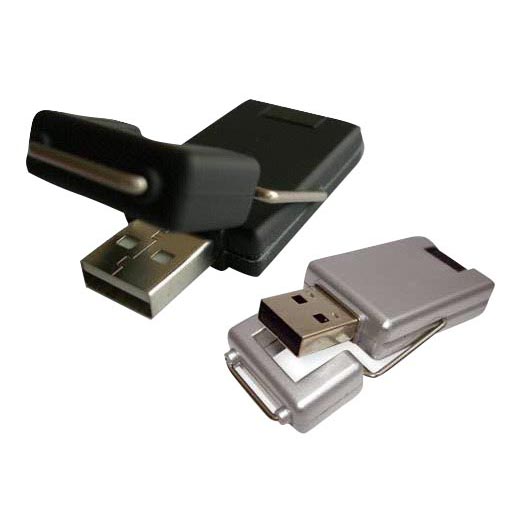
RMC12 Swivel USB Flash Drive
Price on request
View product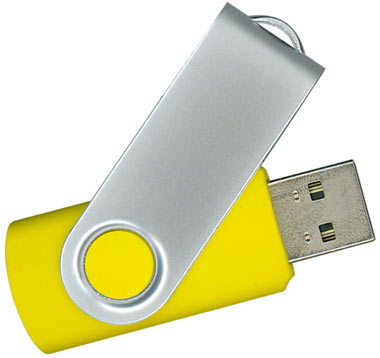
RMC02 Swivel USB Flash Drive
Price on request
View product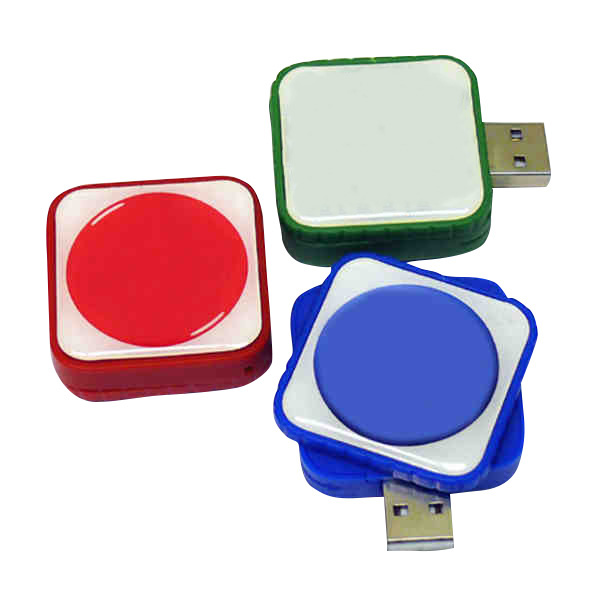
RMC169 USB Flash Drive
Price on request
View product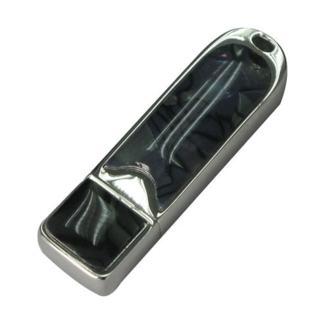
RMC167 USB Flash Drive
Price on request
View product
RMC166 USB Flash Drive
Price on request
View product
RMC165 USB Flash Drive
Price on request
View product
RMC164 USB Flash Drive
Price on request
View product
RMC163 USB Flash Drive
Price on request
View product
Frequently Asked Questions About USB Flash Drives on Windows
What is a USB flash drive used for?
A USB flash drive provides portable file storage, backup storage, and file transfer between compatible devices. Businesses also use custom drives for training resources, sales materials, branded content, and event files.
How do I find my USB drive on Windows 11?
Open File Explorer, select This PC, and look for the removable drive. If it does not appear, reconnect it or try another compatible port.
How do I open a USB drive on Windows 10?
Press Windows + E, select This PC, then double-click the USB drive. Windows 10 remains usable, although standard Microsoft support ended in October 2025.
How do I transfer pictures from my laptop to a USB stick?
Select the pictures, copy them, open your USB storage, and paste them into a folder. Verify the images before safely ejecting the drive.
Can I use one USB drive on Windows and Mac?
Yes, provided the connector and file system support both computers. exFAT often works well for portable data transfer between Windows and Mac systems.
Does formatting a USB drive erase everything?
Formatting can erase existing data. Create a backup of the files before changing the storage format.
How much can a USB stick hold?
Capacity varies. A 32GB or 64GB drive holds many everyday files, while larger drives provide additional storage for media-heavy work.
Do I need to safely eject a USB drive?
Yes. Safe USB ejection reduces the risk of file corruption, especially while Windows is writing data.
Compare RELYmedia flash drive capacities, connector styles, and customization options.
Conclusion: Use Your USB Flash Drive With Confidence
Learning how to use a USB flash drive on a Windows PC comes down to a reliable routine. Check USB compatibility, connect the portable storage device, open it through File Explorer, transfer or organize files, verify your data, then safely remove the USB drive.
Choose USB-A, USB-C, or a dual connector based on the devices people use. Match FAT32, exFAT, or NTFS to your file sizes and compatibility needs. Keep another backup when information matters.
For businesses, schools, agencies, and event teams, USB storage can also deliver useful branded content. RELYmedia combines customizable drives, capacity choices, connector options, and practical distribution services.
Ready to start your branded technology project?
Explore RELYmedia custom USB flash drives or request a quote for your branded technology project.
Frequently asked questions
How to use a USB flash drive for the first time?
Check that the flash drive connector matches your computer’s port (USB-A or USB-C), then insert it gently. Windows usually detects it automatically and may show a notification or AutoPlay prompt. If nothing pops up, open File Explorer (Windows + E), select This PC, and open the removable drive by its name or drive letter.
How do you put something on a flash drive?
Open the folder on your PC that contains the files, select what you want to transfer, then press Ctrl + C to copy. Open the USB drive in File Explorer and press Ctrl + V to paste. After the transfer finishes, open a few copied files from the USB drive to confirm the copy completed before deleting originals.
Is there a difference between a USB stick and a flash drive?
No. USB stick and flash drive are common names for the same type of portable storage device that uses flash memory. Other names include USB drive, memory stick, thumb drive, jump drive, pen drive, and flash disk. It connects by USB and lets you store, move, and back up digital files on compatible computers.
How do I view the contents of a flash drive?
Connect the flash drive, then open File Explorer by pressing Windows + E. Select This PC and look under available drives for the removable storage device, which may show a name or a drive letter such as E: or F:. Double-click the drive to view its folders and files like any other location.
How do you safely remove a USB flash drive?
Finish every save, copy, backup, or file transfer before removing the drive. In the taskbar system tray, select the Safely Remove Hardware and Eject Media icon (open hidden icons if needed), choose Eject for the correct device, and wait for confirmation. You can also right-click the drive in File Explorer and choose Eject when available.
Do you need to format a new USB flash drive on Windows?
Usually not, because most new USB drives arrive preformatted. Format or reformat only for a clear reason, such as changing file-system compatibility, and back up important files first because formatting can erase data. FAT32 has a 4 GiB maximum individual file size, while exFAT and NTFS support much larger files; exFAT is often practical for Mac and Windows compatibility.
Shop this
Need custom USB flash drives? We print them.
Bulk pricing, three free mockups, real quotes back the same business day.
Keep reading
Shop by category
Our Customer Feedback


Mike Larson
 (5)
(5)Unbelievable Turn-around
We are stunned with how quickly we received our order. It turned out perfect, and all of our interactions with staff have been fantastic. Thank you so much!
Jana
(5)Great customer service and on-time delivery with product as advertised!
The product arrived exactly as advertised and on time. This company was very easy to work with, and the price was great!
Sarah
(5)Quick Turn-Around and Immediate Communisaton
I've ordered a couple times from RELY. My initial order was not time sensitive so we had time to get it correct. We went back and forth with proofs until I felt comfortable. When I had a question, the sales team was very responsive. When it came to my re-order, I needed it fast. They responded and got it to me right on time.
Rob
(5)Fabulous experience, great suggestions from the staff!
The sales staff had great suggestions and were very helpful in the process to, in the end, get exactly what was necessary for our use!
Emily
(5)Great service!
Everything went well as anticipated, and as planned. Service was superb & shipment was expedited in a speedy fashion! Thank you for your service!
Freddy
(5)Thumbdrives
2nd time I have ordered from these guys and they have a good product for the price. The delivery time was as said with no troubles. Would recommend and will be reordering again.
Patty
(5)This is a top notch company. Awesome as what they do. Highly recommend.
If you are looking for a company that says what they do and then do what they say - RELYmedia is for you!!! We have done a couple critical orders with RELYmedia and they were ahead of schedule and the items were perfect. We will be utilizing their talents again!!!
Blanca
(5)Very responsive,
All my inquiries were handled in a very timely fashion. My contact was courteous and helpful. Items ordered were received very quickly. Thanks for the superior service!
Andrew
(5)Overall great experience.
They are friendly and knowledgeable. They are well priced, and ship fast.
Trusted By