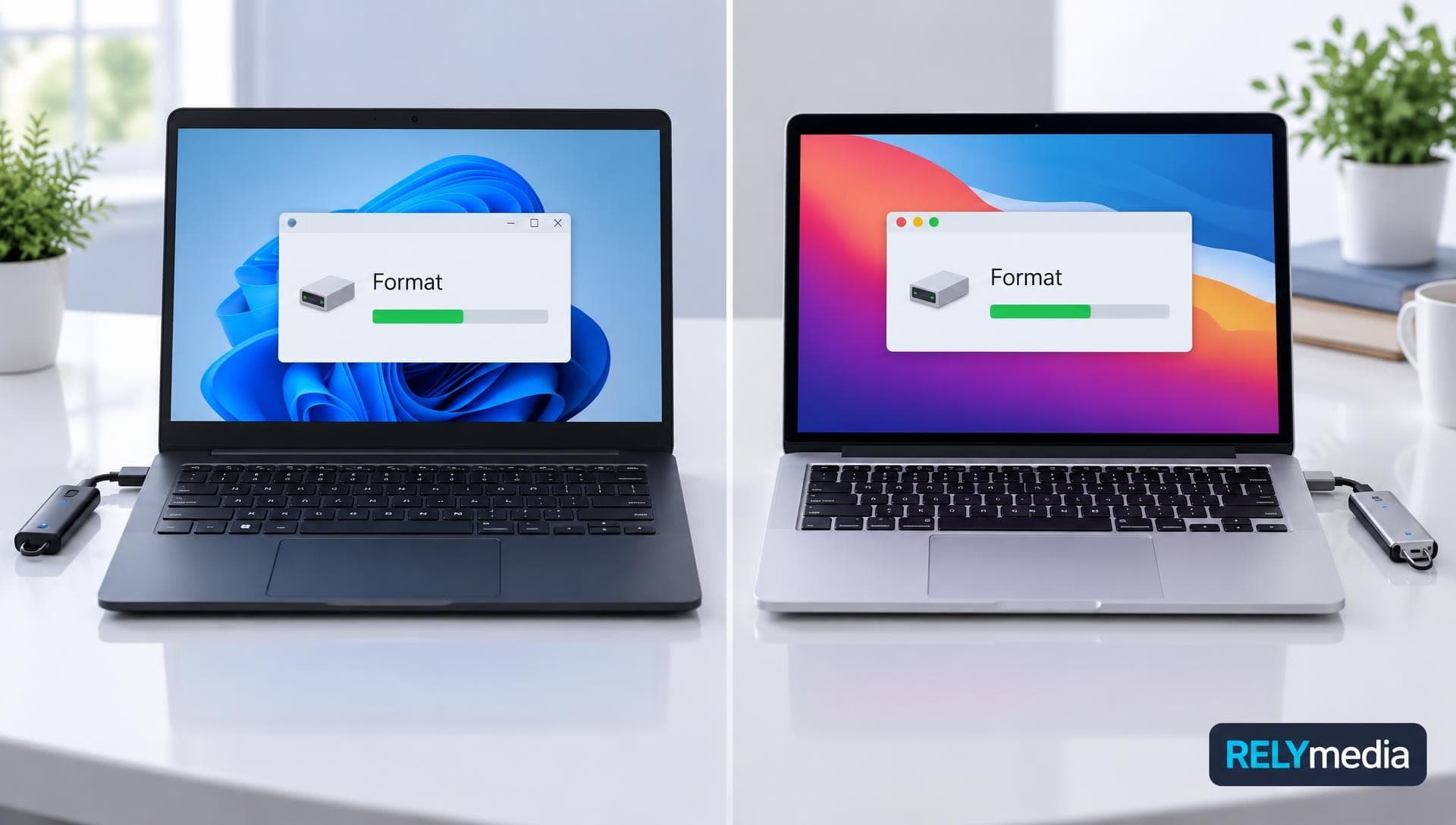
How to Format a USB Flash Drive in Windows and Mac
September 29, 2026 · 11 min read
Formatting a USB flash drive seems simple, but the wrong file system can cause compatibility problems. A drive may work on Windows but fail on a Mac or older device.
This guide explains how to format a USB flash drive in Windows 11 and macOS, choose FAT32, exFAT, NTFS, APFS, or HFS+, and troubleshoot failed USB drive formatting.
Before you begin, back up important files. Formatting can remove everything stored on the removable drive.
What Does Formatting a USB Flash Drive Do?
Formatting prepares a storage device so an operating system can organize files. Windows or macOS then creates a file system structure for storage and read/write access.
You may need to reformat a USB drive to:
- erase old data
- change the USB file system
- fix some file system errors
- improve device compatibility
- prepare a bootable USB
- reuse removable storage
- move files between Windows and Mac
- prepare a drive for media playback
Formatting does not guarantee secure data erasure. A quick format rebuilds the file system, while a full format also checks for bad sectors and drive errors.
⚠️Important: If the drive contains sensitive data, ordinary formatting may not be enough before disposal. Use an appropriate secure-erase or data-overwriting method.
Quick Format vs. Full Format
| Format type | What it does | Best use |
|---|---|---|
| Quick format | Rebuilds the file system quickly | Healthy drives and routine reuse |
| Full format | Rebuilds the file system and checks sectors | Suspected storage errors |
| Secure erase | Reduces recoverable data | Sensitive data and drive disposal |
For routine USB flash drive formatting, a quick format is usually sufficient when the drive is working normally.
Before You Format a USB Drive
First, back up important files. Then verify the drive name, volume label, and storage capacity. Disconnect other removable drives to avoid mistakes.
Next, decide where you will use the drive. File system selection should match the destination device. That prevents avoidable compatibility problems.
For example, a 7GB video exceeds FAT32’s 4GB file size limit. exFAT handles that file and supports native read/write access on Windows and Mac.
Which USB File System Should You Choose?
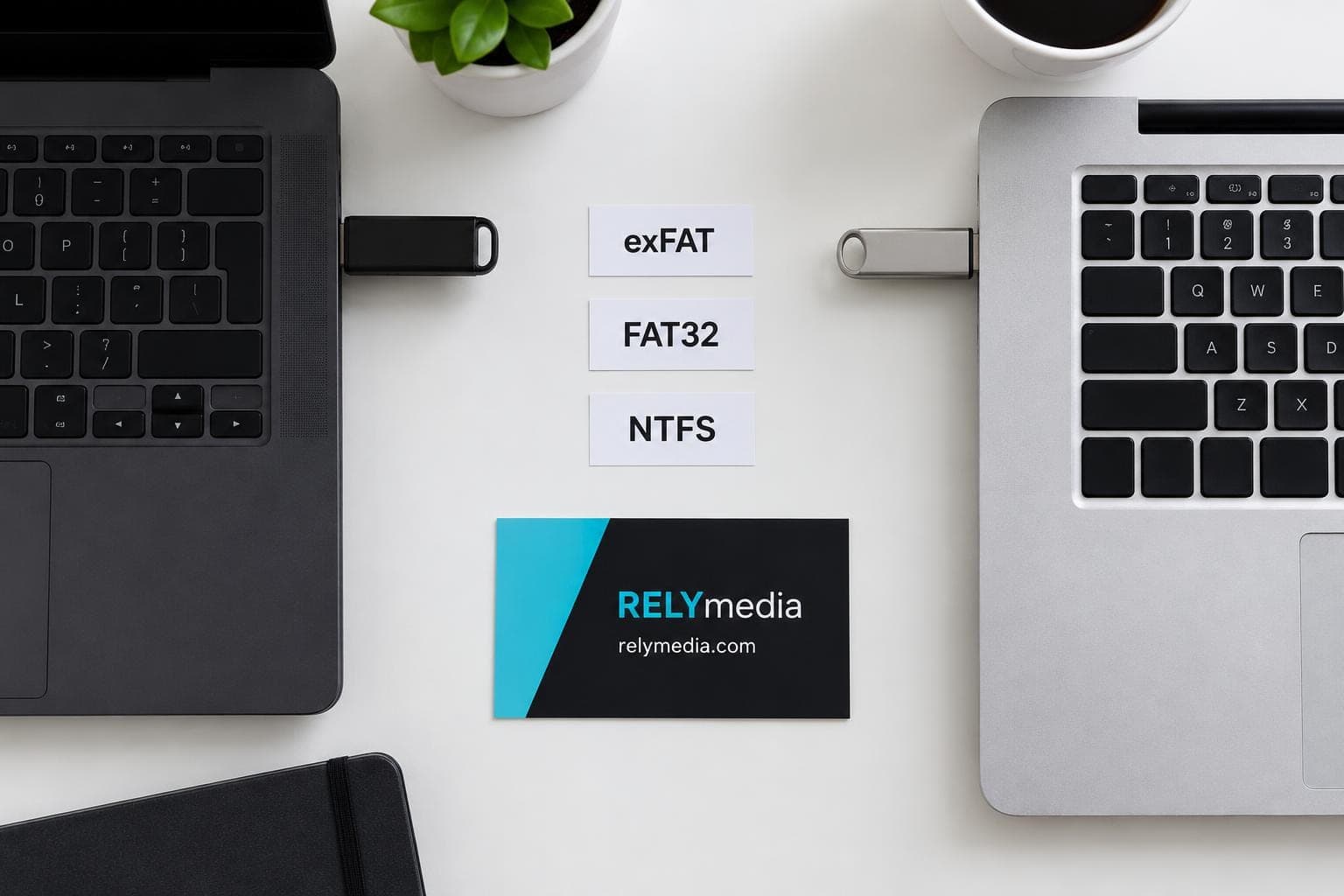
The best file system for USB storage depends on operating system compatibility, maximum file size, device support, and security needs.
FAT32 File System
FAT32 remains one of the most compatible USB drive formats. Windows, macOS, many TVs, older computers, car stereos, game consoles, and media players can recognize it.
Its biggest weakness is the 4GB file size limit. That makes FAT32 unsuitable for large videos, disk images, or other large files.
Choose FAT32 when older device compatibility matters more than large file support.
exFAT File System
exFAT works well for Windows and Mac sharing, large files, data transfer, backups, photos, videos, and portable storage.
Choose exFAT for:
- Windows and Mac compatibility
- large file support
- file sharing
- portable storage
- modern removable storage
For most current cross-platform use, exFAT offers the cleanest balance.
NTFS File System
NTFS is widely used by Windows and supports large files, permissions, journaling, and other Windows-focused features.
Windows provides full read/write support. macOS can normally read NTFS volumes, but native write support is limited.
Use NTFS when the flash drive is used primarily with Windows.
APFS File System
APFS, or Apple File System, is Apple’s modern file system. It supports features such as encryption and works well with current Mac systems.
Windows does not natively support APFS. Use it for Mac-only storage.
Mac OS Extended and HFS+
Mac OS Extended, also called HFS+, remains useful for older Mac workflows. Windows does not natively recognize it.
FAT32 vs. exFAT vs. NTFS vs. APFS
| File system | Windows | macOS | Large files | Best for |
|---|---|---|---|---|
| FAT32 | Read/write | Read/write | No files over 4GB | Older devices |
| exFAT | Read/write | Read/write | Yes | Windows and Mac sharing |
| NTFS | Read/write | Usually read-only | Yes | Windows storage |
| APFS | No native support | Read/write | Yes | Modern Mac storage |
| HFS+ | No native support | Read/write | Yes | Older Mac workflows |
How to Format a USB Flash Drive in Windows 11
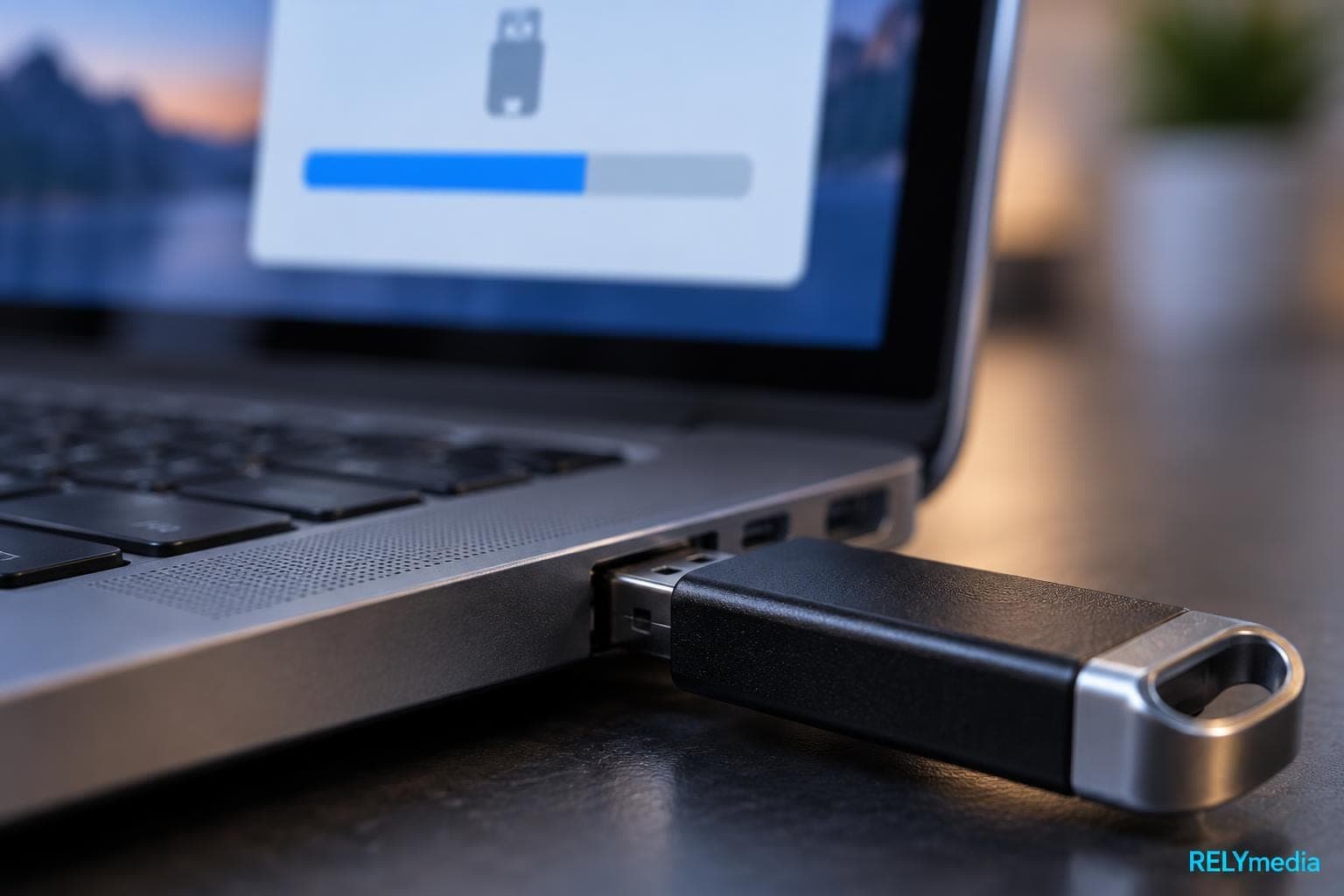
Windows includes built-in formatting tools, so most users do not need a third-party USB formatting tool.
Format a USB Drive Using File Explorer
To format a USB drive in Windows 11:
- 1Insert the flash drive into a USB port.
- 2Open File Explorer.
- 3Select This PC.
- 4Find the USB drive under Devices and drives.
- 5Right-click the drive.
- 6Choose Format.
- 7Open the File system drop-down menu.
- 8Select FAT32, exFAT, or NTFS.
- 9Leave Allocation unit size at the default unless you have a specific requirement.
- 10Enter a Volume label or drive name.
- 11Select Quick Format when appropriate.
- 12Click Start and confirm the warning.
When formatting finishes, copy a small file to the drive and reopen it. That test confirms basic file access and file copying.
Which Allocation Unit Size Should You Choose?
For general USB storage, the default allocation unit size is usually right. Changing it rarely helps normal document, photo, video, or backup use.
Format a USB With Windows Disk Management
Use Windows Disk Management when the USB does not appear normally in File Explorer or when you need to inspect partitions.
Disk Management shows the entire disk, partitions, volumes, and unallocated space. It helps with partition problems and drive preparation.
Ordering promotional flash storage for a trade show or launch?
RELYmedia offers custom branding solutions with responsive service and fast turnaround.
How to Format a USB Flash Drive on a Mac

macOS uses Disk Utility for drive formatting, partitioning, and storage management.
Format a USB Drive Using Disk Utility
To format a USB drive on a Mac:
- 1Connect the USB drive.
- 2Open Applications > Utilities > Disk Utility.
- 3Choose View > Show All Devices.
- 4Select the correct top-level device.
- 5Click Erase.
- 6Enter a drive name.
- 7Choose a format from the Format dropdown.
- 8Select a partition scheme.
- 9Click Erase.
- 10Wait for formatting to finish.
- 11Click Done.
Selecting the top-level device matters when you want to format the entire disk rather than a single USB volume.
Which Format Should You Choose on macOS?
Choose:
- exFAT for Mac and Windows compatibility
- MS-DOS (FAT) when FAT32 or legacy compatibility is required
- APFS for modern Mac-only storage
- Mac OS Extended (Journaled) for older Mac requirements
Which Partition Scheme Should You Choose?
For current Macs, GUID Partition Map is standard for many Mac-focused uses. Some Windows-oriented or older devices may require another partition scheme.
Check the target device before changing the partition scheme.
How to Format a USB for Both Windows and Mac
For most modern users, exFAT is the best format for USB drives shared between Windows and macOS.
It offers:
- native read/write support
- large file support
- easy file transfer
- broad modern operating system compatibility
FAT32 still makes sense when older hardware requires it. Many legacy TVs, car stereos, and media boxes recognize FAT32 more reliably than newer file systems.
💡Check the device manual before formatting a drive for vehicle software updates, map updates, DJ equipment, gaming systems, security systems, or firmware updates.
What to Do If Your USB Drive Won’t Format

A USB flash drive cannot be formatted correctly when another issue blocks the process. Start with simple checks before downloading third-party software.
Check for Write Protection
Some storage devices have a physical lock switch. Software settings or permissions can also create read-only access.
If Windows says the USB is write-protected, remove the protection before formatting.
Close Open Files and Applications
Windows or macOS may refuse to format a storage volume if another app is using it. Close files, media players, backup tools, and drive windows. Then reconnect the USB and try again.
Try Another USB Port or Computer
A faulty port can mimic drive failure. Test another USB port and, if possible, another computer.
Check for Drive Errors and Bad Sectors
Repeated disconnects, corrupted files, slow transfers, incorrect storage capacity, or recurring read/write errors may indicate failing flash memory.
Formatting cannot repair worn hardware. Replace a drive that keeps failing after basic troubleshooting.
How to Format a USB for Specific Uses
Match the format to the task:
- Large files: exFAT or NTFS
- Windows and Mac file transfers: exFAT
- Older devices: FAT32
- Windows-only storage: NTFS
- Mac-only storage: APFS
- Bootable USB or recovery drive: follow the operating system tool
- Car audio: use the stereo’s required file system
- Media playback: confirm device compatibility
- Gaming storage: follow console requirements
- Backup storage: consider capacity, security, and read/write support
Bootable drives, system recovery media, and operating system installation tools may impose exact formatting rules. Follow the official tool instead of manually choosing another format.
Formatting vs. Erasing vs. Securely Wiping a USB Drive
Deleting files removes directory entries, but it does not necessarily overwrite the underlying data. Quick formatting may also leave recoverable information.
Full formatting adds error scanning, but it is not the same as dedicated secure erase.
For sensitive data, consider:
- encrypted USB storage
- hardware encryption
- secure erase tools
- verified data overwriting
- physical disposal when required
💡If confidential files regularly travel on removable storage, encryption is safer than relying on formatting later.
Ready to print your team's name on premium apparel?
Fill in your details and a RELYmedia specialist will come back to you with a custom quote — fast turnaround, no obligation.
- ⚡Same-day response on business days
- 🎨Free design assistance included
- 🚚Rush order & fast delivery available
- 💰Price beat guarantee on every order
Shop custom USB flash drives
See all classic usb flash drives
RMC12 Swivel USB Flash Drive
Price on request
View product
RMC02 Swivel USB Flash Drive
Price on request
View product
RMC169 USB Flash Drive
Price on request
View product
RMC167 USB Flash Drive
Price on request
View product
RMC166 USB Flash Drive
Price on request
View product
RMC165 USB Flash Drive
Price on request
View product
RMC164 USB Flash Drive
Price on request
View product
RMC163 USB Flash Drive
Price on request
View product
Frequently Asked Questions About USB Formatting
What Is the Best Format for a USB Flash Drive?
exFAT is usually the best file system for USB drives shared between modern Windows and Mac computers. FAT32 suits older hardware. NTFS is best for Windows-focused use, while APFS is best for modern Mac-only storage.
Does Formatting a USB Drive Delete Everything?
Formatting removes the existing file system structure and makes stored files inaccessible through normal browsing. Back up important data first.
Can You Recover Files After Formatting?
Sometimes. File recovery depends on the formatting method, later data overwriting, drive condition, and storage technology.
Why Can’t I Format My USB Drive?
Common causes include write protection, open files, partition problems, permissions, file system errors, storage errors, or hardware failure.
Should I Use Quick Format or Full Format?
Use quick formatting for a healthy drive that will be reused regularly. Consider full formatting when you suspect drive errors or bad sectors.
What USB Format Works on Both Mac and Windows?
exFAT provides native file system read/write support on modern Windows and macOS, making it a practical cross-platform option.
Final Checklist Before Formatting
Before clicking Format or Erase:
- back up important files
- confirm the correct removable storage device
- verify storage capacity
- choose the correct file system
- check the maximum file size you need
- choose quick or full format
- confirm device compatibility
- let formatting finish
- test file copying afterward
- eject the USB safely
Conclusion
Learning how to format a USB flash drive on Windows and Mac comes down to three decisions: protecting your files, choosing the right file system, and using the correct built-in formatting tools.
FAT32 gives strong legacy compatibility. exFAT handles large files and works across Windows and Mac. NTFS suits Windows-focused storage. APFS works best for modern Mac-only use.
Good USB drive formatting reduces compatibility issues, but it cannot fix failing hardware or replace backups, encryption, and secure data handling.
For businesses, USB storage can also become a useful branded touchpoint. Capacity, compatibility, packaging, print quality, and delivery timing shape the customer experience.
Ready to turn USB storage into a polished brand asset?
Contact RELYmedia for custom promotional USB drives, dependable service, quality branding, and fast turnaround for campaigns of any size.
Frequently asked questions
What can I do if I can't format my USB flash drive?
Start by checking for write protection, including a physical lock switch or read-only permissions, and remove protection before formatting. Close any files or apps using the drive, then reconnect it and try again. Test another USB port or another computer. If you see repeated disconnects, corrupted files, slow transfers, or recurring errors, the flash memory may be failing and formatting will not fix it.
Does a USB flash drive need to be formatted?
A USB drive needs a file system so Windows or macOS can organize files and provide read/write access. You may need to reformat when you want better compatibility with another device or operating system, or when the current file system does not fit your use, such as FAT32’s 4GB per-file limit. Always back up important files first because formatting can remove everything on the drive.
Should I format my USB drive NTFS or FAT32 or exFAT?
Choose based on where you will use the drive and the file sizes you need. FAT32 has very broad compatibility with Windows, macOS, and many older devices, but it has a 4GB file size limit. exFAT supports large files and offers native read/write access on both Windows and Mac, making it a strong cross-platform option. NTFS is best when the drive is used primarily with Windows, since macOS typically has limited native write support.
How do I force a USB drive to format?
Windows and macOS can refuse to format a USB drive when something blocks the process, such as write protection or an app actively using the volume. Remove write protection first, then close open files, media players, backup tools, and drive windows before trying again. If the USB drive is not showing up normally in Windows, use Disk Management to inspect partitions and format from there. If the drive keeps failing and shows repeated errors, formatting cannot repair worn hardware.
What is the difference between a quick format and a full format on a USB drive?
A quick format rebuilds the file system so the operating system can organize and access files again. A full format does more by also checking for bad sectors and drive errors. For routine USB flash drive formatting when the drive is working normally, a quick format is usually sufficient. Neither quick nor full formatting guarantees secure data erasure for sensitive information.
What format should I use for a USB drive on both Windows and Mac?
For most modern cross-platform use, exFAT is usually the best format for a USB drive shared between Windows and macOS because it supports large files and works across both systems. FAT32 can still be the right choice when older hardware requires it, since many legacy TVs, car stereos, and media boxes recognize FAT32 more reliably. Check the target device manual before formatting for firmware updates or specialized equipment.
Shop this
Need custom USB flash drives? We print them.
Bulk pricing, three free mockups, real quotes back the same business day.
Keep reading
Shop by category
Our Customer Feedback


Mike Larson
 (5)
(5)Unbelievable Turn-around
We are stunned with how quickly we received our order. It turned out perfect, and all of our interactions with staff have been fantastic. Thank you so much!
Jana
(5)Great customer service and on-time delivery with product as advertised!
The product arrived exactly as advertised and on time. This company was very easy to work with, and the price was great!
Sarah
(5)Quick Turn-Around and Immediate Communisaton
I've ordered a couple times from RELY. My initial order was not time sensitive so we had time to get it correct. We went back and forth with proofs until I felt comfortable. When I had a question, the sales team was very responsive. When it came to my re-order, I needed it fast. They responded and got it to me right on time.
Rob
(5)Fabulous experience, great suggestions from the staff!
The sales staff had great suggestions and were very helpful in the process to, in the end, get exactly what was necessary for our use!
Emily
(5)Great service!
Everything went well as anticipated, and as planned. Service was superb & shipment was expedited in a speedy fashion! Thank you for your service!
Freddy
(5)Thumbdrives
2nd time I have ordered from these guys and they have a good product for the price. The delivery time was as said with no troubles. Would recommend and will be reordering again.
Patty
(5)This is a top notch company. Awesome as what they do. Highly recommend.
If you are looking for a company that says what they do and then do what they say - RELYmedia is for you!!! We have done a couple critical orders with RELYmedia and they were ahead of schedule and the items were perfect. We will be utilizing their talents again!!!
Blanca
(5)Very responsive,
All my inquiries were handled in a very timely fashion. My contact was courteous and helpful. Items ordered were received very quickly. Thanks for the superior service!
Andrew
(5)Overall great experience.
They are friendly and knowledgeable. They are well priced, and ship fast.
Trusted By