USB 2.0 vs. USB 3.0: What's the Difference, and Which Is Right?
September 28, 2026 · 8 min read
USB ports look simple, but the version behind them can change how quickly files move, how much power a device receives, and how well your hardware works together. That matters whether you're backing up photos, sharing presentations, or ordering branded USB flash drives for an event.
The core choice is straightforward. USB 2.0 favors cost and basic compatibility. USB 3.0 favors speed and heavier workloads. However, the right option depends on your files, devices, audience, and budget.
This guide explains USB 2.0 vs. USB 3.0 without burying you in jargon. You'll see real performance differences, compatibility rules, connector details, use cases, and buying factors that matter.
That balance matters even more when thousands of branded drives are ordered.
Explore RELYmedia custom USB flash drives for branded storage options matched to your project.
USB 2.0 vs. USB 3.0 at a Glance
| Feature | USB 2.0 | USB 3.0 |
|---|---|---|
| Common name | Hi-Speed USB | SuperSpeed USB |
| Maximum signaling rate | 480 Mbps | 5 Gbps |
| Standard device current | Up to 500 mA | Up to 900 mA |
| Standard-A contacts | 4 | 9 total |
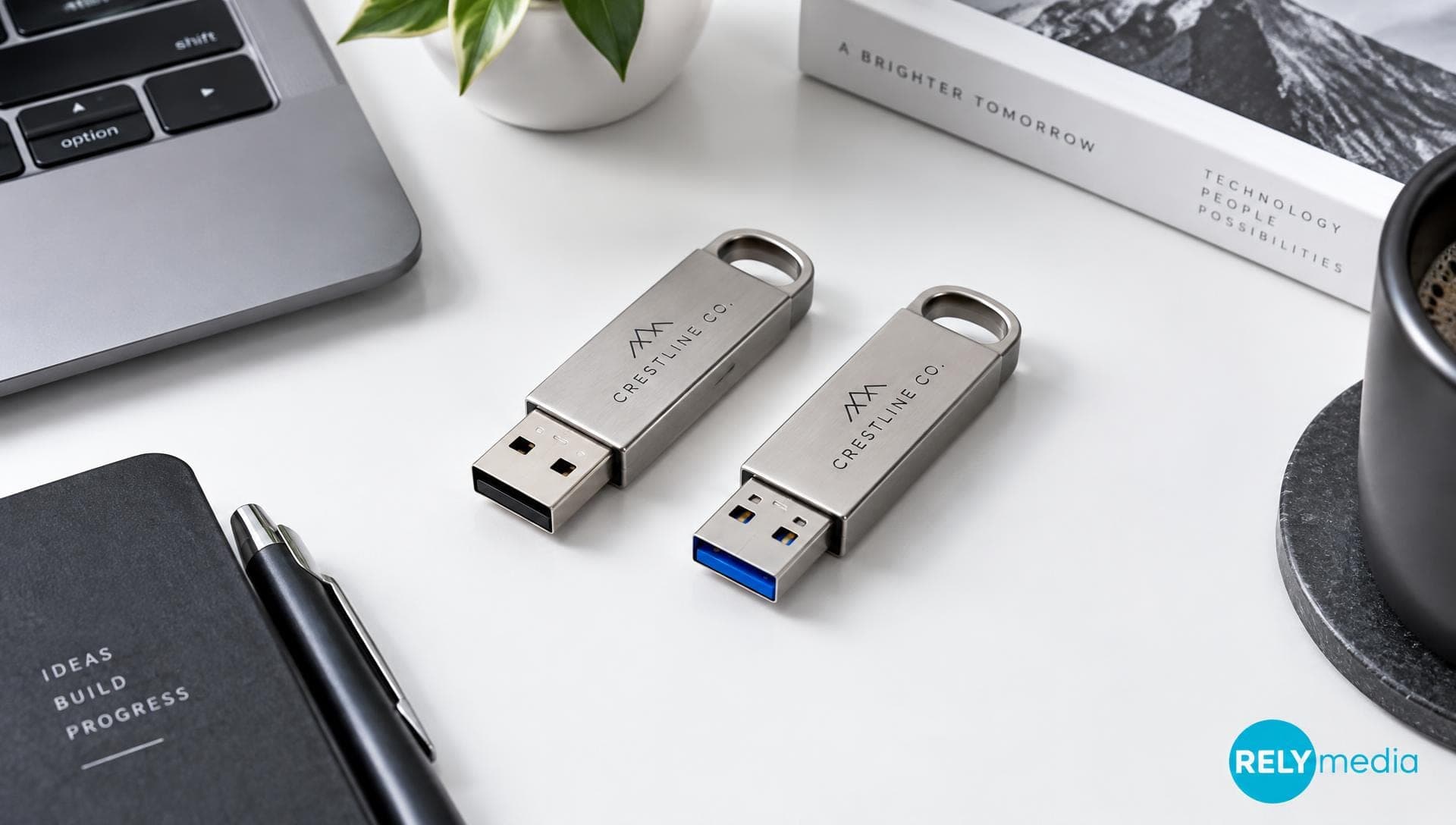
| Common port color | Black | Blue |
| Backward compatibility | Yes, with compatible hardware | Yes, with compatible hardware |
| Best for | Small files, basic sharing, giveaways | Large files, media, backups |
| Typical cost | Lower | Higher |
The biggest difference is data throughput. USB 3.0 offers more than ten times the theoretical bandwidth of USB 2.0. That doesn't mean every USB 3.0 drive copies files ten times faster, though. Flash memory, controllers, cables, ports, and file types affect actual transfer speed.
What Is USB?
USB stands for Universal Serial Bus. It is a standard that lets computers communicate with peripherals and storage devices while also supplying electrical power.
USB evolved from USB 1.0 and USB 1.1 through USB 2.0, USB 3.0, later USB 3.x revisions, and USB4.
The USB Implementers Forum maintains the specifications and branding guidance behind these standards.
💡Remember: USB generation and connector shape are different. USB-A and USB-C describe connectors; USB 2.0, USB 3.0, and USB4 describe technology capabilities.
What Is USB 2.0?
USB 2.0 arrived in 2000 and became one of the most common USB versions. Its maximum signaling rate is 480 Mbps, earning the name Hi-Speed USB.
A USB 2.0 device still handles many everyday jobs well. Think PDFs, spreadsheets, presentations, onboarding files, catalogs, and lightweight digital content. For simple file sharing or promotional giveaways, the slower transfer speed may barely affect the user experience.
What Is USB 3.0?
USB 3.0 introduced SuperSpeed USB and raised the maximum signaling rate to 5 Gbps. Some older articles describe the rate as 4,800 Mbps. The official performance class is 5 Gbps, so that figure gives a clearer comparison.
USB 3.0 technology provides much more bandwidth for large file transfers, data backup, digital photography, video, and external storage.
USB 3.0 later appeared under names including USB 3.1 Gen 1 and USB 3.2 Gen 1x1. Current USB-IF branding favors speed labels such as USB 5Gbps. Check the rated speed, not just the generation name.
USB 2.0 vs. USB 3.0 Speed: What Changes in Real Use?
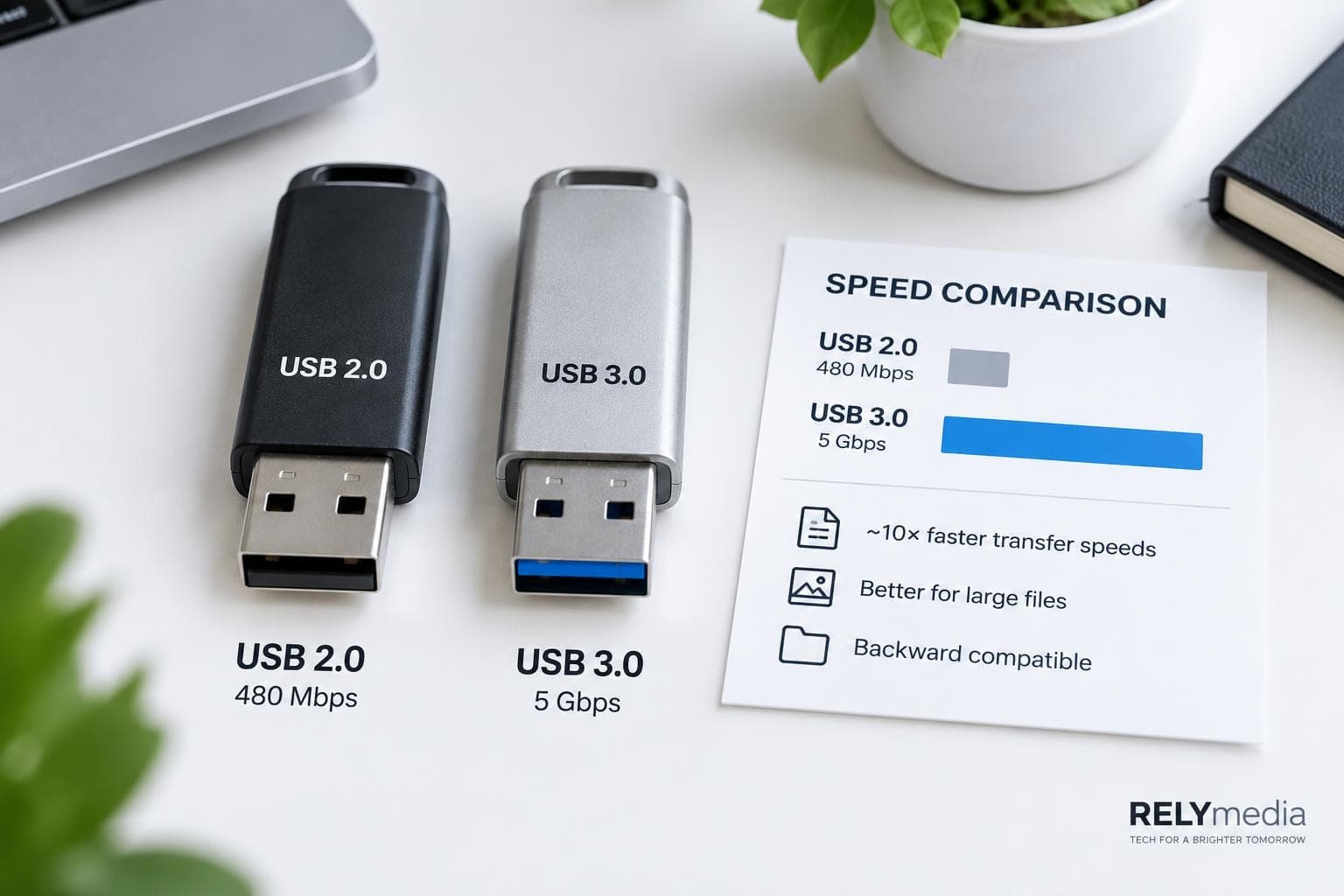
The specification gap looks huge: 480 Mbps versus 5 Gbps. In practice, your files move only as fast as the slowest part of the connection.
Picture a wide highway feeding into a one-lane toll booth. USB 3.0 provides the wider highway. A slow flash controller, an aging computer, weak storage media, or a limited cable can become the toll booth.
Several factors shape real-world speed:
- Flash-memory quality
- Read and write speed
- File size
- Number of files
- USB port capability
- USB cable capability
- Storage-device performance
- Computer workload
- Operating-system overhead
This distinction matters when evaluating a USB flash drive. Maximum transfer rate is not the same as guaranteed file-copying speed.
USB 2.0 Speed and Bandwidth
USB 2.0 bandwidth tops out at 480 Mbps. That is enough for modest digital files and occasional transfers.
It works well for:
- Word documents and PDFs
- Spreadsheets and presentations
- Small image collections
- Basic employee file sharing
- Promotional content
- Simple portable storage
USB 3.0 Speed and Bandwidth
USB 3.0 bandwidth reaches 5 Gbps. That extra headroom supports faster file transfers when the connected hardware can use it.
USB 3.0 makes more sense for:
- Large image files
- High-resolution photos
- Video libraries
- Frequent data backup
- External hard drive transfers
- Large business files
- Photography workflows
- Data-intensive tasks
USB 2.0 vs. USB 3.0 Ports, Connectors, and Cables
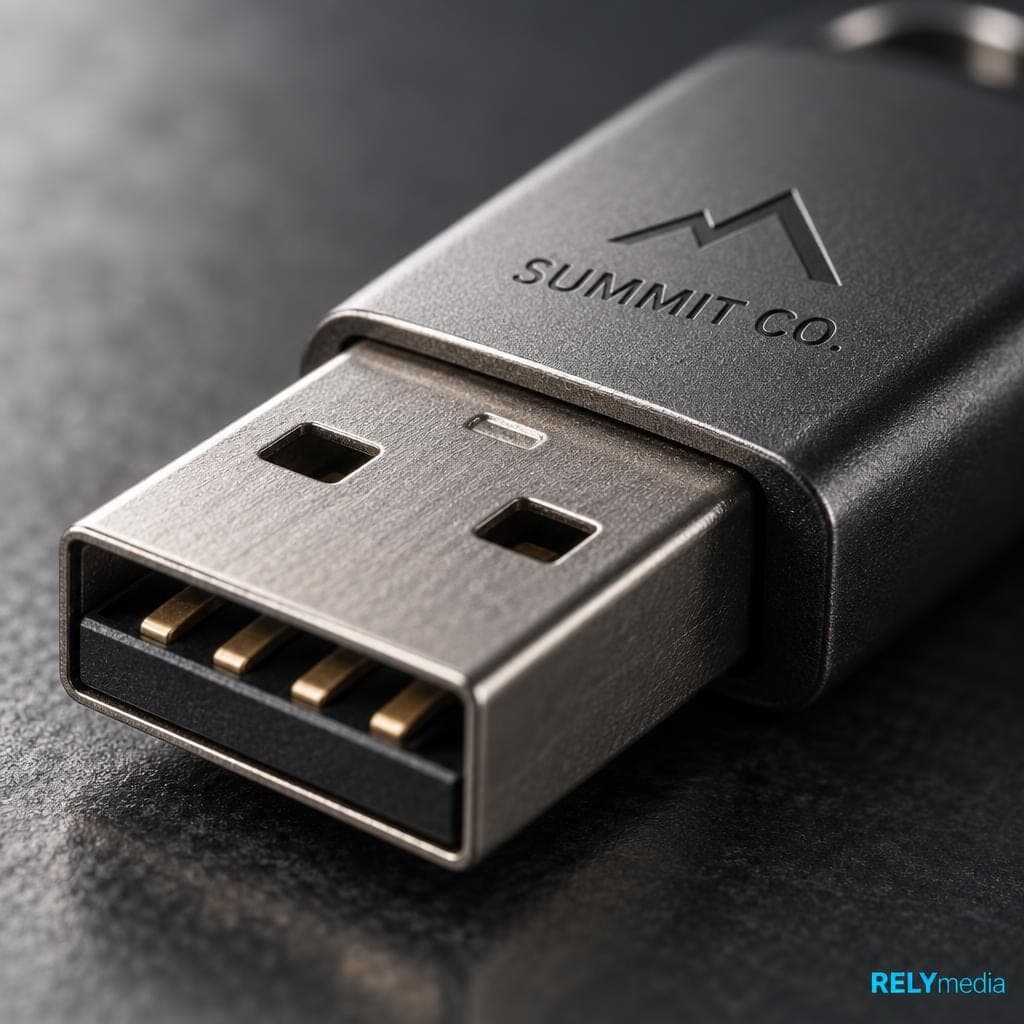
USB hardware changed to SuperSpeed USB. A standard USB 2.0 Type-A connection uses four contacts. USB 3.0 Type-A retains the legacy contacts and adds five SuperSpeed contacts, for a total of nine.
You may see these described as four connector wires versus nine connector wires. “Contacts” is more precise when discussing the plug itself.
How to Tell USB 2.0 From USB 3.0
Port color can provide a clue:
- A black USB port often indicates USB 2.0.
- A blue USB port often indicates USB 3.0.
- An SS symbol may identify SuperSpeed USB.
Color is not universal. Check the device specifications instead of relying solely on the black or blue interior.
USB cable design also matters. A USB 3.0 cable needs the required connections for SuperSpeed operation. Cable length, build quality, connector design, and adapters can influence connection quality. A USB 3.0 adapter cannot magically turn USB 2.0 hardware into a faster device.
USB 2.0 vs. USB 3.0 Power Output and Efficiency
USB carries data and power, but the generations differ in standard current availability.
Under traditional standard-load configurations:
- USB 2.0: up to 500 mA
- USB 3.0: up to 900 mA
That extra power can help devices with greater requirements.
⚠️However, avoid a common mistake: USB 3.0 does not automatically mean fast charging. Modern charging depends on the charger, device, cable, and charging protocol. USB Power Delivery, for example, is a separate specification commonly associated with USB-C.
So, when comparing USB 2.0 and USB 3.0 power consumption, separate the data transfer from charging technology.
Are USB 2.0 and USB 3.0 Compatible?
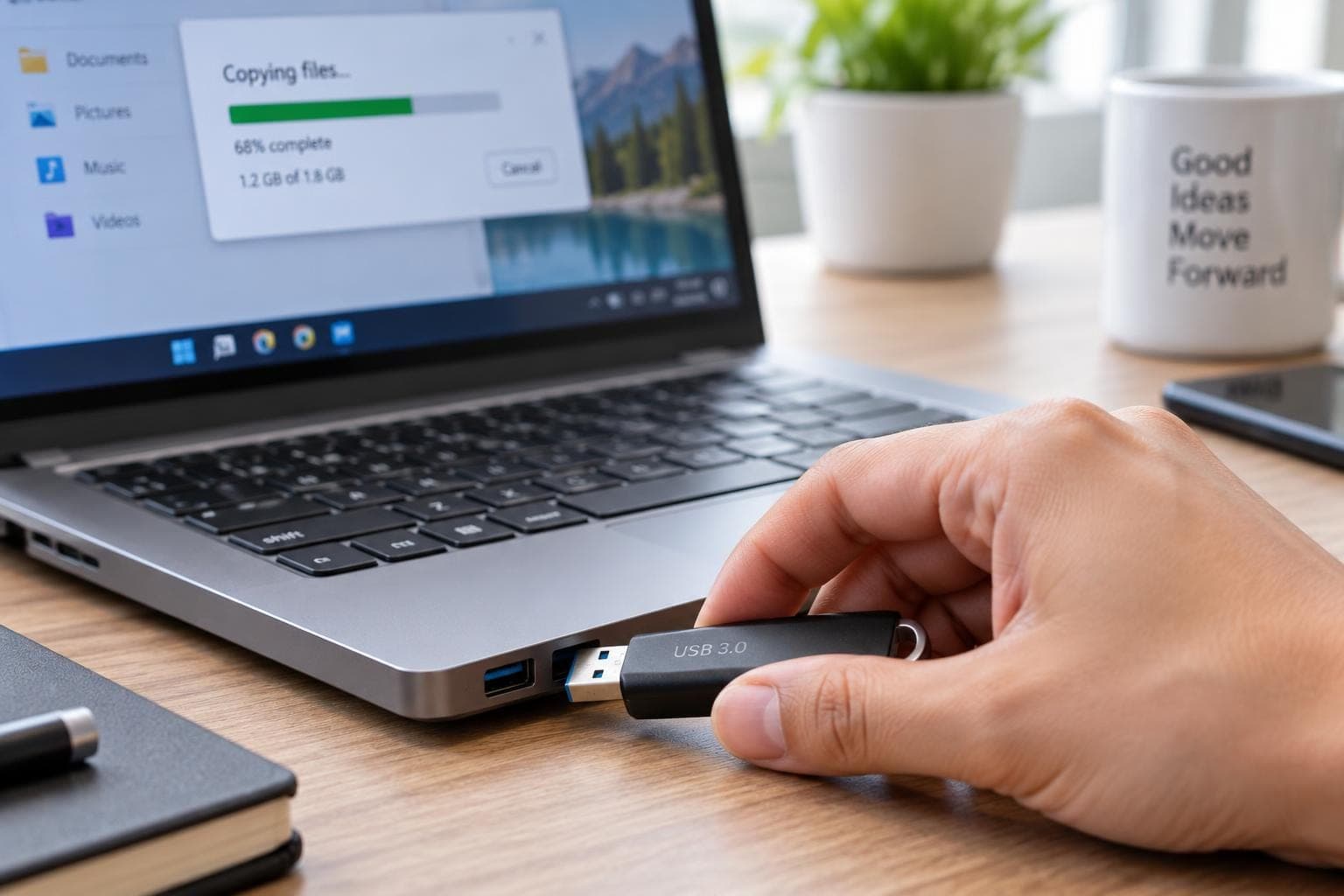
Yes, in common compatible configurations. Backward compatibility allows newer and older USB generations to communicate, but the connection typically runs at the lowest speed supported by both.
Will a USB 3.0 Device Work in a USB 2.0 Port?
Usually, yes, when the physical connectors match. A USB 3.0 flash drive plugged into a USB 2.0 port generally operates at USB 2.0 speeds.
That means the faster USB drive cannot use its full SuperSpeed capability.
Will USB 2.0 Work in a USB 3.0 Port?
Yes. A USB 2.0 flash drive can generally be used in a compatible USB 3.0 port. The newer computer port does not upgrade the older drive, so performance remains limited by USB 2.0.
A useful rule is:
💡The slowest required component sets the practical ceiling for the connection.
That component might be the USB drive, port, cable, adapter, or storage hardware.
Planning a mixed-device rollout?
Contact RELYmedia to compare flash-drive options for your audience and hardware needs.
USB 2.0 vs. USB 3.0 Flash Drives for Common Use Cases
The best USB drive isn't always the fastest. It is the drive that fits the job without wasting the budget.
Choose USB 2.0 for Basic File Sharing
USB 2.0 is a practical choice for:
- Event handouts
- Employee documents
- Product catalogs
- Presentations
- PDFs and forms
- Promotional giveaways
- Small branded file packages
For example, a trade-show drive containing a brochure, presentation, price sheet, and contact details may work perfectly well on USB 2.0.
Choose USB 3.0 for Large Files and Frequent Transfers
USB 3.0 benefits users who frequently transfer large amounts of data.
Consider a photography studio delivering hundreds of high-resolution images. A faster USB flash drive can reduce wait times and improve the client experience. For professional photography, check both the USB interface and the actual read/write speed.
USB 2.0 or USB 3.0: How to Choose the Right USB Drive
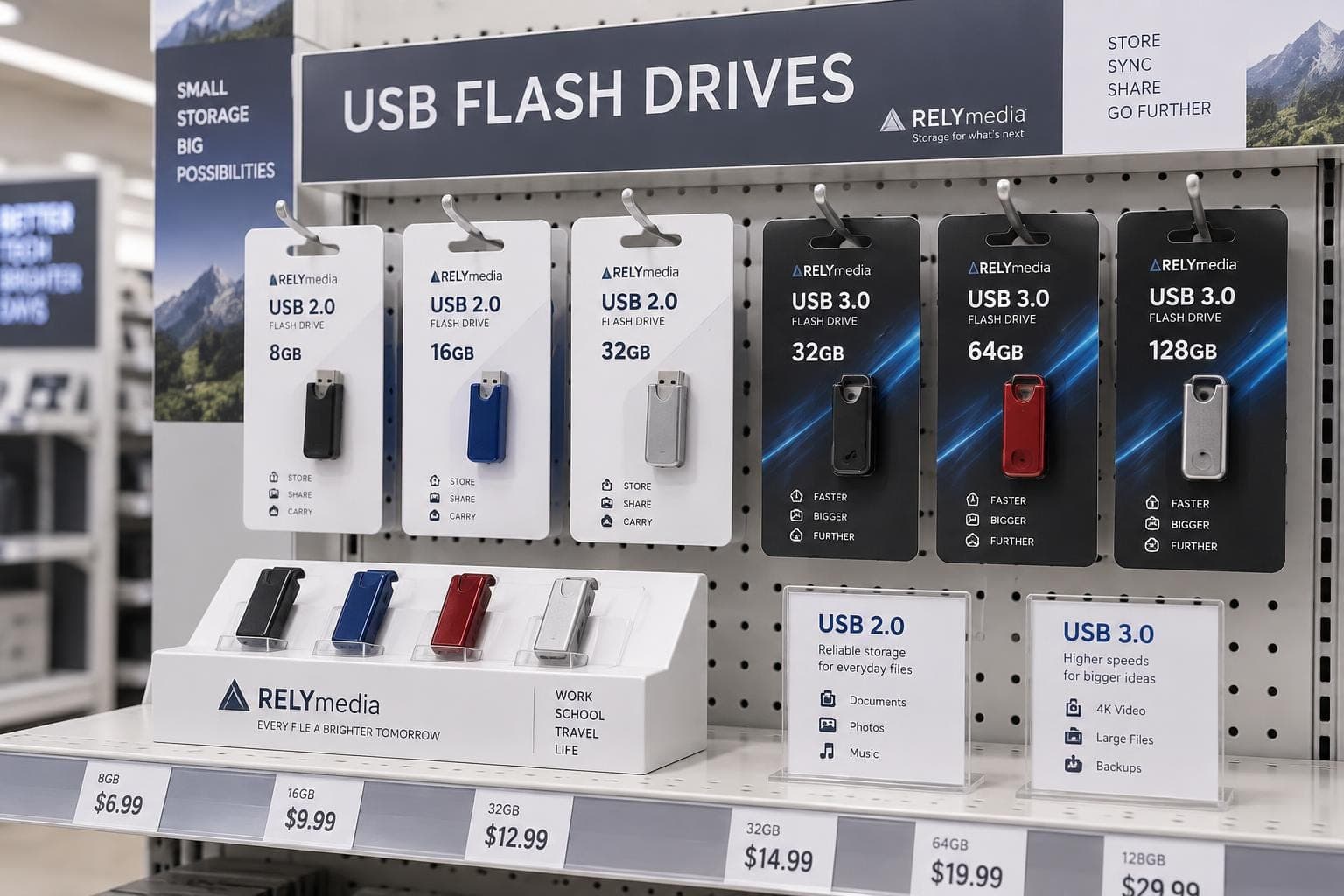
Start with your application requirements, not the highest specification.
Ask these questions:
- What type of digital data will users store?
- How large are the files?
- How often will users transfer files?
- Do recipients need fast write performance?
- Which USB ports do their computers have?
- What storage capacity fits the project?
- How important is unit cost?
- Will the drives carry custom branding?
- Are you ordering a few units or thousands?
Choose USB 2.0 when smaller files, lower cost, and basic compatibility are most important. Choose USB 3.0 when transfer efficiency, large files, or frequent use justify the added expense.
For promotional products, cost-performance matters. Pay more for speed only when recipients can use it.
RELYmedia helps marketing teams, HR departments, procurement teams, schools, agencies, and event planners match performance with branding, storage, quantity, and budget.
Explore RELYmedia custom USB drives and compare styles, capacities, and project options.
Ready to print your team's name on premium apparel?
Fill in your details and a RELYmedia specialist will come back to you with a custom quote — fast turnaround, no obligation.
- ⚡Same-day response on business days
- 🎨Free design assistance included
- 🚚Rush order & fast delivery available
- 💰Price beat guarantee on every order
Shop custom USB flash drives
See all classic usb flash drives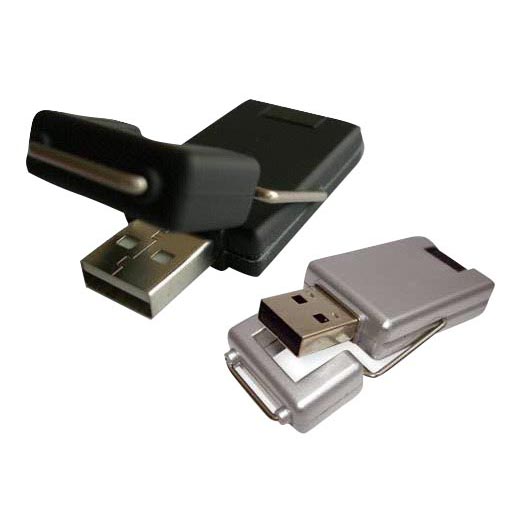
RMC12 Swivel USB Flash Drive
Price on request
View product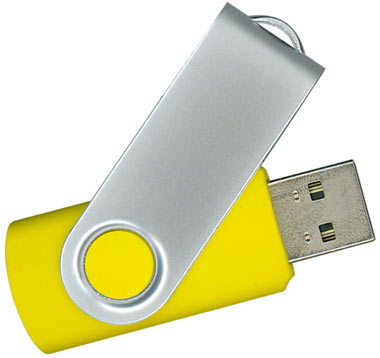
RMC02 Swivel USB Flash Drive
Price on request
View product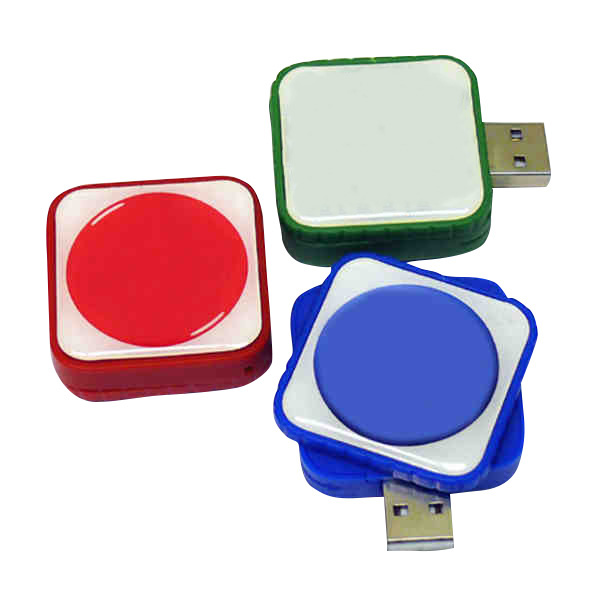
RMC169 USB Flash Drive
Price on request
View product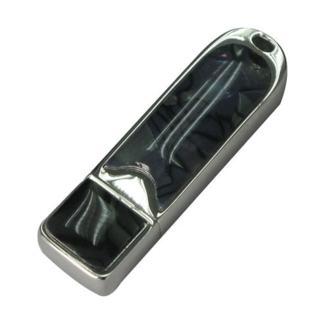
RMC167 USB Flash Drive
Price on request
View product
RMC166 USB Flash Drive
Price on request
View product
RMC165 USB Flash Drive
Price on request
View product
RMC164 USB Flash Drive
Price on request
View product
RMC163 USB Flash Drive
Price on request
View product
Frequently Asked Questions About USB 2.0 vs. USB 3.0
How Much Faster Is USB 3.0 Than USB 2.0?
USB 2.0 supports a maximum signaling rate of 480 Mbps. USB 3.0 supports 5 Gbps. That is more than ten times the theoretical bandwidth, though actual speed varies.
Is USB 3.0 the Same as USB-A?
No. USB-A describes a physical connector. USB 3.0 describes a technology generation and performance level. A USB-A port can support different USB versions.
Is USB 3.0 the Same as USB-C?
No. USB-C is a connector type, not a speed rating. Some USB-C devices operate at USB 2.0 speeds, while others support much faster USB standards.
Does a USB 3.0 Adapter Make USB 2.0 Faster?
No. An adapter may solve a physical connection problem, but it does not increase the underlying USB 2.0 bandwidth.
Is USB 2.0 Still Good for Flash Drives?
Yes. USB 2.0 remains useful for small files, simple file sharing, data storage, and cost-sensitive promotional USB drives.
Is USB 3.0 Worth the Extra Cost?
It is often used for large file transfers, high-resolution images, frequent backups, and professional workflows. For a few small files, USB 2.0 can offer better value.
Conclusion: USB 2.0 vs. USB 3.0 Comes Down to How You'll Use It
USB 3.0 wins on transfer rate, bandwidth, and available current. USB 2.0 remains useful when basic storage and lower cost are more important.
For business buyers, the smarter decision starts with the recipient. A drive carrying a few documents does not need the same transfer performance as one holding high-resolution photography, video, or large project files.
RELYmedia connects that technical choice with the larger branding goal. Businesses can evaluate custom USB flash drives alongside power banks, charging products, earbuds, speakers, phone accessories, computer accessories, MP3 players, and digital photo frames within their Technology & Flash Drives category.
Choose the USB technology that improves the user experience without paying for performance your audience will never use.
Request a quote from RELYmedia
Choose a branded USB drive that fits your content, audience, budget, and campaign.
Frequently asked questions
Can a USB 2.0 be used in a 3.0 port?
Yes, a USB 2.0 flash drive can generally be used in a compatible USB 3.0 port. The newer port does not upgrade the older drive, so performance stays limited by USB 2.0. In mixed setups, the slowest required component sets the practical ceiling, which could be the drive, port, cable, adapter, or storage hardware.
Is USB 2.0 outdated?
USB 2.0 is older, but it still handles many everyday jobs well. With a 480 Mbps maximum signaling rate, it can be practical for modest digital files like PDFs, spreadsheets, presentations, onboarding files, catalogs, and lightweight content. For simple file sharing or promotional giveaways, the slower transfer speed may barely affect the user experience.
What happens if you plug a USB 3.0 into a USB 2.0 port?
Usually it works when the physical connectors match, but it typically operates at USB 2.0 speeds. A USB 3.0 flash drive in a USB 2.0 port cannot use its full SuperSpeed capability. Backward compatibility allows communication, and the connection generally runs at the lowest speed supported by both devices and the rest of the chain.
Will a USB 3.0 work in a 2.0 slot?
Usually, yes, as long as the connector type is compatible. When a USB 3.0 device connects through a USB 2.0 port, it generally falls back to USB 2.0 transfer speeds. Real-world speed is also limited by whichever part is slowest, such as the drive controller, computer port, cable, adapter, or storage media.
How can you tell USB 2.0 from USB 3.0?
Connector shape and USB generation are different, so USB-A or USB-C alone does not tell you whether it is USB 2.0 or USB 3.0. Port color can provide a clue, but color is not universal, so check device specifications. USB 3.0 Type-A adds five SuperSpeed contacts to the four legacy contacts, for nine total.
Does USB 3.0 mean faster charging than USB 2.0?
USB generations differ in standard current availability under traditional standard-load configurations, and USB 3.0 provides more available current than USB 2.0. However, USB 3.0 does not automatically mean fast charging. Charging speed depends on the charger, device, cable, and charging protocol, and USB Power Delivery is a separate specification often associated with USB-C.
Shop this
Need custom USB flash drives? We print them.
Bulk pricing, three free mockups, real quotes back the same business day.
Keep reading
Shop by category
Our Customer Feedback


Mike Larson
 (5)
(5)Unbelievable Turn-around
We are stunned with how quickly we received our order. It turned out perfect, and all of our interactions with staff have been fantastic. Thank you so much!
Jana
(5)Great customer service and on-time delivery with product as advertised!
The product arrived exactly as advertised and on time. This company was very easy to work with, and the price was great!
Sarah
(5)Quick Turn-Around and Immediate Communisaton
I've ordered a couple times from RELY. My initial order was not time sensitive so we had time to get it correct. We went back and forth with proofs until I felt comfortable. When I had a question, the sales team was very responsive. When it came to my re-order, I needed it fast. They responded and got it to me right on time.
Rob
(5)Fabulous experience, great suggestions from the staff!
The sales staff had great suggestions and were very helpful in the process to, in the end, get exactly what was necessary for our use!
Emily
(5)Great service!
Everything went well as anticipated, and as planned. Service was superb & shipment was expedited in a speedy fashion! Thank you for your service!
Freddy
(5)Thumbdrives
2nd time I have ordered from these guys and they have a good product for the price. The delivery time was as said with no troubles. Would recommend and will be reordering again.
Patty
(5)This is a top notch company. Awesome as what they do. Highly recommend.
If you are looking for a company that says what they do and then do what they say - RELYmedia is for you!!! We have done a couple critical orders with RELYmedia and they were ahead of schedule and the items were perfect. We will be utilizing their talents again!!!
Blanca
(5)Very responsive,
All my inquiries were handled in a very timely fashion. My contact was courteous and helpful. Items ordered were received very quickly. Thanks for the superior service!
Andrew
(5)Overall great experience.
They are friendly and knowledgeable. They are well priced, and ship fast.
Trusted By