What's the Difference Between USB 3.0, USB 3.2 Gen 1, and USB 3.2 Gen 2?
September 29, 2026 · 11 min read
USB naming can make a simple buying decision feel harder than necessary. You may see USB 3.0, USB 3.2 Gen 1, and USB 3.2 Gen 2 on similar products. In practice, the story is simpler.
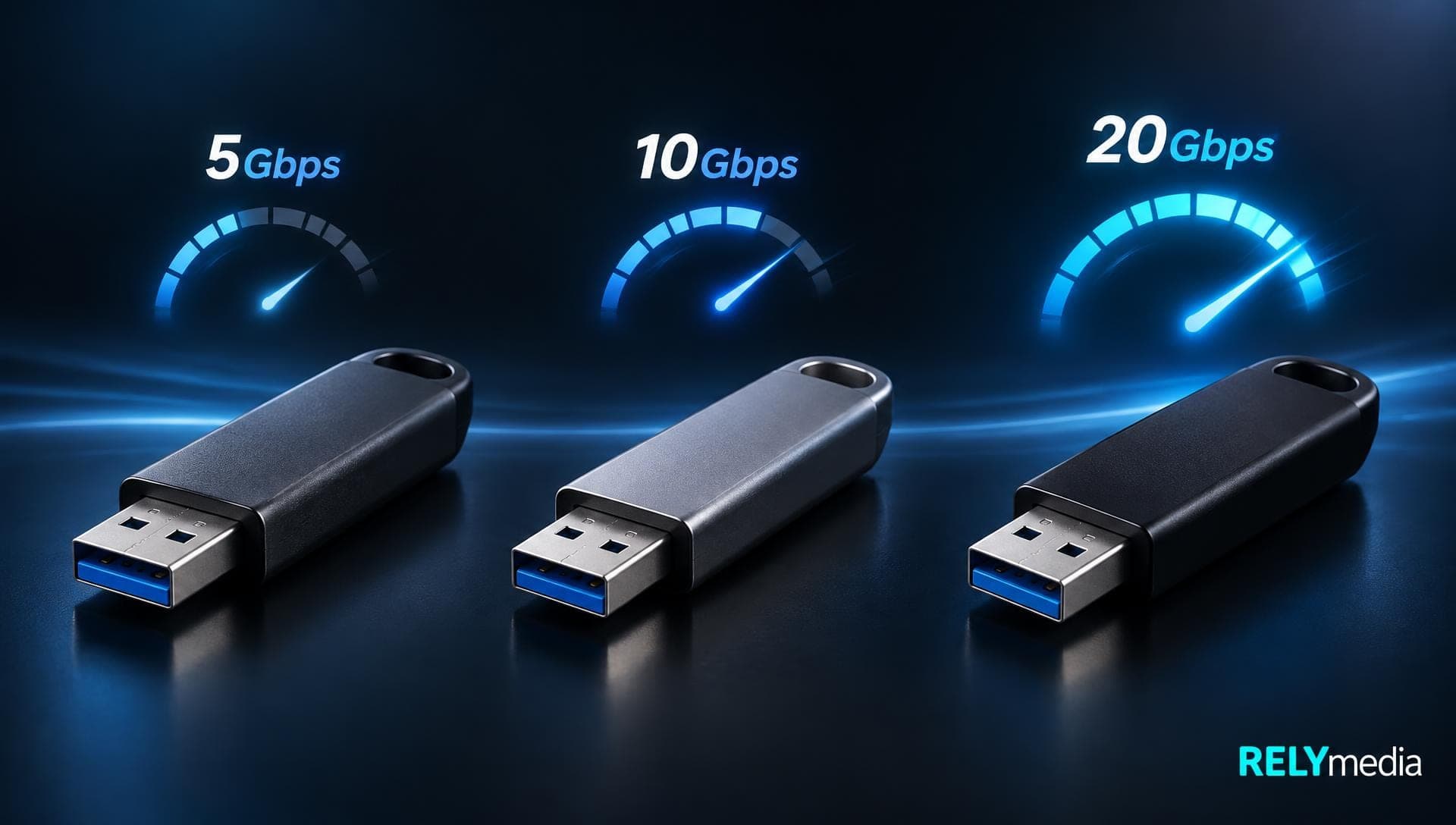
USB 3.0 and USB 3.2 Gen 1 refer to the same 5 Gbps performance tier. USB 3.2 Gen 2 doubles the theoretical data transfer rate to 10Gbps. USB 3.2 Gen 2x2 goes further, reaching 20 Gbps over two lanes via USB-C.
That distinction matters when comparing flash drives, external storage, cables, and computers. Speed depends on the whole USB connection.
Why USB 3.0 Became USB 3.2 Gen 1
USB 3.0 improved sharply over USB 2.0. USB 2.0 offers 480 Mbit/s, while USB 3.0 raises the theoretical bandwidth to 5 Gbps.
Later USB standard revisions changed the naming. The USB Implementers Forum, or USB-IF, folded prior USB 3.x specifications into USB 3.2. That created the naming path buyers still encounter:
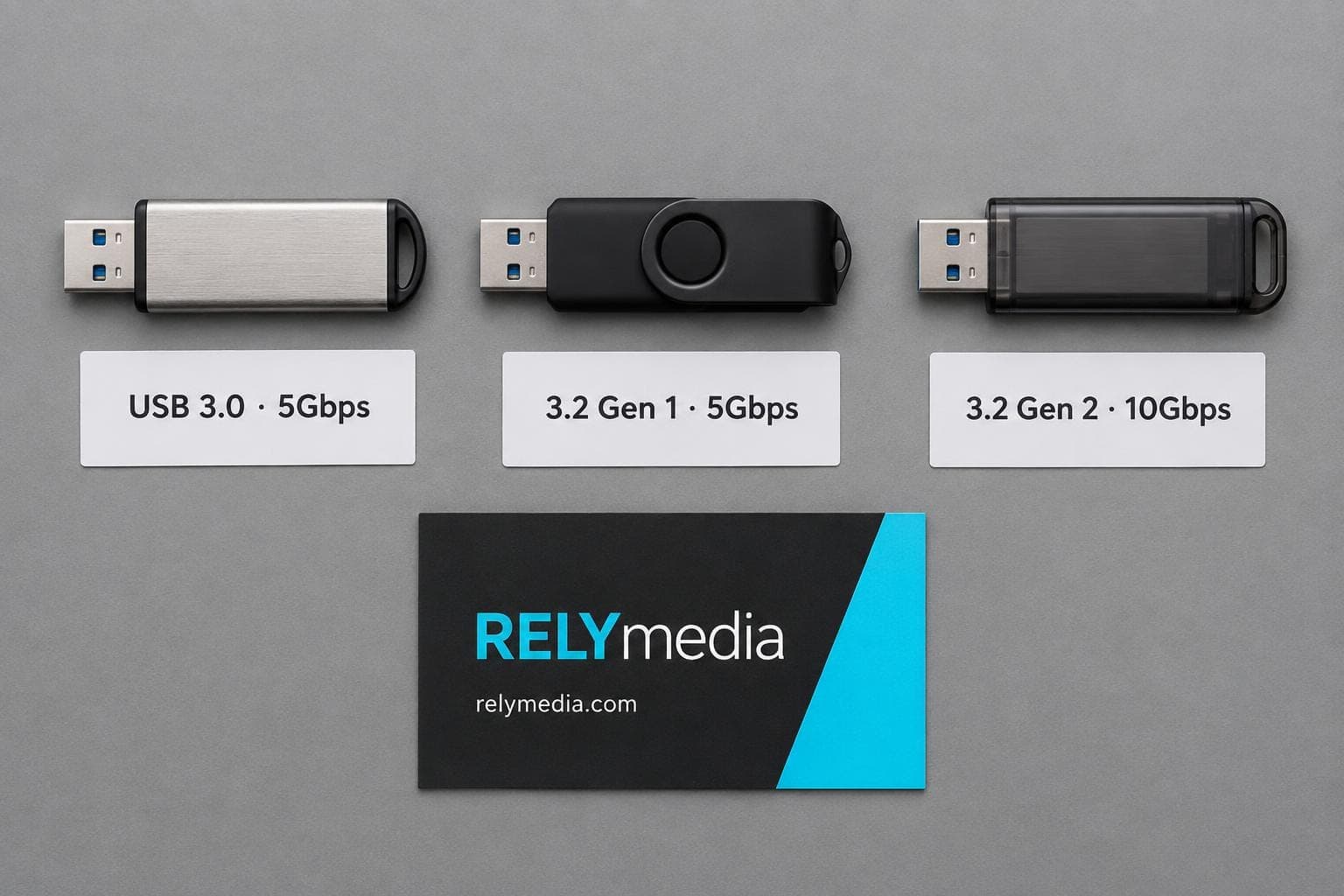
- USB 3.0 → USB 3.1 Gen 1 → USB 3.2 Gen 1
- USB 3.1 Gen 2 → USB 3.2 Gen 2
- USB 3.2 Gen 2x2 → 20Gbps dual-lane operation
So, USB 3.0 was renamed. A USB 3.0 equivalent does not become faster because the packaging says USB 3.2 Gen 1.
USB-IF develops USB specifications, compliance programs, and USB logos. Manufacturers, developers, and OEMs use these industry standards. Older marketing terminology still appears, which causes confusion.
💡Practical rule: when USB naming conventions get messy, check the stated data rate first.
USB 3.0 vs USB 3.2 Gen 1 vs Gen 2: Quick Comparison
| USB standard | Earlier name | Maximum signaling rate | Common connector support | Best fit |
|---|---|---|---|---|
| USB 3.0 | Original USB 3.0 | 5Gbps | USB-A, USB-B, USB Micro B | Everyday storage and peripherals |
| USB 3.2 Gen 1 | USB 3.0, USB 3.1 Gen 1 | 5Gbps | USB-A, USB-B, Micro B, USB-C | General high-speed storage |
| USB 3.2 Gen 2 | USB 3.1 Gen 2 | 10Gbps | USB-A, USB-C, and supported devices | Faster file transfers |
| USB 3.2 Gen 2x2 | USB 20Gbps tier | 20Gbps | USB-C | High-speed external storage |
This USB speed comparison is simple: Gen 1 reaches 5 Gbps, Gen 2 reaches 10 Gbps, and Gen 2x2 reaches 20 Gbps.
What Is USB 3.0?
USB 3.0 is a SuperSpeed USB standard built for faster data transfer than USB 2.0. It became common across computers, hubs, USB storage devices, and peripherals.
USB 3.0 Speed, Bandwidth, and Real Performance
The USB 3.0 speed ceiling is 5Gbps. That is its theoretical bandwidth, not a guaranteed file-copy rate.
Actual data throughput depends on flash memory, controllers, file sizes, the host device, and workload. A budget flash drive may write at speeds far below 5 Gbps.
Think of USB bandwidth as a highway. More lanes help, but a slow vehicle remains slow. USB maximum speed and device performance are not identical.
For everyday documents, presentations, and promotional files, USB 3.0 performance often remains adequate.
USB 3.0 Compatibility
USB 3.0 supports backward compatibility. A USB 3.0 storage device may work with USB 2.0, but the connection will use the slower speed.
That makes USB 2.0 compatibility useful in mixed hardware environments, although it limits the maximum data transfer rate.
What Is USB 3.2 Gen 1?
USB 3.2 Gen 1 is the 5 Gbps tier, formerly known as USB 3.0 and USB 3.1 Gen 1.
Is USB 3.2 Gen 1 the Same as USB 3.0?
For signaling speed, yes. USB 3.0, now known as USB 3.2 Gen 1, still provides a maximum signaling rate of 5 Gbps. The newer name reflects the evolution of the USB standard, not a performance boost.
You may see SuperSpeed, SuperSpeed USB, or 5Gbps USB labeling. Speed labels often clarify capability better than generation names.
You may encounter SuperSpeed+ or SuperSpeed USB+ in older technical material. USB-IF now favors performance-based language, so buyers should focus on stated signaling speed and product specifications. This approach improves USB product compatibility checks because the label ties to measurable capability rather than a USB revision name alone.
USB 3.2 Gen 1 Performance and Compatibility
USB 3.2 speeds depend on the complete data path. Four components commonly determine performance:
- Host: The USB host device must support the intended standard.
- Port: USB port capabilities set the upper limit on performance.
- Cable: USB cable compatibility matters for supported data rates.
- Device: Storage hardware determines practical read and write speed.
USB 3.2 Gen 1 compatibility is broad, but system compatibility does not guarantee full speed.
What Is USB 3.2 Gen 2?
USB 3.2 Gen 2 is the 10 Gbps tier, formerly called USB 3.1 Gen 2. Its increased bandwidth supports high-capacity storage and frequent large-file transfers.
USB 3.2 Gen 2 Speed and Data Transfer
A 10Gbps USB interface offers twice the signaling rate of a 5Gbps USB interface. Still, a 10 Gbps transfer speed does not mean a 10GB file transfers in one second.
Gigabits and gigabytes differ: eight bits equal one byte. Protocol overhead, controller overhead, and storage performance further reduce actual USB data rates.
A fast SSD can benefit from the bandwidth of USB 3.2 Gen 2. A basic flash drive may not be because slow memory remains the bottleneck.
When Gen 2 Makes Sense
USB 3.2 Gen 2 becomes more valuable when you regularly handle:
- large design files
- high-resolution photos
- video assets
- software packages
- large presentation libraries
- frequent backups
- high-speed external storage
Moving large files with your branded drives?
Contact RELYmedia when your branded USB project includes large files, and you need help balancing 10Gbps USB performance with budget.
USB 3.2 Gen 1 vs Gen 2: What Actually Changes?

The main technical change is bandwidth. USB 3.2 Gen 1 supports 5Gbps. USB 3.2 Gen 2 supports 10Gbps.
USB Data Throughput
Faster USB data transfer technology creates more headroom, but increased bandwidth helps only when every link can use it.
A 10Gbps storage device connected to a 5Gbps port cannot reach 10Gbps. The slower link becomes the bottleneck.
USB Performance Specifications
USB performance specifications describe interface capability, not guaranteed flash-drive write speed. The real USB transfer rate varies with hardware and workload.
This prevents paying for high-speed USB when recipients or storage cannot benefit.
Does USB-C Mean USB 3.2 Gen 2?
No. USB-C is a connector type. USB 3.2 is a data standard.
A USB-C connector can support different USB technology generations. One USB-C port may offer USB 2.0 data. Another may support USB 3.2 Gen 1, USB 3.2 Gen 2, USB 3.2 Gen 2x2, or USB4.
USB-C compatibility and bandwidth vary by device; the connector shape alone does not indicate speed.
USB-A, USB-B, USB Micro B, and USB-C
USB connector types serve different hardware:
- USB-A: the familiar rectangular USB connector used by many computers.
- USB-B is common on printers and larger peripheral devices.
- USB Micro-B: found on older portable storage and mobile devices.
- USB-C: a reversible connector used for data transfer, charging, and display output on modern devices.
USB-C adoption continues because a single connector can handle data, display, and charging. USB-C charging does not guarantee fast data transfer.
The USB-A phase-out remains gradual. Many organizations still use USB-A ports, so audience hardware matters.
USB 3.2 Compatibility and Backward Compatibility
USB 3.2 standards preserve compatibility with existing USB products. A connection generally operates at the lowest common speed capability shared by the host, port, cable, and peripheral.
For example:
- Gen 2 hardware on a Gen 1 link may operate at 5Gbps.
- USB 3.0 hardware on USB 2.0 may fall to 480 Mbit/s.
- A slow USB cable can restrict faster hardware.
- A slow storage device can limit an otherwise fast system.
USB host compatibility, device compatibility, and system requirements matter as much as the printed generation.
💡Backward compatibility protects legacy USB devices, but compatibility does not guarantee maximum performance.
How to Identify Your USB Speed
Do not rely on port color. Blue often indicates USB 3.x Type-A, but manufacturers vary.
Instead, check:
- computer or motherboard product specifications
- USB port markings
- certified USB logos
- manufacturer specification tables
- cable speed markings
- operating-system hardware details
Look for 5Gbps, 10Gbps, or 20Gbps speed labeling. Those numbers simplify comparisons between USB standards.
Where USB 3.2 Gen 2x2 Fits
USB 3.2 Gen 2x2 uses two 10 Gbps lanes, providing up to 20 Gbps of theoretical bandwidth. This multi-lane mode uses USB-C.
Extra USB 3.2 bandwidth can benefit demanding storage and docking. For simple document distribution, it adds little value.
What Comes After USB 3.2? USB4
USB4 is a next-generation USB architecture that builds on USB 3.2 and USB Type-C, featuring dynamic bandwidth management.
Current USB4 technology reaches 80 Gbps with compatible certified hardware. It preserves backward compatibility, while Thunderbolt 3 compatibility and other port capabilities still vary by product.
USB4 does not make USB 3.2 obsolete. Existing USB products remain useful when performance matches system needs.
Which USB Standard Should You Choose?
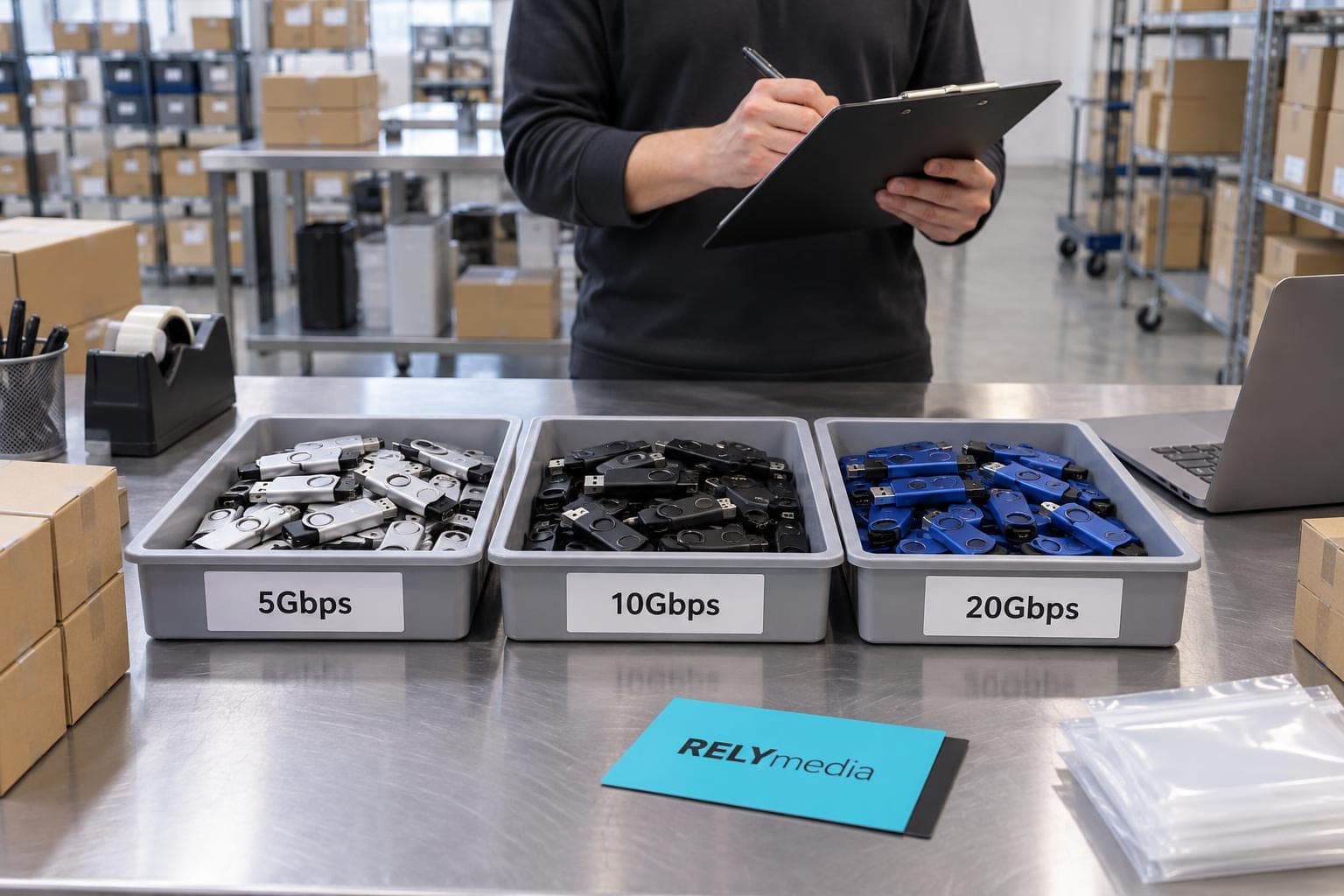
Use the workload as your starting point.
| Need | Practical starting point |
|---|---|
| Documents and presentations | USB 3.2 Gen 1 |
| Promotional file distribution | USB 3.2 Gen 1 |
| Large, frequent transfers | USB 3.2 Gen 2 |
| Fast external storage | Gen 2 or faster |
| Older office hardware | Check USB-A compatibility |
| Modern laptops and phones | Consider USB-C |
For branded USB storage, consider capacity, audience hardware, quantity, branding space, preloaded data, turnaround, and budget.
A conference distributing PDFs needs less performance than an agency moving video. Matching technology to the job creates better value.
Ready to print your team's name on premium apparel?
Fill in your details and a RELYmedia specialist will come back to you with a custom quote — fast turnaround, no obligation.
- ⚡Same-day response on business days
- 🎨Free design assistance included
- 🚚Rush order & fast delivery available
- 💰Price beat guarantee on every order
Shop custom USB-C flash drives
See all usb-c, card & slim drives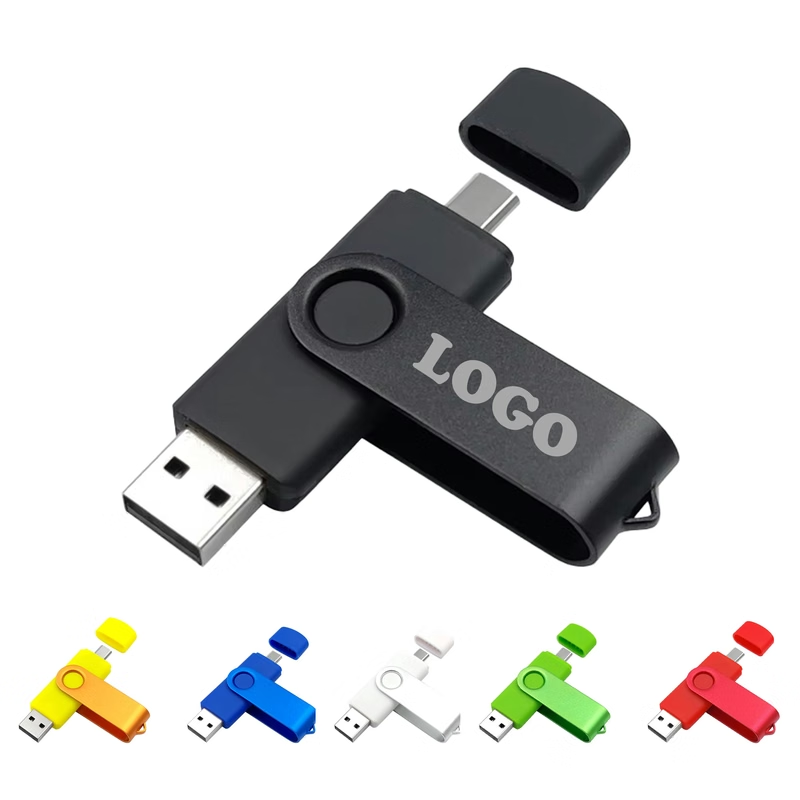
MOQ 30 pcs 32GB Rotating USB-C Flash Drive
$2.69 - $4.50
View product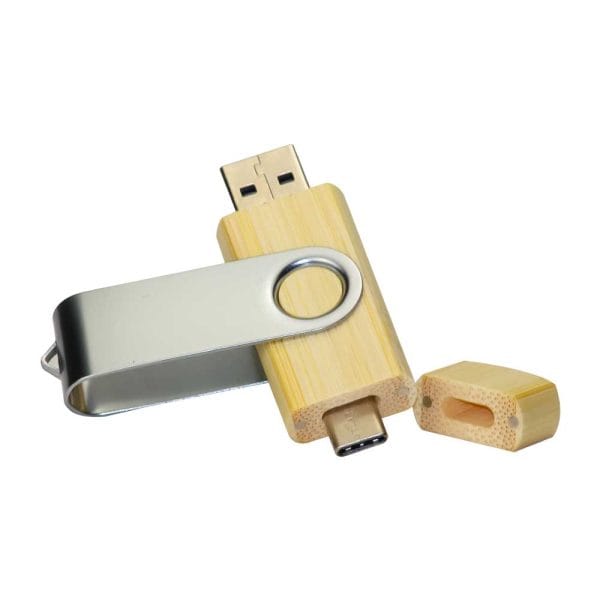
RMCC02 USB-C Flash Drive
Price on request
View product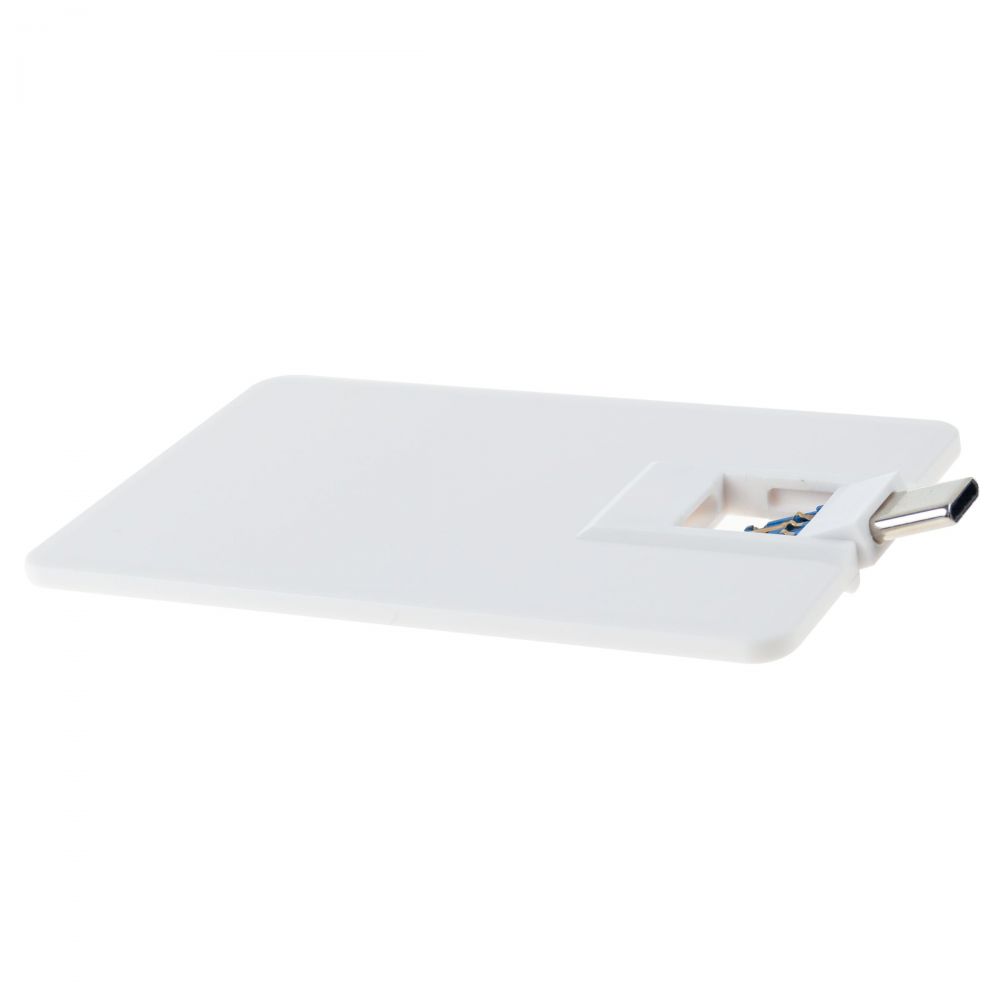
RMCC04 USB-C Flash Drive
Price on request
View product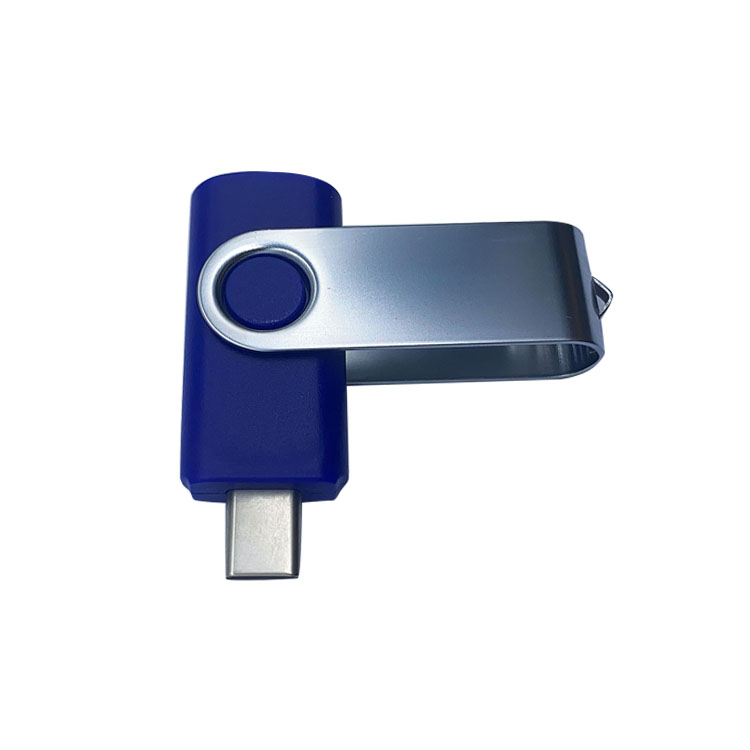
RMCC03 USB-C Flash Drive
Price on request
View product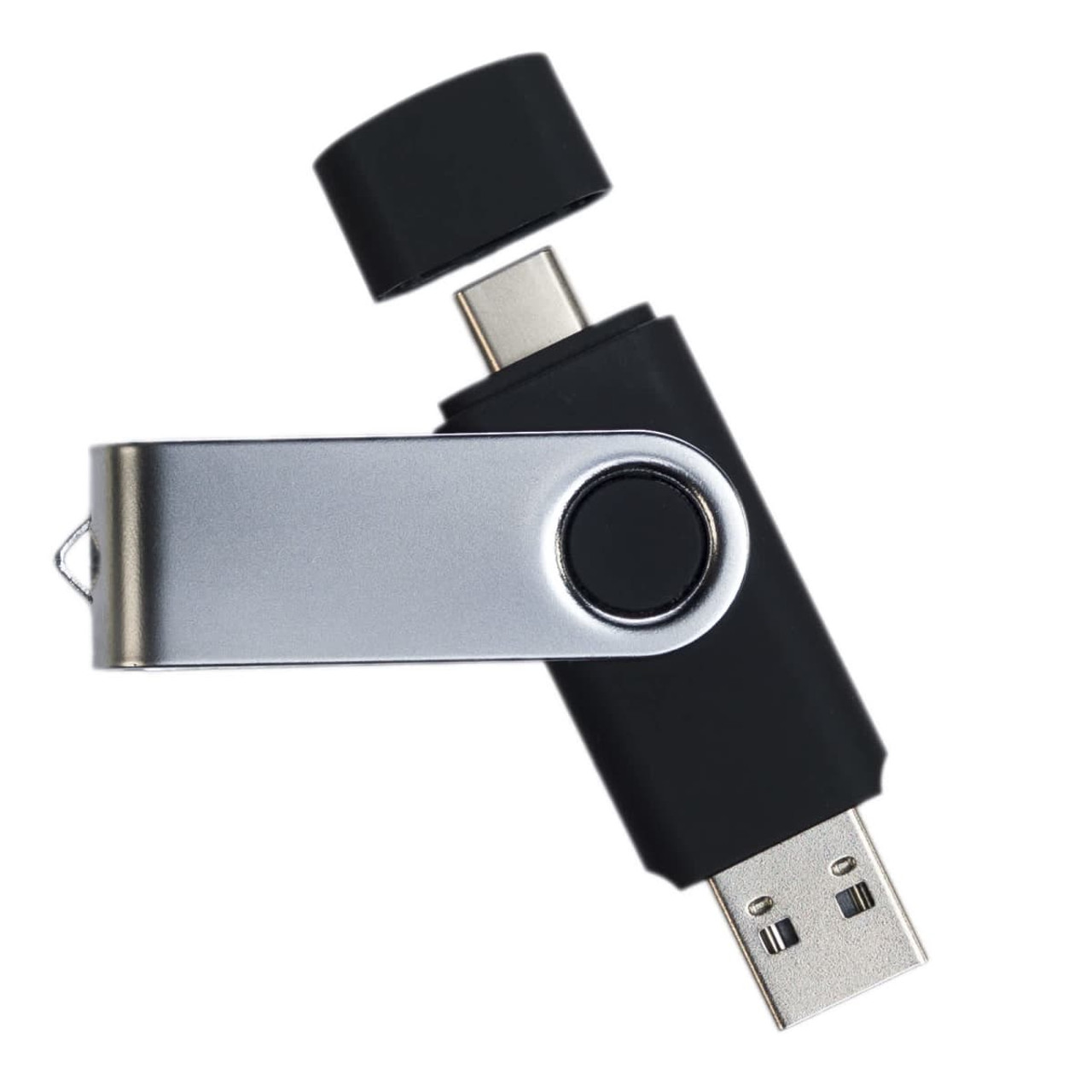
RMCC01 USB-C Flash Drive
Price on request
View product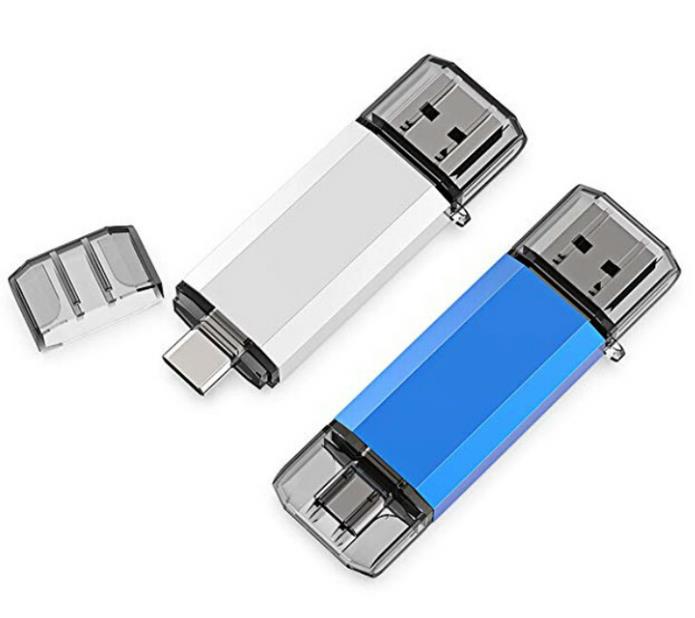
RMCC08 USB-C Flash Drive
Price on request
View product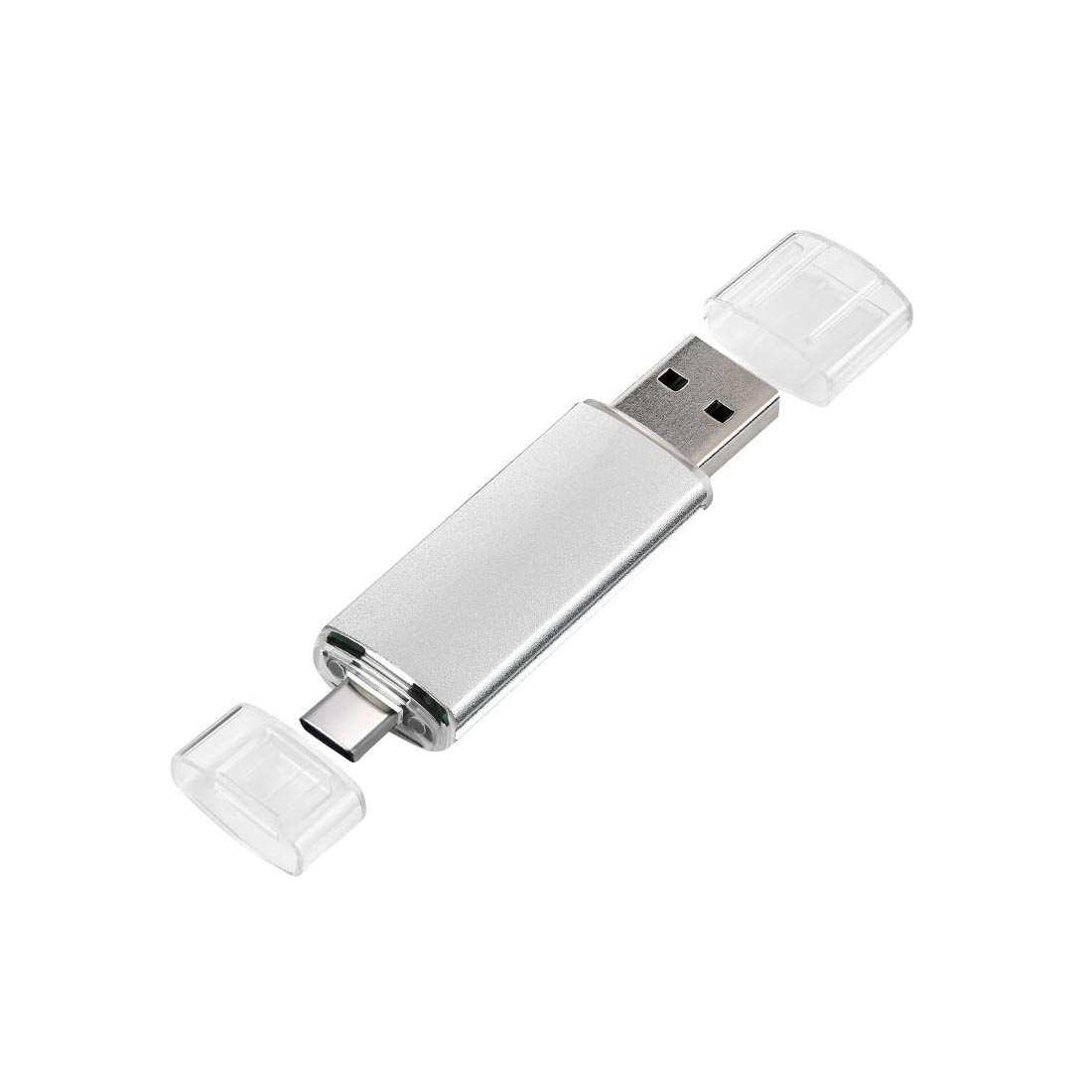
RMCC07 USB-C Flash Drive
Price on request
View product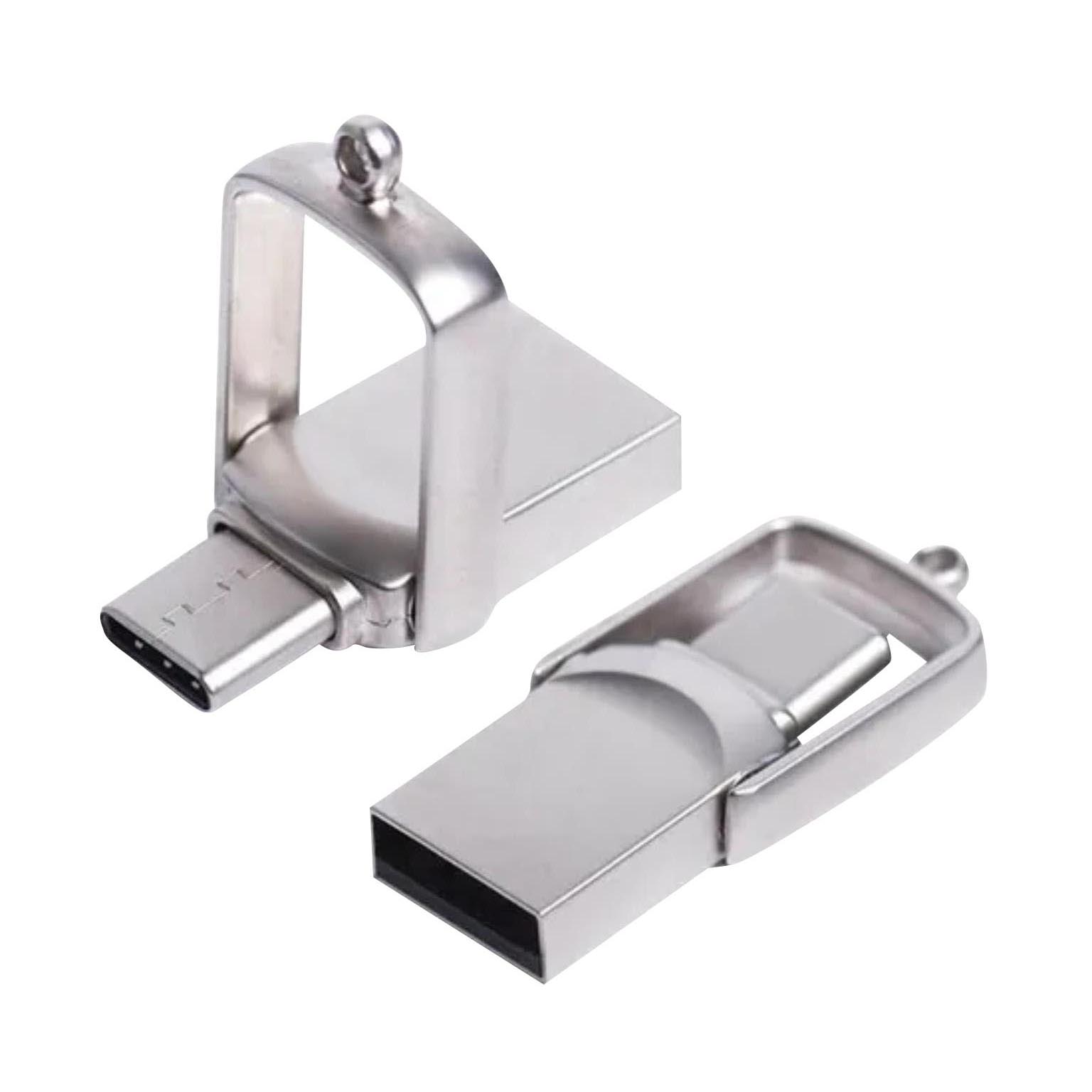
RMCC05 USB-C Flash Drive
Price on request
View product
Frequently Asked Questions
Is USB 3.0 the Same as USB 3.2 Gen 1?
Yes. USB 3.0 became USB 3.1 Gen 1 and later USB 3.2 Gen 1. All describe the 5Gbps tier.
What Is the Difference Between USB 3.2 Gen 1 and Gen 2?
Gen 1 supports 5 Gbps, while Gen 2 supports 10 Gbps. Gen 2 doubles theoretical signaling bandwidth.
What Is the Difference Between USB 3.1 and USB 3.2?
USB 3.2 absorbed earlier USB 3.x specifications. USB 3.1 Gen 1 became USB 3.2 Gen 1, while USB 3.1 Gen 2 became USB 3.2 Gen 2.
Will USB 3.2 Gen 2 Work With USB 3.0?
Usually, yes, when the connectors and devices are compatible. The connection generally runs at the lower of the two capabilities.
Is USB-C Faster Than USB 3.0?
Not automatically. USB-C describes the connector. Its actual speed depends on the supported USB standard, the cable, the host, and the device.
Does a USB Cable Affect Speed?
Yes. A cable must support the intended signaling rate. USB cable compatibility can limit an otherwise faster connection.
Conclusion: USB 3.0 vs USB 3.2 Gen 1 vs Gen 2
USB naming looks complicated, but the useful distinction is straightforward. USB 3.0 and USB 3.2 Gen 1 are in the 5 Gbps tier. USB 3.2 Gen 2 raises the ceiling to 10Gbps. USB 3.2 Gen 2x2 reaches 20Gbps over USB-C.
Real USB performance depends on the host, port, cable, controller, and storage media. A faster specification cannot remove a bottleneck.
For branded technology, that practical view matters. RELYmedia helps organizations choose USB flash drives based on recipients, file sizes, compatibility, capacity, quantity, branding, and timing.
Choose the USB solution your audience can actually use
Choose the USB solution your audience can actually use, then request a RELYmedia quote for the right branded configuration.
Frequently asked questions
Is USB 3.2 Gen 2 worth the upgrade?
USB 3.2 Gen 2 raises the interface ceiling from 5 Gbps (Gen 1) to 10 Gbps, so it can help when you move large files often or use fast storage like an SSD. It is less useful if any part of the connection is limited to 5 Gbps, or if the flash memory itself is the bottleneck.
Can I plug USB 2.0 into a 3.2 port?
Yes, USB 3.2 standards preserve backward compatibility with existing USB devices. When you connect a USB 2.0 device to a USB 3.2 port, the connection generally operates at the lowest shared capability across the host, port, cable, and device. That means it will run at USB 2.0 speeds rather than USB 3.x speeds.
Do you need a special cable for USB 3.2 Gen 2?
Cable compatibility matters for supported data rates, because speed depends on the complete data path: host, port, cable, and device. To get Gen 2’s 10 Gbps capability, every link in the chain has to support 10 Gbps; otherwise the connection will fall back to the lower common speed. The connector shape alone does not confirm speed support.
How do I know if I need a 2.0 or 3.0 flash drive?
Start with what you are transferring and what hardware recipients use. USB 2.0 is 480 Mbit/s, while USB 3.0 (also called USB 3.2 Gen 1) is a 5 Gbps tier, but real throughput varies by flash memory, controllers, file sizes, and the host system. For everyday documents and presentations, 5 Gbps-tier drives are often adequate.
Does USB-C mean USB 3.2 Gen 2?
No. USB-C is a connector type, while USB 3.2 is a data standard. A USB-C port or cable can carry USB 2.0 data, USB 3.2 Gen 1, USB 3.2 Gen 2, USB 3.2 Gen 2x2, or USB4, depending on the device and supported specifications. The connector shape alone does not indicate speed.
How can I tell whether a port is USB 3.2 Gen 1 or Gen 2?
Do not rely on port color, because manufacturers vary. Instead, look for performance labeling such as 5Gbps, 10Gbps, or 20Gbps, which maps directly to the USB 3.2 tiers. Checking the stated data rate is the most reliable way to compare ports and avoid confusion caused by changing generation names.
Shop this
Need custom USB flash drives? We print them.
Bulk pricing, three free mockups, real quotes back the same business day.
Keep reading

Shop by category
Our Customer Feedback


Mike Larson
 (5)
(5)Unbelievable Turn-around
We are stunned with how quickly we received our order. It turned out perfect, and all of our interactions with staff have been fantastic. Thank you so much!
Jana
(5)Great customer service and on-time delivery with product as advertised!
The product arrived exactly as advertised and on time. This company was very easy to work with, and the price was great!
Sarah
(5)Quick Turn-Around and Immediate Communisaton
I've ordered a couple times from RELY. My initial order was not time sensitive so we had time to get it correct. We went back and forth with proofs until I felt comfortable. When I had a question, the sales team was very responsive. When it came to my re-order, I needed it fast. They responded and got it to me right on time.
Rob
(5)Fabulous experience, great suggestions from the staff!
The sales staff had great suggestions and were very helpful in the process to, in the end, get exactly what was necessary for our use!
Emily
(5)Great service!
Everything went well as anticipated, and as planned. Service was superb & shipment was expedited in a speedy fashion! Thank you for your service!
Freddy
(5)Thumbdrives
2nd time I have ordered from these guys and they have a good product for the price. The delivery time was as said with no troubles. Would recommend and will be reordering again.
Patty
(5)This is a top notch company. Awesome as what they do. Highly recommend.
If you are looking for a company that says what they do and then do what they say - RELYmedia is for you!!! We have done a couple critical orders with RELYmedia and they were ahead of schedule and the items were perfect. We will be utilizing their talents again!!!
Blanca
(5)Very responsive,
All my inquiries were handled in a very timely fashion. My contact was courteous and helpful. Items ordered were received very quickly. Thanks for the superior service!
Andrew
(5)Overall great experience.
They are friendly and knowledgeable. They are well priced, and ship fast.
Trusted By