USB-A vs. USB-C: What's the Difference? + What's Best?
October 12, 2026 · 11 min read
USB ports seem simple until you need the right cable, charger, flash drive, or adapter. Then you meet USB-A, USB-C, USB 3.0, USB4, Thunderbolt, and Power Delivery.
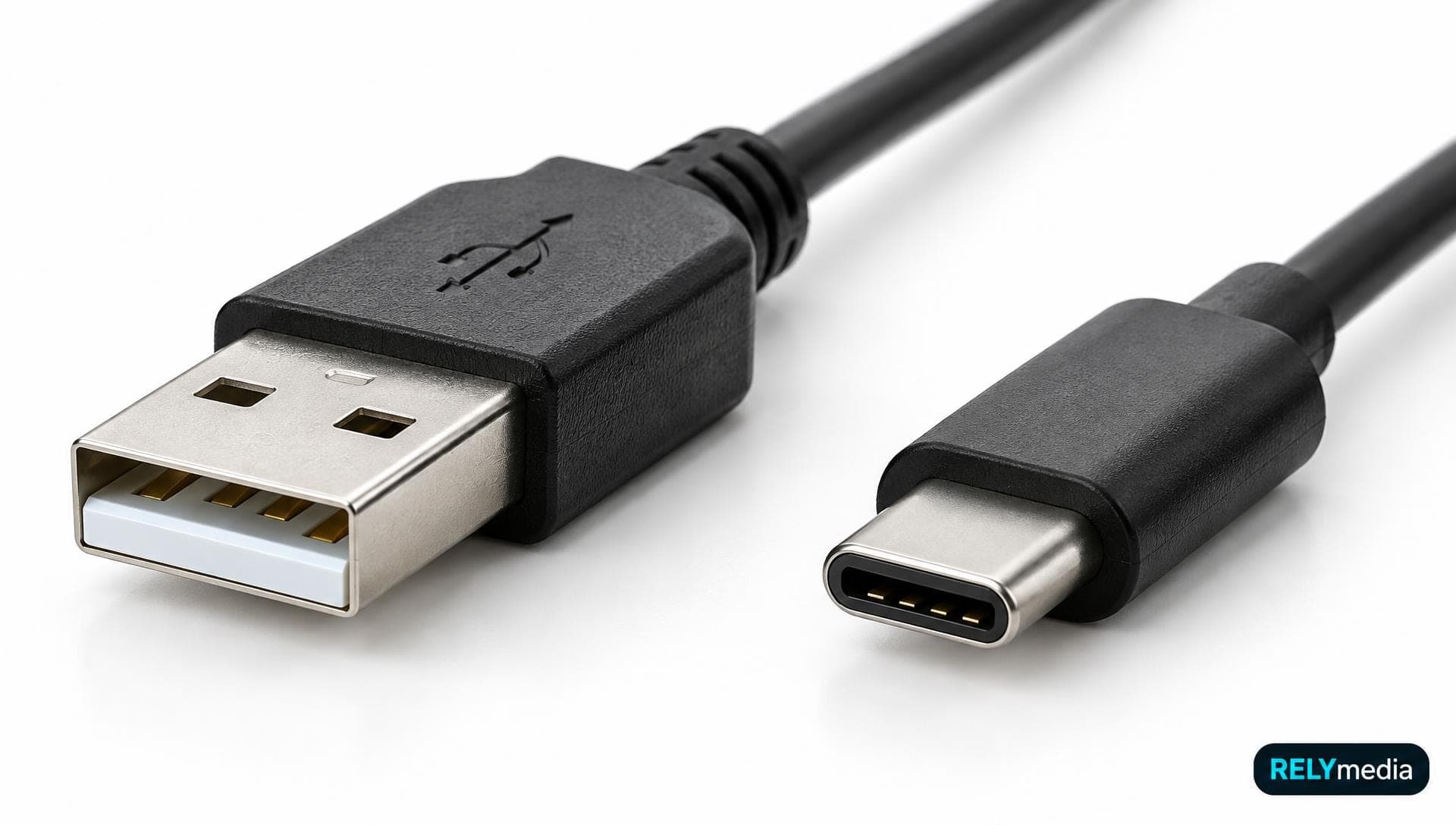
Here’s the key difference between USB-A and USB-C: they describe connector shapes, not guaranteed speeds. USB-C is smaller and reversible. USB-A is larger, rectangular, and still common on older hardware. Actual data transfer speed depends on the USB standard, the cable, the storage device, and the host hardware.
For modern devices, USB-C offers the stronger long-term path. USB-A still wins when legacy compatibility matters.
Simple rule: choose the connector your devices support, then check speed, charging, and display specifications separately.
USB-A vs. USB-C at a Glance
| Feature | USB-A | USB-C |
|---|---|---|
| Connector shape | Rectangular | Small, rounded, symmetrical |
| Reversible | No | Yes |
| Common devices | PCs, TVs, printers, flash drives | Phones, laptops, tablets, docks |
| Data speed | It depends on the USB standard | It depends on the USB standard |
| Charging | Usually lower-power use | Can support USB Power Delivery |
| Display support | Not native to connector | Possible on supported systems |
| Best fit | Legacy compatibility | Modern connectivity |
The USB Implementers Forum, or USB-IF, defines Type-C as a connector system supporting multiple data and power technologies. Its current specification is Release 2.5, dated April 2026.
What Is USB-A?
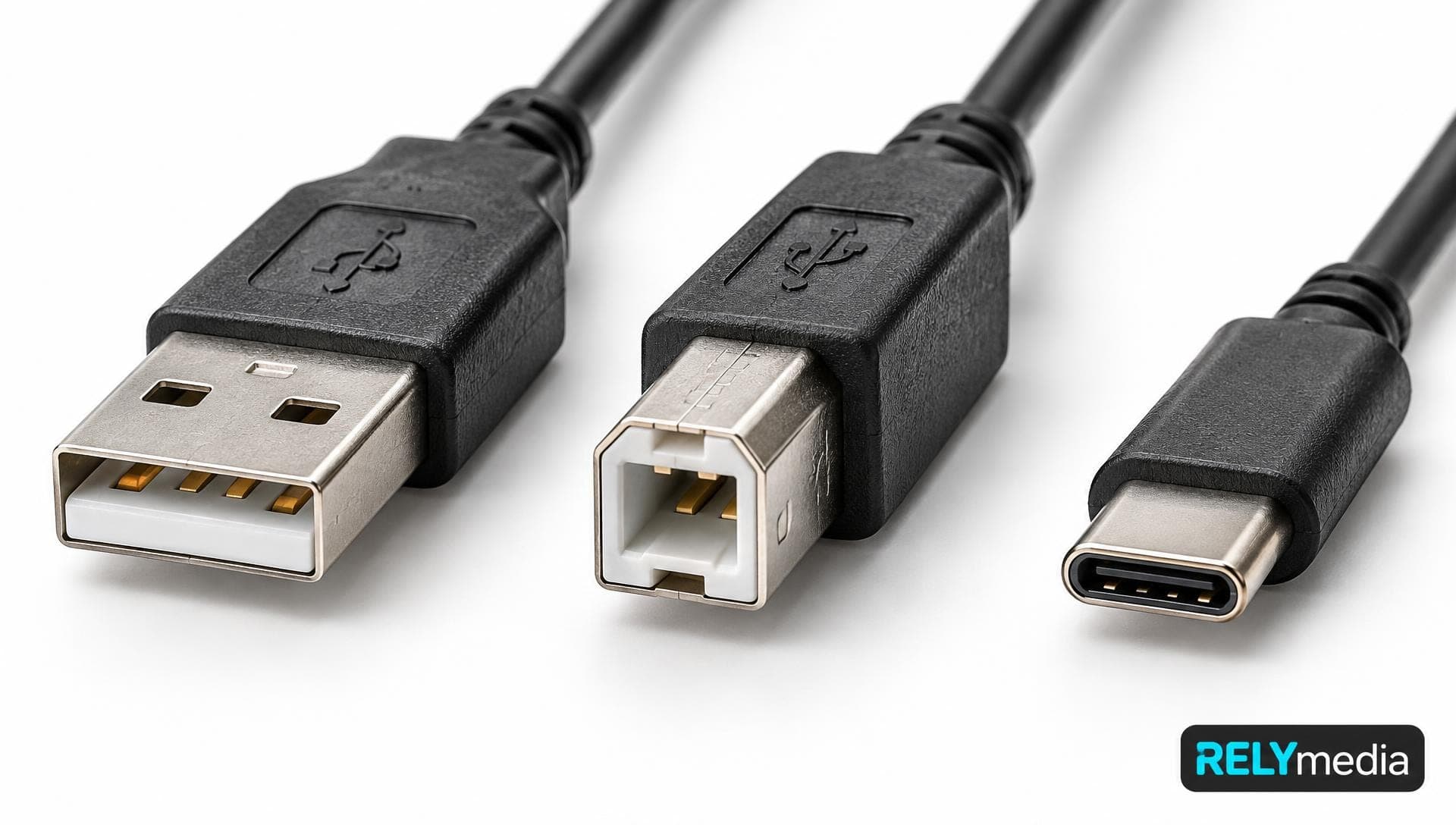
USB-A, USB Type-A, and Type-A USB refer to the familiar rectangular connector. If you’re wondering what a USB-A port looks like, picture the port on many desktops, older laptops, smart TVs, chargers, and USB hubs.
A USB-A connector has one insertion orientation. The USB plug and USB receptacle must align correctly because the pin connectors sit on one side.
What Uses USB-A?
USB-A hardware remains widespread across:
- Desktop computers and legacy computers
- Older laptop ports
- Smart TVs
- Printers and scanners
- External hard drives
- USB hubs
- Standard USB flash drives
- Keyboards, mice, and office hardware
- Power adapters and charging accessories
That broad USB-A compatibility suits businesses, schools, offices, events, and promotional campaigns. It also supports affordable USB storage and everyday USB devices.
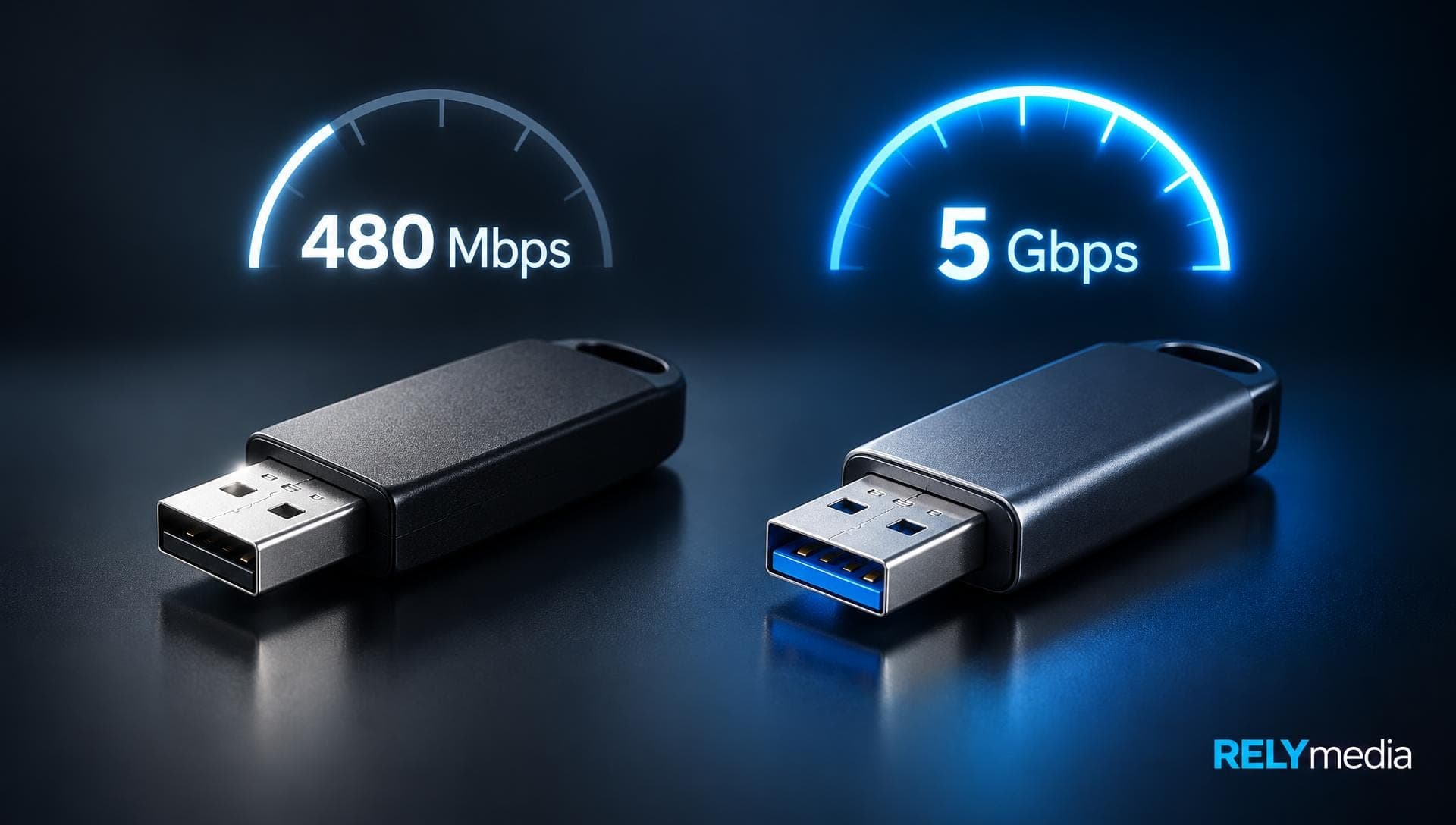
USB-A isn’t the same as USB 3.0. A Type-A port may support USB 2.0, USB 3.0, USB 3.1, or other compatible specifications. Connector type and performance specification are separate ideas.
USB-A Strengths and Limits
USB-A offers legacy device support, broad hardware compatibility, and simple plug-and-play connectivity.
Its limits are physical and practical. The connector isn’t reversible, takes more space than USB-C, and isn’t the preferred interface for newer high-watt charging or ultra-thin mobile devices.
What Is USB-C?
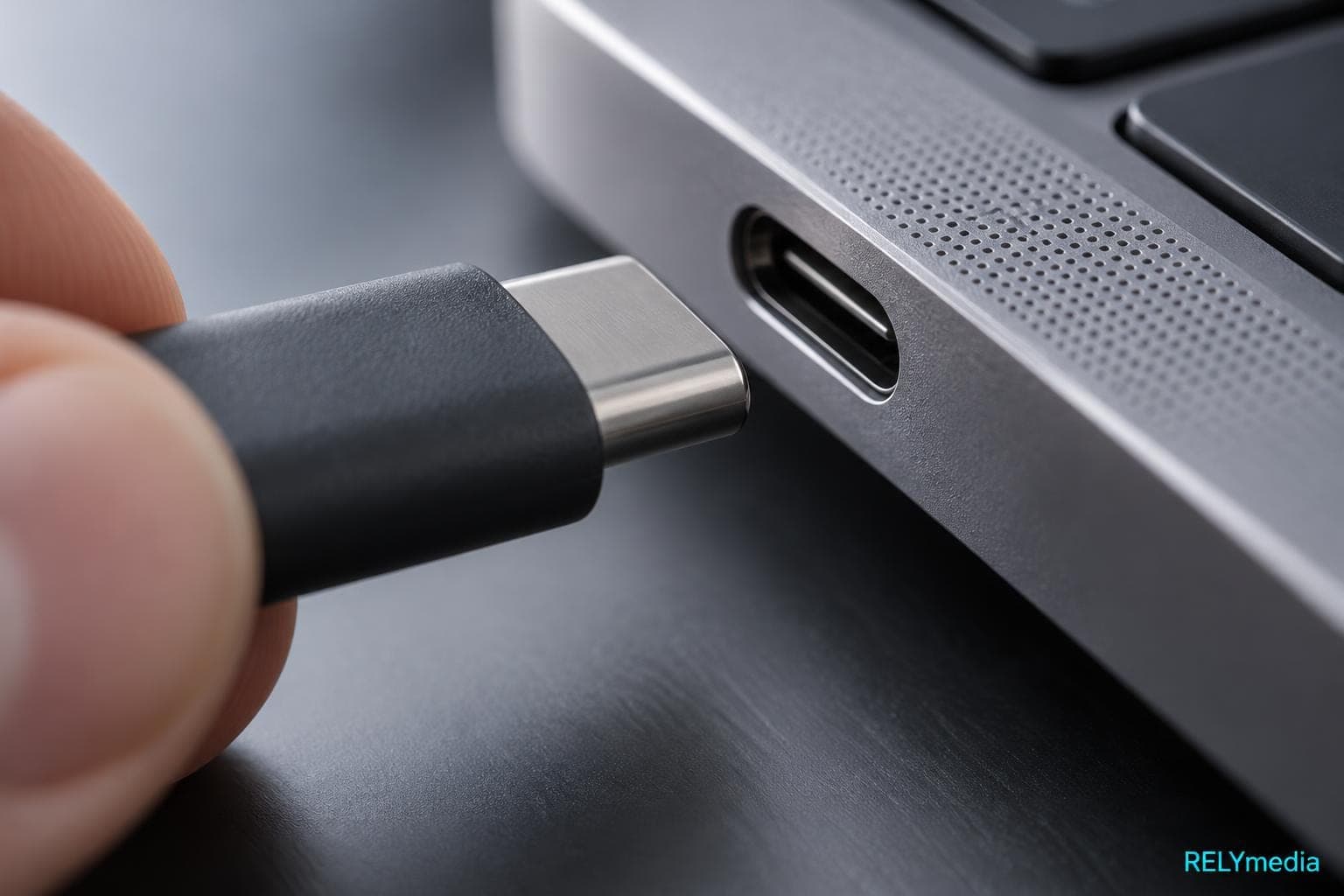
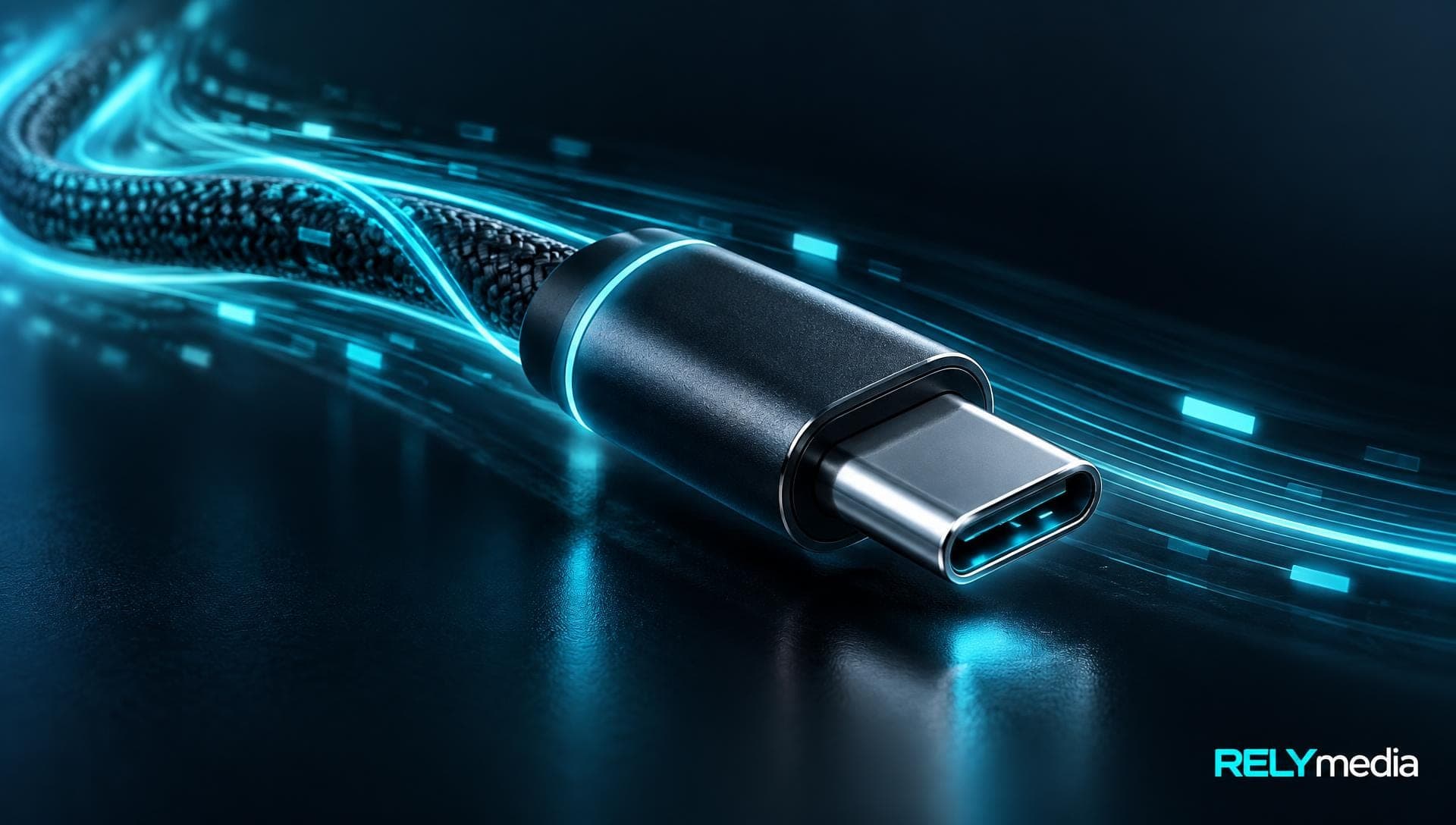
USB-C and USB Type-C describe the same modern connector. It’s small, rounded, symmetrical, and reversible, so you don’t need to rotate the cable.
A USB-C port can support data, charging, video, and peripheral connectivity, depending on its implementation.
What Can a USB-C Port Do?
Compatible USB-C hardware may support:
- High-speed file transfer
- Fast device charging
- Laptop power delivery
- Smartphone charging
- Portable SSDs and USB-C external storage
- USB-C docking stations
- Monitors and USB-C monitor support
- USB-C peripherals and accessories
- USB4
- Alternate modes for display connectivity
USB-C cables can look identical yet offer different transfer bandwidths or power capacities. Always check their markings and specifications.
When comparing cables, read the label rather than judging by the connector. USB-IF certification guidance uses data-rate markings such as 20Gbps, 40Gbps, or 80Gbps, along with 60W or 240W power markings, for certified USB-C cables. Those labels make USB speed and charging comparisons much easier today.
USB-A vs. USB-C: What’s the Difference?
The biggest difference between USB connectors is physical. USB-A is rectangular and one-way; USB-C is smaller and reversible. Supported specifications determine what the connection can actually do.
USB-A vs. USB-C Data Transfer Speed
USB-C isn’t automatically faster than USB-A.
USB 2.0, USB 3.0, USB 3.1, USB 3.2, and USB4 describe performance generations. USB-A and USB-C describe connector types. That distinction explains searches like “USB 3 or USB-C.”
Real data throughput depends on:
- Host device and USB host port
- Cable bandwidth capacity
- USB device specification
- Storage read and write speeds
- Supported high-speed protocols
- Hubs, adapters, or docking stations in the path
A high-performance port can’t make slow storage faster. The slowest link limits rapid data exchange and syncing.
Is USB-C Faster Than USB 3?
Not necessarily. USB-C can operate at USB 2.0 rates, while USB-A can support USB 3.x speeds. USB4 uses Type-C connectivity.
USB4 Version 2.0 enables up to 80 Gbps on compliant equipment and certified cables, benefiting high-speed peripherals, portable SSDs, displays, and demanding workflows.
Need faster file transfers for presentations, media, or training kits? Match the flash drive specification to the workload before ordering.
USB-A vs. USB-C Charging
Charging performance depends on more than the connector shape. USB-A charges many everyday devices, while compatible USB-C systems can deliver far more power through USB Power Delivery.
USB Power Delivery Revision 3.1 supports up to 240 watts through qualifying full-featured USB Type-C cables and connectors. That higher ceiling supports laptop charging and other high-power USB charging applications.
A 240W cable doesn’t force 240W into every device. The charger, cable, and device negotiate supported power.
Before choosing a charging setup, check:
- Charger wattage
- Cable power rating
- USB charging standard
- Device charging capability
- Power Delivery support
- Required voltage and power profile
This matters for USB-C laptop chargers, power banks, adapters, and next-gen charging technology.
Planning branded chargers or power banks?
RELYmedia can help align connector choice with the devices your audience actually carries.
USB-A vs. USB-C Compatibility
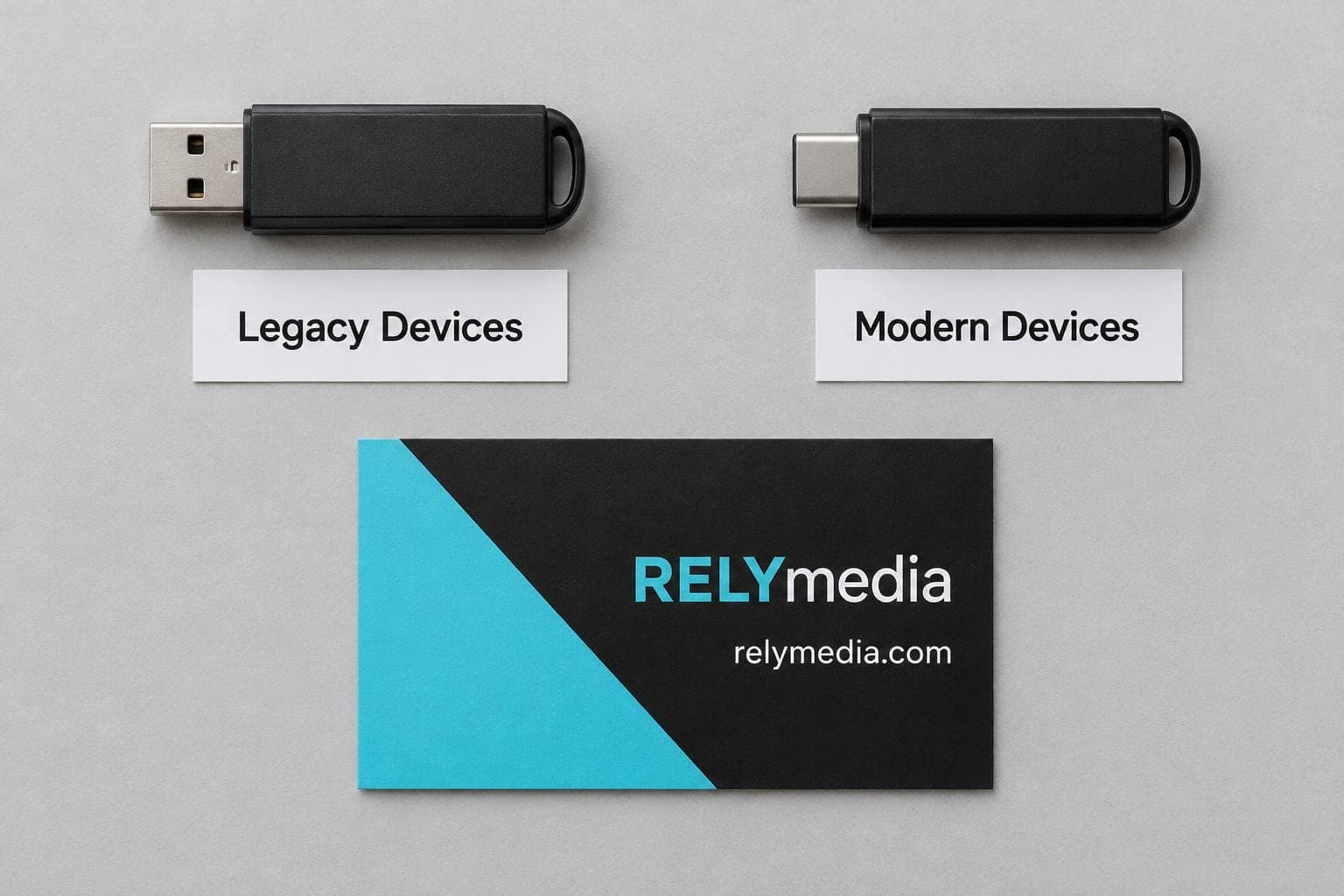
USB-A excels with legacy devices. USB-C fits newer devices and the broader modern ecosystem.
USB-A remains common on desktops, older laptops, printers, scanners, TVs, and office hardware. USB-C appears in smartphones, tablets, gaming laptops, monitors, docks, and portable storage devices.
Adapters create connector interoperability. A USB-A to USB-C cable, a Type-A to Type-C adapter, a USB-C to Type-A adapter, or a USB converter can bridge different USB port types.
Adapters don’t create missing capabilities. They change the physical connection but can’t automatically increase speed, charging, display support, or bandwidth.
Buying insight: when recipients use unknown devices, cross-device compatibility can matter more than peak performance.
Supplying employees, clients, students, or event guests? Consider dual-interface storage when you can’t predict which USB port they'll use.
USB-C Displays, HDMI, and Thunderbolt Compatibility
USB-C can carry more than data when hardware supports it. Compatible systems may connect monitors through alternate modes, docks, or HDMI adapters.
A USB-C port doesn’t automatically guarantee HDMI, DisplayPort, Thunderbolt, or charging. Support: Check the computer and accessory specifications first.
Thunderbolt 3 also uses the USB-C connector shape, but USB-C and Thunderbolt aren’t interchangeable terms. The shared connector can hide major performance differences.
A sound USB buying guide treats the connector, protocol, cable, and device as separate considerations.
What About USB-B, Micro-USB, and Mini-USB?
USB-A and USB-C aren’t the only USB connector types.
USB-B uses a squarer, often trapezoidal connector. Printers, scanners, and other peripheral devices commonly use a USB-B port. A USB-B-to-USB-A cable connects many of those devices to computers.
Micro-USB and mini-USB became common on smaller electronics before the adoption of USB-C accelerated. In a micro-USB vs. USB-C comparison, USB-C offers a reversible design and broader potential for modern data and power features.
Older connectors still matter for legacy hardware. For new purchases, choose based on current device support.
USB-A vs. USB-C for Flash Drives
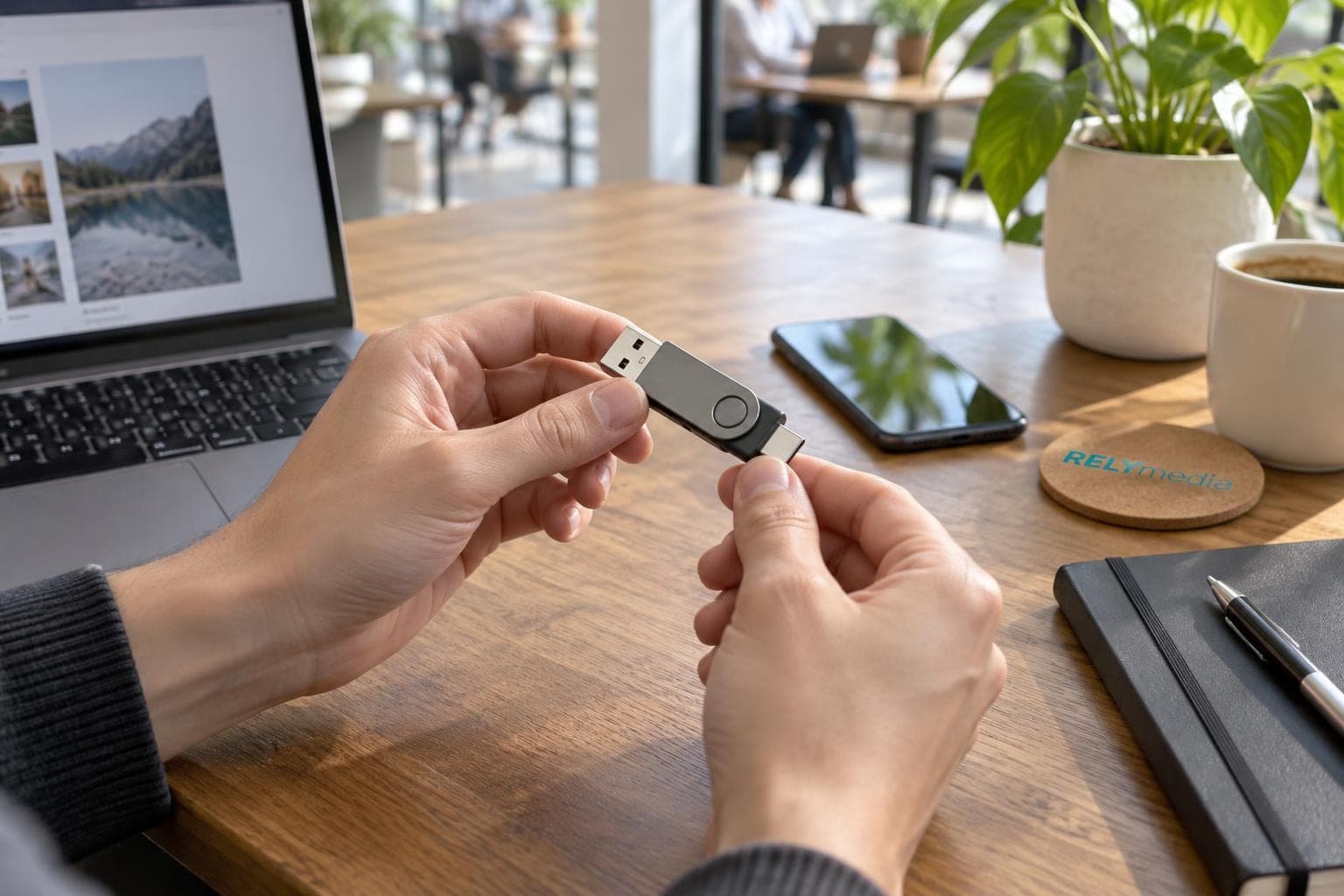
Flash drives make this comparison practical.
A USB-A flash drive works well with legacy computers, desktop USB ports, kiosks, and established office systems. It’s still useful portable flash storage when broad hardware support matters.
A USB-C flash drive is compatible with newer laptops, tablets, compatible smartphones, and other modern devices. It can be an excellent portable memory solution for teams that already use a USB-C ecosystem.
Why Dual Connector USB Flash Drives Make Sense
A dual-connector USB flash drive, sometimes called a dual-interface flash drive, combines USB-A and USB-C connectivity. One drive can move files between traditional USB devices and modern USB-C hardware without a separate adapter.
Dual-interface storage works well for:
- Trade shows and conferences
- Employee onboarding
- Sales presentations
- School programs
- Agency campaigns
- Client kits
- Business giveaway USBs
- Branded file distribution

At a 500-person conference, one attendee may use an older desktop, another a USB-C laptop, and another a tablet. A dual-interface drive reduces friction.
RELYmedia currently lists dual-interface promotional flash drives with USB-A and Type-C connectors, including models designed for computers, smartphones, tablets, and laptops.
A Smarter Bulk-Buying Check
Before approving hundreds or thousands of custom USB drives, test a sample on the oldest and newest hardware your audience may use.
Confirm:
- Connector fit
- Available capacity
- File opening
- Read and write speeds
- Data preload behavior
- Logo placement
- Security requirements
- Cross-platform compatibility
That test can prevent expensive reorders and reveal compatibility problems that labels may not predict.
USB-A or USB-C: Which Should You Choose?
Use your devices and use case, not hype, to decide.
| Your situation | Better fit |
|---|---|
| Older office computers | USB-A |
| Modern laptops and tablets | USB-C |
| Need a reversible plug | USB-C |
| Maximum legacy support | USB-A |
| High-watt charging | USB-C |
| USB4 requirement | USB-C |
| Mixed recipient devices | Dual USB-A/USB-C |
| Simple PC file sharing | USB-A or dual |
Choose USB-A when older computers or traditional peripherals dominate your environment.
Choose USB-C for modern connectivity, compact ports, reversible connections, faster charging, or newer high-speed standards.
Choose both when distributing promotional flash drives to unknown hardware.
Is USB-C Replacing USB-A?
USB-C's future adoption looks strong because one connector can support data, power, displays, storage, and docking. USB4 and higher-power charging reinforce that direction.
USB-A still has a huge installed base. Businesses, schools, homes, factories, and offices won’t replace functional hardware overnight.
That means universal connectivity often requires both worlds. USB-A remains useful for existing equipment, while USB-C provides more future-proof connectivity for newer technology.
The goal isn’t choosing a “winner.” It’s choosing hardware that works today without creating problems tomorrow.
Ready to print your team's name on premium apparel?
Fill in your details and a RELYmedia specialist will come back to you with a custom quote — fast turnaround, no obligation.
- ⚡Same-day response on business days
- 🎨Free design assistance included
- 🚚Rush order & fast delivery available
- 💰Price beat guarantee on every order
Shop custom USB-C flash drives
See all usb-c, card & slim drives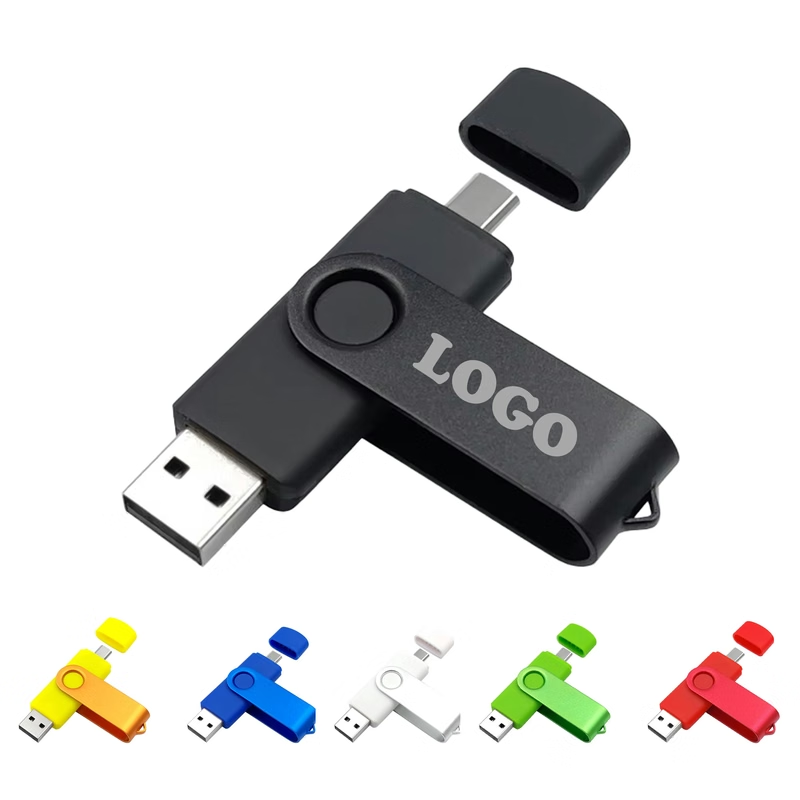
MOQ 30 pcs 32GB Rotating USB-C Flash Drive
$2.69 - $4.50
View product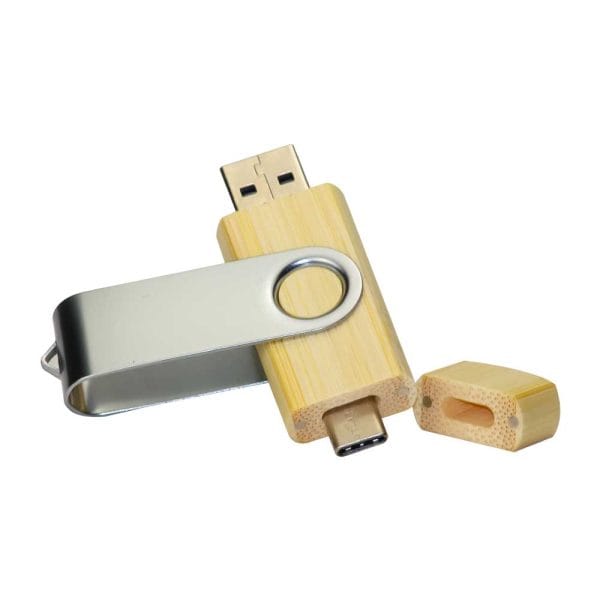
RMCC02 USB-C Flash Drive
Price on request
View product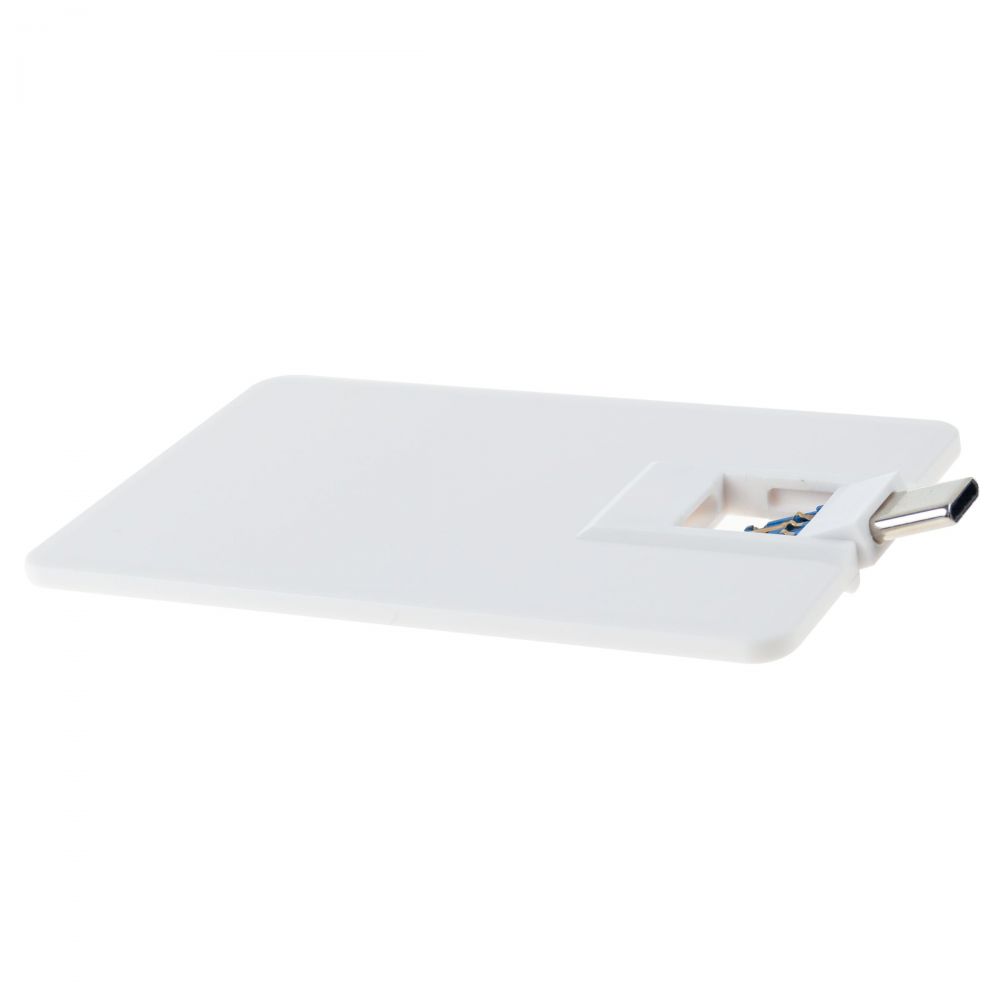
RMCC04 USB-C Flash Drive
Price on request
View product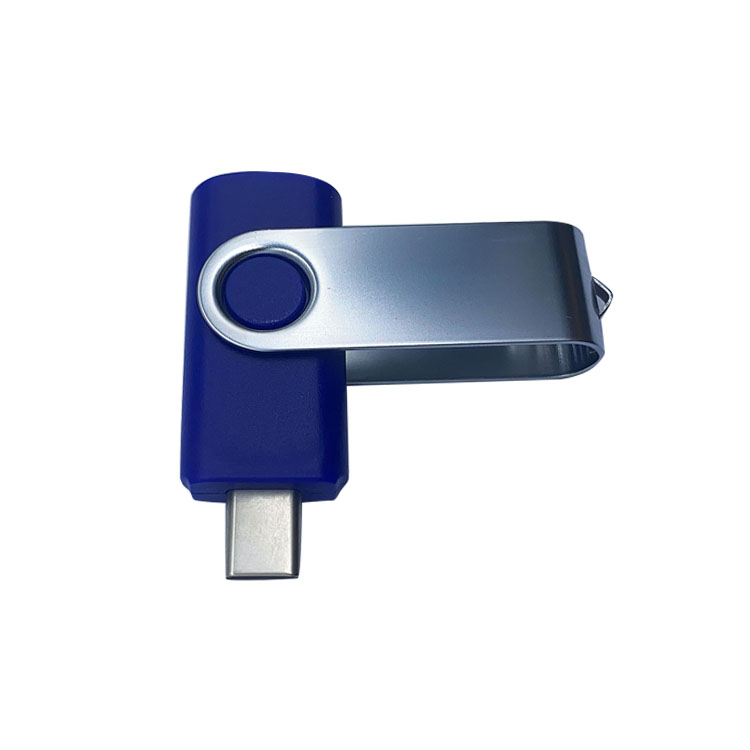
RMCC03 USB-C Flash Drive
Price on request
View product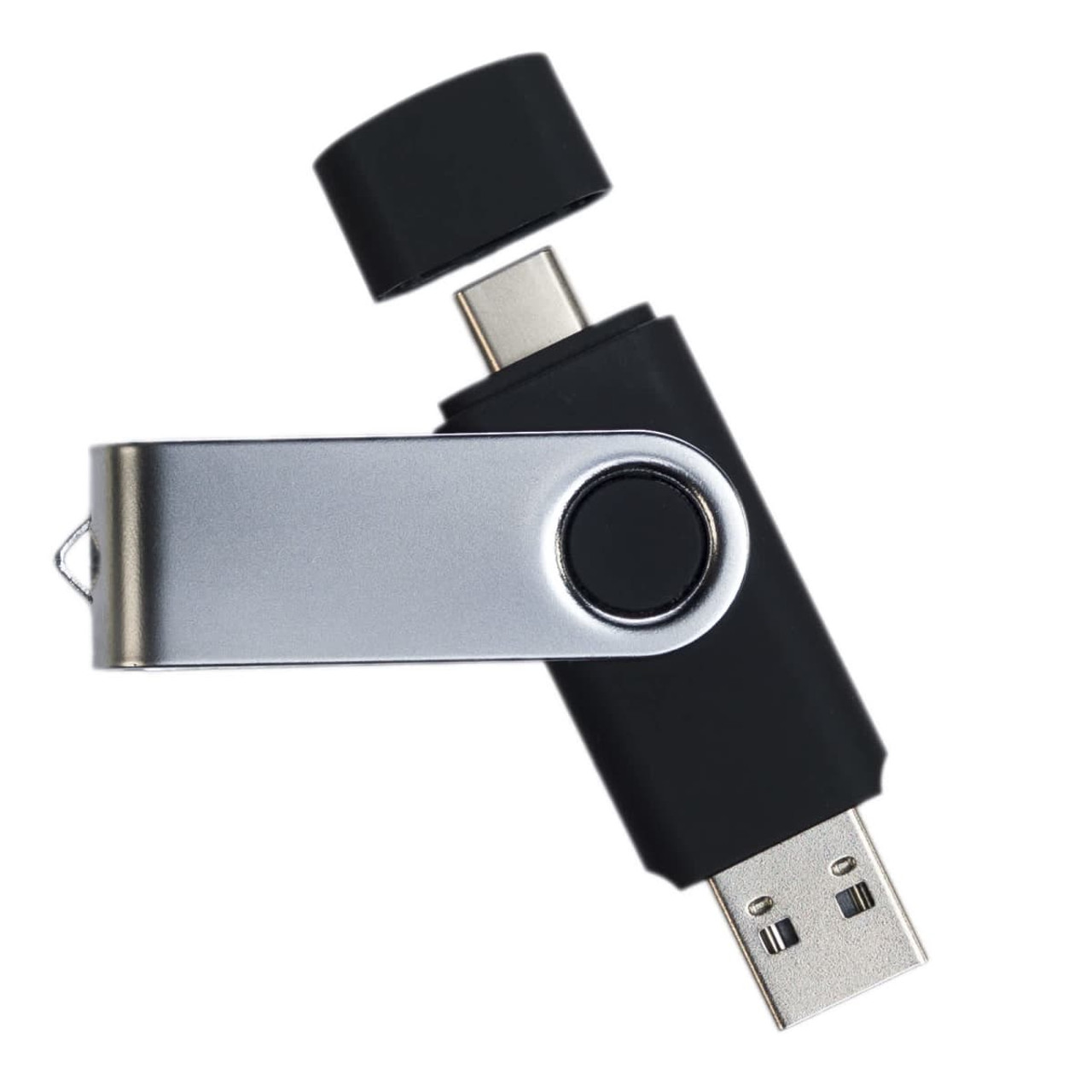
RMCC01 USB-C Flash Drive
Price on request
View product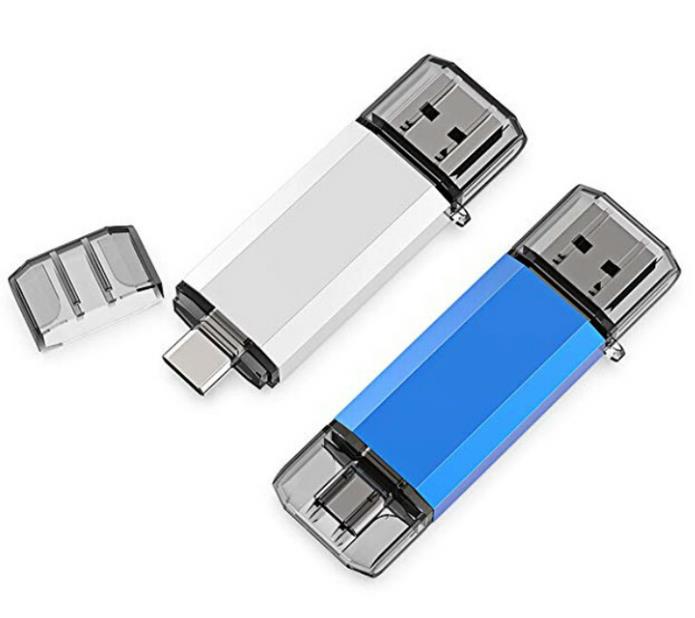
RMCC08 USB-C Flash Drive
Price on request
View product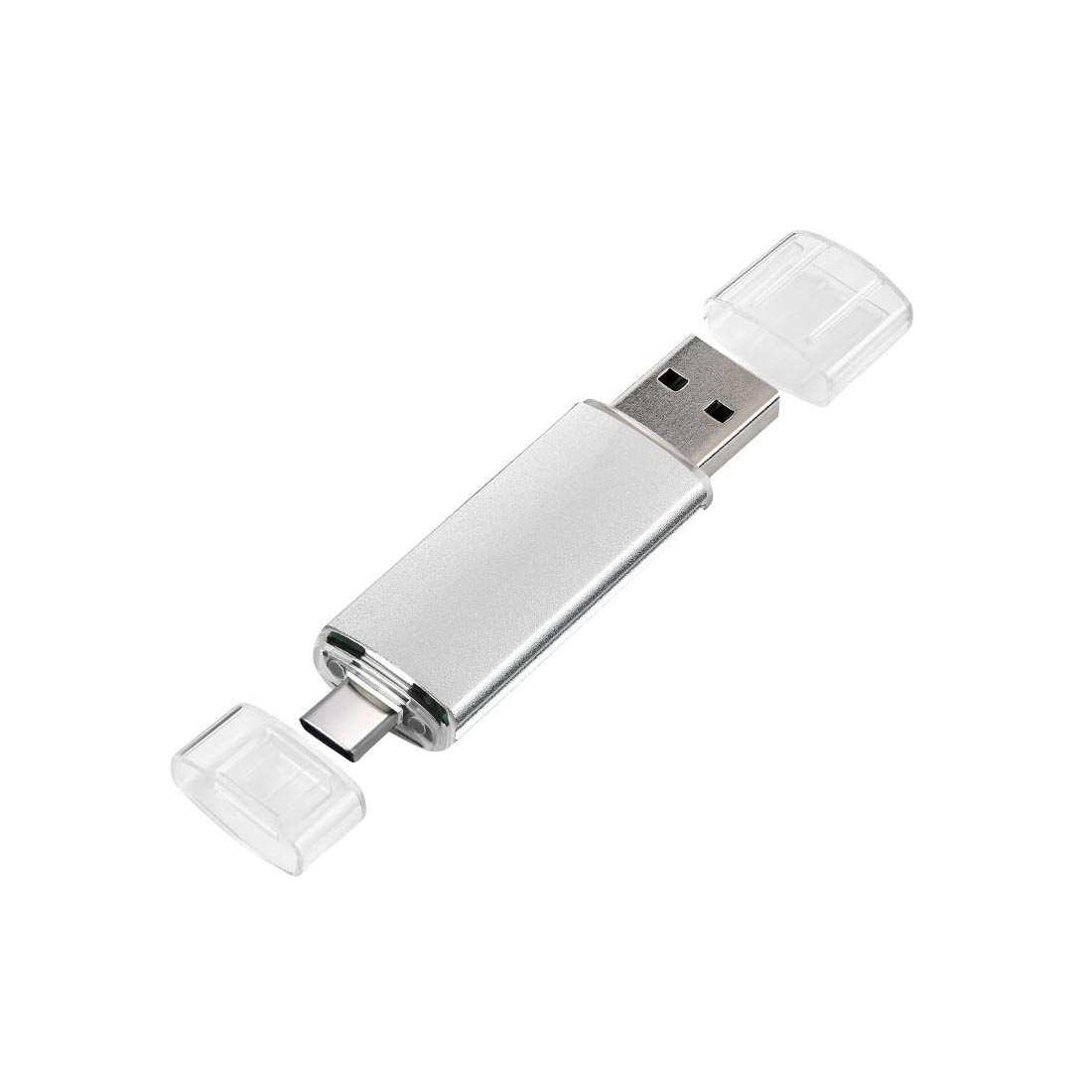
RMCC07 USB-C Flash Drive
Price on request
View product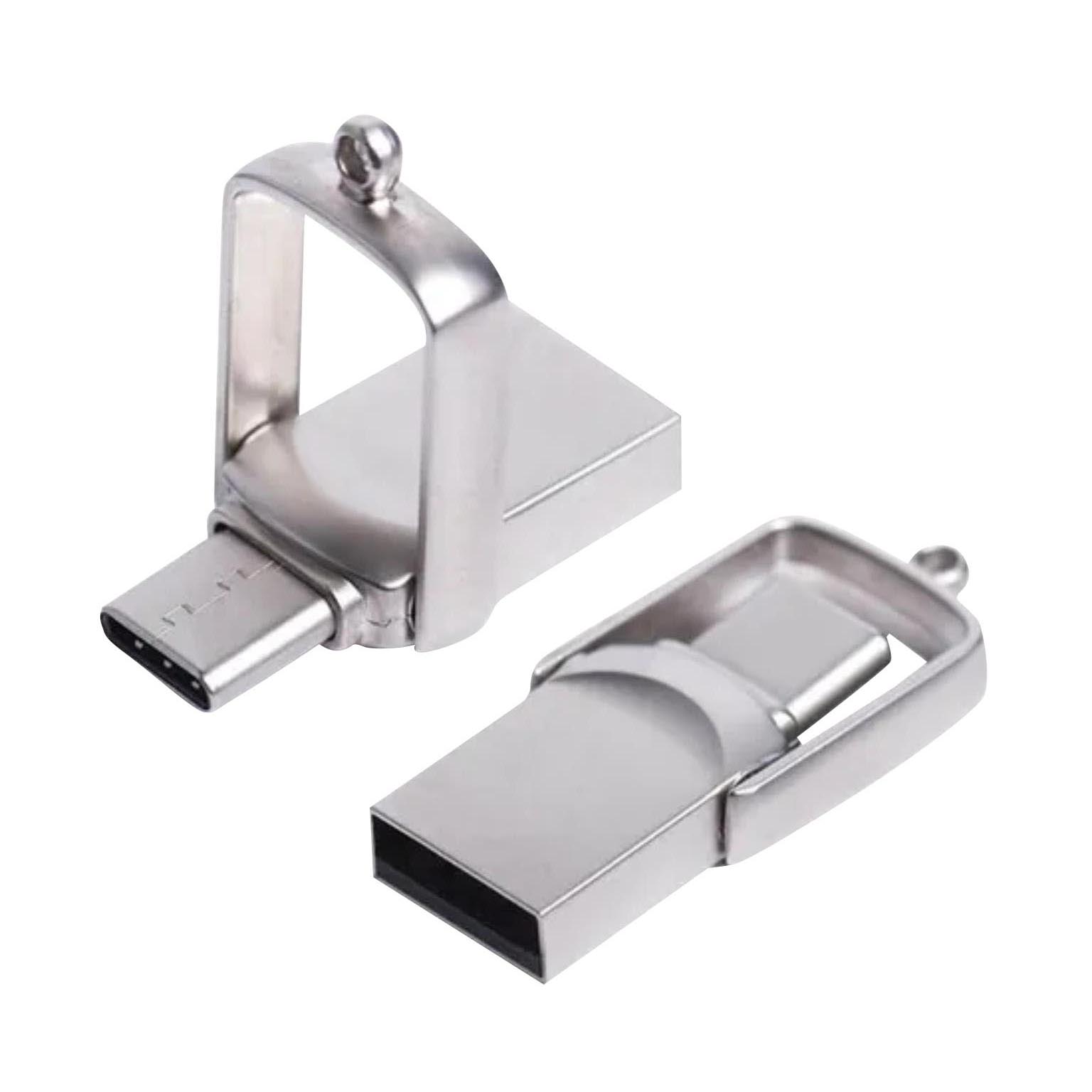
RMCC05 USB-C Flash Drive
Price on request
View product
Frequently Asked Questions About USB-A vs. USB-C
What Is the Difference Between USB-A and USB-C?
USB-A is rectangular and inserts one way. USB-C is smaller and reversible. Supported speeds, charging, and display features depend on the USB specification and the device's hardware.
Is USB-A the Same as USB?
No. USB describes the broader technology family. USB-A is one physical connector type.
Is USB-A the Same as USB 3?
No. USB-A describes the connector. USB 3.x describes performance specifications that can work with compatible connector types.
Is Type-C the Same as USB-C?
Yes. USB Type-C and USB-C refer to the same connector standard.
Is USB-C Better Than USB-A?
USB-C is usually better for modern devices, high-power charging, and newer performance standards. USB-A can be better when legacy compatibility is most important.
Can USB-A Connect to USB-C?
Yes. Use the correct USB-A-to-Type-C cable or adapter. The connection remains limited by the supported hardware and specifications.
Which Is Better for a Flash Drive?
USB-A suits older hardware. USB-C suits modern devices. A dual USB-A and USB-C flash drive offers the widest practical compatibility for mixed audiences.
Conclusion: USB-A vs. USB-C—What’s Best?
USB-A vs. USB-C isn’t simply a matter of old versus new. The right choice depends on connector fit, data needs, charging requirements, device compatibility, and the intended user.
USB-A remains dependable for legacy computers, printers, TVs, standard flash drives, and everyday office hardware. USB-C brings a reversible connector, support for modern devices, USB Power Delivery, USB4, docking, displays, and stronger future connectivity.
For personal use, inspect your ports and specifications. For promotional technology, think beyond your own laptop. Consider your recipients, their devices, the files you’ll distribute, and the experience you want your brand to create.
RELYmedia helps businesses connect those technical requirements with practical branded solutions at scale, from custom USB flash drives and dual-interface storage to charging products and supporting data services.
Request a quote from RELYmedia
and choose branded technology that fits your audience, files, devices, budget, and deadline.
Shop this
Need custom USB-C flash drives? We print them.
Bulk pricing, three free mockups, real quotes back the same business day.