USB-C, USB-B, and USB-A: What’s the Difference?
October 12, 2026 · 11 min read
USB ports seem simple until you need the right cable, charger, flash drive, printer, or adapter. Then USB-A, USB-B, USB-C, USB 3.2, and USB4 can get confusing fast.
The key is simple: USB-A, USB-B, and USB-C describe connector types. USB versions describe performance standards. A USB-C port doesn’t automatically guarantee faster data, laptop charging, or video output.
This guide explains the differences between USB-A and USB-C, where USB-B fits in, what each connector looks like, and which one suits different devices.
Quick rule: Check the connector shape first. Then check the USB specification, power rating, and supported features.
USB-A vs USB-B vs USB-C: Quick Comparison
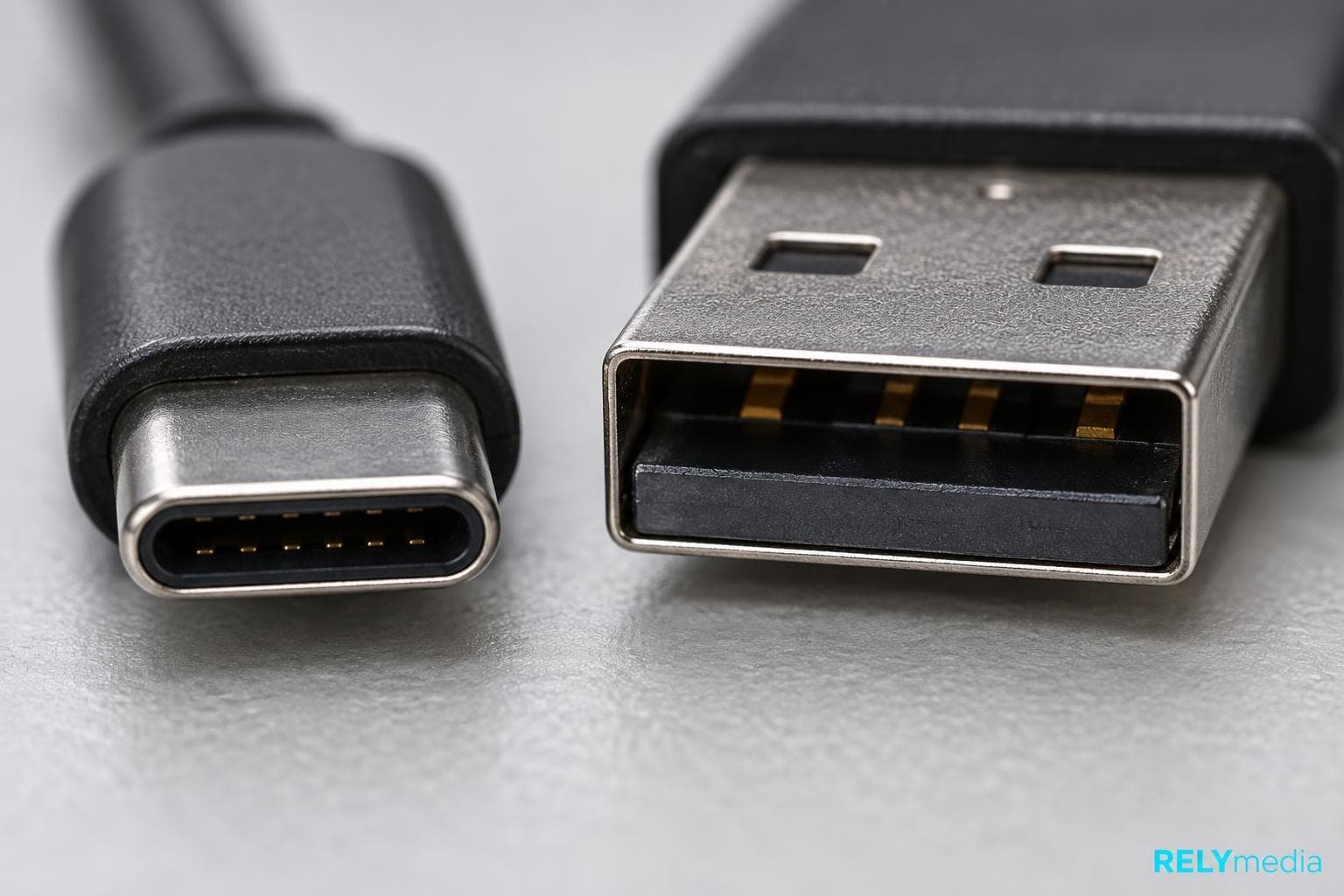
| Feature | USB-A | USB-B | USB-C |
|---|---|---|---|
| Shape | Flat rectangle | Squarish, beveled | Small rounded oval |
| Reversible | No | No | Yes |
| Common role | Host connection | Peripheral connection | Host or device |
| Typical devices | PCs, chargers, drives | Printers, scanners, audio gear | Phones, laptops, docks, drives |
| Data speed | It depends on the USB version | It depends on the USB version | It depends on the USB version |
| Charging | Usually lower power | Device dependent | Can support USB Power Delivery |
| Video | Not typical | Not typical | Possible when supported |
Explore RELYmedia custom USB flash drives for branded storage across different device environments.
USB Connector Type vs USB Version: Know the Difference
USB means Universal Serial Bus.
A connector type describes the physical plug and port. USB Type-A, USB Type-B, and USB Type-C belong here.
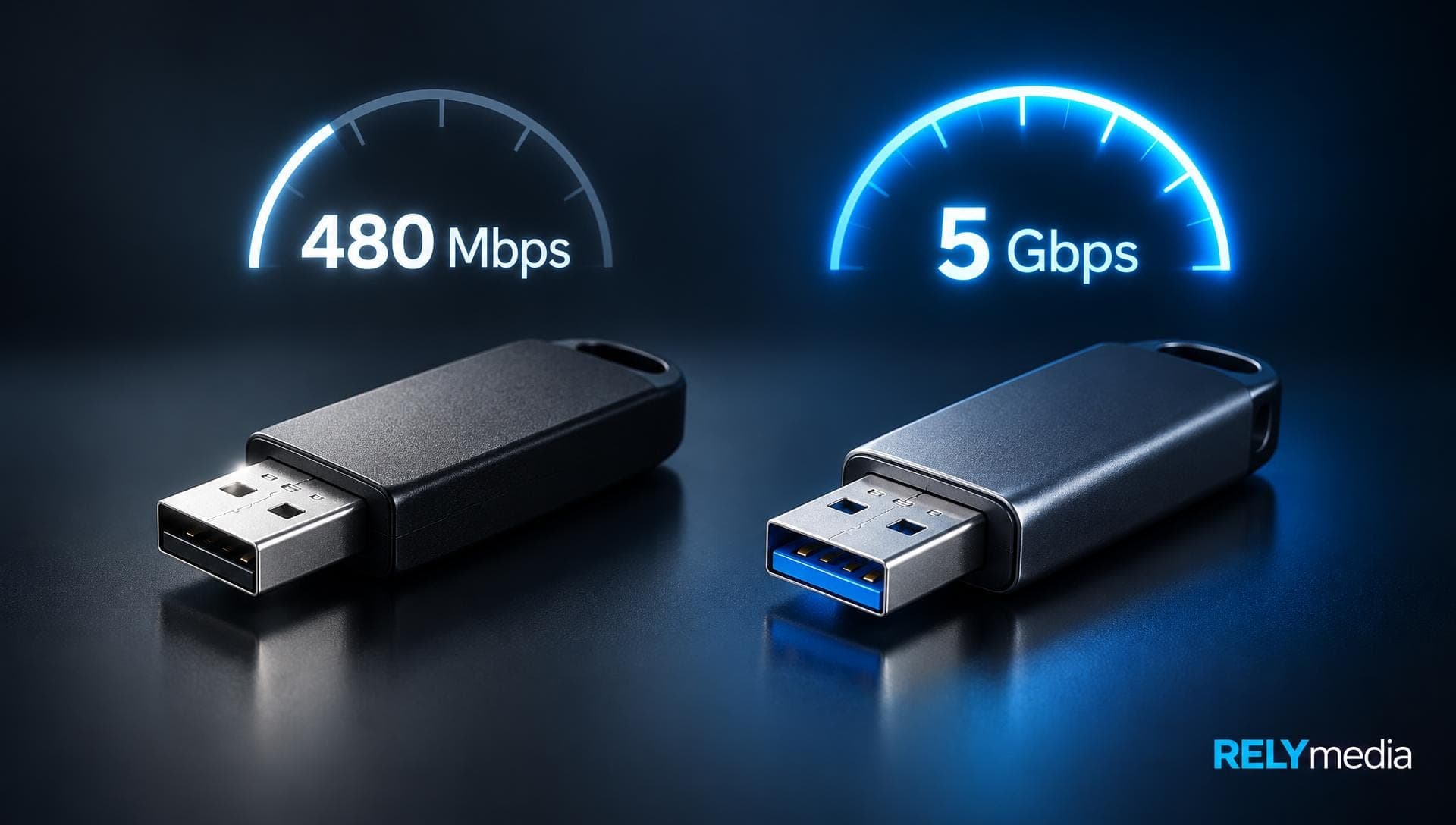
A USB version describes technical capability. Examples include USB 2.0, USB 3.0, USB 3.1, USB 3.2, and USB4.
That distinction clears up common searches:
- USB vs. USB-C: USB is the broader term. USB-C is a connector.
- USB-C vs. USB Type-C: They refer to the same connector.
- USB 3 vs USB-C: USB 3 refers to performance. USB-C refers to the shape.
- USB-A vs. USB 3: A Type-A port can support different generations.
- Micro-USB vs USB-C: These are different connector designs.
USB-IF separates USB Type-C terminology from USB 3.2, USB4, and USB Power Delivery. So, don’t judge speed or charging by connector shape alone.
This matters in real buying decisions. A cable may physically fit into a port but deliver less speed, power, or display support than expected. Always read the device and cable specifications together, especially when comparing USB vs USB-C, USB-A vs USB-C ports, or USB-C and USB 3.0 products.
What Is USB-A?
USB-A, USB Type-A, or USB-A is the familiar rectangular connector found on countless computers and accessories.
What Does a USB-A Port Look Like?
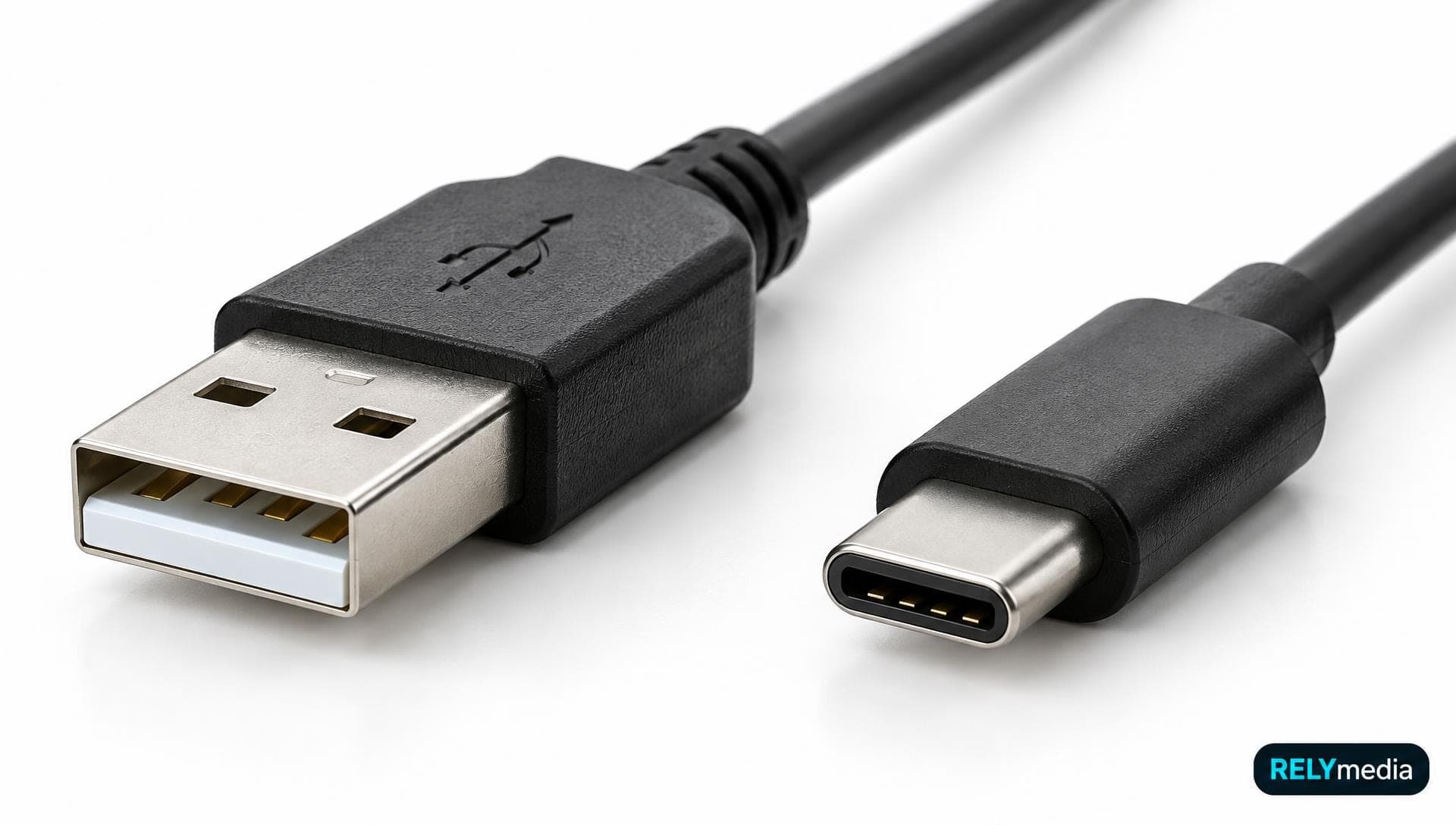
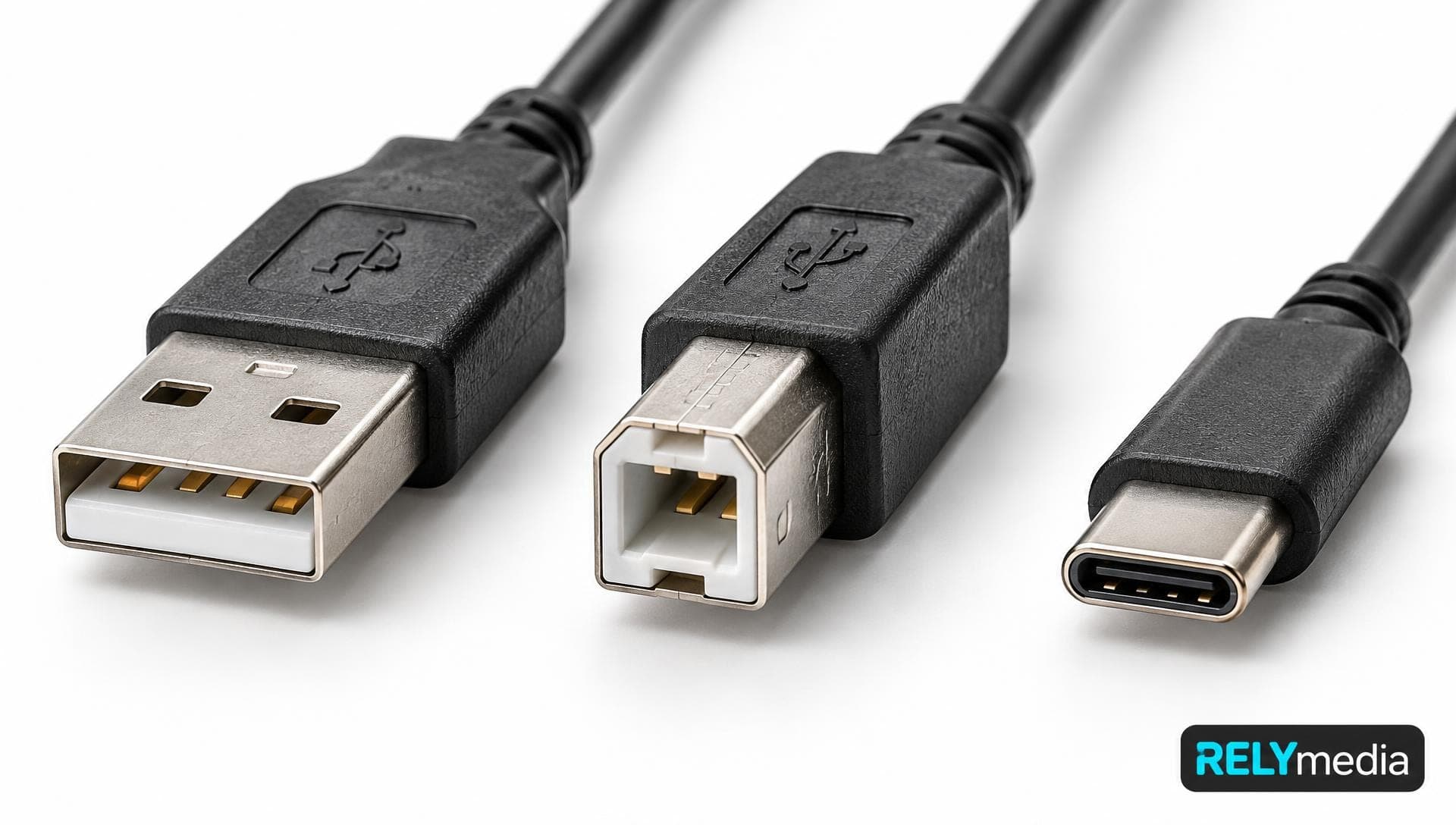
Wondering what a USB-A port looks like? Picture a flat rectangular opening with a plastic tongue inside. The USB-A plug fits in only one orientation.
A USB-A port is commonly found on desktops, laptops, wall chargers, TVs, media players, game consoles, cars, and USB hubs.
What Is USB-A Used For?
USB-A commonly connects:
- USB flash drives
- Keyboards and mice
- Webcams
- External hard drives
- Printers through USB-A-to-USB-B cables
- Game controllers
- Charging cables
- USB hubs
USB-A Advantages and Limitations
USB-A offers broad compatibility with older peripherals and established hardware. Its main physical drawback is plug orientation. It also lacks USB-C’s broader single-connector flexibility for power, video, and modern high-bandwidth connections.
What Is USB-B?
USB-B, or USB Type-B, traditionally serves the peripheral side of a USB connection. Standard USB-B looks almost square, with beveled upper corners.
What Is USB-B Used For?
You’ll still see USB-B ports on:
- Printers
- Scanners
- Audio interfaces
- Some external hard drives
- Specialized hardware
The difference between USB-A and USB-B is easy to see on a printer cable: Type-A may connect to the computer, while Type-B connects to the printer.
Standard USB-B, Mini-B, and Micro-B
USB-B developed smaller variants as electronics shrank. Mini-B appeared on cameras and older portable electronics. Micro-B later became common on phones, accessories, and portable drives.
Micro-USB vs USB-C is another common comparison. Micro-USB is non-reversible. USB-C is reversible and supports a wider range of modern capabilities.
What Is USB-C?
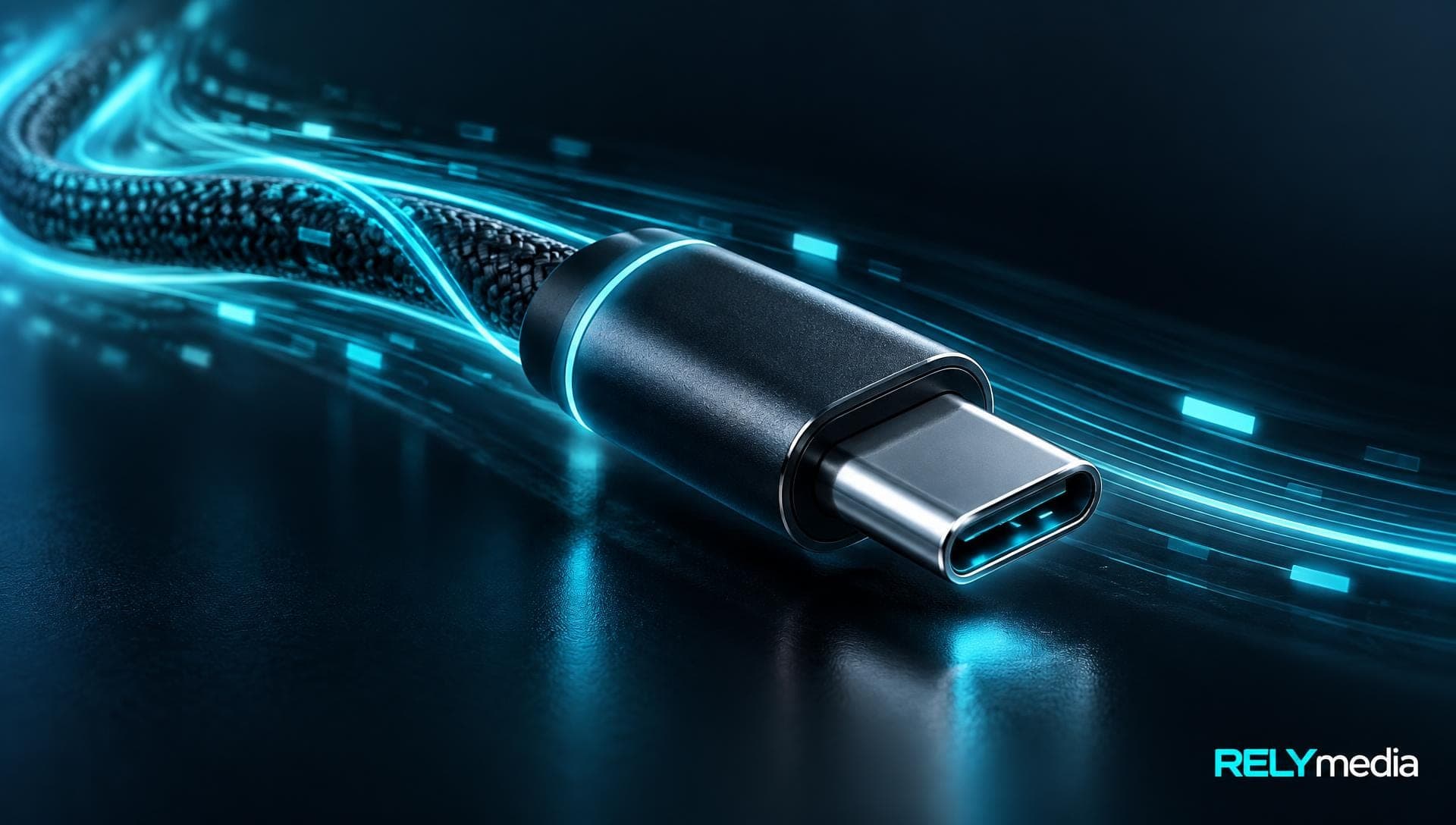
USB-C, also called USB Type-C, uses a compact, symmetrical connector. There’s no top or bottom, so the plug works in either orientation.
However, not every USB-C port supports every feature.
What Is a USB Type-C Port?
A USB Type-C port is the small oval-shaped port found on many modern laptops, smartphones, tablets, chargers, monitors, hubs, and external drives.
USB-C Data Transfer Speed
USB-C doesn’t define one fixed speed.
USB 3.2 identifies 5 Gbps, 10 Gbps, and 20 Gbps transfer rates. USB4 extends performance further, with USB-IF-certified products now available at USB 80Gbps.
So, is USB-C faster than USB 3? Not automatically. A USB-C port may support a slower or faster specification. Check the device’s rated standard.
USB-C Charging and USB Power Delivery
USB-C charging can deliver much more power when paired with USB Power Delivery, or USB PD.
USB Power Delivery supports capabilities up to 240W. Actual charging performance still depends on the charger, cable, and receiving device. USB-IF also uses cable markings to identify supported data rates and power ratings.
That makes USB vs. USB-C charging more about the complete system than the connector's appearance.
USB-C Video and Audio
Supported USB-C ports can carry video and audio through DisplayPort Alt Mode. VESA’s standard enables DisplayPort capabilities over the USB Type-C connector, including support for high-resolution displays on compatible equipment.
Before connecting a display, check:
- Laptop video-output support
- Monitor requirements
- Cable specifications
- DisplayPort Alt Mode support
- Resolution needs
- Power Delivery requirements
Don’t assume every USB-C port can drive a monitor.
Are All USB-C Cables the Same?
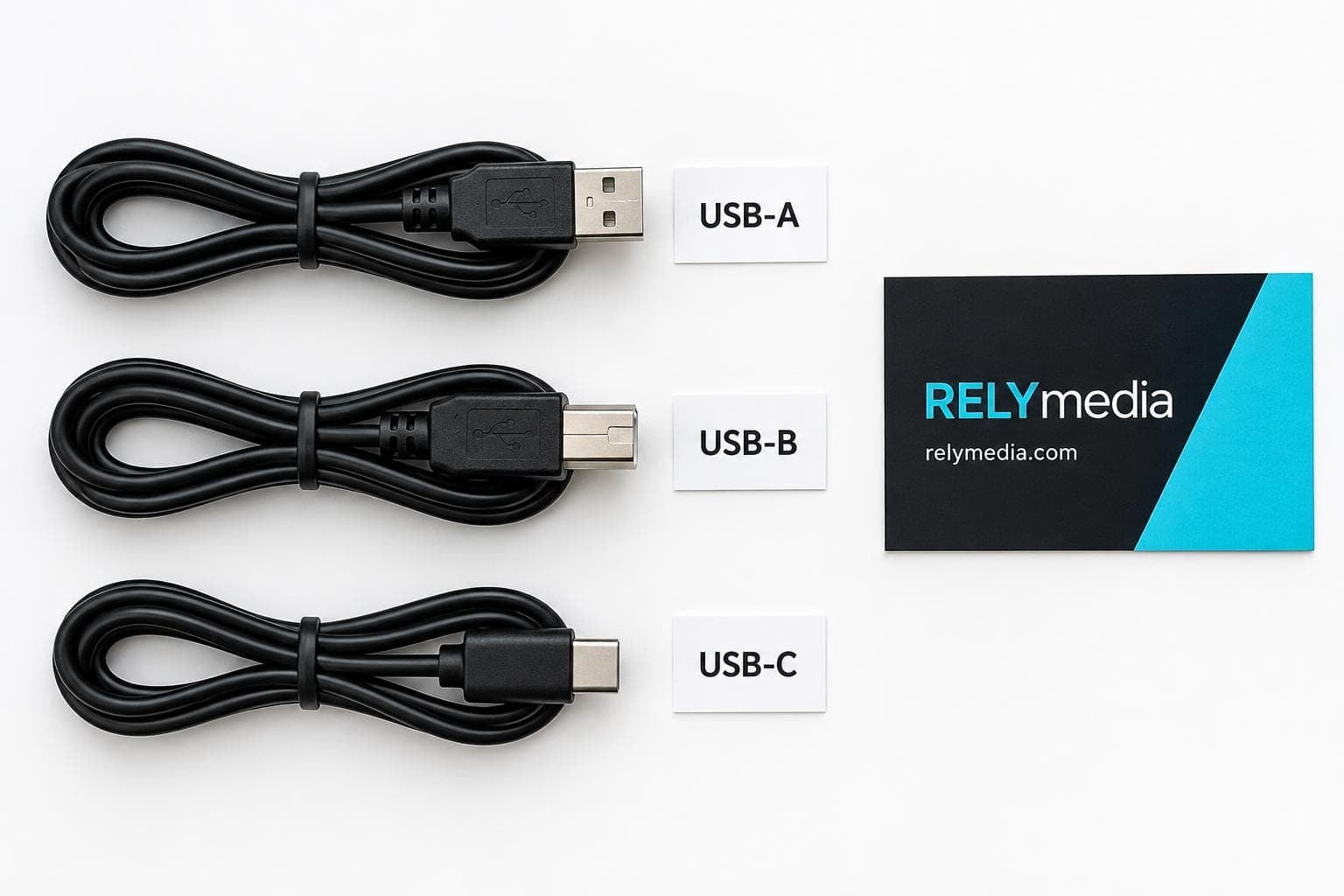
No. Two USB-C cables can look identical yet behave very differently.
Check:
- Data speed
- USB generation
- Power delivery wattage
- Video support
- Cable length
- Certification
- Supported modes
This is why “USB-C and USB-C” doesn’t always mean equal performance. The connector may match, while the cable capabilities differ.
Before placing a bulk branded-tech order,
ask RELYmedia which connector and product configuration best match your recipients’ devices.
USB-A vs USB-C: What Are the Biggest Differences?
USB-A vs USB-C Ports and Connector Shape
USB-A uses a rectangular, non-reversible plug. USB-C uses a smaller, reversible, symmetrical connector.
USB-A vs USB-C Data Speed
Neither connector guarantees a specific transfer speed. The supported USB specification determines the theoretical data rate.
USB-A vs USB-C Charging
USB-A charging remains useful for accessories and legacy hardware. USB-C with USB PD can support higher power, bidirectional charging, and laptop charging when compatible equipment allows it.
When comparing a USB-A vs. USB-C charger, check wattage and charging protocols, not just the shape.
USB-A vs USB-C Compatibility
Common adapters include:
- USB-A to USB-C
- USB-C to USB-A
- USB-A to USB-B
- USB-C to USB-B
- Type-A to Type-C USB cables
An adapter changes connector compatibility. It doesn’t upgrade data speed, power capacity, or unsupported features.
USB Versions Explained: USB 1.0 to USB4
| USB specification | Maximum headline rate | Typical context |
|---|---|---|
| USB 1.x | Up to 12 Mbps | Early peripherals |
| USB 2.0 | 480 Mbps | Basic storage and accessories |
| USB 3.0 / 3.1 | Up to 10 Gbps | Faster storage and peripherals |
| USB 3.2 | Up to 20 Gbps | High-speed storage and docks |
| USB4 | Up to 80 Gbps | Modern high-bandwidth connectivity |
USB 3.2 officially covers 5 Gbps, 10 Gbps, and 20 Gbps transfer rates. USB4 uses USB Type-C and supports higher bandwidth on qualifying equipment. USB-IF documentation also identifies USB 2.0 high-speed operation at 480 Mbps.
So, is USB 3 the same as USB-A? No. USB 3 describes a specification family. USB-A describes a connector.
Is USB-C Better Than USB-A or USB-B?
Choose USB-A for broad compatibility with traditional desktops, laptops, kiosks, and existing equipment.
Choose USB-B when a printer, scanner, audio interface, or specialized peripheral requires it.
Choose USB-C for reversible connection, modern device compatibility, charging flexibility, display connectivity, or newer high-bandwidth standards.
Thunderbolt adds another layer. Modern Thunderbolt uses the USB-C connector, but Thunderbolt defines additional performance and feature requirements. USB-C describes the connector itself.
USB-A vs USB-C for Flash Drives

Choose a USB-A flash drive for traditional desktops, older laptops, shared workstations, kiosks, and existing USB-A hubs.
Choose a USB-C flash drive for newer laptops, smartphones, tablets, and other USB-C devices.
Choose a USB-A and USB-C flash drive for mixed hardware. A dual-port design reduces reliance on adapters and supports cross-device file transfer.
For example, an HR team may issue onboarding kits to employees using newer USB-C laptops and older desktop workstations. One dual connector can serve both environments.
RELYmedia offers custom flash drives in many styles, capacities, and form factors, including dual-port USB and Type-C options. Its flash-drive offering also includes branding and data-service choices for business campaigns.
See RELYmedia’s dual-port USB and Type-C flash drive for audiences using both port types.
Choosing the Right USB Connector for Business Use
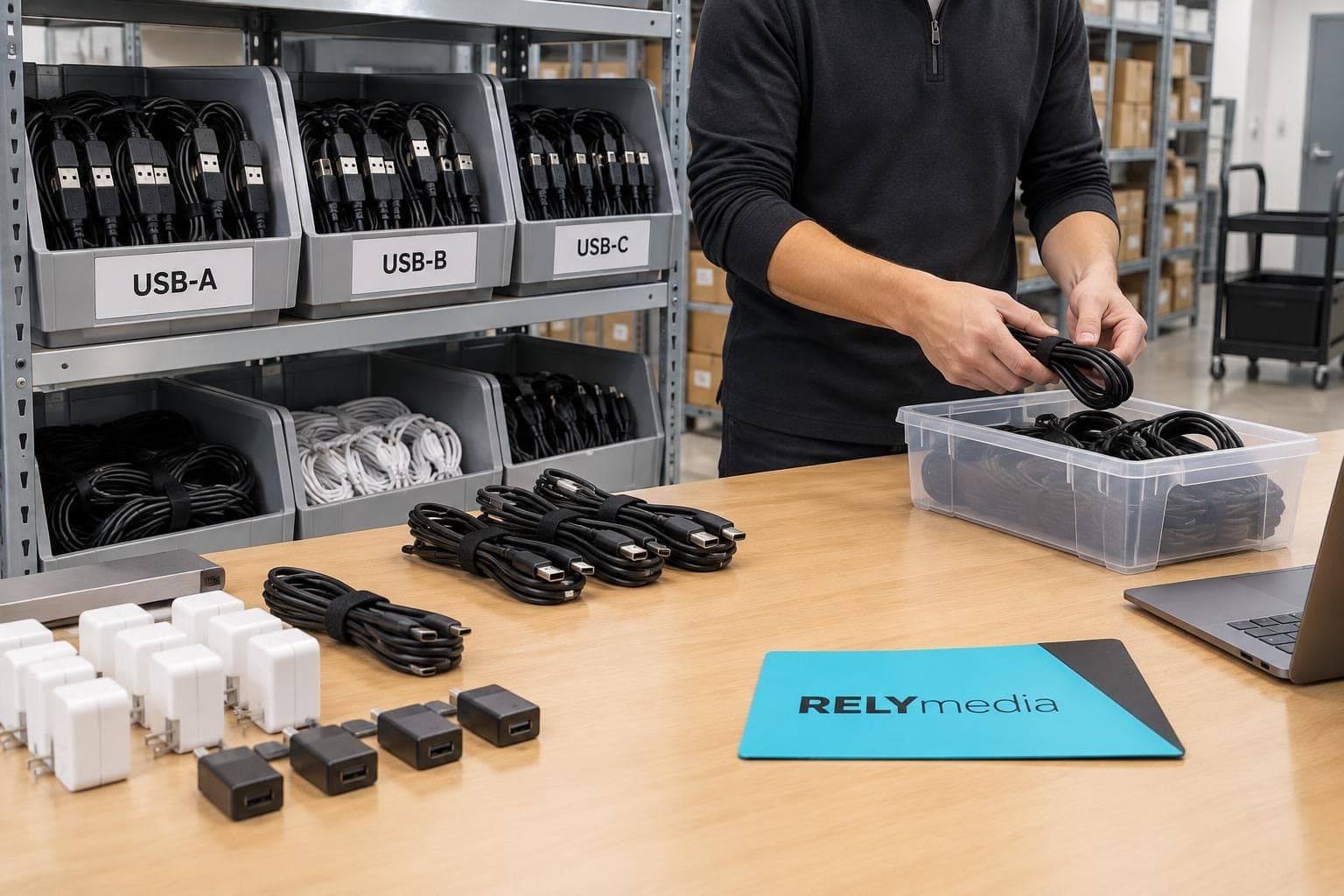
Start with your audience, not the newest connector.
Ask:
- What devices do recipients use?
- Which USB port types appear most often?
- How large are the files?
- Is charging required?
- Does video output matter?
- Will users need adapters?
- How long should the product stay useful?
Also consider storage capacity, branding, durability, packaging, lead time, order quantity, and data preloading. These details turn a generic drive into a useful promotional product.
For promotional programs, compatibility often matters more than chasing the newest standard. A conference giveaway may reach people carrying both older PCs and modern USB-C laptops. In that case, a dual-connector flash drive can reduce friction, increase usefulness, and keep the branded item in circulation longer. That practical fit can matter more than maximum bandwidth when users mainly open presentations, PDFs, photos, or routine business files.
Ready to print your team's name on premium apparel?
Fill in your details and a RELYmedia specialist will come back to you with a custom quote — fast turnaround, no obligation.
- ⚡Same-day response on business days
- 🎨Free design assistance included
- 🚚Rush order & fast delivery available
- 💰Price beat guarantee on every order
Shop custom USB-C flash drives
See all usb-c, card & slim drives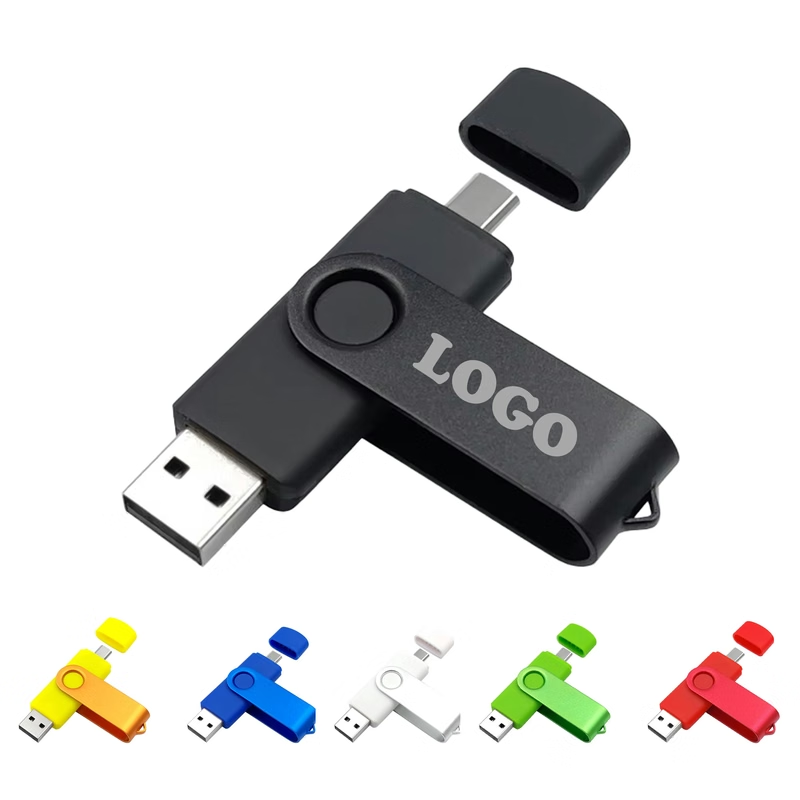
MOQ 30 pcs 32GB Rotating USB-C Flash Drive
$2.69 - $4.50
View product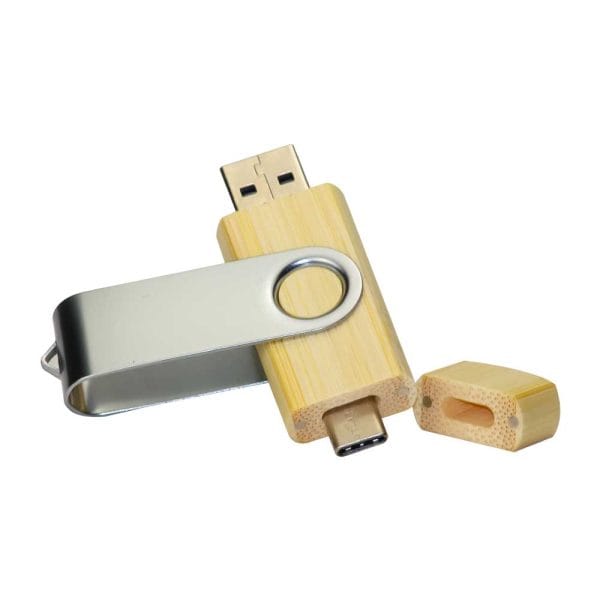
RMCC02 USB-C Flash Drive
Price on request
View product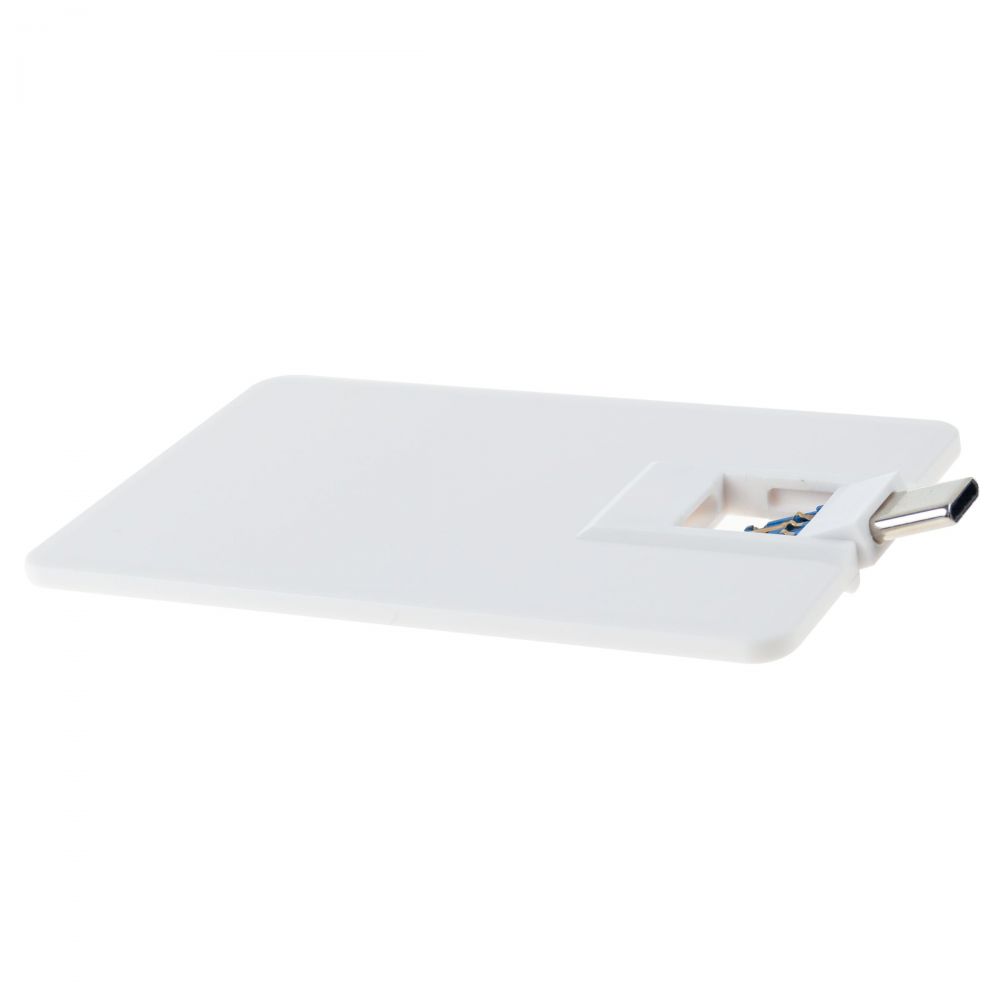
RMCC04 USB-C Flash Drive
Price on request
View product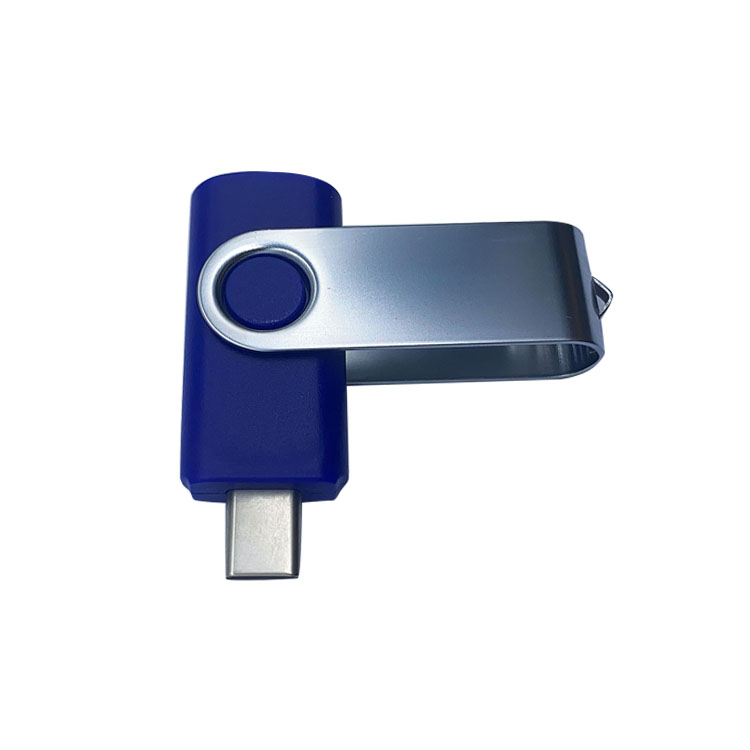
RMCC03 USB-C Flash Drive
Price on request
View product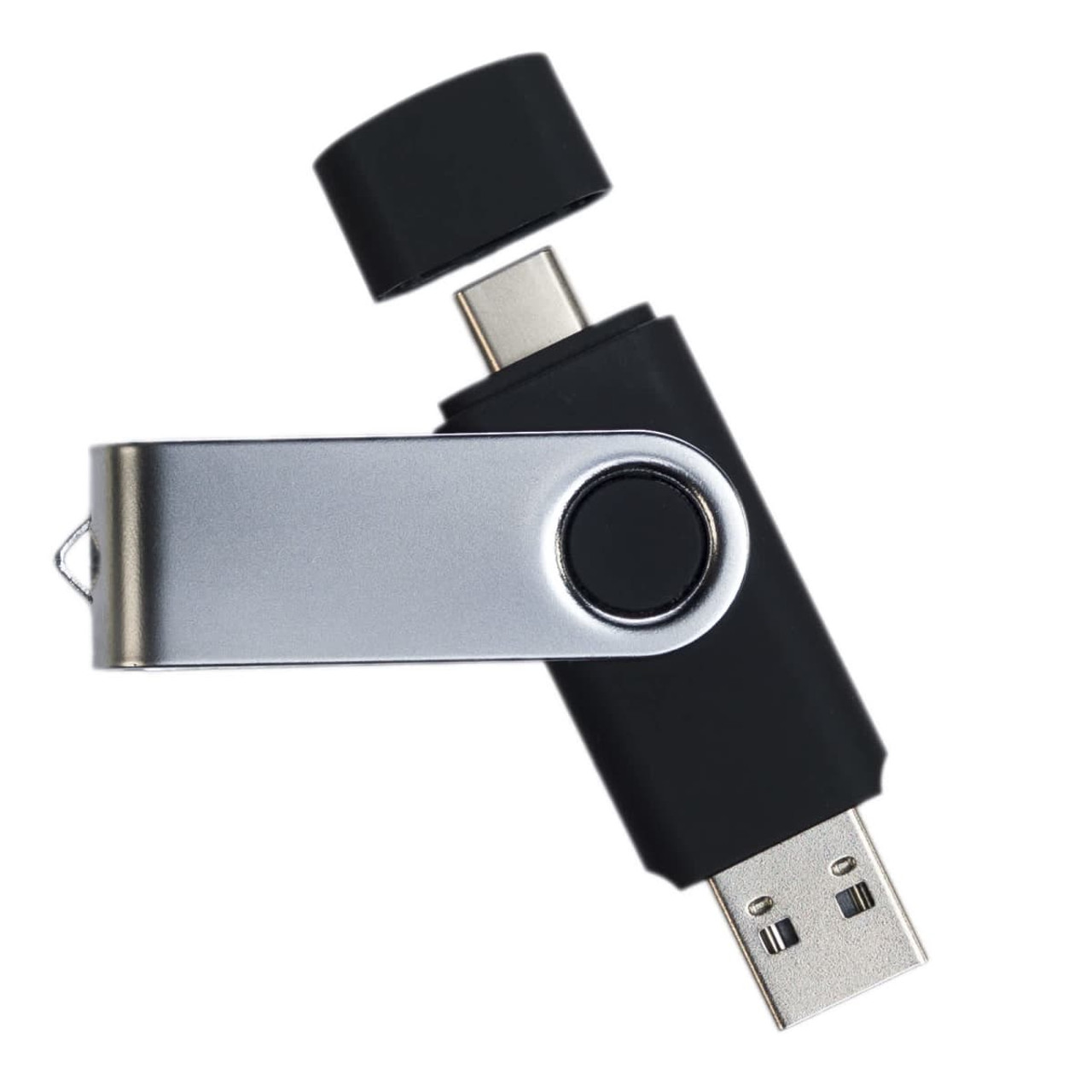
RMCC01 USB-C Flash Drive
Price on request
View product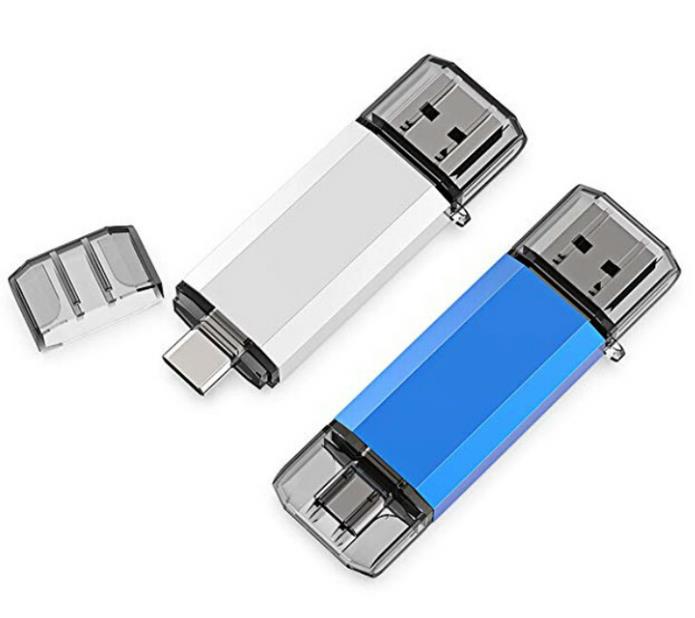
RMCC08 USB-C Flash Drive
Price on request
View product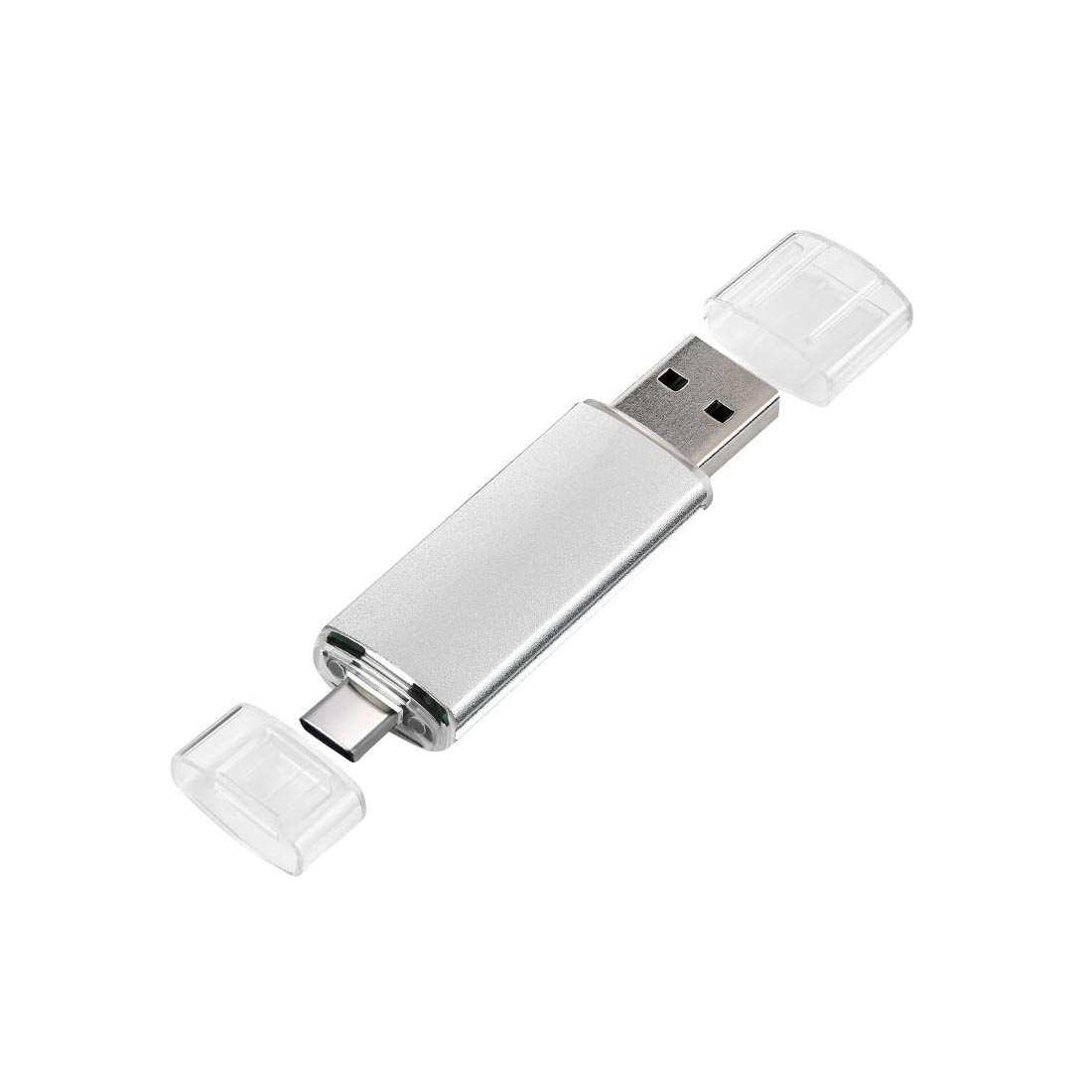
RMCC07 USB-C Flash Drive
Price on request
View product
RMCC05 USB-C Flash Drive
Price on request
View product
Frequently Asked Questions About USB-A, USB-B, and USB-C
What is the difference between USB-A and USB-C?
USB-A is rectangular and non-reversible. USB-C is smaller, symmetrical, and reversible. USB-C can also support modern charging, data, and video capabilities when compatible hardware enables them.
Is USB-A the same as USB?
No. USB is the overall standard family. USB-A is one connector type within that ecosystem.
What is a USB-A port?
A USB-A port is the familiar rectangular USB socket found on many computers, chargers, TVs, hubs, and consoles.
What is a USB Type-C port?
It’s a small, reversible USB connector used across many current laptops, smartphones, tablets, docks, chargers, and storage devices.
Is USB-C the same as USB 3?
No. USB-C describes the connector shape. USB 3 describes a family of performance specifications.
Is USB-C faster than USB-A?
Not always. Speed depends on the specifications supported by the port, cable, and connected device.
What is the difference between USB-A and USB-B?
USB-A traditionally connects to the host side. USB-B commonly appears on peripherals such as printers. Their physical shapes also differ.
What was before USB-C?
USB-A, USB-B, Mini-USB, and Micro-USB were widely used before USB-C became common.
Can I connect USB-A to USB-C?
Yes. A suitable USB-A-to-USB-C cable or adapter can connect compatible devices.
Can USB-C connect to USB-B?
Yes. A USB-C-to-USB-B cable can connect many modern computers to compatible printers, audio interfaces, and other USB-B peripherals.
Which USB type is best for a flash drive?
Choose USB-A for legacy compatibility, USB-C for newer devices, or a dual USB-A/USB-C drive for mixed environments.
Request a RELYmedia quote when you know your quantity, capacity, connector, branding, and deadline.
Conclusion: USB-C, USB-B, or USB-A?
USB-A, USB-B, and USB-C are connector designs, not competing speed grades.
USB-A remains practical for traditional computers and countless peripherals. USB-B still serves printers, scanners, audio equipment, and specialized hardware. USB-C offers a highly flexible, modern design, with reversible insertion and support for advanced data, charging, and display features when used with compatible hardware.
For everyday purchases, check four things together: connector type, USB specification, cable capability, and device requirements.
RELYmedia helps businesses match promotional technology with real-world use, whether that means USB-A drives, USB-C options, dual-port flash drives, charging products, or other branded accessories.
Contact RELYmedia to choose branded technology
that fits your audience, campaign, and deadline.
Shop this
Need custom USB-C flash drives? We print them.
Bulk pricing, three free mockups, real quotes back the same business day.