Everything You Need to Know About Encrypted USB Drives
October 19, 2026 · 10 min read
USB drives make file sharing simple, but portability creates risk. A tiny device can hold client files, financial records, employee records, tax documents, passport scans, ID scans, and other sensitive information. If it disappears, portable storage can become a data breach.
An encrypted USB drive adds data protection to portable data storage. Instead of leaving files readable, USB encryption encrypts them. A password, PIN, passphrase, security key, or another form of authentication then controls access.
This guide covers encrypted USB flash drives, hardware encryption, software encryption, AES, security standards, compliance, and safe use.
What Is an Encrypted USB Drive?
An encrypted USB flash drive is a portable storage device that uses encryption technology to protect information. Data encryption changes readable files into unreadable data with an encryption key. Data decryption restores it after password authentication or another approved login.
You may also see an encrypted thumb drive, an encrypted USB stick, an encrypted pen drive, a secure USB key, or a password-protected USB drive. What matters is how the device protects data.
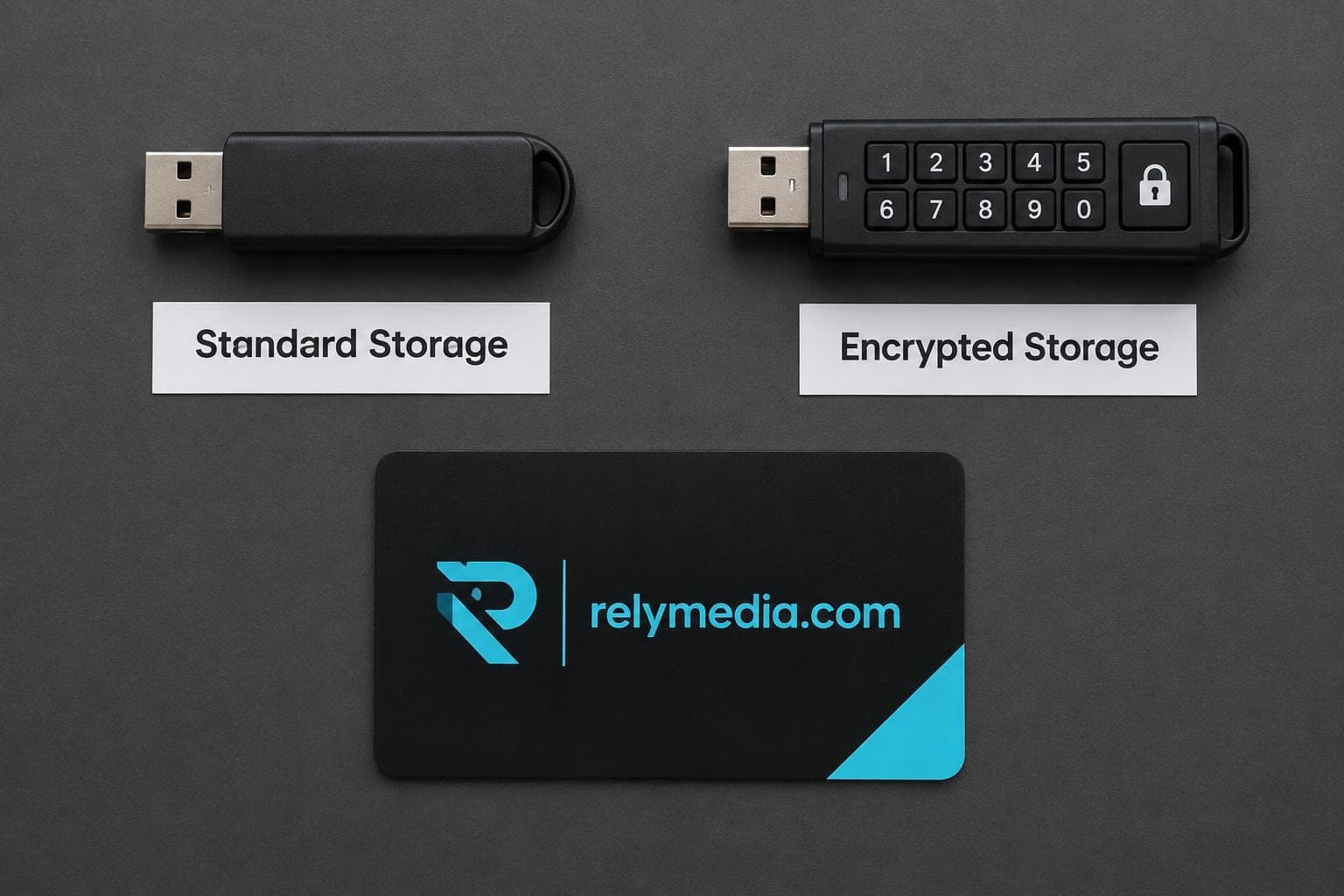
| Feature | Standard USB Drive | Encrypted USB Drive |
|---|---|---|
| Portable file storage | Yes | Yes |
| Data encryption | Usually no | Yes |
| Password protection | Optional | Common |
| Secure access controls | Limited | Stronger |
| Lost device protection | Limited | Better when locked |
| Hardware-based security | Rare | Available |
Password-Protected USB vs. Encrypted USB
Password protection and encryption are related, but not identical. A password may lock an application or folder without encrypting every byte. True encryption transforms underlying data using an encryption algorithm and a key.
That matters after theft or accidental loss. Proper encryption supports file security, privacy protection, identity theft protection, and data breach prevention when someone has physical access to the device.
Before ordering USB products in volume, define whether you need branding, password protection, encryption, preloaded files, serialization, or partitions. RELYmedia lists these kinds of data services for promotional USB projects.
How Does USB Encryption Work?
The encryption process is simple:
Readable file → encryption algorithm → encryption key → encrypted data → authentication → decryption → readable file
Automatic encryption protects files as they are written. Automatic decryption makes them usable after secure authentication. The exact workflow depends on whether the product uses hardware encryption or software encryption.
AES-256 and the Advanced Encryption Standard
The Advanced Encryption Standard, or AES, is widely used. NIST defines AES with 128-bit, 192-bit, and 256-bit keys. AES-256 and AES-256-bit encryption describe the algorithm’s key length.
“AES encryption” does not automatically prove independent certification. Implementation, key handling, firmware, authentication, and physical security still matter.
XTS Encryption for Storage
XTS encryption, commonly called XTS-AES, protects the confidentiality of block-oriented storage. NIST approves XTS-AES for storage devices, but XTS mode does not authenticate data or its source.
Strong encryption protects confidentiality, but information security also needs access control, secure computing, and sound data security practices.
Brute Force Protection, Crypto-Erase, and Tamper Protection
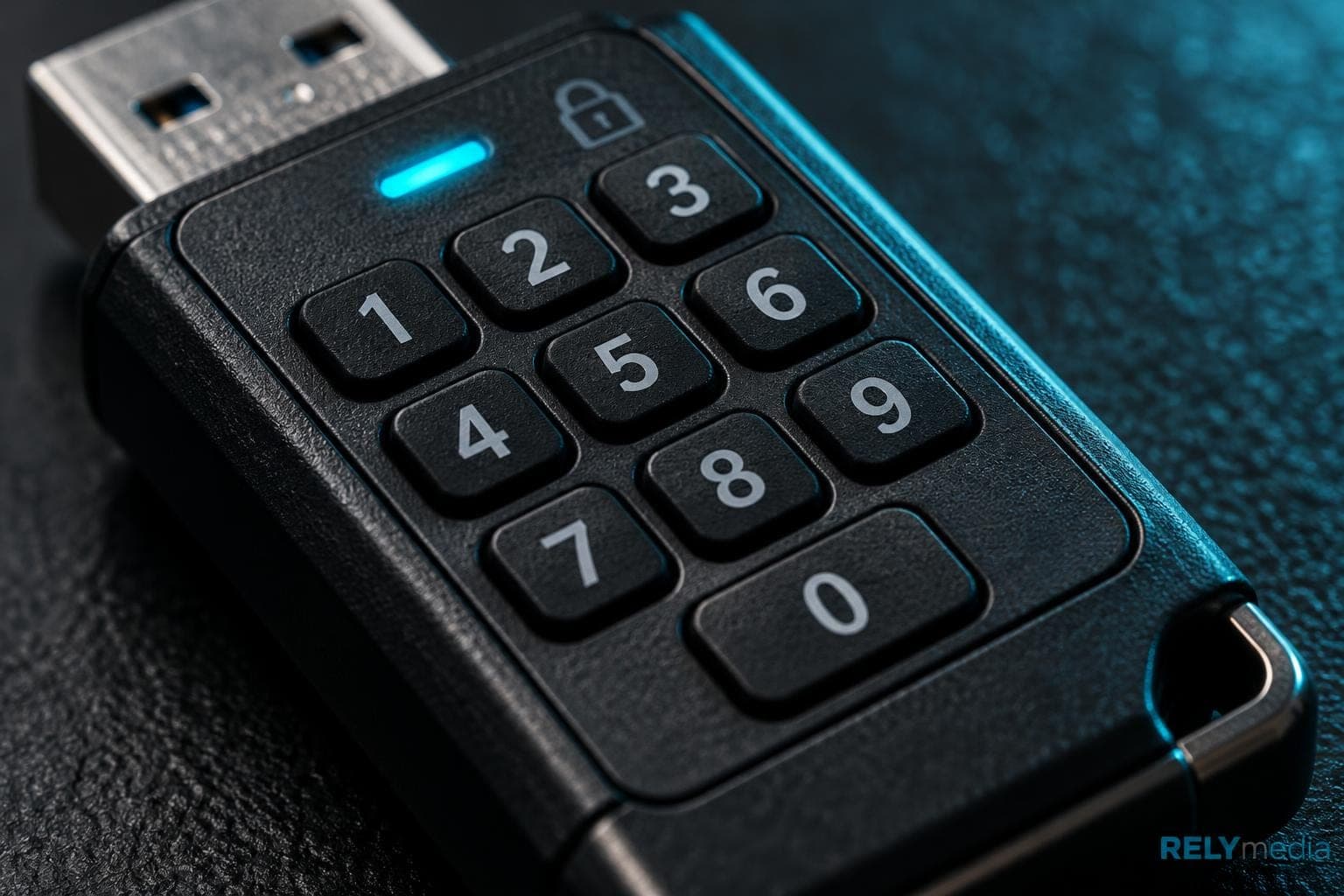
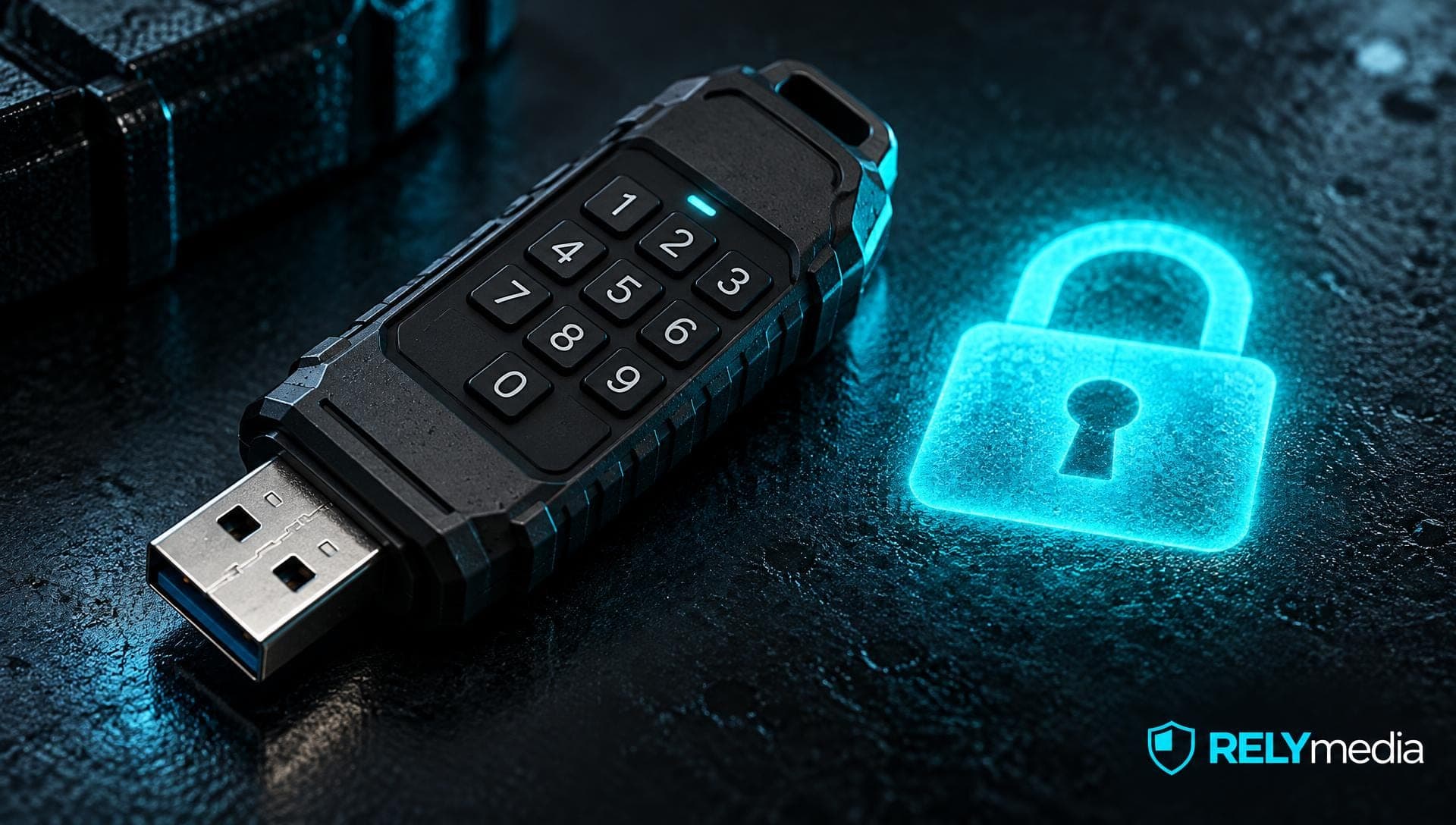
Some secure USB drives limit the number of failed logins. Too many attempts may trigger crypto-erase, cryptographic erase, or an automatic data wipe. Other security features include tamper protection, tamper-resistant design, digitally signed firmware, encrypted firmware, keypad access, read-only mode, and multi-password access.
These controls strengthen brute force protection and hardware security, but they do not replace malware protection.
Hardware Encryption vs. Software Encryption
| Factor | Hardware Encryption | Software Encryption |
|---|---|---|
| Encryption work | Inside the device | On the host computer |
| Key handling | Often isolated | Depends on software |
| CPU dependence | Low | Uses host CPU |
| Setup | Often simple | Requires configuration |
| Cross-platform compatibility | Product dependent | Software dependent |
| Cost | Usually higher | Often lower |
Hardware-Encrypted USB Drives
A hardware-encrypted drive uses a secure microprocessor or controller. Many hardware-encrypted USB drives provide always-on encryption, tamper resistance, PIN protection, secure firmware, keypad access, or automatic data wipe.
Because security tasks happen inside the device, hardware-based security can reduce exposure to a compromised computer. Some products work as OS-independent mass-storage devices after authentication across Windows, macOS, Linux, medical devices, lab equipment, industrial equipment, or security systems.
Software-Encrypted USB Drives
A software-encrypted drive relies on the host computer. Software-based security can be less expensive, and Windows and macOS provide built-in encryption options.
However, software encryption depends more on operating system compatibility. Malware, missing software, weak password management, or a compromised computer can block secure access to data.
💡Practical insight: The best secure USB drive is not simply the one with the longest feature list. Choose the model your users can authenticate, recover, update, and use safely.
How to Encrypt a USB Flash Drive
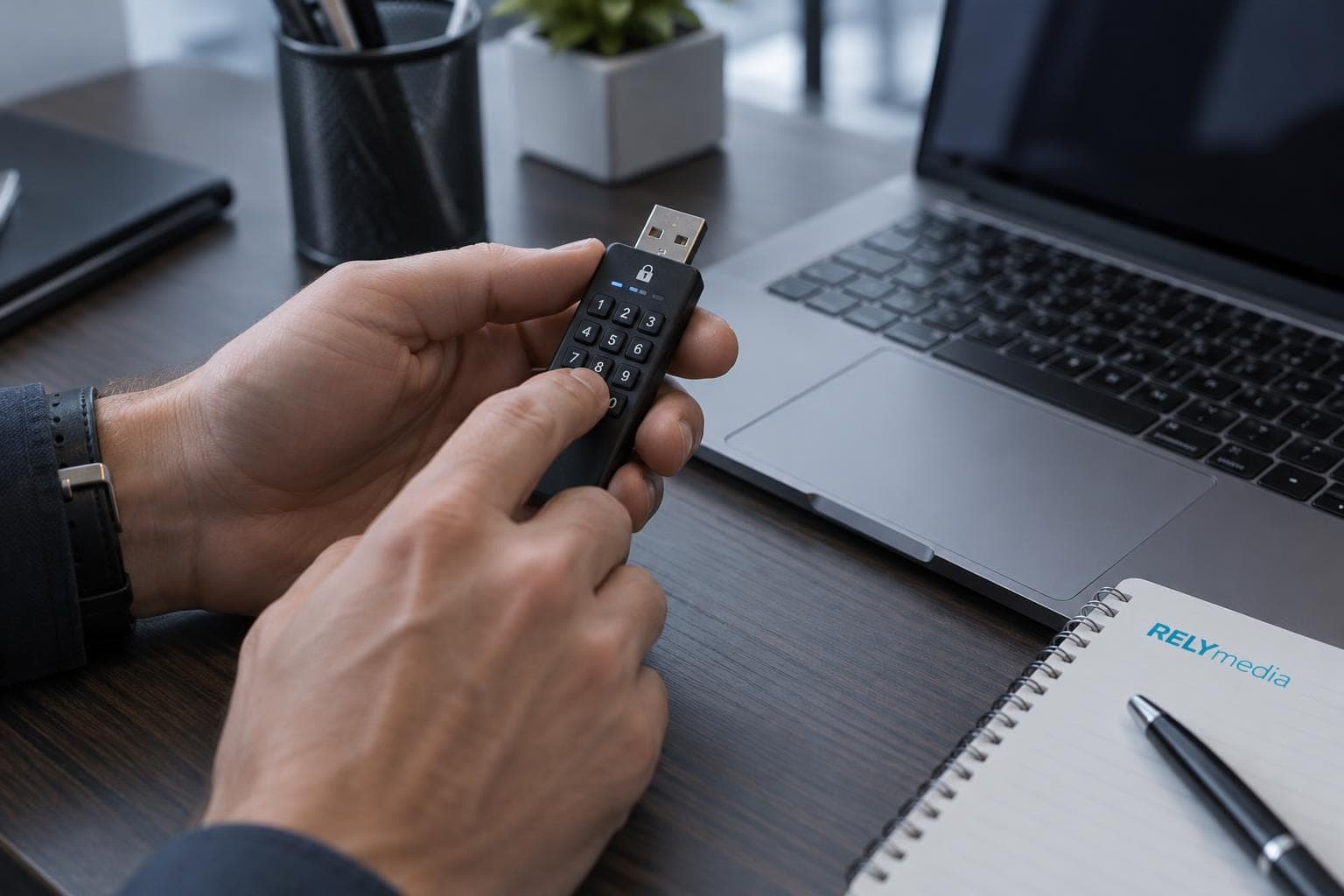
How to Encrypt a USB Drive on Windows
Microsoft calls removable-drive BitLocker BitLocker To Go. It encrypts USB flash drives, SD cards, external hard drives, and other supported removable storage devices.
A typical workflow looks like this:
- Connect the USB drive.
- Open BitLocker Drive Encryption.
- Turn on BitLocker for the removable drive.
- Choose the authentication method.
- Create a strong password.
- Save the recovery key separately.
- Start encryption.
- Reconnect the drive and test access.
This supports password security, secure storage, and data loss prevention.
How to Encrypt a USB Drive on macOS
Apple Disk Utility can encrypt external storage with a password. The process erases the device first, so back up important files.
Choose an encrypted file-system format, create a unique password, then erase and encrypt. Store that password safely because losing it may mean losing access.
Need custom flash drives?
Explore RELYmedia’s Technology & Flash Drives options, then choose encryption around the data recipients will store.
Can One Encrypted USB Work on Windows, macOS, and Linux?
Sometimes. Cross-platform compatibility depends on the file system, encryption method, authentication, and product design. Check Windows compatibility first, then macOS and Linux compatibility.
Hardware encryption can simplify mixed environments when a drive becomes a standard mass-storage device after authentication. Software encryption may require compatible software on every system.
How Secure Are Encrypted USB Drives?
Encryption protects confidential data in the event of theft, loss, or unauthorized access. This supports secure, portable storage and protection against lost devices.
Encryption cannot solve every cybersecurity problem. A compromised computer may copy unlocked files. A stolen password can defeat password security. Hardware failure can destroy portable data. Encryption cannot replace secure backups.
What Encryption Helps Protect
- Confidential data on a stolen device
- Private files after accidental loss
- Personal data from casual unauthorized access
- Sensitive files carried between offices
- Business data during secure file transfer
- Regulated data stored on removable media
What Encryption Does Not Automatically Prevent
- Malware infection on an unlocked computer
- Phishing or stolen credentials
- Authorized users copying information
- Accidental file deletion
- Physical destruction
- Poor data backup practices
Build security instructions into your distribution plan. When branded USB drives are part of a larger campaign, RELYmedia can help coordinate the physical product while your IT team defines safe-use policies.
Who Should Use an Encrypted USB Drive?
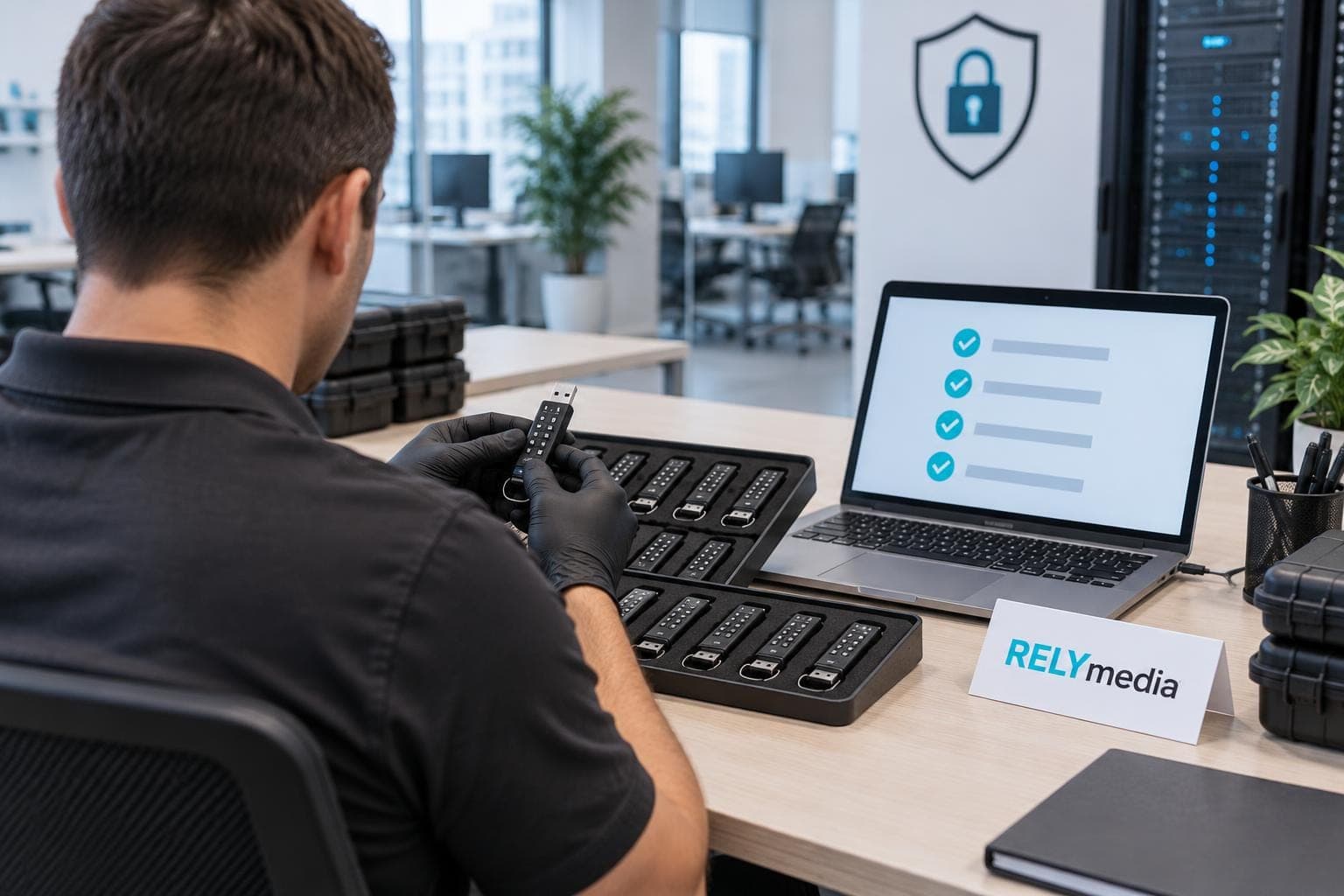
Encrypted storage helps whenever exposure could cause harm.
Businesses and organizations may maintain client files, employee records, financial reports, contracts, invoices, and other confidential documents.
Freelancers and remote workers may transfer business data between home offices, customer sites, shared computers, and public computers.
Healthcare, legal, financial, and government teams may handle regulated data that demands stronger information protection.
Students, families, and travelers can secure tax documents, personal records, passport scans, ID scans, and personal backups.
Imagine a consultant losing a USB drive at an airport. Unencrypted files may open immediately. Strong authentication and encrypted data storage help prevent physical loss from becoming data exposure.
How to Choose a Secure USB Drive
Start with risk, workflow, and users.
- Encryption: Look for clear AES encryption details.
- Authentication: Compare password, PIN, passphrase security, security key, and keypad access.
- Access: Review user password, administrator password, recovery password, and multi-password access.
- Protection: Check brute force protection, tamper-resistant design, and secure firmware.
- Compatibility: Confirm required operating systems and USB ports.
- Capacity: Match storage capacity to real files and secure backups.
- Transfer: Consider data transfer speed, secure file transfer, and file sharing needs.
- Recovery: Decide how password recovery and administrator access will work.
- Environment: Consider remote work, shared computers, public computers, and industrial systems.
Security Standards and Regulatory Compliance
Security labels can confuse buyers. FIPS 197 defines AES. FIPS 140-3 sets cryptographic-module security requirements covering authentication, physical security, firmware, interfaces, self-tests, and key management.
AES-256 use does not automatically mean FIPS certification. If procurement requires FIPS 140-3 or FIPS 140-3 Level 3, verify the specific validation claim.
Organizations may face HIPAA, GDPR, CCPA, NIS2, DORA, Trusted Supply Chain, TAA, or other industry regulations. Healthcare security, financial security, government security, and legal data protection require broader controls.
An encrypted drive can support regulatory compliance, but it does not create legal compliance.
Best USB Security Practices
Strong encryption works best with disciplined habits:
- Create strong passwords and strong passphrases.
- Use unique passwords for important devices.
- Store recovery credentials separately.
- Maintain secure backups.
- Limit sensitive information to what users need.
- Avoid unknown public computers.
- Treat shared computers as higher risk.
- Use read-only mode when appropriate.
- Keep systems and security software updated.
- Eject removable storage after use.
- Report a lost or stolen device quickly.
- Review access control and password recovery procedures.
These USB security practices strengthen data privacy, protection against theft, device security, and information protection. They turn encryption into a workable security process.
Common Encrypted USB Mistakes
Avoid these common problems:
- Assuming every password-protected USB provides true encryption
- Reusing weak passwords
- Storing recovery information beside the device
- Carrying the only copy of critical files
- Ignoring operating system compatibility
- Leaving an authenticated drive unattended
- Treating encryption as antivirus protection
- Assuming “AES-256” means FIPS validation
- Buying only by storage capacity
- Treating one secure storage device as a complete compliance program
Ready to print your team's name on premium apparel?
Fill in your details and a RELYmedia specialist will come back to you with a custom quote — fast turnaround, no obligation.
- ⚡Same-day response on business days
- 🎨Free design assistance included
- 🚚Rush order & fast delivery available
- 💰Price beat guarantee on every order
Shop premium custom flash drives
See all leather, metal & wood drives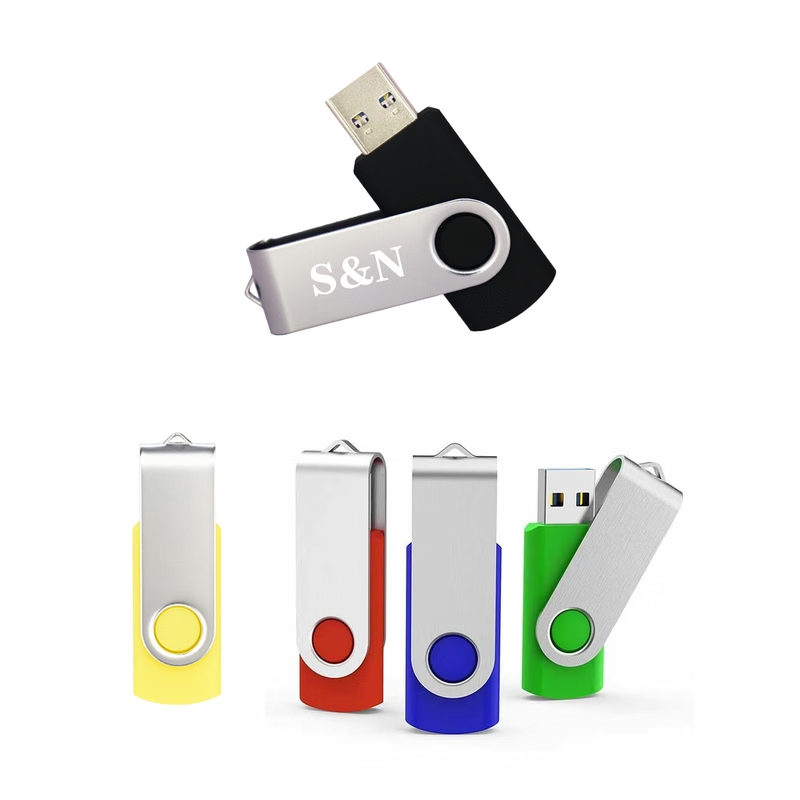
Mini Rotating Metal Flash Drive
$1.98 - $3.34
View product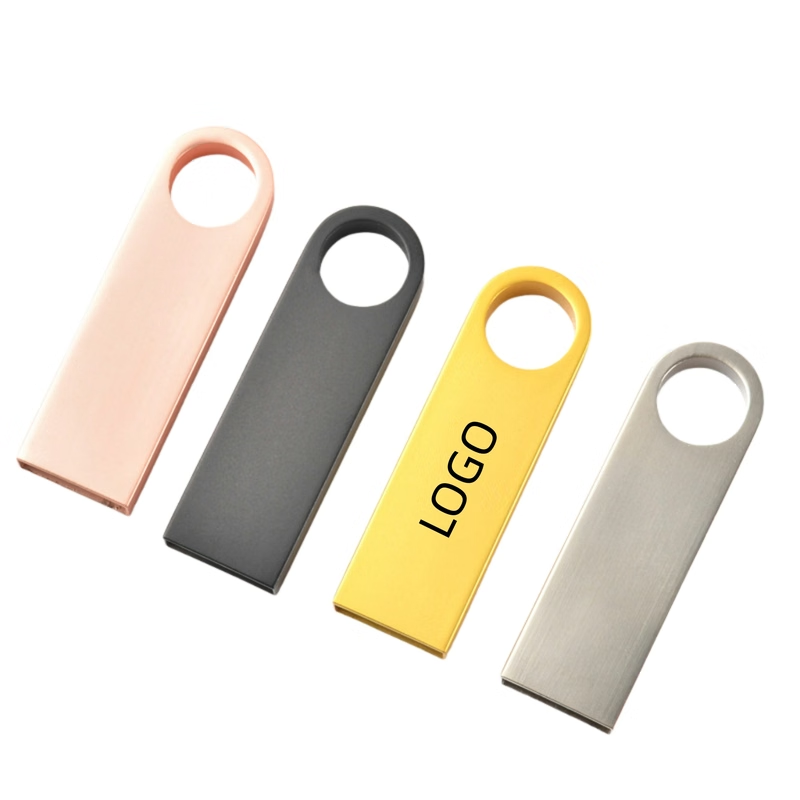
Metal Flash Drive 32GB USB
$1.94 - $3.82
View product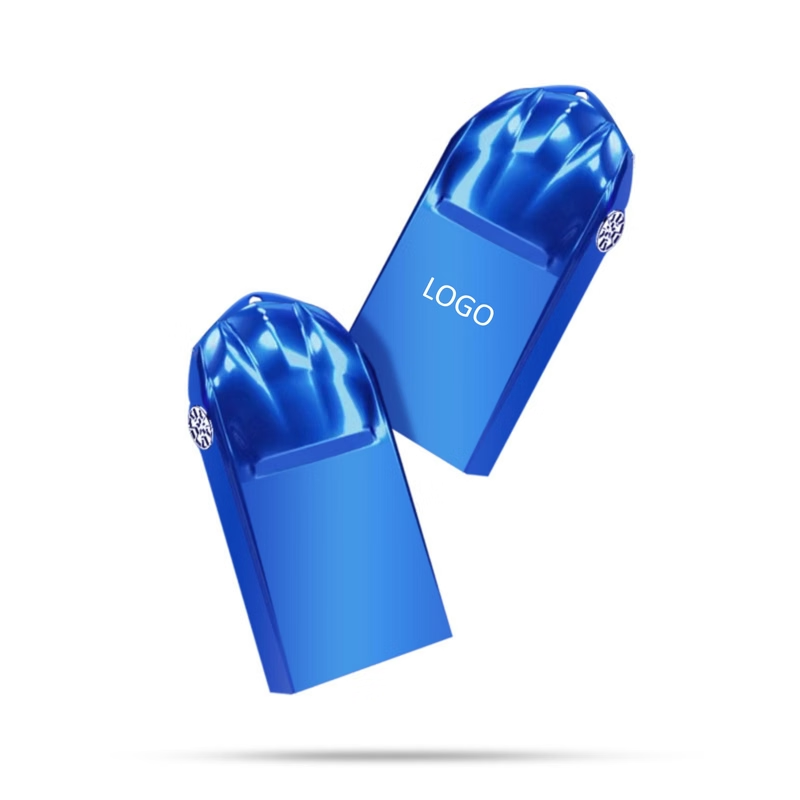
Mini Metal Flash Drive
$2.78 - $3.50
View product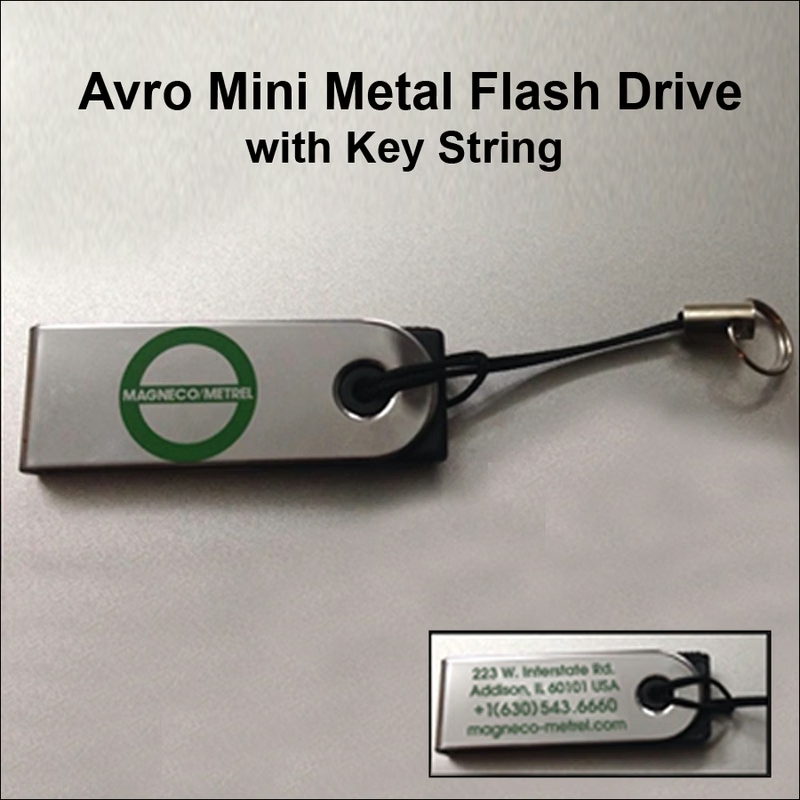
Avro Mini Metal Flash Drive / USB - 1 GB
$3.94 - $5.22
View product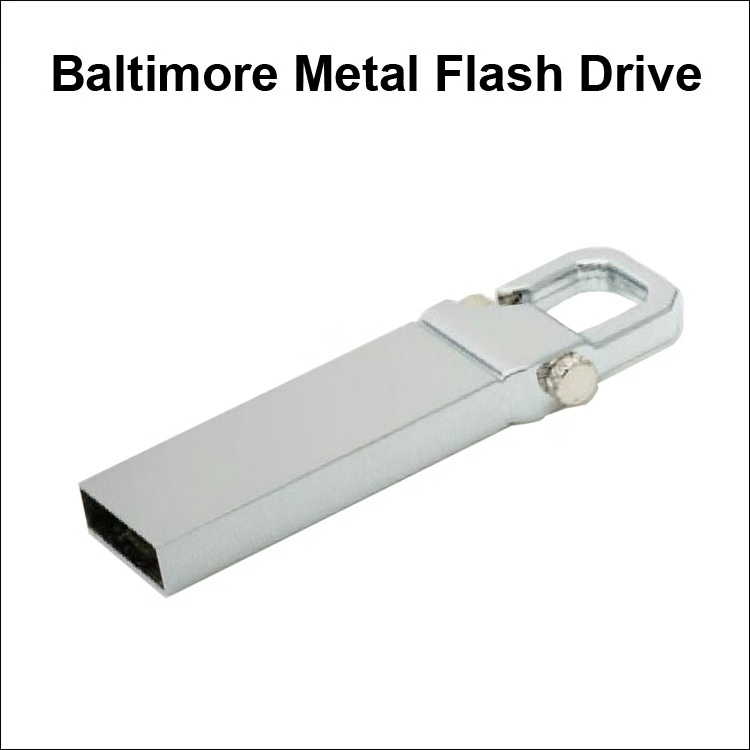
Baltimore Metal Flash Drive / USB - 8 GB
$3.74 - $5.04
View product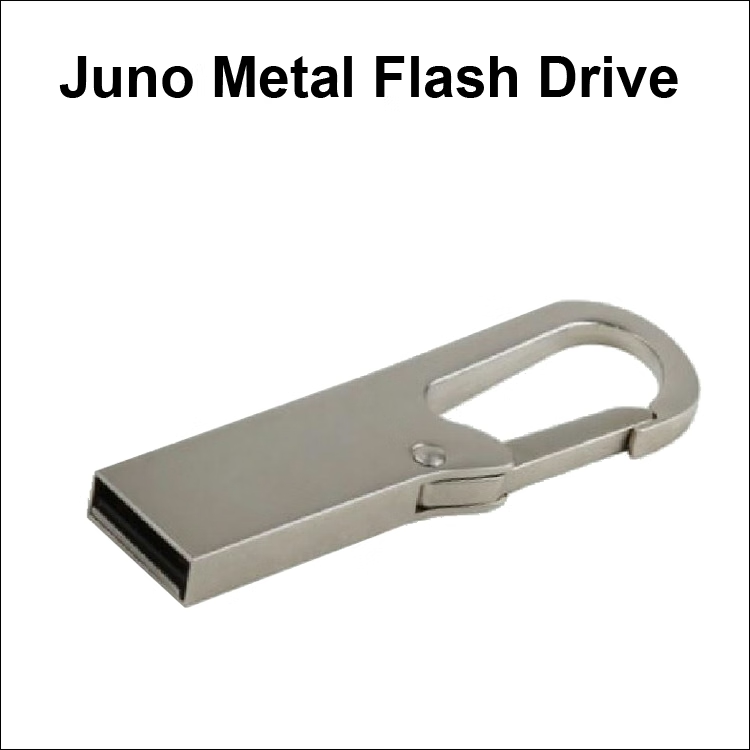
Juno Metal Flash Drive / USB - 8 GB
$3.74 - $5.04
View product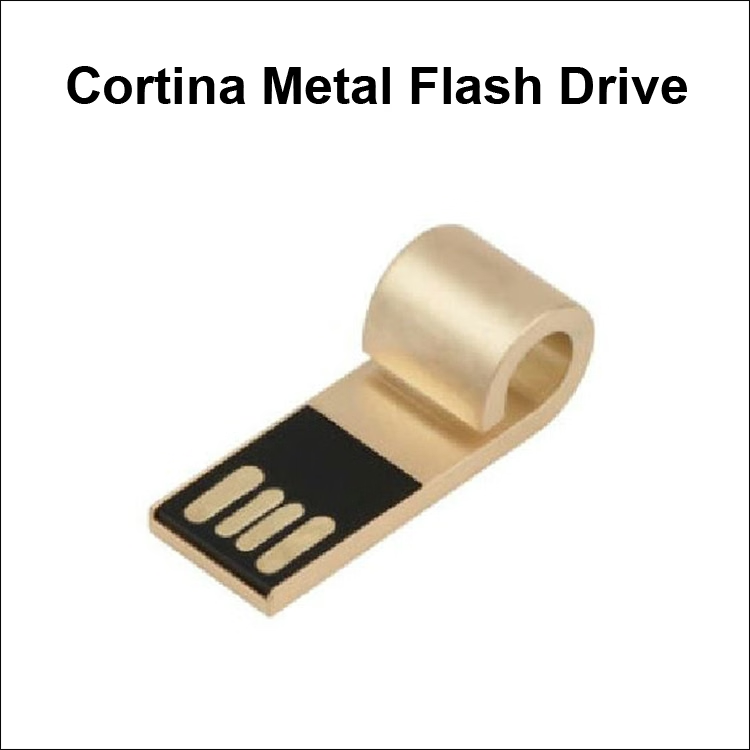
Cortina Mini Metal Flash Drive / USB - 256MB
$3.10 - $4.40
View product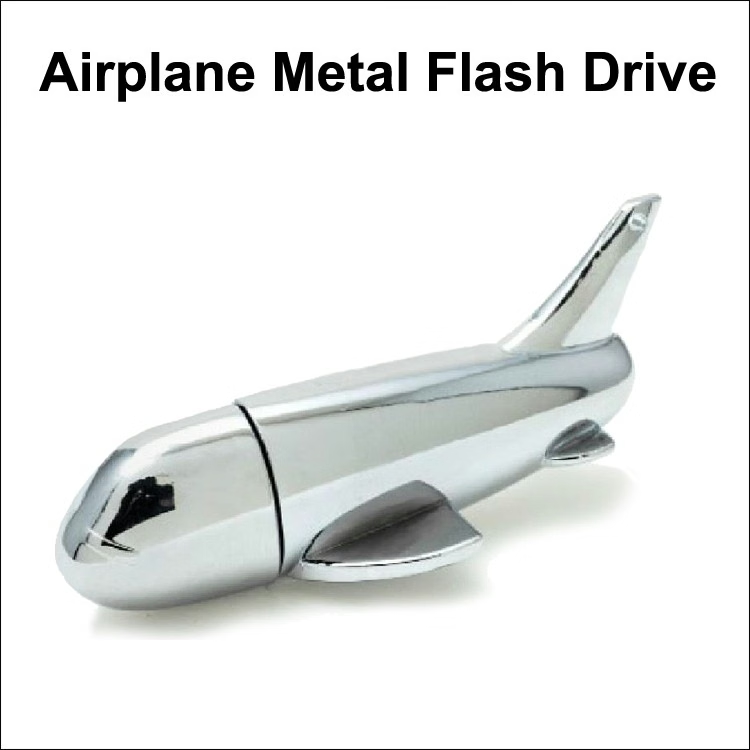
Airplane Metal Flash Drive - 1 GB Memory
$4.10 - $5.42
View product
Encrypted USB Drive FAQs
Can You Password Protect a USB Drive?
Yes. Windows supports BitLocker To Go for removable drives. macOS offers encrypted external storage through Disk Utility. Hardware-encrypted products may provide built-in password or PIN authentication.
How Do You Encrypt a USB Flash Drive?
You can use operating-system encryption tools or choose a pre-encrypted flash drive with hardware encryption. Always create a recovery plan before encrypting important data.
Can an Encrypted USB Drive Be Hacked?
No technology makes hacking impossible. Attackers may target passwords, unlocked systems, users, firmware, or weak procedures rather than the encryption algorithm itself.
Is Hardware Encryption Better Than Software Encryption?
Not in every situation. Hardware security can isolate key handling and simplify secure portable storage. Software-based encryption may cost less and provide enough protection for lower-risk workflows.
Is AES-256 Secure for USB Storage?
AES-256 is a recognized AES key size. Real security also depends on authentication, protection of encryption keys, firmware, implementation quality, and user behavior.
What Happens If You Forget the Password?
Recovery depends on the product. Some systems provide an administrator password, recovery password, or managed recovery key. Others intentionally make data recovery impossible without valid credentials.
Conclusion: Protect Portable Data Without Making Work Harder
An encrypted USB drive solves a practical problem. Portable storage is easy to lose, steal, or misuse. Good USB encryption combines data security, privacy, secure authentication, recovery, and responsible habits.
Choose hardware encryption or software encryption based on your threat level, operating systems, budget, and workflow. Verify AES claims, security standards, compatibility, physical protection, recovery options, and compliance requirements. Then secure the device with strong passwords, secure file storage, data backups, and sensible access controls.
For organizations using flash drives for onboarding, trade shows, sales kits, education, or branded campaigns, security should be treated as equally important as design and usability. RELYmedia offers promotional Technology & Flash Drives plus data services that include password protection and encryption options for qualifying projects.
Ready to plan a branded USB campaign?
Contact RELYmedia with your audience, quantity, timeline, branding goals, storage needs, and approved security requirements.
Shop this
Need custom encrypted USB drives? We print them.
Bulk pricing, three free mockups, real quotes back the same business day.