USB 2.0 vs 3.0: A Comparative Guide for Beginners 2026
October 19, 2026 · 10 min read
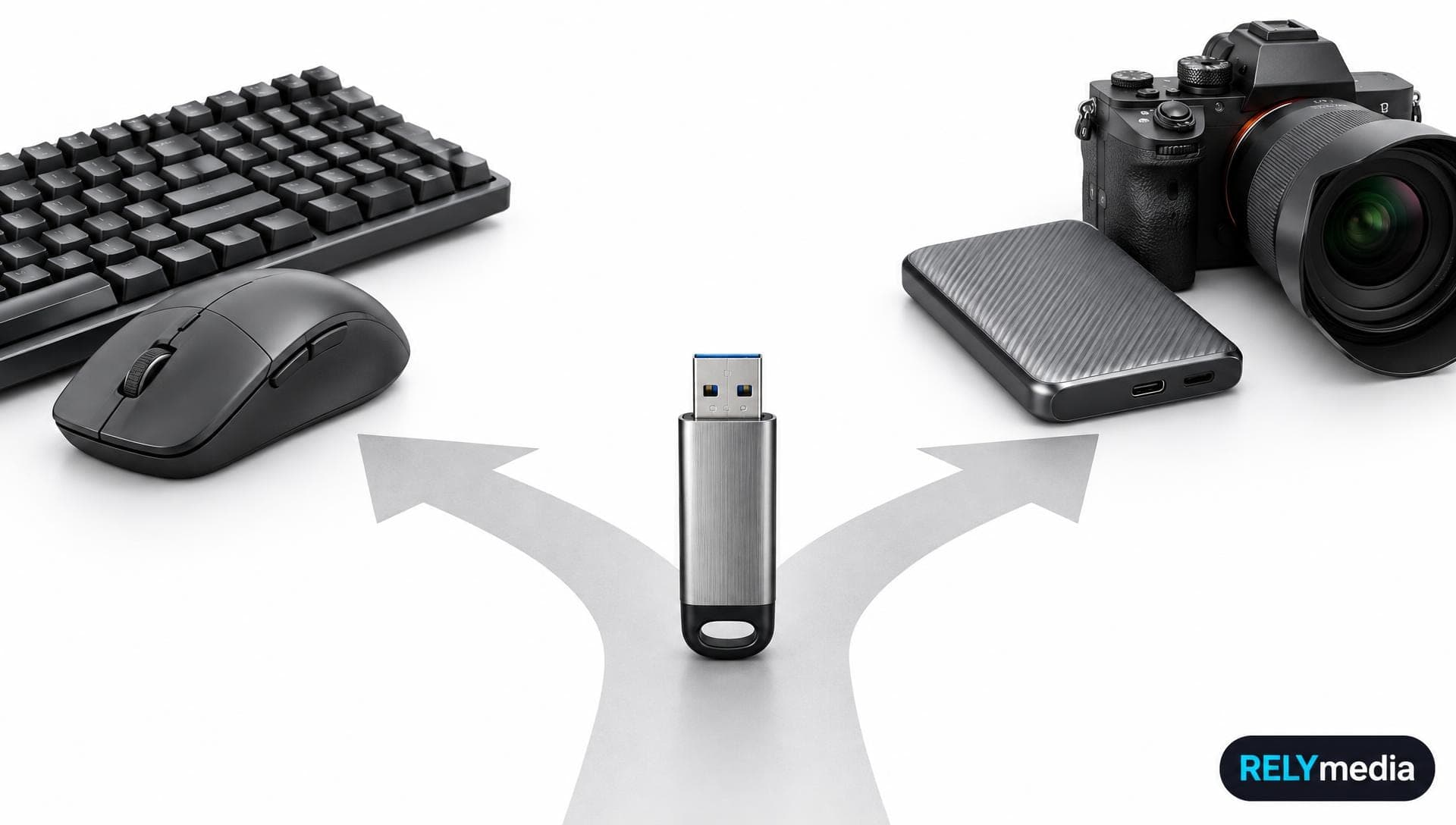
USB ports look simple until speed, charging, cables, and compatibility come into play. A keyboard may work perfectly on an older connection, while an external SSD can feel painfully slow on the same port. That is why understanding the difference between USB 2.0 and USB 3.0 matters.
Both belong to the Universal Serial Bus family. USB 2.0 remains useful for everyday USB devices, while USB 3.0 offers faster USB data transfer, greater data bandwidth, and better support for data-intensive workloads.
This guide explains speed, compatibility, cables, power, storage, hubs, and device connectivity.
USB 2.0 vs USB 3.0: Quick Comparison
| Feature | USB 2.0 | USB 3.0 |
|---|---|---|
| Branding | Hi-Speed USB | SuperSpeed USB |
| Maximum transfer rate | 480 Mb/s | 5 Gbps |
| Data communication | Shared data path | Separate transmit and receive paths |
| Default high-power current | 500 mA at 5V | 900 mA at 5V |
| Common port color | Often black or white | Often blue |
| Compatibility | Supports many older devices | Works with USB 2.0 at a lower common speed |
| Best use | Keyboards, mice, printers | External storage, video, large transfers |
USB-IF lists USB 2.0 Hi-Speed at 480 Mb/s. Its current USB 3.2 framework includes 5, 10, and 20 Gbps modes and remains backward compatible.
What Is USB 2.0?
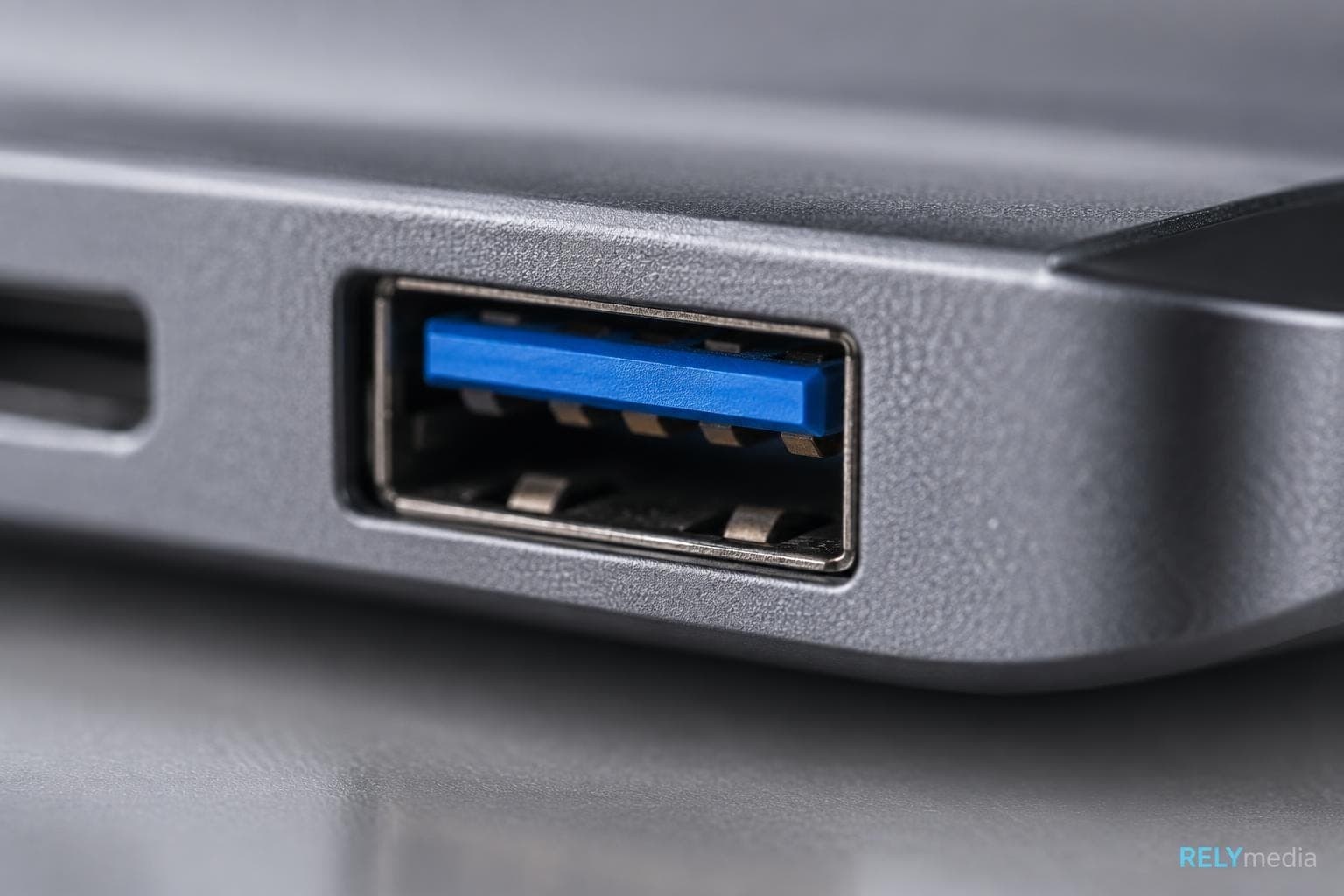
USB 2.0 is a widely used USB standard and hardware interface for device communication between a host computer and peripheral devices. It followed USB 1.0 and USB 1.1, raising the theoretical transfer speed to 480 Mb/s.
That figure is a signaling limit, not a guaranteed file transfer speed. Protocol overhead, flash memory, cable condition, and the host device all affect data throughput.
USB 2.0 uses a shared data path, commonly described as half-duplex communication. Low-bandwidth peripherals rarely notice the limitation.
Common examples include:
- Keyboards and mice
- Printers
- Basic cameras and webcams
- Controllers
- Simple USB flash drives
- Legacy devices
USB 2.0 can still provide reliable connectivity when a device does not need higher communication bandwidth.
What Is USB 3.0?
USB 3.0 introduced SuperSpeed USB with a theoretical data transfer rate of 5 Gbps. Its extra transfer capacity improves data synchronization, file synchronization, external storage performance, and high-speed data transfer.
The architecture adds separate transmit and receive paths. This enables simultaneous data transmission and more efficient bidirectional data transfer. Extra communication bandwidth benefits external hard drives, faster USB memory drives, high-resolution webcams, multimedia devices, and other high-bandwidth applications.
USB 3.0 also increased standard bus power availability, although charging capability depends on more than the USB generation. USB-IF documentation specifies up to 500 mA for configured High-Speed devices and 900 mA for configured SuperSpeed devices.
USB 3.0, USB 3.1, and USB 3.2 Naming
USB naming can confuse buyers. USB-IF says the USB 3.2 specification absorbed earlier USB 3.x specifications and identifies 5, 10, and 20 Gbps rates.
Read the stated speed rather than relying solely on the version label. USB-A, USB-B, and USB-C describe connector types, not generations.
USB 2.0 vs USB 3.0 Speed and Data Transfer Performance

Speed is the biggest difference. USB 2.0 reaches a theoretical 480 Mb/s, while original USB 3.0 reaches 5 Gbps.
Real-world data transmission speed is lower because storage, controller, cable, port, hub, and host all matter.
Think of the USB interface as a highway. A wider road carries more traffic, but one slow exit still creates a bottleneck. A slow flash drive will not become fast on USB 3.0, while a fast drive on USB 2.0 is limited by USB 2.0's lower speed limits.
For a few documents, the difference may feel small. For backups, photo libraries, HD movie files, and repeated large file transfers, USB 3.0 can save meaningful time.
Bandwidth, Half-Duplex, and Full-Duplex Communication
USB 2.0 uses a shared path for sending and receiving data, so it is commonly described as half-duplex. USB 3.x adds separate paths that support simultaneous transfers in both directions, often referred to as full-duplex communication.
That design improves transfer efficiency when connected devices read and write at once.
Shared bandwidth still matters. Several peripherals on one multi-port hub can compete for the upstream connection. Port expansion adds USB ports; it does not create unlimited bandwidth.
Power Output, USB Power, and Charging Speed
USB speed does not automatically determine charging speed.
USB 2.0 traditionally provides up to 500 mA at 5V for a configured high-power device. USB 3.x single-lane operation raises the current limit to 900 mA at 5V. These figures describe standard bus power, not USB Power Delivery.
Actual charging depends on:
- Power source
- Cable capability
- Device charging support
- Charging protocol
- Power requirements
- Power management
USB-C can support higher electrical power through separate Type-C current modes and USB Power Delivery. For high-power USB devices, a powered USB hub with an external power supply can improve connection stability.
USB 2.0 vs USB 3.0 Cable and Connector Compatibility
A USB connector determines physical fit; the USB protocol and specification determine capability.
USB 3.0 Type-A plugs are backward-compatible with USB 2.0 Type-A ports, but the connection operates at the lowest common capability. Some USB-B and Micro-B designs differ because USB 3.x added contacts.
A USB 3.0 cable cannot turn a USB 2.0 controller into USB 3.0. Hardware compatibility and cross-device compatibility depend on the whole chain.
How to Tell USB 2.0 and USB 3.0 Ports Apart

USB port identification starts with clues, not assumptions.
- A blue USB port often signals USB 3.x.
- A black USB port often indicates a USB 2.0 port.
- A white USB port may appear on older hardware.
- “SS” or a SuperSpeed symbol suggests USB 3.x.
- Manufacturer USB specifications provide the safest answer.
USB port color is not mandatory, so brands may use other colors.
Check USB Specifications in Windows
Open Device Manager and expand Universal Serial Bus controllers. Device properties can reveal hardware information.
Microsoft also documents USBView for viewing controllers, hubs, peripherals, and descriptors. A descriptor value of 0x0200 indicates USB 2.0 compliance.
Check USB Information on Mac
On Mac OS, open System Information and review the hardware report. It shows connected hardware and helps with USB identification.
USB 3.0 vs USB-C: They Are Not the Same
USB 3.0 is a data specification. USB-C is a connector form factor.
A USB-C connector can support different USB versions, speeds, display connections, charging standards, and power delivery. USB-A can carry USB 2.0 or faster data rates.
So “USB-C” alone does not describe transfer performance. Check the connector and supported speed before buying hardware.
Need branded drives for mixed device environments?
RELYmedia offers USB-A and USB-C choices suited to modern computing and older systems.
USB 2.0 vs USB 3.0 Flash Drives
A USB 3.0 flash drive has a higher interface ceiling than a USB 2.0 model, but the quality of the flash storage still shapes actual read and write performance.
Two USB memory drives with equal capacity can behave differently. Controller quality, NAND flash, file size, and sustained workloads influence file transfer speed.
For office documents, USB 2.0 may feel adequate. For large video folders, image libraries, or repeated file synchronization, USB 3.0 offers a practical advantage.
Consider capacity, connector type, operating system compatibility, recipient hardware, budget, and branding area.
Is USB 2.0 Fast Enough for 1080p Video?
Sometimes. 1080p video does not have one fixed bandwidth requirement.
Compressed HD video uses less bandwidth than uncompressed footage. Frame rates, codec, color depth, display resolution, and capture format all matter.
USB 2.0 may handle some webcams, video streaming, and playback. High frame rates, uncompressed capture, or multiple feeds can exceed its practical bandwidth. USB 3.x provides more headroom for video transfer.
USB 2.0 vs USB 3.0 for USB Hubs

A USB hub provides USB hub expansion by turning one connection into multiple USB ports. Choose one based on power consumption, shared bandwidth, peripheral support, and port capacity.
Powered USB Hub vs Bus-Powered Hub
A powered USB hub uses an external power source or wall adapter. It suits external hard drives, demanding webcams, external monitors, and other high-power USB devices.
A bus-powered hub, or unpowered USB hub, draws power from the host computer. It works best with low-power USB devices such as keyboards, mice, and basic flash drives.
For an office environment, prioritize stable power, hub durability, heat resistance, and reliable connectivity. For travel, choose a compact or lightweight USB hub.
Useful features include power switches, LED status indicators, Ethernet, audio, and display connectivity, surge protection, plug-and-play functionality, hot-swapping, driver-free operation, and a dependable chipset.
USB 2.0 or USB 3.0: Which Should You Use?
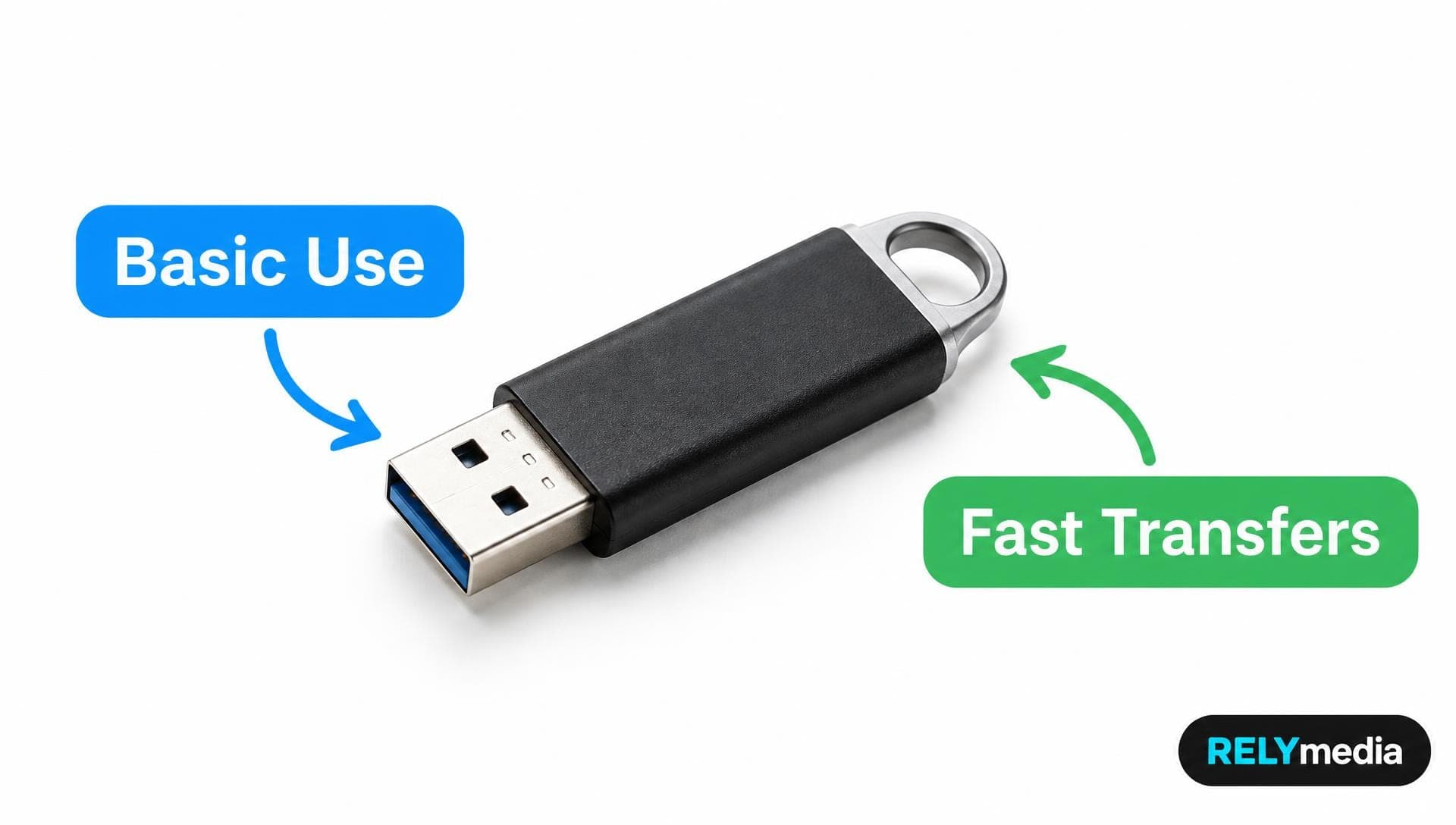
Choose USB 2.0 for everyday USB devices that need little bandwidth. Keyboards, mice, many printers, controllers, and light storage tasks rarely need more.
Choose USB 3.0 or faster for external storage, large backups, video, high-performance peripherals, or frequent data synchronization.
| Use case | Better fit |
|---|---|
| Keyboard or mouse | USB 2.0 |
| Basic printer | USB 2.0 |
| Small document drive | USB 2.0 can work |
| External hard drive | USB 3.0+ |
| Large flash-drive transfers | USB 3.0+ |
| High-resolution webcam | USB 3.0+ when needed |
| External SSD | Faster USB preferred |
| Video capture | USB 3.0+ for demanding formats |
Match the interface to the workload rather than automatically choosing the newest label.
Ready to print your team's name on premium apparel?
Fill in your details and a RELYmedia specialist will come back to you with a custom quote — fast turnaround, no obligation.
- ⚡Same-day response on business days
- 🎨Free design assistance included
- 🚚Rush order & fast delivery available
- 💰Price beat guarantee on every order
Shop custom USB flash drives
See all classic usb flash drives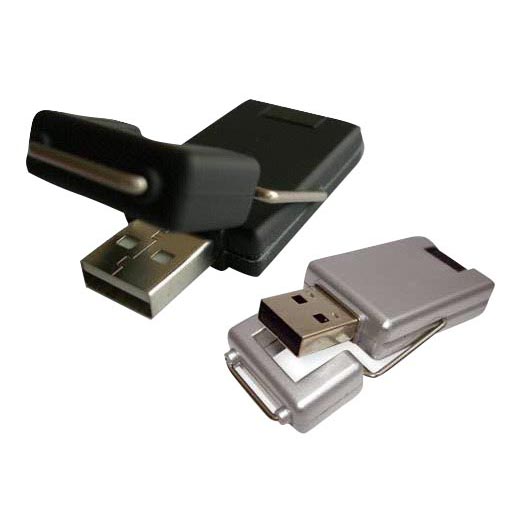
RMC12 Swivel USB Flash Drive
Price on request
View product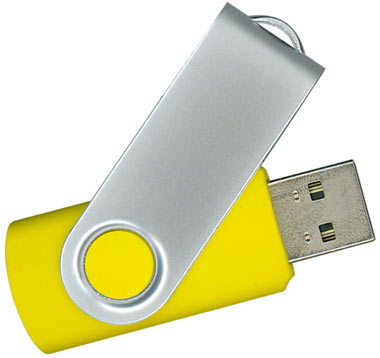
RMC02 Swivel USB Flash Drive
Price on request
View product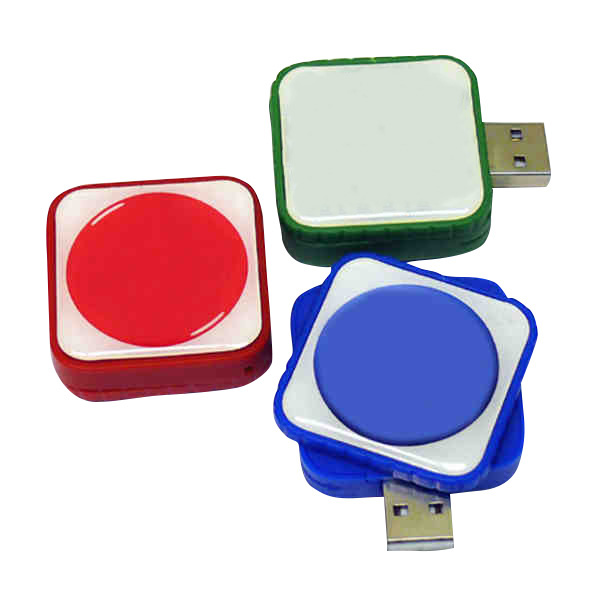
RMC169 USB Flash Drive
Price on request
View product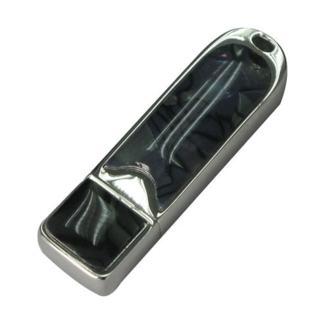
RMC167 USB Flash Drive
Price on request
View product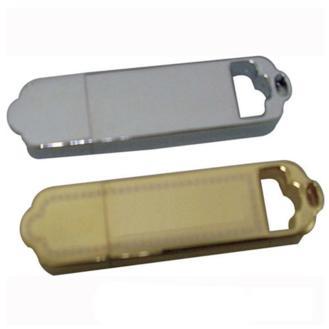
RMC166 USB Flash Drive
Price on request
View product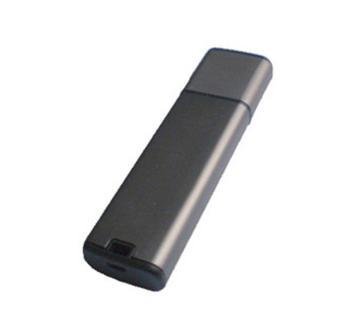
RMC165 USB Flash Drive
Price on request
View product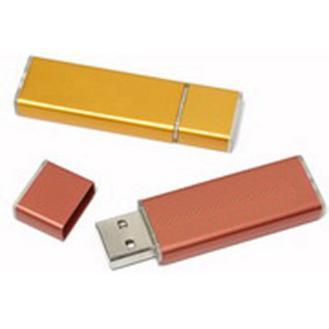
RMC164 USB Flash Drive
Price on request
View product
RMC163 USB Flash Drive
Price on request
View product
Frequently Asked Questions About USB 2.0 vs USB 3.0
Can USB 2.0 work in a USB 3.0 port?
Yes, when the physical connectors are compatible. The device still follows USB 2.0 speed and power limitations.
Can USB 3.0 work in a USB 2.0 port?
Usually, yes, with compatible connectors. Backward compatibility lets the connection use the lower common data rate. USB-IF specifically notes that USB 3.2 operates at the lowest common speed when used with earlier USB products.
Does a USB 3.0 cable make USB 2.0 faster?
No. A cable cannot upgrade the controller, host, or device. Performance remains limited by the slowest relevant component.
How do I know whether my USB port is 2.0 or 3.0?
Check SuperSpeed branding, USB symbols, manufacturer specifications, Device Manager on Windows, or System Information on Mac. Port color helps, but it is not definitive.
Does USB 3.0 charge faster than USB 2.0?
USB 3.x provides more default bus power, but faster charging still depends on the source, device, cable, and charging technology.
Is USB 2.0 still useful in 2026?
Yes. Many computer peripherals and low-power devices do not need high-speed data transfer. USB 2.0 remains practical when extra bandwidth would not improve the task.
Conclusion
The USB 2.0 vs USB 3.0 choice comes down to workload. USB 2.0 remains dependable for everyday peripherals, legacy hardware, and light file movement. USB 3.0 delivers much more transfer capacity for external storage, video, large files, and data-intensive applications.
Do not judge a connection by USB port color or connector shape alone. Check the USB version, stated speed, cable, host device, storage performance, power requirements, and port compatibility together. That habit prevents most speed surprises.
For branded flash storage, those details shape the recipient experience. RELYmedia offers custom USB options across connector styles and capacities for practical device use.
Ready to turn useful storage into a branded touchpoint?
Contact RELYmedia for a custom USB solution built around your audience, files, quantities, and campaign timeline.
Shop this
Need custom USB flash drives? We print them.
Bulk pricing, three free mockups, real quotes back the same business day.