USB 2.0 vs 3.0: What’s the Difference and Which Should You Use?
October 19, 2026 · 10 min read
USB ports look simple until speed matters. A mouse works almost anywhere. Move RAW photos, 4K video, or a backup to an external SSD, though the USB standard can affect the experience.
USB 2.0 suits basic peripherals and low-bandwidth applications. USB 3.0 is better for high-speed data transfer, external storage, and data-heavy devices. Your choice depends on the USB port, USB cable, USB device, power requirements, and the slowest link in the chain.
USB 2.0 vs USB 3.0: Quick Comparison
| Feature | USB 2.0 | USB 3.0 |
|---|---|---|
| Common name | Hi-Speed USB | SuperSpeed USB |
| Maximum data rate | 480 Mbps | 5 Gbps |
| Data communication | Half-duplex | Full-duplex |
| Typical USB Type-A pin count | 4 pins | 9 pins |
| Default power | 5 V, 500 mA, 2.5 W | 5 V, 900 mA, 4.5 W |
| Common port color | Black, white, or gray | Often blue |
| Best use | Low-speed peripherals | High-speed storage and media |
| Compatibility | Native USB 2 | Backward compatible with USB 2.0 |
These figures describe the USB interface, not guaranteed file transfer speed. Real-world speed also depends on the USB connector, cable design, storage device, USB controller, hub, adapter, and computer. USB-IF lists USB 2.0 at 480 Mbps and USB 3.2 Gen 1 at 5 Gbps.
What Is USB 2.0?
USB 2.0 followed USB 1.1 and became a key standard for everyday computing. USB 1.1 offered up to 12 Mbps. USB 2.0 raised the maximum transfer rate to 480 Mbps, earning the name Hi-Speed USB.
A traditional USB 2.0 connection uses four conductors. Its data transmission is half-duplex, so information travels in one direction at a time.
Standard USB 2.0 power output is 5 V at 500 mA, or 2.5 W. The Battery Charging specification can allow higher current in supported charging setups, including 1.5 A. That still does not make USB 2.0 a modern fast-charging standard. USB-IF maintains Battery Charging Specification 1.2 for supported USB charging implementations.
USB 2.0 works well with keyboards, mice, printers, game controllers, headsets, USB audio adapters, wireless mouse receivers, LED lights, firmware-update cables, and other low-power devices. These low-draw devices rarely require additional bandwidth, while legacy peripherals remain common throughout the USB ecosystem.
What Is USB 3.0?
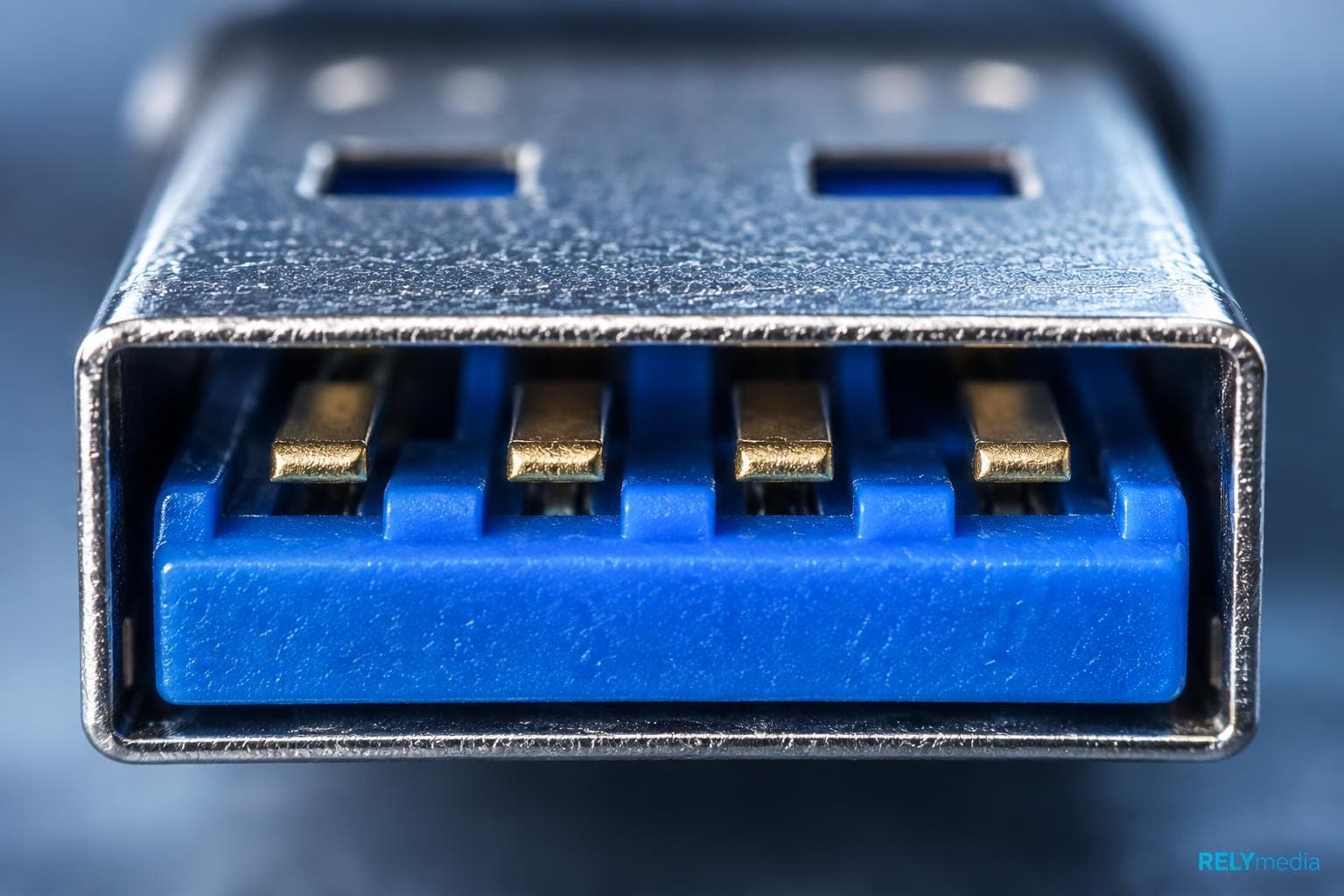
USB 3.0 targets faster data transfer rates and higher transfer capacity. It supports a maximum data rate of 5 Gbps, more than 10 times USB 2.0’s theoretical rate.
Its connector design adds five extra contacts to a SuperSpeed Type-A layout, bringing the total to 9 pins instead of 4 pins. Those 5 extra pins support extra wires that create separate high-speed paths.
USB 3.0 supports full-duplex communication, so data can move both ways at once. This improves data handling for external drives, solid-state drives, card readers, webcams, and video capture devices.
Standard USB 3.0 power output is 5 V at 900 mA (4.5 W), supporting USB-powered devices and portable HDDs.
The naming changed later. The original 5 Gbps SuperSpeed mode is now part of USB 3.2 Gen 1. USB-IF says USB 3.2 absorbed earlier 3.x specifications and includes 5, 10, and 20 Gbps transfer rates. USB4 represents the next-generation USB architecture with much higher bandwidth.
USB 2.0 vs USB 3.0 Speed and Performance
Speed creates the biggest practical difference. USB 2 offers 480 Mbps. USB 3 offers 5 Gbps in its original SuperSpeed mode.
Maximum transfer rate is not real-world data throughput. Protocol overhead, storage speed, file size, computer performance, and connection quality all matter. A slow thumb drive stays slow in a USB 3.0 socket, while an external SSD on USB 2.0 hits a transfer bottleneck.
Large File Transfer Makes the Difference Clear
RAW photos, photo backups, 4K video, GoPro footage, drone footage, and camera shots create data-heavy workloads. USB 3.0 provides high-speed data transfer with greater bandwidth and efficiency for external hard drives, external SSDs, flash drives, 4K webcams, HD cameras, camera equipment, streaming, and video transfers.
Data Handling: Half-Duplex vs Full-Duplex
USB 2.0 uses half-duplex communication, so data shares one path. USB 3.0 uses full-duplex communication with separate pathways. Basic computing tasks rarely expose the difference, but data-heavy applications, live capture, high-speed storage applications, and large file transfers can.
Power Delivery, Power Consumption, and Charging
USB 3.0 provides more bus power than USB 2.0. Still, USB generation alone does not determine charging speed.
Charging depends on the charger, power supply, USB cable, device power requirements, protocol, and connector. USB-C and USB Power Delivery are separate from USB data speeds.
USB-IF states that USB Type-C is not the same as USB 3.2, USB4, or USB Power Delivery. A USB-C product may support those technologies, but the connector alone does not guarantee them.
This matters for charging hubs, portable HDDs, and other high-power, power-hungry devices.
USB 2.0 Cable vs USB 3.0 Cable
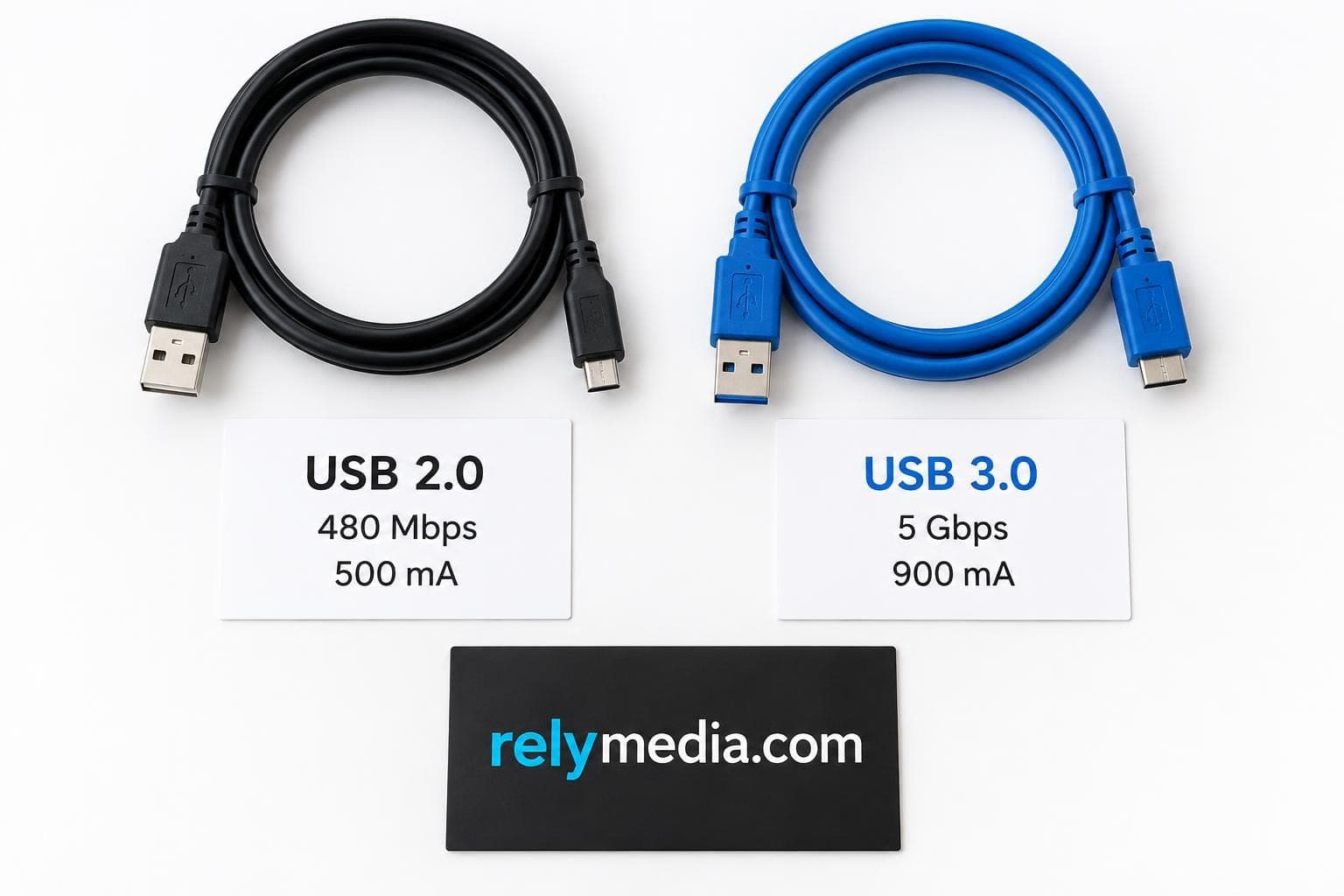
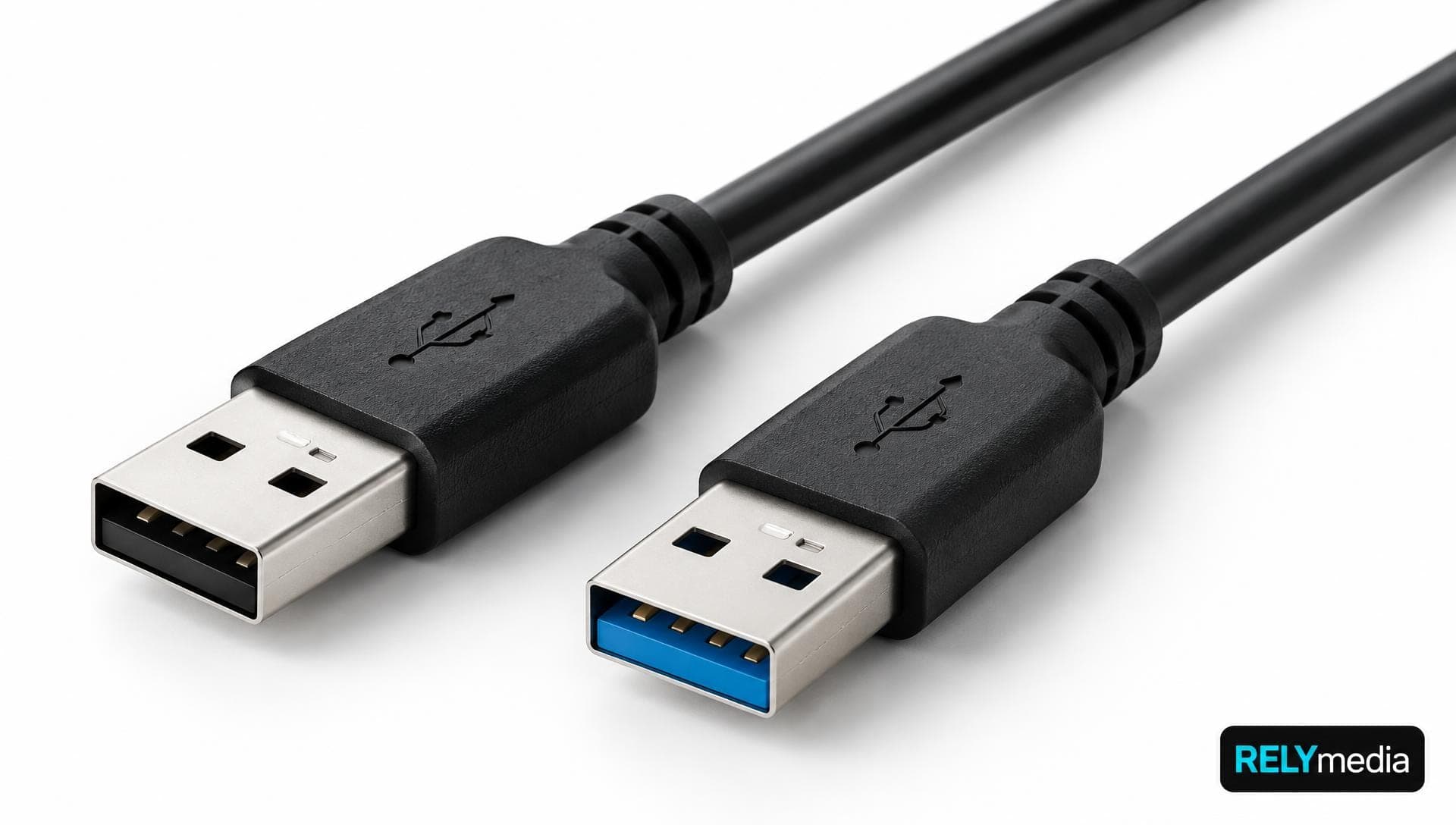
A USB 2.0 cable and a USB 3.0 cable may share a rectangular connector on the host side, but their construction differs. USB 2.0 Type-A commonly uses 4 pins; SuperSpeed USB 3.0 Type-A adds contacts for high-speed transfer.
Common connector types include:
- USB Type-A and USB-A
- USB Type-B
- Mini-USB
- Micro-USB
- Micro-B and Micro-B USB 3.0
- USB-C
A Type-B connector is commonly found on printers. Mini-USB and Micro-USB appear on legacy devices. Micro-B USB 3.0 is wider and appears on some external hard drives.
Both cable and physical compatibility matter. A cable can fit yet still limit connection speed.
USB-A vs USB-C: Connector Type Is Not Speed
USB-A and USB-C describe connector types. USB 2.0, USB 3.0, USB 3.1, USB 3.2, and USB4 describe data capabilities.
A USB-C port can support USB 2.0 data rates, while its cable may support faster standards. USB-IF specifically notes that USB Type-C does not automatically mean USB 3.2 or USB4.
Check the USB specification for the laptop, cable, hub, USB-C adapter, and attached device. USB-C migration has also made USB hubs and adapters useful for laptop connectivity, as modern devices offer fewer Type-A ports.
How to Tell USB 2.0 From USB 3.0

Check Port Color and the SuperSpeed Logo
A USB 3.0 Type-A port often has a blue plastic insert or SS logo. USB 2.0 often uses a black, white, or gray plastic insert.
Port color is only a clue. Microsoft describes blue coloring and the SuperSpeed logo as common identifiers.
Check Device Manager on a Windows PC
Open Device Manager and expand Universal Serial Bus Controllers. Microsoft states that an eXtensible Host Controller (xHCI) supports USB 3.0.
Also check the motherboard ports, laptop specifications, or the manufacturer's documentation.
Backward Compatibility and Device Compatibility
USB 3.0 supports backward compatibility. A USB 2.0 device can usually use a USB 3.0 port, while a USB 3.0 device can often operate through USB 2.0. USB-IF states that backward-compatible USB 3.2 products operate at the lowest common speed capability.
Hardware compatibility does not guarantee maximum performance. A fast external drive through an older hub can drop to USB 2.0 speed.
The Transfer Bottleneck: The Slowest Link Wins
Every part of a data transfer pipeline has a limit:
- USB port
- USB cable
- USB hub
- USB adapter
- USB controller
- USB device
- Storage devices
- Computer setup
If one part supports only USB 2.0, the connection may fall back to that speed. A port upgrade will not fix a slow flash drive, and a device upgrade cannot overcome an older hub.
A fast port cannot rescue a slow device.
USB 2.0 or USB 3.0: Which Should You Use?
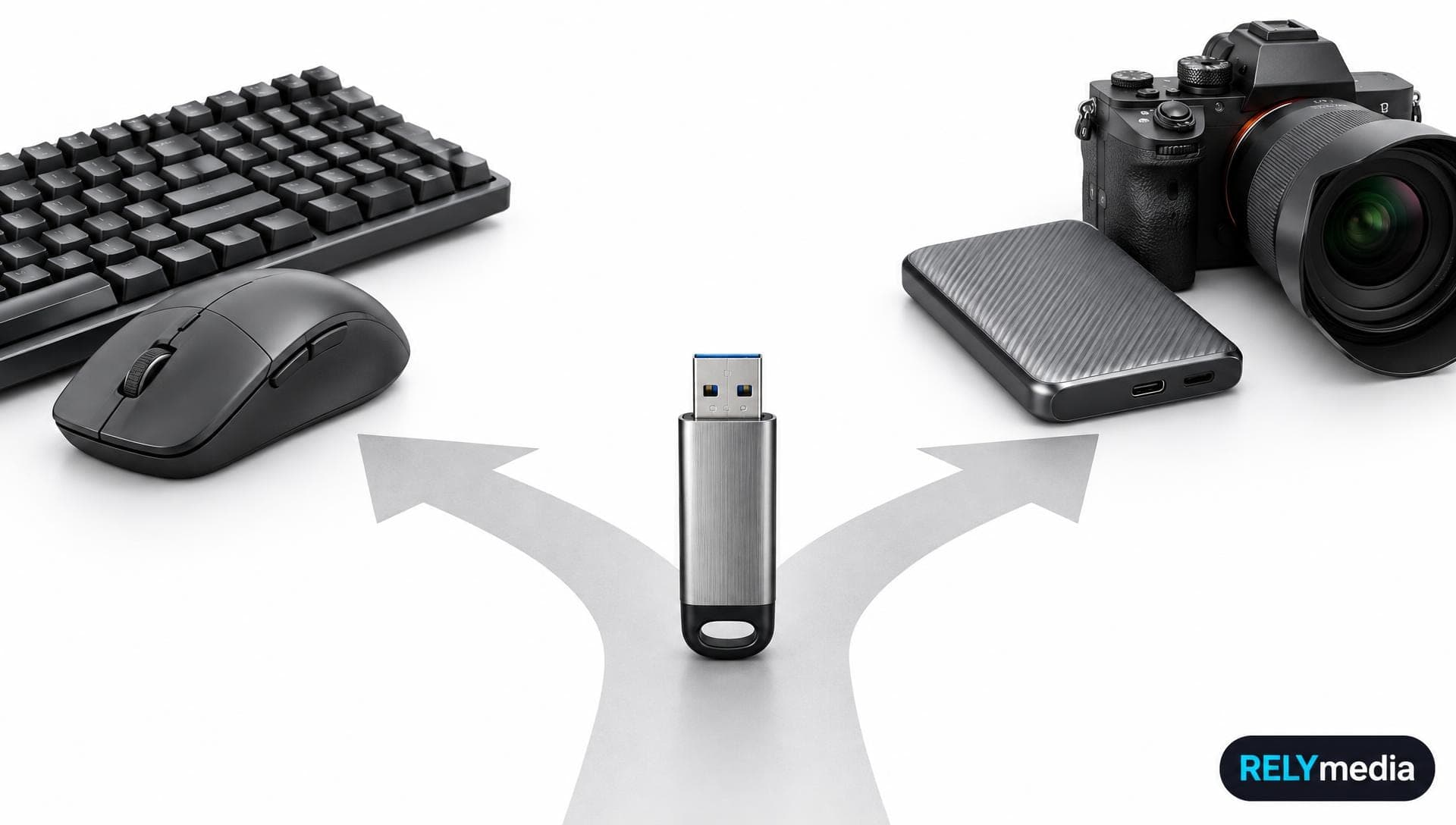
Use USB 2.0 for low-bandwidth applications and basic peripherals. Keyboards, mice, printers, game controllers, and headsets do not need 5 Gbps bandwidth.
Use USB 3.0 for high-speed tasks, including external storage devices, flash drives, external SSDs, external hard drives, card readers, 4K webcams, video capture devices, and large media files.
| Device or Task | Better Fit | Reason |
|---|---|---|
| Keyboard or mouse | USB 2.0 | Low bandwidth |
| Printer | USB 2.0 | Usually enough |
| Gaming setup | USB 2.0 or 3.0 | Depends on accessories |
| Flash drive | USB 3.0 | Faster file transfer |
| Portable hard drive | USB 3.0 | Better throughput |
| External SSD | USB 3.0 or newer | Reduces bottlenecks |
| 4K webcam | USB 3.0 | Higher bandwidth |
| Video capture | USB 3.0 | Better for data-heavy streams |
Future-proofing matters most for storage or media gear. Low-speed peripherals rarely need an upgrade.
Building a branded technology kit?
RELYmedia can combine flash drives, USB accessories, and promotional products into one useful package.
Common USB 3.0 Performance Problems

If a USB 3.0 device feels slow, inspect the entire connection first.
Common causes include:
- USB 2.0 port or cable
- Older USB hub
- Slow flash memory
- Limited SSD or hard drive write speed
- Driver or USB controller problems
- Many tiny files
- Background storage activity
Plug-and-play is convenient, but performance still depends on peripheral connectivity, drivers, and hardware. Drivers can fix controller issues, not upgrade USB 2.0 hardware.
Ready to print your team's name on premium apparel?
Fill in your details and a RELYmedia specialist will come back to you with a custom quote — fast turnaround, no obligation.
- ⚡Same-day response on business days
- 🎨Free design assistance included
- 🚚Rush order & fast delivery available
- 💰Price beat guarantee on every order
Shop custom USB flash drives
See all classic usb flash drives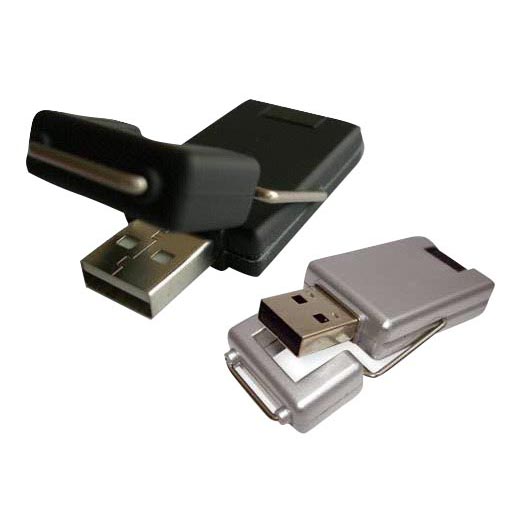
RMC12 Swivel USB Flash Drive
Price on request
View product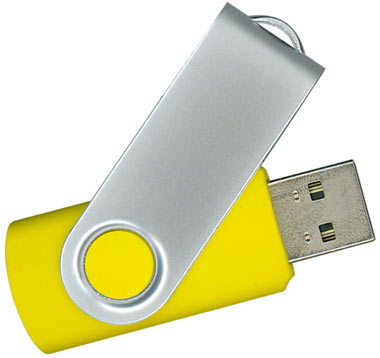
RMC02 Swivel USB Flash Drive
Price on request
View product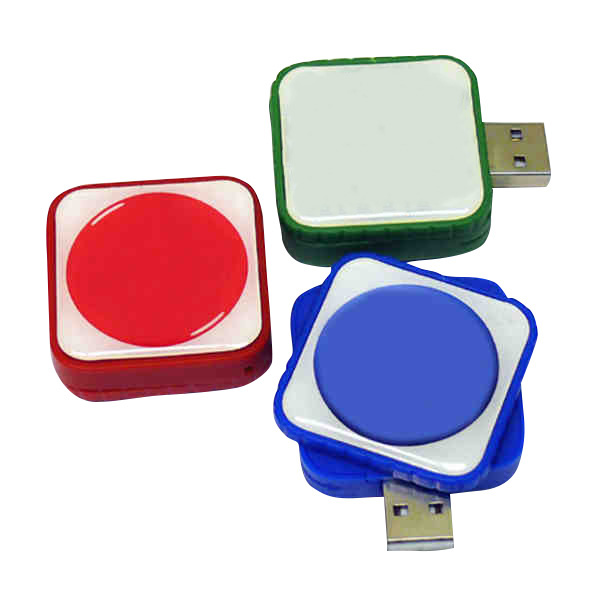
RMC169 USB Flash Drive
Price on request
View product
RMC167 USB Flash Drive
Price on request
View product
RMC166 USB Flash Drive
Price on request
View product
RMC165 USB Flash Drive
Price on request
View product
RMC164 USB Flash Drive
Price on request
View product
RMC163 USB Flash Drive
Price on request
View product
Conclusion: USB 2.0 vs USB 3.0 Comes Down to the Job
USB 2.0 remains practical for basic peripherals, legacy hardware, and low-speed tasks. USB 3.0 is the stronger choice for external storage, high-speed data transfer, large file transfers, cameras, streaming, and modern media gear.
💡Remember: judge the entire USB connection, not one component. Port, cable, hub, controller, device, and storage media all shape performance.
For branded flash drives, USB cables, adapters, and promotional technology, RELYmedia can help connect technical choices with campaign goals.
Ready to build a stronger branded touchpoint?
Contact RELYmedia for promotional USB products that fit how your audience works.
Frequently Asked Questions About USB 2.0 vs USB 3.0
Can a USB 2.0 device work in a USB 3.0 port?
Yes, when the connectors are compatible. The device normally runs at its supported USB 2.0 speed.
Will USB 3.0 work in a USB 2.0 port?
Often, yes. The connection usually falls back to USB 2.0 performance because the lowest common capability sets the speed.
Is USB 3.0 more than ten times faster than USB 2.0?
On paper, yes. USB 2.0 supports 480 Mbps, while original USB 3.0 SuperSpeed supports 5 Gbps. Real-world results are lower because of hardware and protocol overhead.
Does a blue USB port always mean USB 3.0?
No. Blue is a common clue, not a guarantee. Check the SuperSpeed logo, Device Manager, motherboard documentation, or laptop specifications.
Does USB-C mean USB 3.0?
No. USB-C describes the connector. USB-IF states that USB Type-C is not interchangeable with USB 3.2 or USB4.
Is USB 3.0 the same as USB 3.2 Gen 1?
The original 5 Gbps USB 3.0 mode is now known as USB 3.2 Gen 1. USB 3.2 also includes 10 Gbps and 20 Gbps modes.
Why is my USB 3.0 transfer slower than 5 Gbps?
Five Gbps is a signaling maximum, not a guaranteed file transfer rate. Storage speed, cable quality, hubs, controllers, file sizes, and computer performance can reduce throughput.
Should I upgrade from USB 2.0 to USB 3.0?
Upgrade when transfer speed matters. External storage, high-resolution video, large backups, and data-heavy devices benefit most. For a mouse or keyboard, USB 2.0 remains practical.
Shop this
Need custom USB 3.0 flash drives? We print them.
Bulk pricing, three free mockups, real quotes back the same business day.