What Are the Differences Between USB 2.0 and USB 3.0? An In-Depth Look at USB 3.0 Speed and Compatibility
October 19, 2026 · 10 min read
The main differences between USB 2.0 and USB 3.0 come down to bandwidth, data signaling, connector design, power, and intended use.
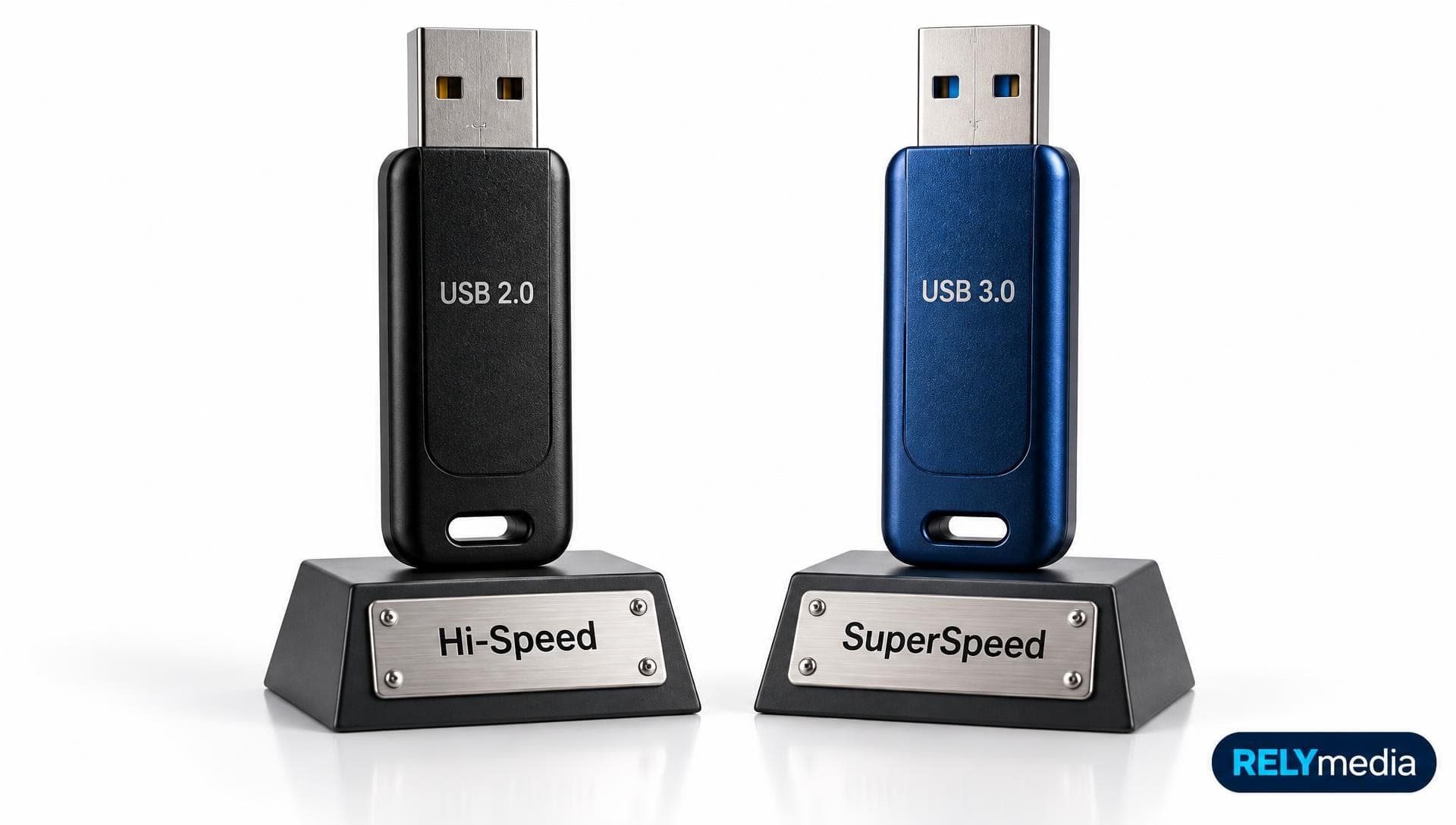
USB 2.0 offers a maximum transfer rate of 480Mbps. USB 3.0 increases the theoretical USB speed to 5 Gbps. That makes USB 3.0 roughly 10x faster on paper. In everyday use, however, USB real-world speed depends on the device, port, cable, controller, and storage hardware.
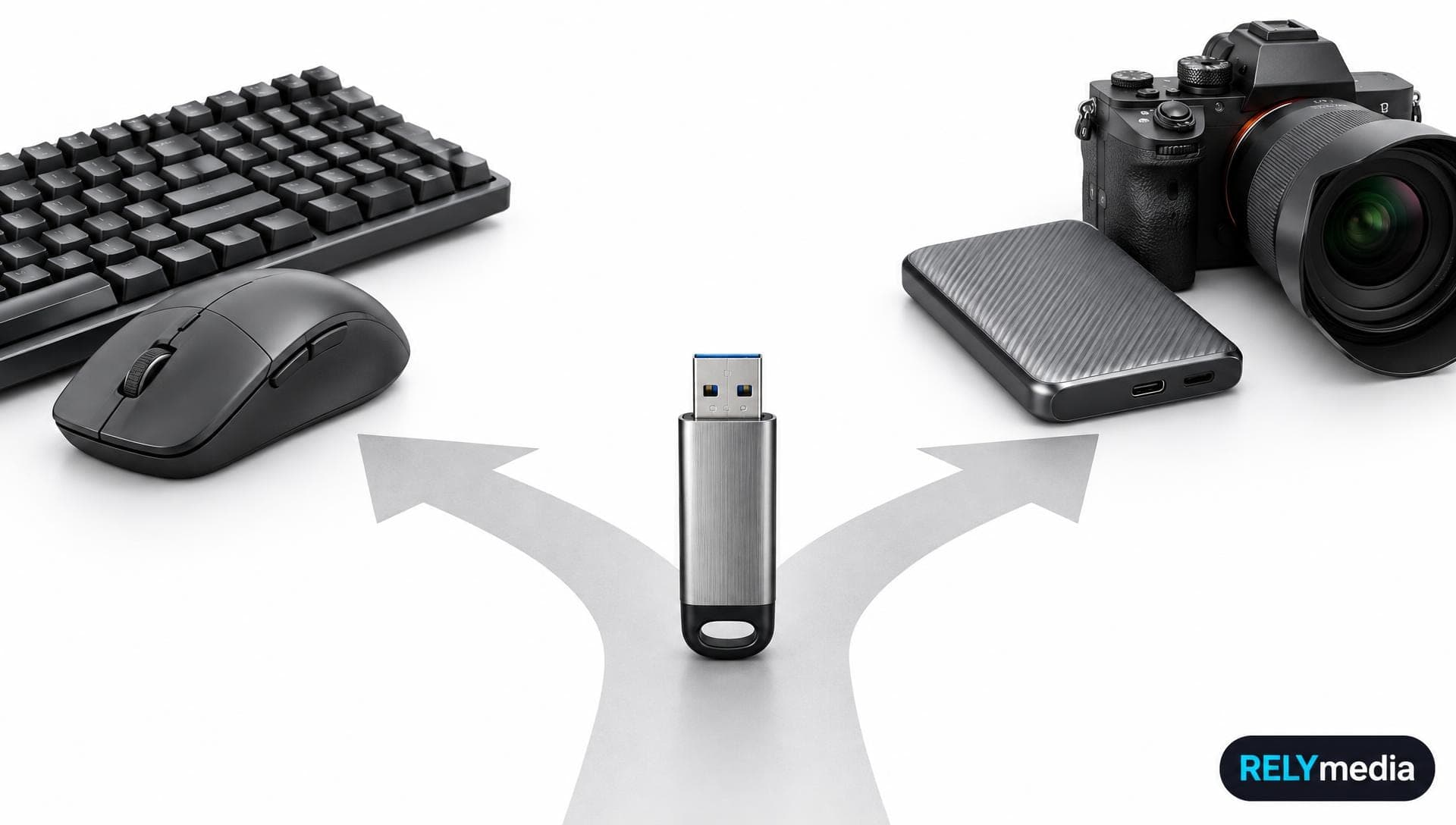
For a mouse or keyboard, USB 2.0 is often enough. For an external SSD, frequent data backup, 4K video editing, or large file transfer, USB 3.0 makes far more sense. In practice, that makes USB 3.0 the stronger choice whenever transfer time affects productivity or the overall user experience.
USB 2.0 vs USB 3.0: Key Differences at a Glance
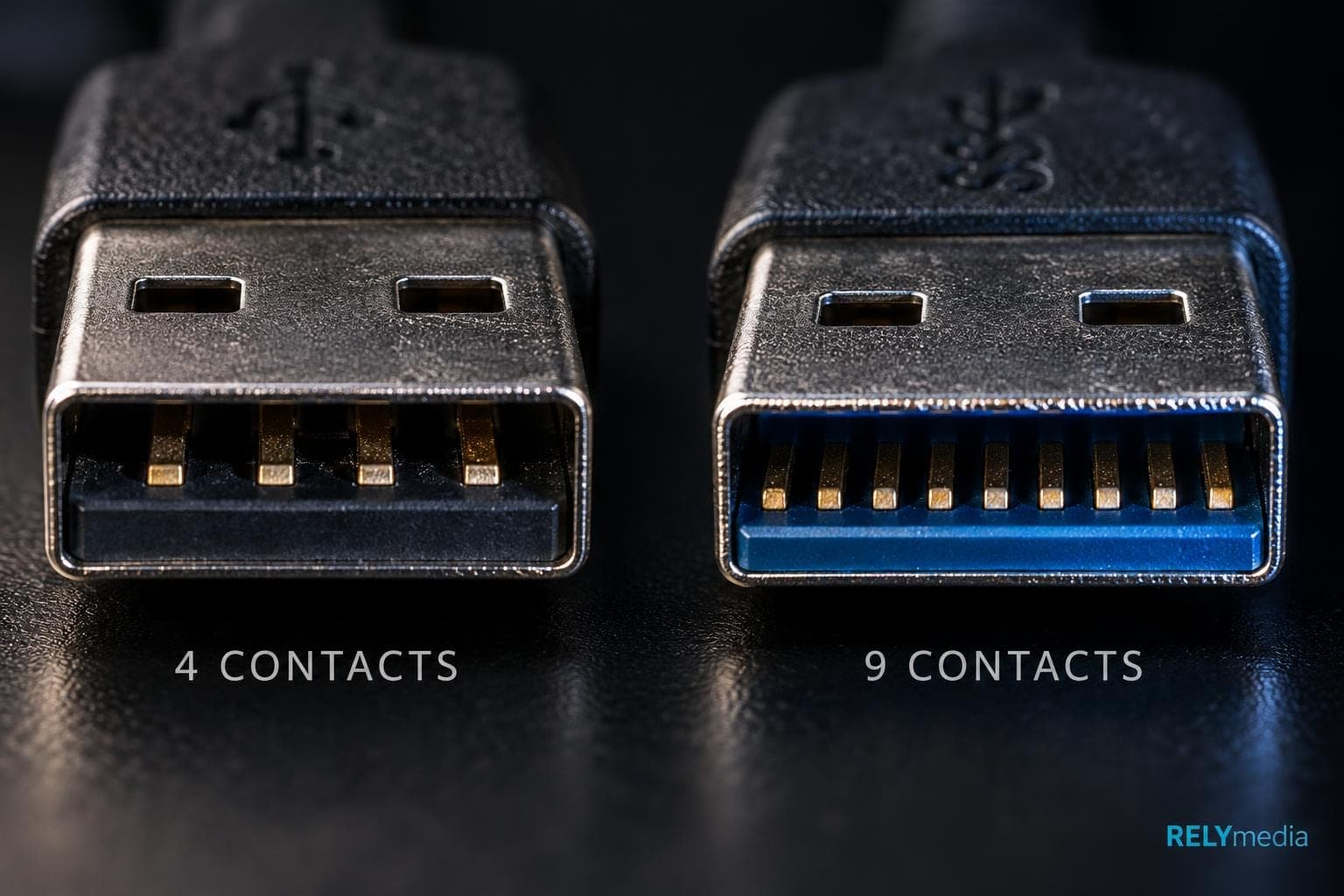
A side-by-side comparison of USB 2.0 and USB 3.0 makes the performance gap easier to see.
| Feature | USB 2.0 | USB 3.0 |
|---|---|---|
| Maximum speed | 480Mbps | 5Gbps |
| Common name | Hi-Speed USB | SuperSpeed USB |
| Standard USB Type-A pin count | 4 pins | 9 pins |
| Data behavior | Shared direction | Full-duplex data transfer |
| Typical configured current | Up to 500mA | Up to 900mA |
| Common applications | Mice, keyboards, printers | Flash drives, external hard drives, SSDs |
| Backward compatibility | Broad legacy support | Works with USB 2.0 at lower speed |
What Is USB? Understanding Universal Serial Bus
Universal Serial Bus, or USB, is a plug-and-play interface for connecting external devices, transferring data, and supplying power. USB technology became popular because one standard could serve many consumer products and peripherals.
The USB evolution began with USB 1.0 at 1.5 Mbps. USB 1.1 increased the transfer rate to 12Mbps. USB 2.0 later reached 480 Mbps, making USB the mainstream standard for storage, document and image transfer, communication, and everyday accessories.
USB 3.0 delivered a much larger speed improvement. Later USB generations expanded bandwidth again.
| USB version or naming scheme | Theoretical maximum |
|---|---|
| USB 2.0 | 480Mbps |
| USB 3.2 Gen 1, formerly USB 3.0 | 5Gbps |
| USB 3.2 Gen 2 | 10Gbps |
| USB 3.2 Gen 2x2 | 20Gbps |
| Original USB4 performance tier | 40Gbps |
| Current USB4 capability | Up to 80Gbps |
USB-IF states that the USB 3.2 specification includes 5Gbps, 10Gbps, and 20Gbps data rates and remains backward compatible with earlier USB products.
USB4 technology builds on the Thunderbolt protocol and now supports up to 80 Gbps. It also lets data and display traffic share available USB4 bandwidth dynamically.
USB 2.0 Speed vs USB 3.0 Speed
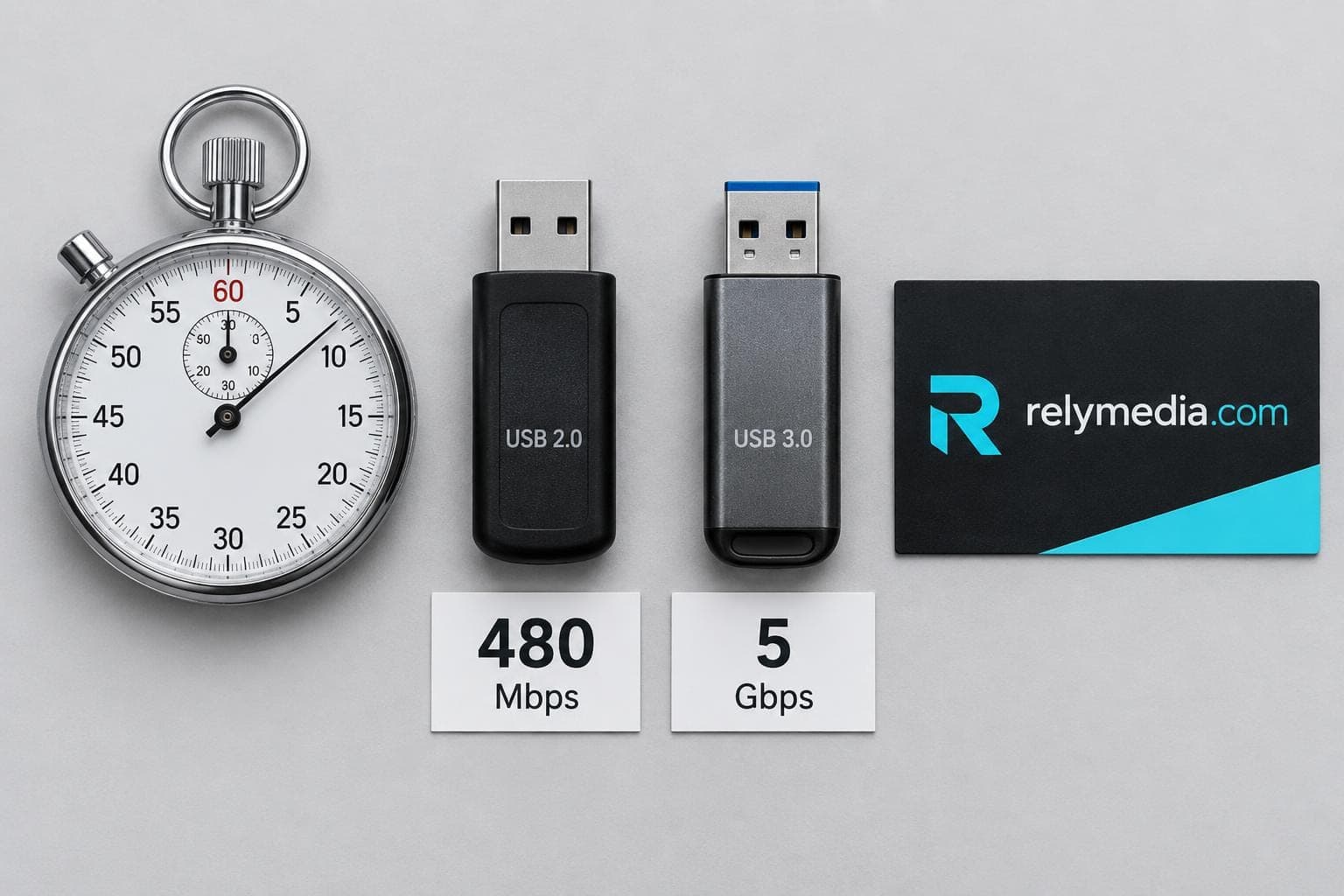
USB 2.0 transfer speed and maximum speed
USB 2.0 speed tops out at 480Mbps. Converted directly, that equals about 60MB/s of theoretical bandwidth. Actual transfer rate is lower because protocol overhead, file structure, controllers, and storage media consume part of the available capacity.
USB 2.0 applications work well for low-speed devices such as keyboards, mice, basic printers, and many webcams. These low-speed peripherals rarely need hundreds of megabytes per second.
USB 3.0 transfer speed and maximum speed
USB 3.0 reaches 5 Gbps, or about 625 MB/s before overhead. This extra USB 3.0 bandwidth improves file transfer speed, backup efficiency, high-speed data transfer, and USB storage performance.
That matters when moving high-resolution images, high-resolution video, large game files, or project folders. It also helps an external hard disk, external hard drive, or high-speed external SSD avoid the severe bandwidth limitation created by USB 2.0.
Why USB real-world speed is lower
The advertised number represents interface capacity, not guaranteed file transfer performance.
Real USB transfer performance depends on:
- Device read/write performance
- USB port specification
- USB cable specification
- Motherboard or host controller
- File size and file count
- Storage technology
- Other devices sharing a USB hub
For reliable compatibility among cables, motherboards, and devices, every link must support the target mode. The slower USB device or connection becomes the performance limitation.
Sending large presentations, videos, catalogs, or media kits?
RELYmedia can help choose branded storage that keeps delivery practical.
USB 2.0 vs USB 3.0 Data Transfer: What Changed?
USB 3.0 did more than increase USB data transfer speed. It changed how data moves through the connection.
USB 2.0 uses a shared signaling path. USB 3.0 adds extra signal wire pairs and differential signaling for SuperSpeed traffic. Separate Rx/Tx channels let the link transmit and receive more efficiently.
This architecture supports full-duplex data transfer and simultaneous read/write activity. You may also see it described as dual-bus transmission or fully-duplex transmission. The result is better communication efficiency for demanding USB 3.0 applications.
The physical USB pin count changed too. A standard USB 2.0 Type-A connector uses 4 pins. A USB 3.0 Type-A connector uses 9 pins, including additional pins for SuperSpeed data signaling.
For real users, those engineering changes translate into improved transfer efficiency, faster data processing, quicker USB backup speed, and better performance with high-speed peripherals.
USB 2.0 vs USB 3.0 Compatibility
USB 3.0 backward compatibility with USB 2.0
USB 3.0 backward compatibility is one reason the standard became so common. A compatible USB 2.0 device can usually work in a USB 3.0 port. A USB 3.0 device can often work through a USB 2.0 port when the connector matches.
The connection will not run at USB 3.0 speed in that second example. It falls to the lowest USB speed supported across the link. USB-IF confirms that USB 3.2 connections operate at the lowest common speed capability.
USB device compatibility, port compatibility, and cable compatibility
Treat compatibility as a chain, not a yes-or-no label.
Check USB device, port, connector, and cable compatibility separately. A connector may physically fit, but the cable or port may support a slower data standard.
USB generation compatibility is strong, but USB interface limitations still matter. Hubs can also affect bandwidth when several USB devices work at once.
USB-A vs USB-C: Connector Type Is Not USB Speed
USB connector types describe physical interfaces. USB standards describe capabilities. Mixing those ideas creates needless confusion.
USB-A is the familiar rectangular connector found on many laptops, desktops, chargers, and motherboards. A USB-A connector can support USB 2.0 or faster USB specifications depending on the hardware.
USB Type-C uses a smaller reversible USB connector. A USB-C connector can support USB 2.0, USB 3.2, USB4, charging, or display connectivity, depending on the implementation. USB-IF explicitly notes that USB Type-C is not the same thing as USB 3.2, USB4, or USB Power Delivery.
That distinction matters when selecting USB devices. A reversible USB-C plug looks modern, but the connector alone does not reveal USB bandwidth.
How to Identify a USB 2.0 or USB 3.0 Port
Start with specifications, then use physical clues.
A USB 2.0 connector in standard Type-A form has four contacts. USB 3.0 Type-A uses nine. That USB pin count provides a stronger clue than color alone.
A blue USB port often indicates USB 3.x. A black USB port or white USB port often appears on older hardware. Manufacturers do not use connector color consistently, though.
For accurate USB port identification, check:
- Device documentation
- Port markings
- Laptop specifications
- Desktop specifications
- Motherboard USB port details
- Cable labeling
USB device recognition only proves that the connection works. It does not prove that SuperSpeed mode is active.
USB 2.0 vs USB 3.0 Power and Charging
Classic USB data standards also define baseline bus power. USB 2.0 typically supports up to 500 mA for a configured high-power device, while USB 3.x increases that limit to 900 mA.
Do not confuse those values with modern USB charging capability.
USB Power Delivery, or USB-PD, is a separate power protocol. USB-IF states that USB PD can deliver up to 240W through compatible USB Type-C cables and connectors.
That means 240W USB power is not automatically provided by a USB 3.0 port. USB power output and USB charging speed depend on the charger, cable, receiving device, and supported power profile.
This distinction matters for power banks, charging cables, monitors, laptops, and other high-wattage power-delivery applications.
When USB 2.0 Still Makes Sense
Newer is not always necessary.
USB 2.0 low-speed devices remain common because the standard offers low cost, mature structure, stability, and high compatibility. A keyboard, mouse, basic printer, or simple peripheral gains little from a 5Gbps connection.
USB 2.0 for daily use makes sense when files are small, transfers are infrequent, or budget matters more than speed. That explains why USB 2.0 remains mainstream across many consumer USB devices.
For basic branded file distribution, USB 2.0 can also be enough when recipients only open documents, PDFs, or lightweight presentations.
When USB 3.0 Is the Better Choice

USB 3.0 high-speed devices shine when waiting costs time.
Choose USB 3.0 for high-speed external storage, efficient data backup, video file transfer, large file transfers, and frequent media work. Content creators handling 4K video editing or high-resolution assets benefit especially from the extra bandwidth.
USB 3.0 external storage also pairs better with modern laptops, high-performance laptops, workstations, and high-end motherboards. For many users, USB 3.0 has become a baseline standard for practical high-speed file transfer.
USB 2.0 or USB 3.0 for a Flash Drive?

A useful USB buying guide starts with workload, not marketing labels.
| Need | Better fit |
|---|---|
| Small documents | USB 2.0 |
| Basic promotional files | USB 2.0 or USB 3.0 |
| Large presentations | USB 3.0 |
| High-resolution media | USB 3.0 |
| Video distribution | USB 3.0 |
| Frequent data backup | USB 3.0 |
| External SSD workloads | USB 3.0 or newer |
For USB port selection and USB device selection, ask three questions: How large are the files? How often will users transfer them? What hardware will recipients use?
A business distributing a few PDFs has different needs from a creative studio shipping video assets. That context should drive the USB upgrade decision.
Ready to print your team's name on premium apparel?
Fill in your details and a RELYmedia specialist will come back to you with a custom quote — fast turnaround, no obligation.
- ⚡Same-day response on business days
- 🎨Free design assistance included
- 🚚Rush order & fast delivery available
- 💰Price beat guarantee on every order
Shop custom USB flash drives
See all classic usb flash drives
RMC12 Swivel USB Flash Drive
Price on request
View product
RMC02 Swivel USB Flash Drive
Price on request
View product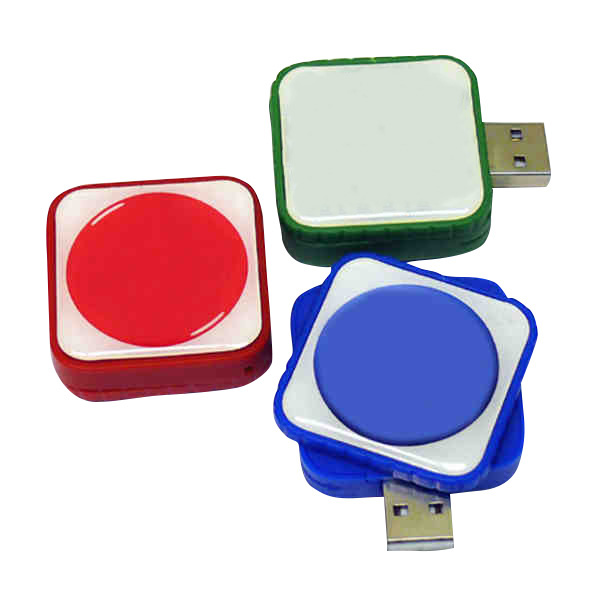
RMC169 USB Flash Drive
Price on request
View product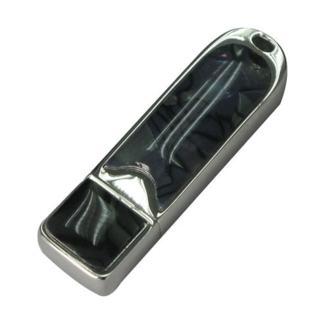
RMC167 USB Flash Drive
Price on request
View product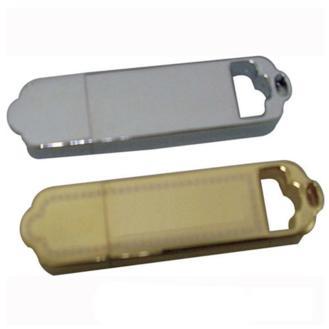
RMC166 USB Flash Drive
Price on request
View product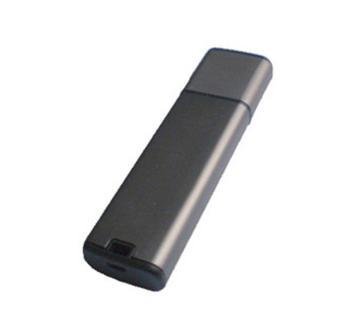
RMC165 USB Flash Drive
Price on request
View product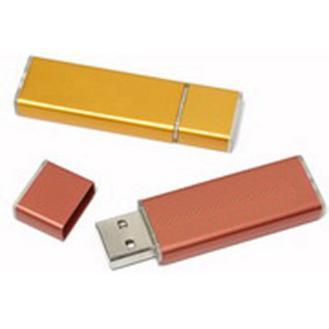
RMC164 USB Flash Drive
Price on request
View product
RMC163 USB Flash Drive
Price on request
View product
Frequently Asked Questions About USB 2.0 vs USB 3.0
Is USB 3.0 really 10x faster than USB 2.0?
In theoretical bandwidth, roughly yes. USB 3.0 offers 5 Gbps, compared to USB 2.0's 480 Mbps. Real transfers will be slower.
Can USB 3.0 work with USB 2.0?
Usually, yes, when the connector and device support backward compatibility. Performance drops to the slower of the two common capabilities.
Is USB-C the same as USB 3.0?
No. USB-C describes a connector. USB 3.0 describes a data specification.
Does a USB cable affect transfer speed?
Yes. An incompatible or slower cable can create a USB bandwidth limitation even when the port and device support faster performance.
Is USB 3.0 better for external storage?
Usually. USB 3.0 data transfer gives external storage more bandwidth, provided the storage hardware itself is fast enough.
Conclusion: Choosing USB 2.0 vs USB 3.0
USB 2.0 and USB 3.0 serve different needs. USB 2.0 delivers 480Mbps, broad compatibility, low cost, and stable performance for basic peripherals and lightweight transfers. USB 3.0 increases bandwidth to 5 Gbps and improves data signaling, transfer efficiency, external storage performance, and large-file workflows.
The best choice depends on the whole connection. Check the device, USB port, cable, connector, and workload rather than judging by a single label. A faster specification only helps when the surrounding hardware can use it.
For organizations ordering branded flash drives or other promotional technology, usefulness matters as much as appearance. RELYmedia helps businesses align promotional products with audience needs, quality expectations, timelines, and practical everyday use.
Ready to choose branded USB products that fit your files and recipients?
Contact RELYmedia to build the project around performance, budget, and deadline.
Shop this
Need custom USB flash drives? We print them.
Bulk pricing, three free mockups, real quotes back the same business day.